
Write personalized plans that your patients can access online and order from anywhere. Patients receive an email or SMS notification prompting them to log in on their preferred device, review their plan, and place an order. Make lab testing and supplementation safer, easier, and more affordable.
A plan includes or can include:
- Supplements and dosage instructions.
- Lab testing recommendations to guide future care.
- Resources like lifestyle recommendations, infographics, recipes, and handouts.
- A message with additional context and care instructions.
Start a new plan from patient profiles, the catalog, product pages, or the templates or resources pages. Look for the Build plan or Add to plan buttons to get started.
This article covers the basics of plan building on Fullscript and includes links to helpful support articles to help you write complete plans efficiently and effectively.
Video: Starting a new plan
We regularly update the platform to improve your experience, so your account may look slightly different than it does in this video.
Using the practice patient tool
All new dispensaries will include a practice patient profile. You can use your practice patient to explore the plan building tool and test workflows before sending real plans. Use your practice patient to:
- Preview the patient experience before going live.
- Get familiar with supplement plans and recommendations.
- Test features such as Fullscript Assist and the currently taking tool.
Within the practice patient profile some key details like name, email, and phone number can’t be edited. The account can’t be deleted or converted to a real patient account either.
Build a plan for a patient
You can add a patient and send them a plan within a single workflow.
You can use Fullscript Assist while building a plan to review patient context and surface relevant insights that can support your decision-making before sending recommendations.
To create a new patient and send them a plan:
- Click Patients in the navigation bar.
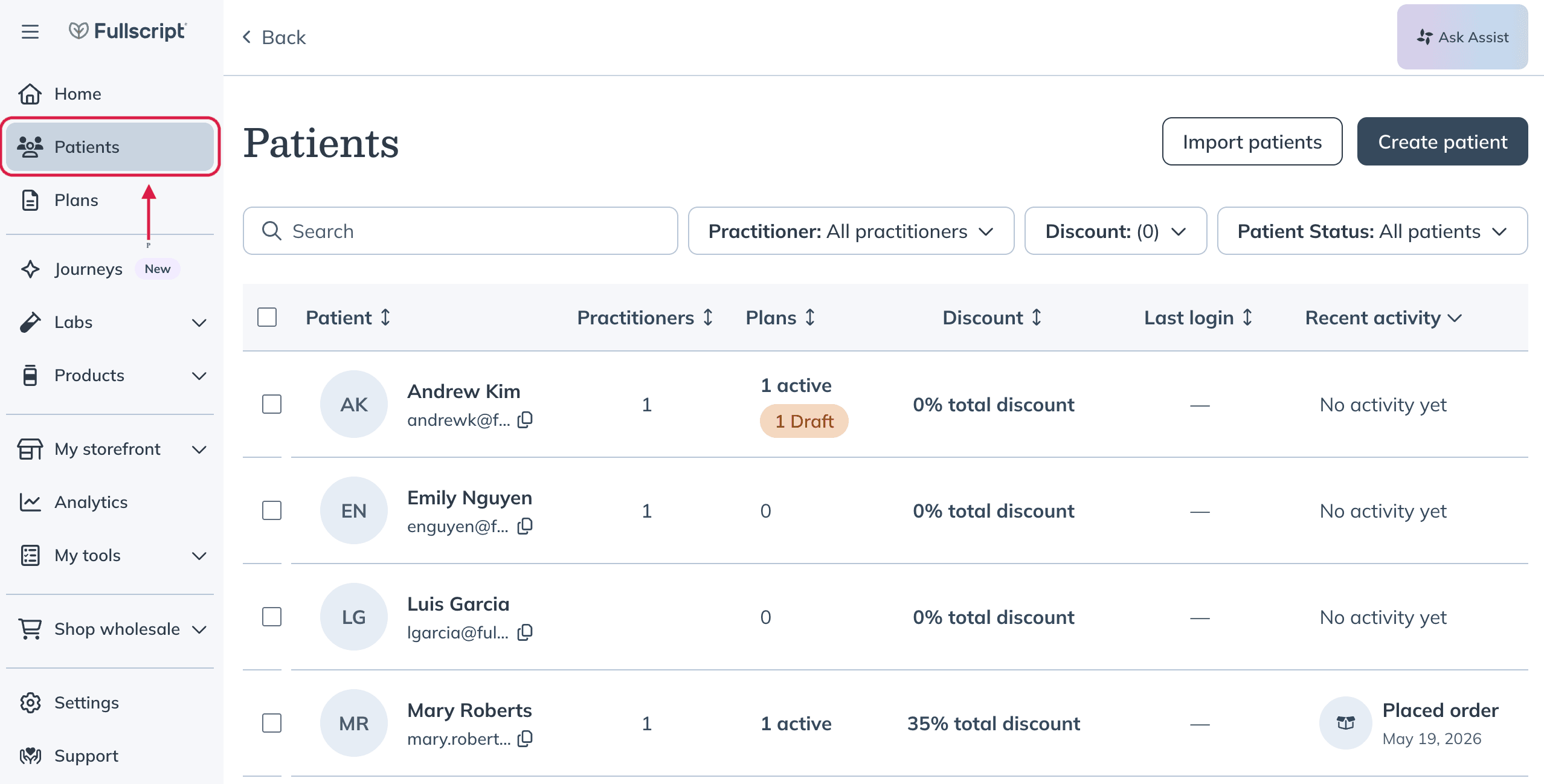
- Click Create patient.
- Fill out the patient’s information in the drawer.
Individual patient discounts are available on profit accounts only. You can set an individual patient discount when adding a patient.
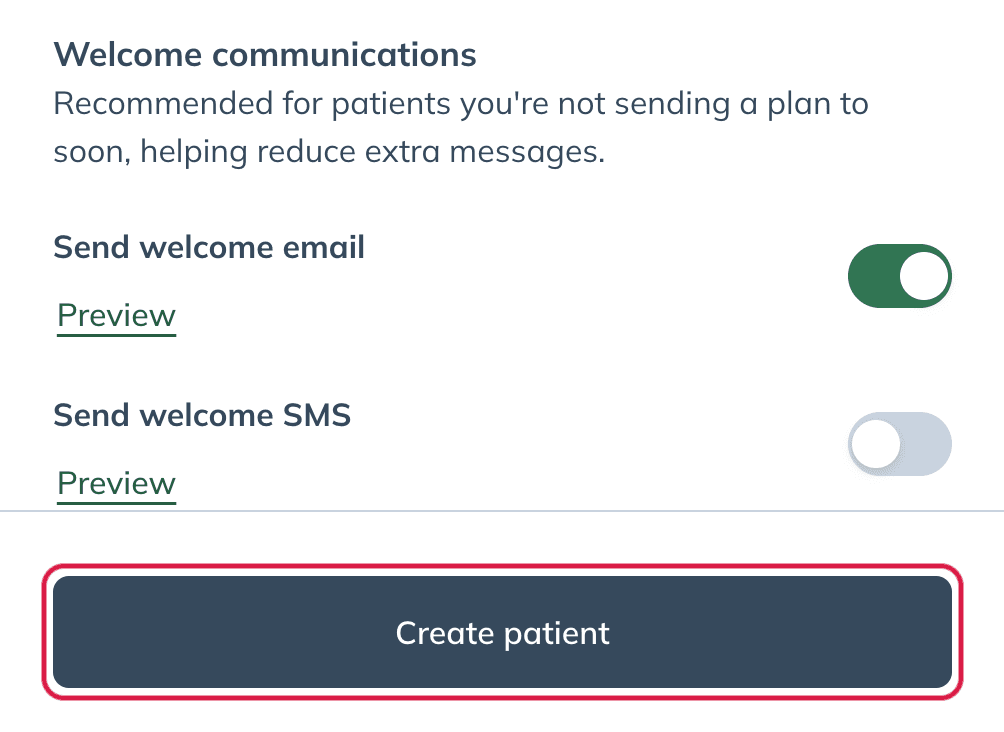
- Click Create patient.
- On the patient profile page, click Build plan in the top right.
- Click Start with products.
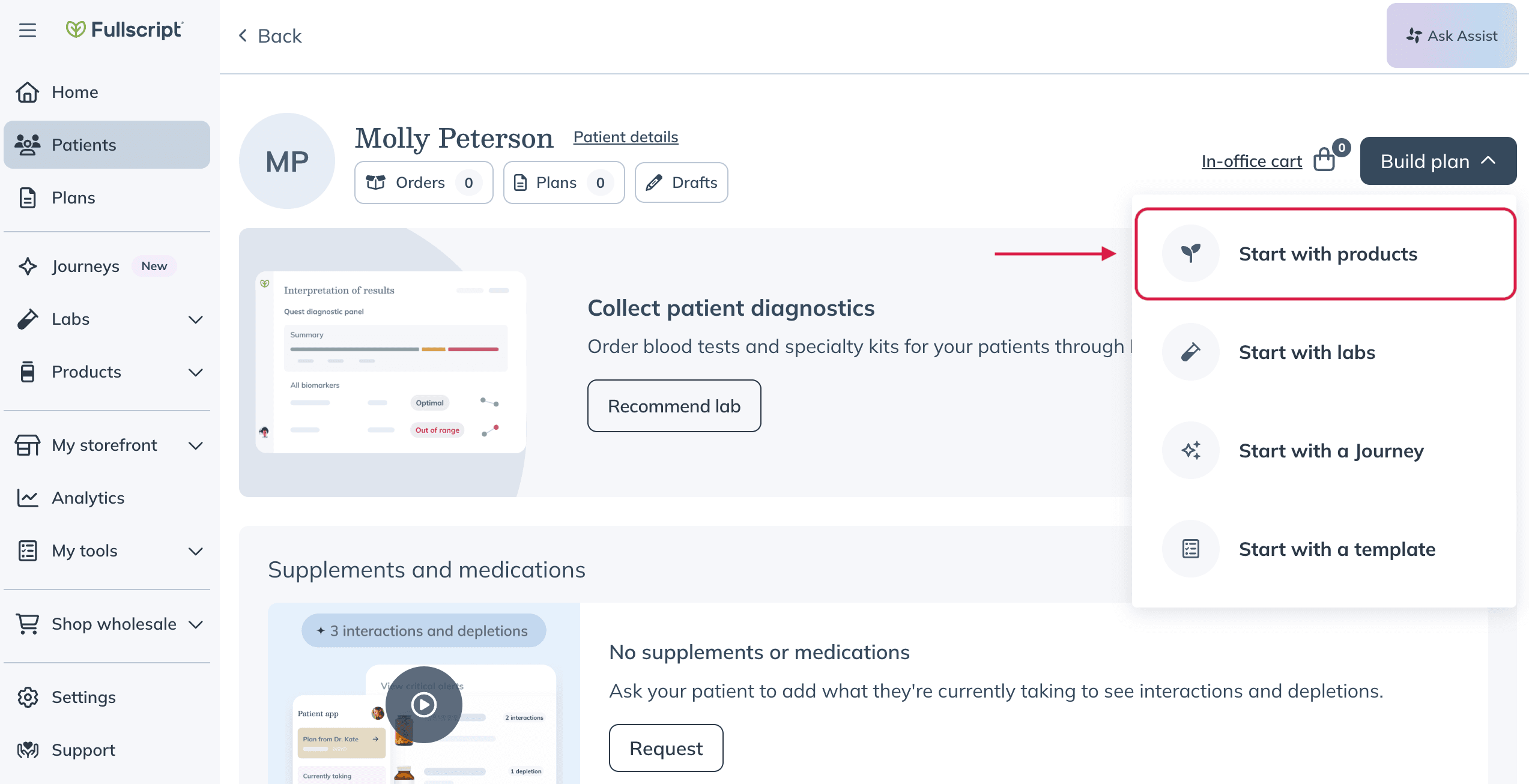
Click Start with labs to build a plan starting from the labs catalog. You can always add supplements and wellness products to the plan later. Patient discounts don’t apply to labs.
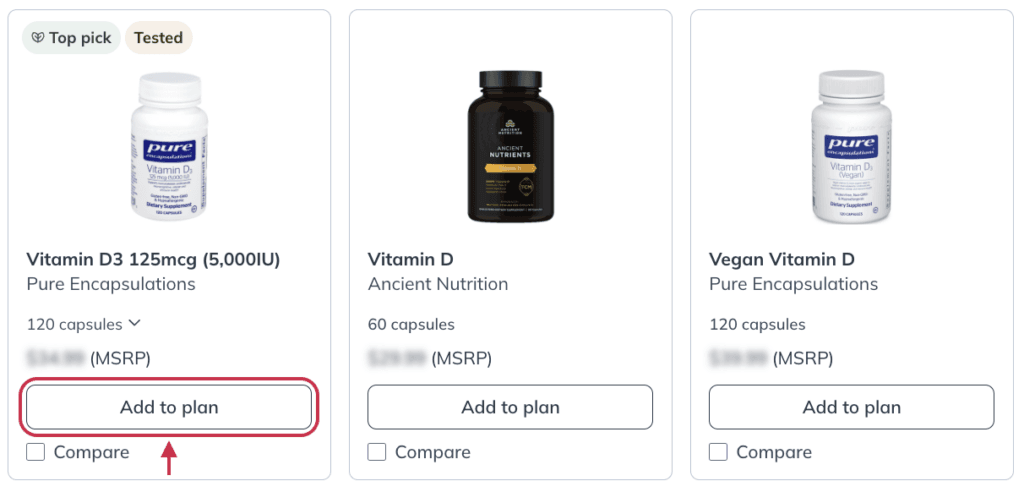
- Use the search bar, categories, and filters to find and add products to the plan.
- Click Add to plan to add a product.
- Click Review in the plan drawer.
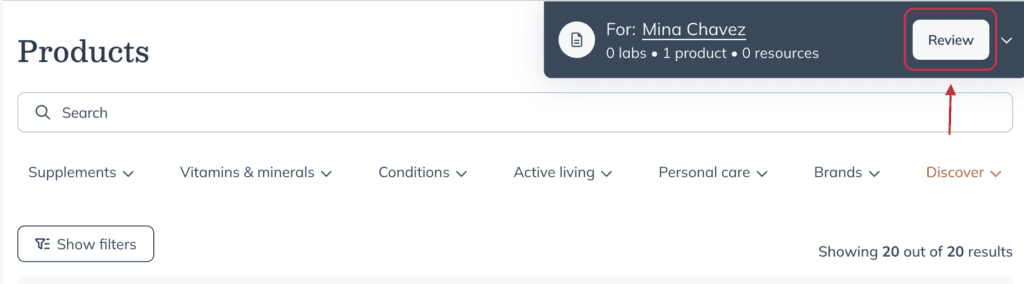
- Add additional resources, lifestyle recommendations, customize dosage instructions, or add a message for your patient.
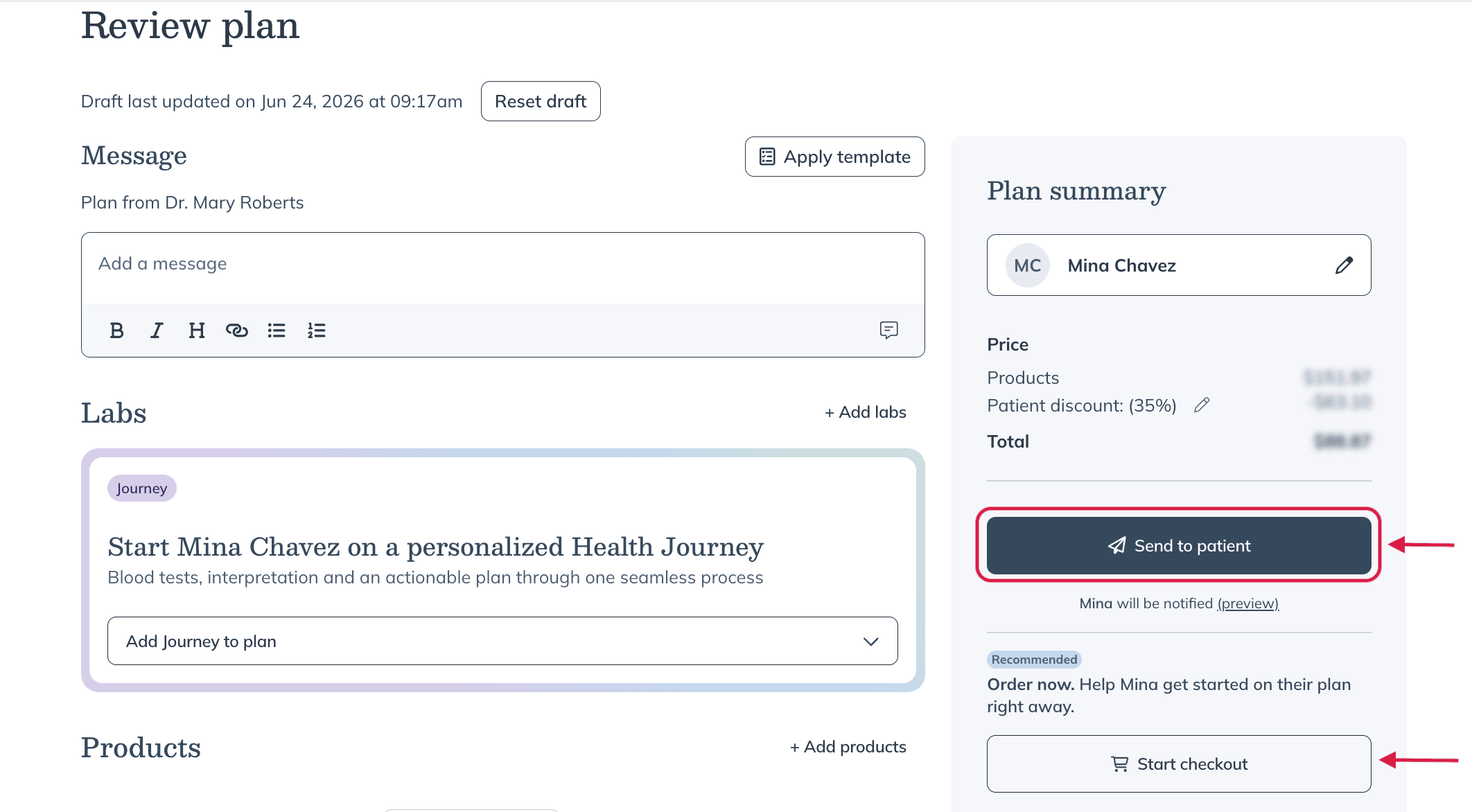
- Click Send to patient to publish the plan, or Start checkout to begin an in-office checkout.
Create a plan starting with products
You can create a plan starting with products and add a patient later.
To start a plan from the product catalog:
- Click Products in the left-hand navigation bar.
If you’d rather start by recommending lab testing, click Labs in the navigation bar.
- Click Catalog.
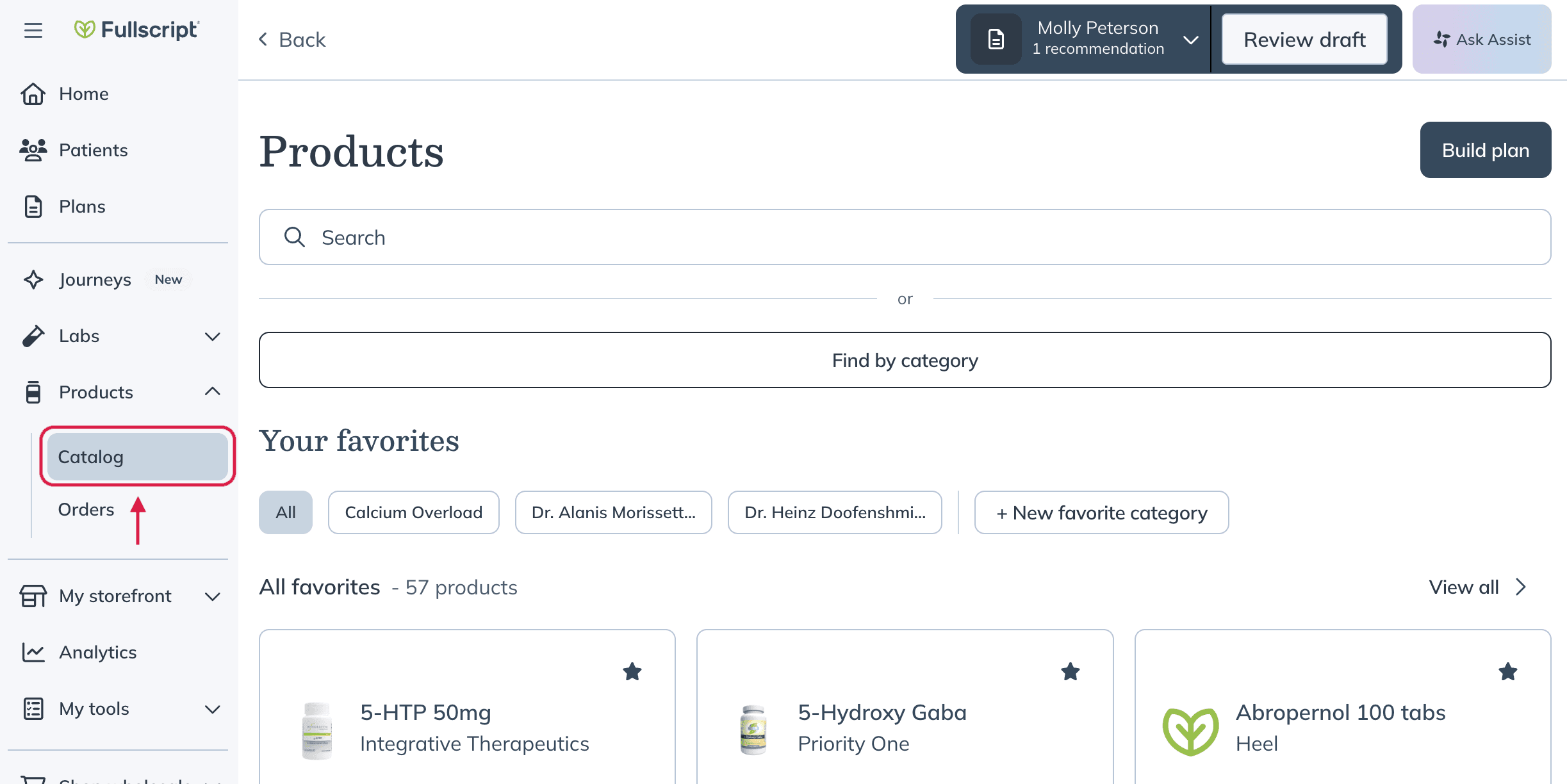
- Use the search bar, categories, and filters to find and add products to the plan.
- Click Add to plan to add a product.
- In the drawer, click New patient to create a patient, or use the search bar to look up an existing patient.
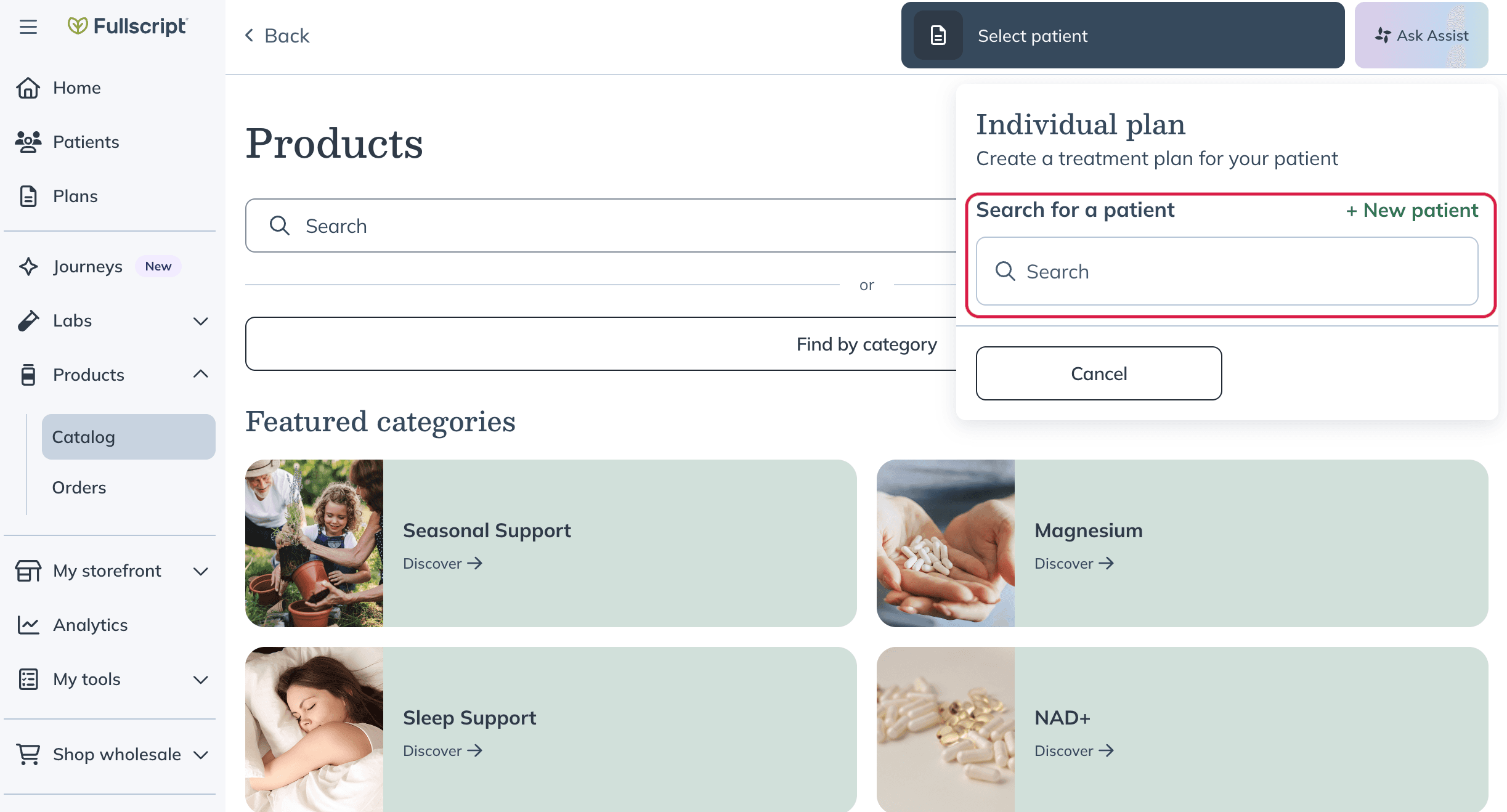
- Click Review draft.
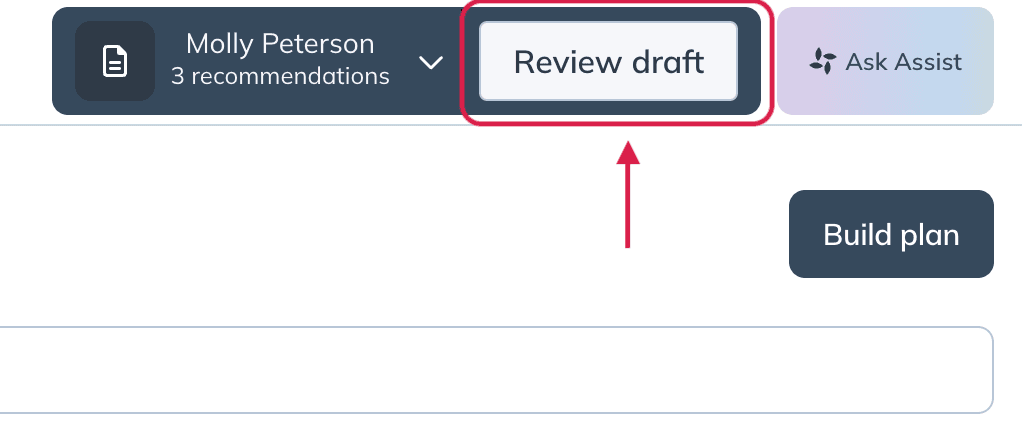
- Add additional resources, lifestyle recommendations, customize dosage instructions, or add a message for your patients..
- Click Send to patient to publish the plan, or Start checkout to begin an in-office checkout.
Creating a plan with lab testing
Sending a plan with lab testing follows similar steps to starting a new plan with supplements. If you already have a preferred workflow in your Fullscript account, keep using it.
If your electronic health record (EHR) or another partner integration is connected to Fullscript, you may also be able to create lab-inclusive plans directly from that integration instead of building them in Fullscript. The patient checkout experience is the same regardless of where the plan is created. See Integrating Fullscript with your EHR software to learn more about supported integrations.
The labs catalog includes a cart that stays visible as you browse, so you can see the tests you've added as you go.
To build a plan starting with lab testing:
- Click Labs > Catalog in the left-hand navigation.
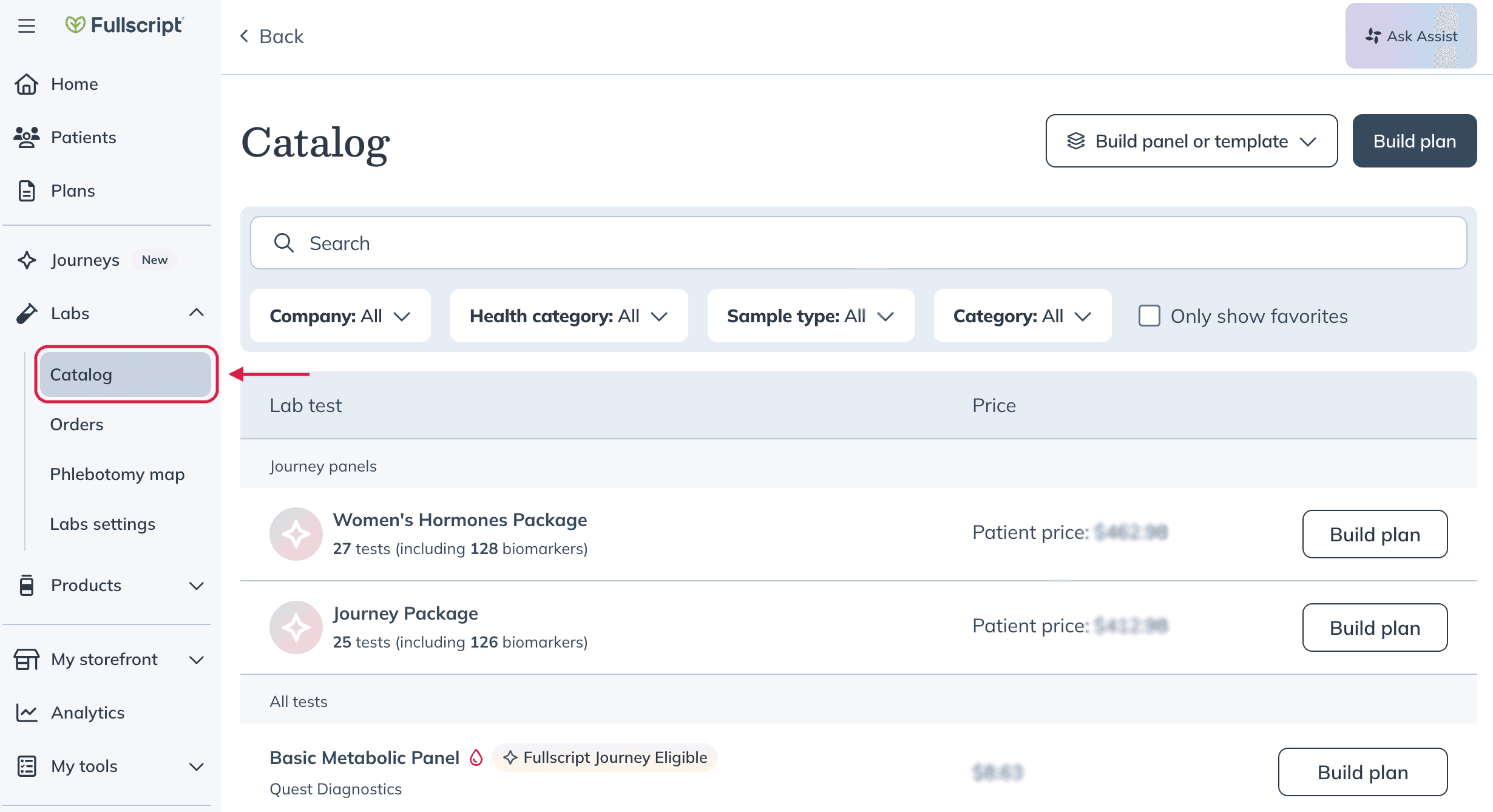
- Search the catalog by test name, lab company, sample type, biomarker, or health category.
- Click Order labs next to the test you’d like to recommend to your patient.
Some labs also have add-ons available.
- In the pop-up drawer, click +New patient to create a patient, or use the search bar to select an existing patient.
- Click Review draft.
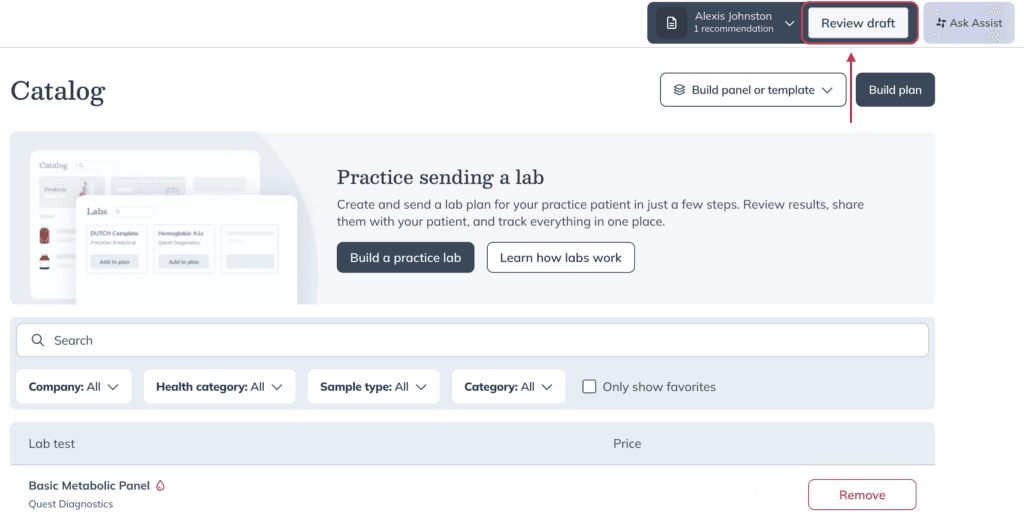
- Add products or additional resources, lifestyle recommendations, customize dosage instructions, or add a message for your patient.
- Optional: Turn on Get results back with the interpretation and plan drafted to include a patient intake for eligible Quest tests. Learn more in Get a drafted interpretation and plan with lab results.
- Click Send to patient to publish the plan, or Start checkout to begin an in-office checkout.
After creating a plan with lab testing, you’ll be able to track patient testing status using the Lab orders dashboard.
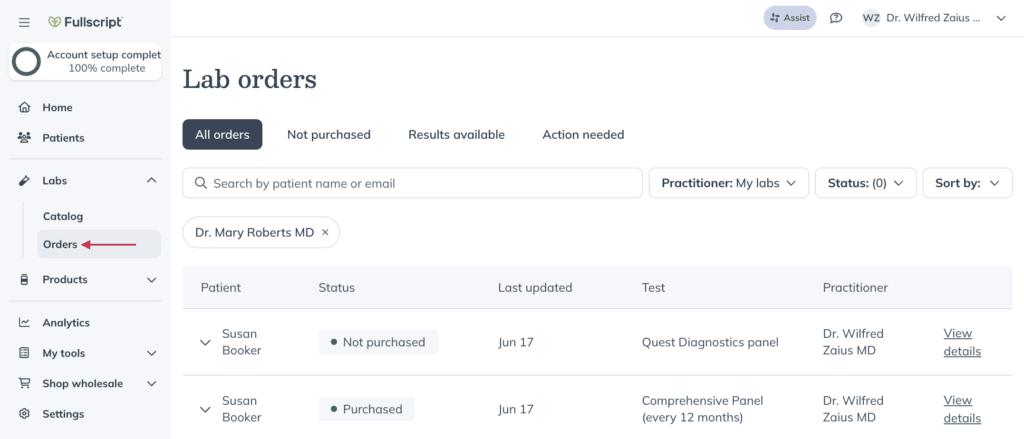
Viewing the Lab orders dashboard.
Creating a plan with a Journey
If you're using Fullscript Journeys, you can start a wellness plan with a Journey panel instead of individual lab tests. This workflow lets you recommend lab testing alongside supplements, resources, and personalized guidance in a single plan.
To build a plan with a Journey:
- Open the patient's profile and click Build plan.
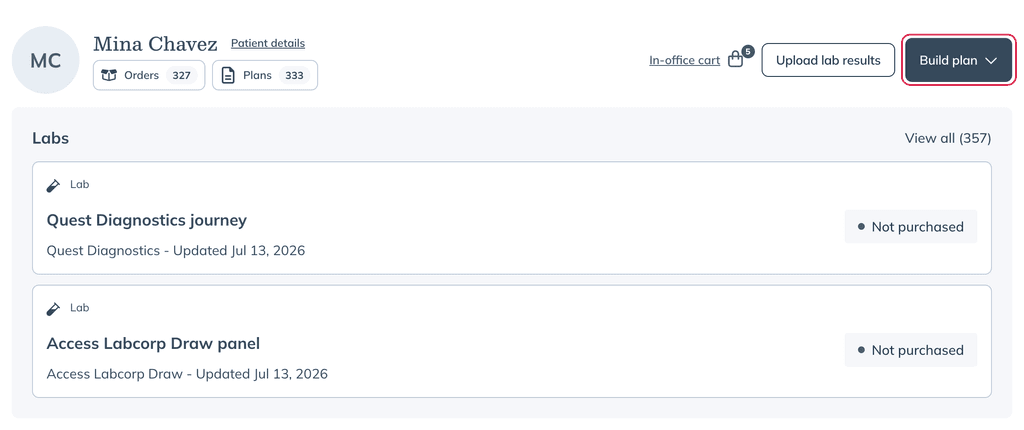
- Click Start with a Journey.
- Select the Journey panel you'd like to recommend.
- Review your selections and continue building the plan.
- Add products, resources, lifestyle recommendations, dosage instructions, or a message for your patient.
- Click Send to patient to publish the plan, or Start checkout to complete an in-office checkout.
The patient receives a single wellness plan that includes the selected journey. After they complete their intake and lab testing, you'll receive their results, along with a draft interpretation and plan to review before sharing them with your patient.
Build a plan from Fullscript-made templates
Fullscript’s Medical Advisory team has created templates using an evidence-informed approach that you can adapt and use to create plans for your patients. You can explore these templates within your Fullscript account.
You can also make your own templates and share them with your colleagues.
To build a plan using a Fullscript-made plan template:
- Click My tools > Templates in the left-hand navigation.
- Under the Made by Fullscript section, select the template you’d like to apply, then click Add to plan.
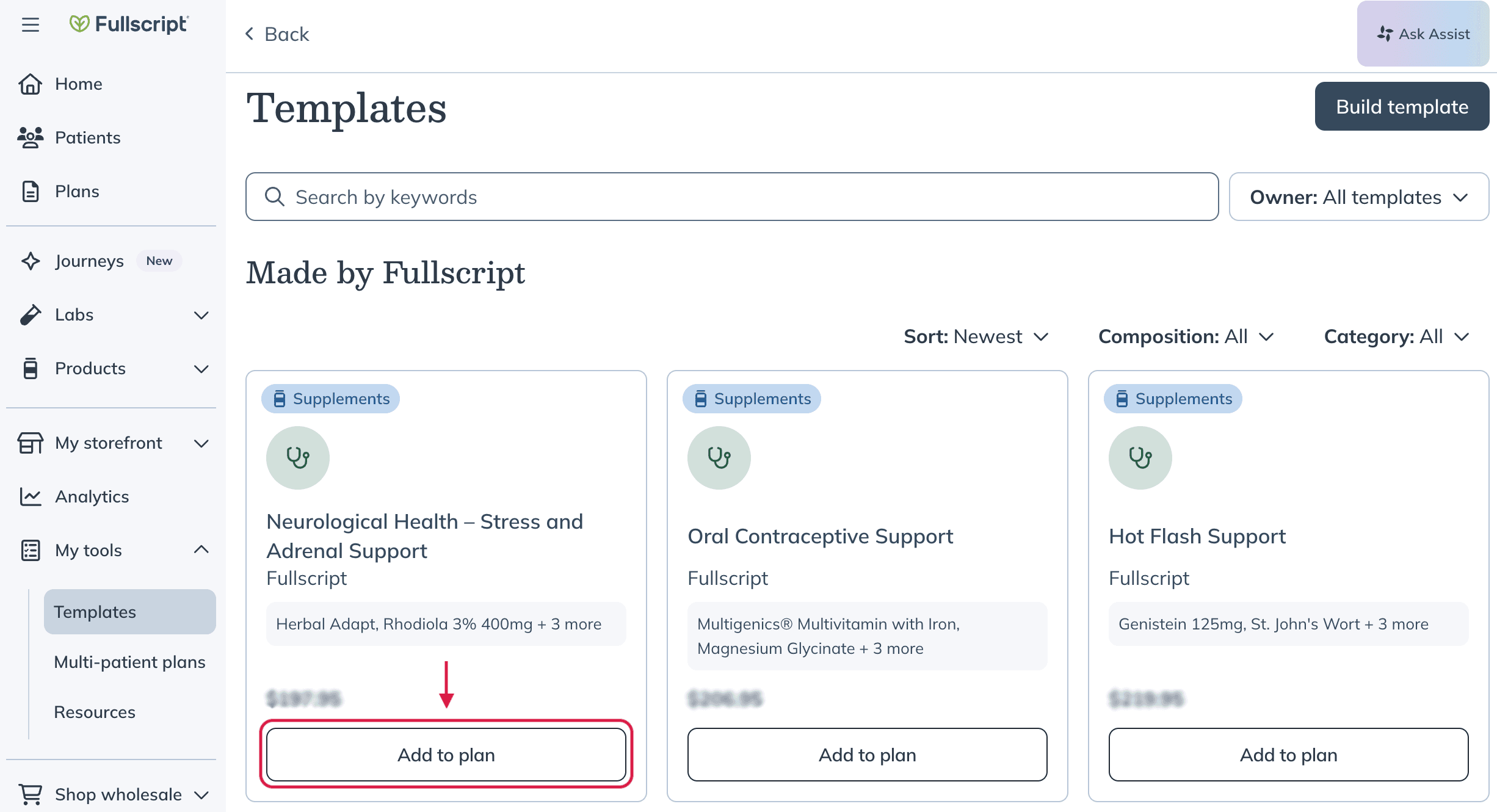
- In the pop-up drawer, click +New patient to create a patient, or use the search bar to select an existing patient.
- Click Review.
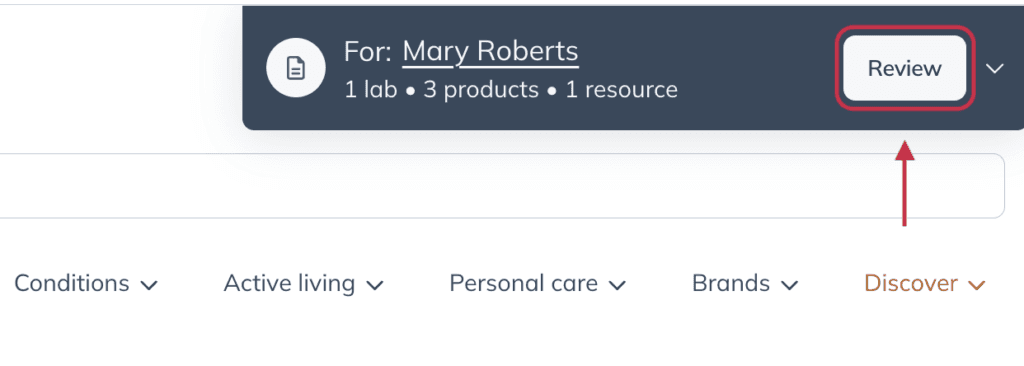
- Add products or additional resources, lifestyle recommendations, customize dosage instructions, or add a message for your patients..
- Click Send to patient to publish the plan, or Start checkout to begin an in-office checkout.
Reviewing a plan
After clicking Review draft, you’ll be directed to the Review plan page. This is where you can refine and finalize your plan, and it’s the final step before sending the plan to your patients.. You can add additional important information, messages, labs, and resources from this page.
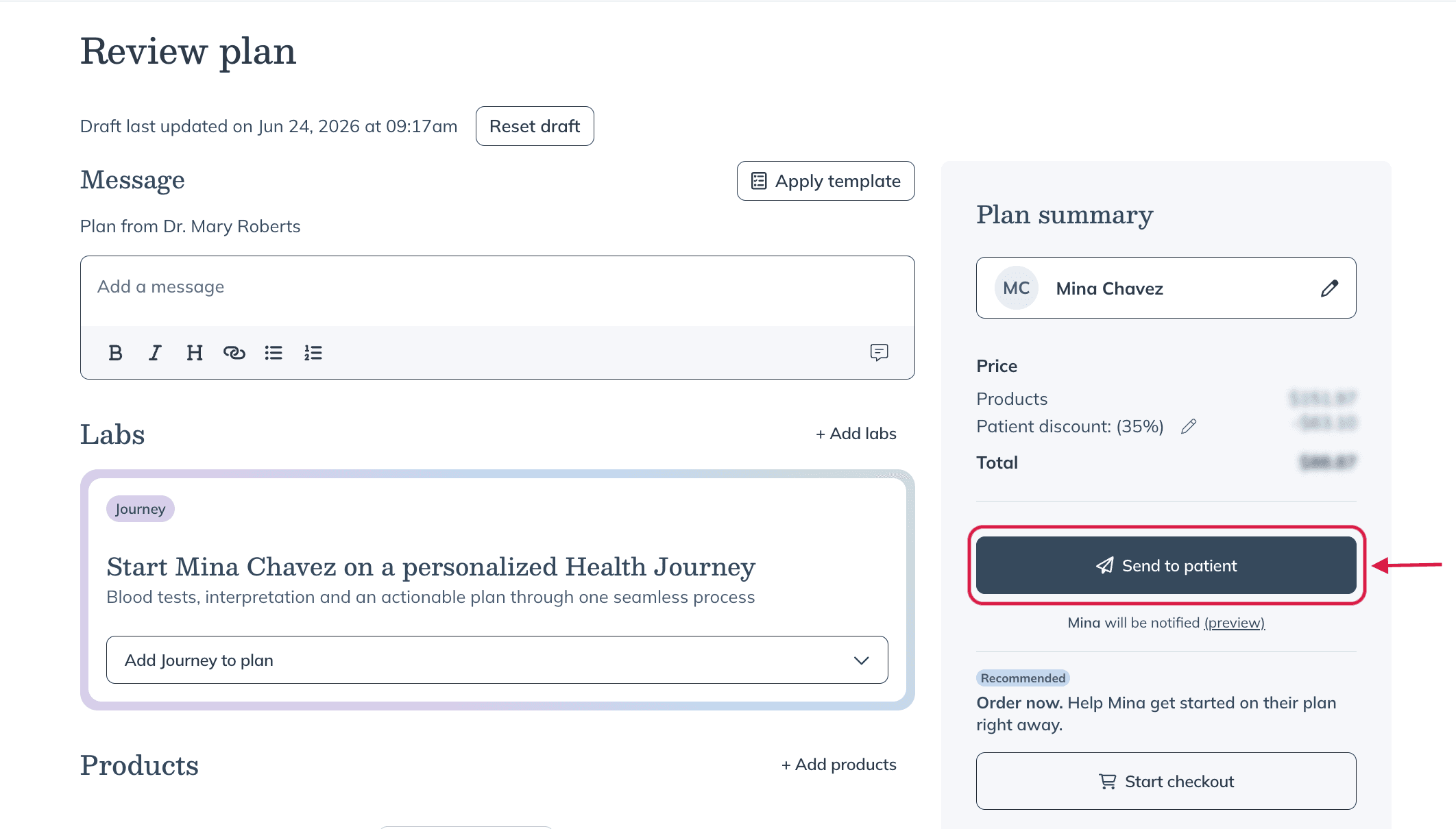
The Review plan page with a plan for a single patient.
Click Apply template to add a template before finalizing the plan.
Add a message or apply a snippet
You can add a message for your patients at the top of the Review plan page using the text editor. These messages can also be saved as snippets so you can reuse them for future plans.
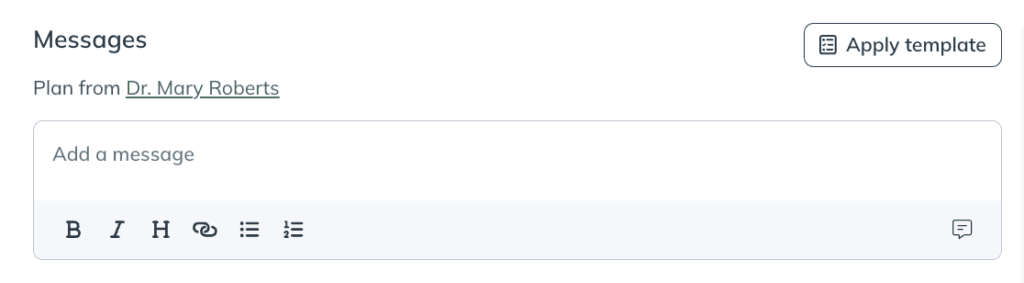
The text editor where you can compose messages and save snippets.
Add lifestyle recommendations
Lifestyle recommendations let you add personalized nutrition, movement, sleep, and stress management guidance alongside supplements and labs in the same plan.
Add resources, labs, or products
If you’ve forgotten something while building the plan, you can click + Add resources, +Add labs, or +Add products to re-enter the catalog, find what you need, and add it to the draft. Just click Review again when you’re ready to come back.
Setting dosage instructions
A key part of the Review plan page is setting product dosage. While each product includes dosage instructions from the manufacturer by default, you can adjust those instructions based on the needs and preferences of your patients.
The
at the bottom of the plan instantly calculates ingredient totals in real-time as you add or remove items or adjust the dosage on selected products. Save time, easily adjust the plan to get the precise range of ingredients you’re looking for, or get reassurance that your daily consumption totals are correct.
Resuming work on a draft plan
If you leave a plan before finishing, your draft is saved so you can pick up where you left off.
You can have one draft plan per patient at a time.
To find a draft plan for a specific patient:
- Click Plans in the left-hand navigation bar.
- Select Drafts in the toggle menu.
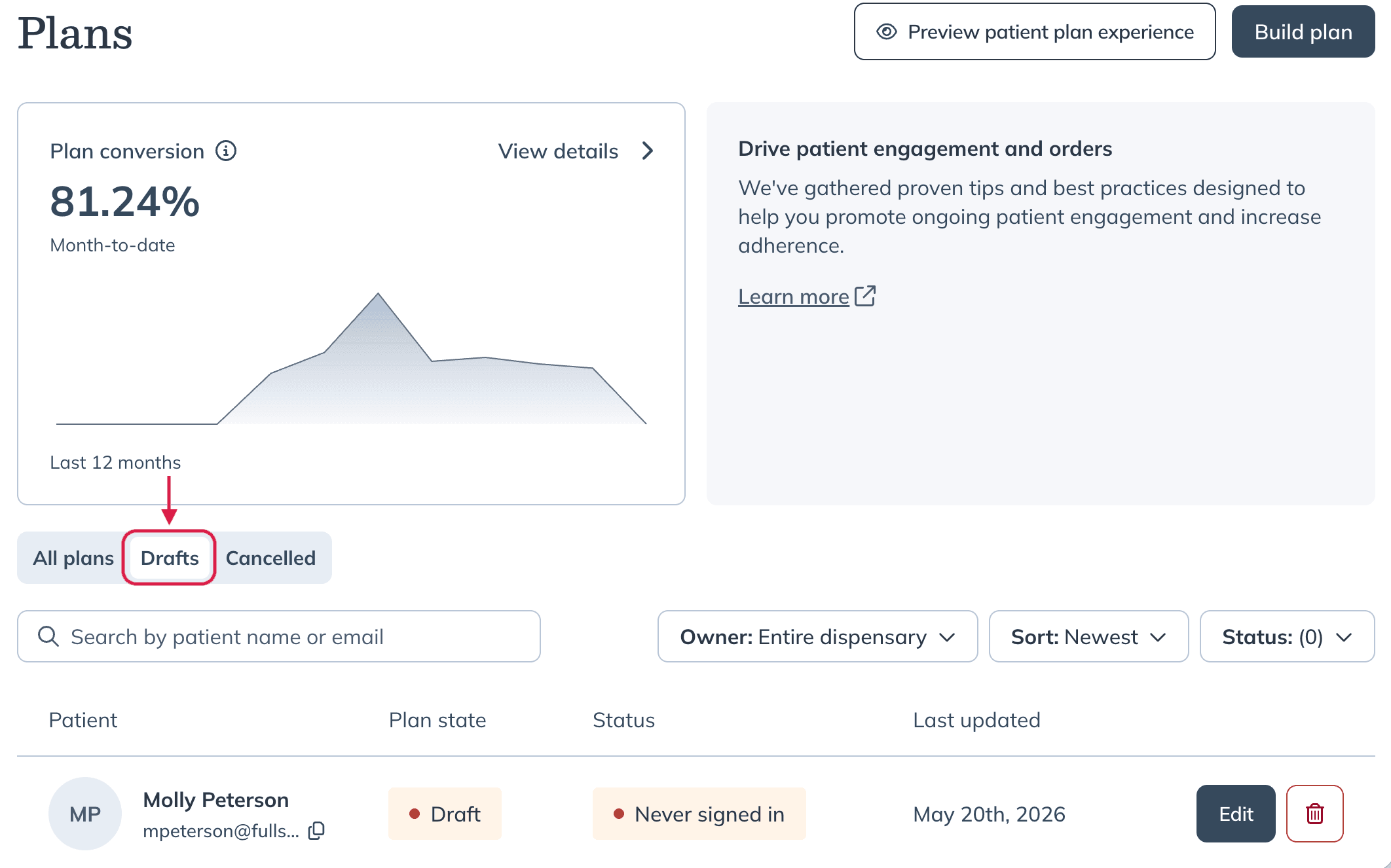
- Search for the patient you’d like to continue editing, and click Edit.
- Add labs, products, lifestyle recommendations, or resources on the Review plan page.
- Click Send to patient.
Practitioners will receive a notification in their practitioner hub for any incomplete and unsent drafts.
Sending plans to patients
When you’re ready to send the plan to your patient, click Send to patient on the Review plan page.
You can also send the plan to your patient and place their order in-office at the same time. To do this, click Start checkout below Send to patient.
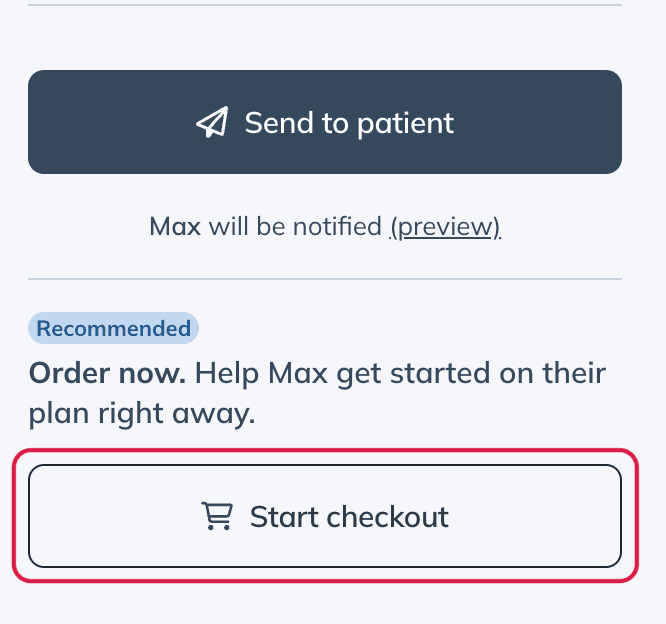
Accessing In-office checkout from the Review plan page.
Click Preview to see the patient’s experience from receiving their plan notification through placing their order.
When you send a plan to a patient, they’ll be notified via email and, if they’ve provided their mobile phone number, via text message. They’ll be prompted to log in to their account to view their plan details and place their order.
Patients who’ve downloaded the Fullscript mobile app also receive push notifications.