
When you send an eligible Quest Diagnostics or Access Medical Labs panel to a patient, you can include a patient intake so you receive a drafted interpretation and plan with their results. Review and edit the draft before deciding what to share with your patient.
Turn on drafting for a single lab order
You can turn on drafting while reviewing a plan before sending the lab to your patient.
- Add an eligible Quest Diagnostics or Access Medical Labs panel to your patient’s plan.
- Continue to the review step.
- In the lab section, turn on Get results back with the interpretation and plan drafted.
- Optional: Select Preview questions to see the questions your patient will receive.
- Review the plan and click Send to patient.
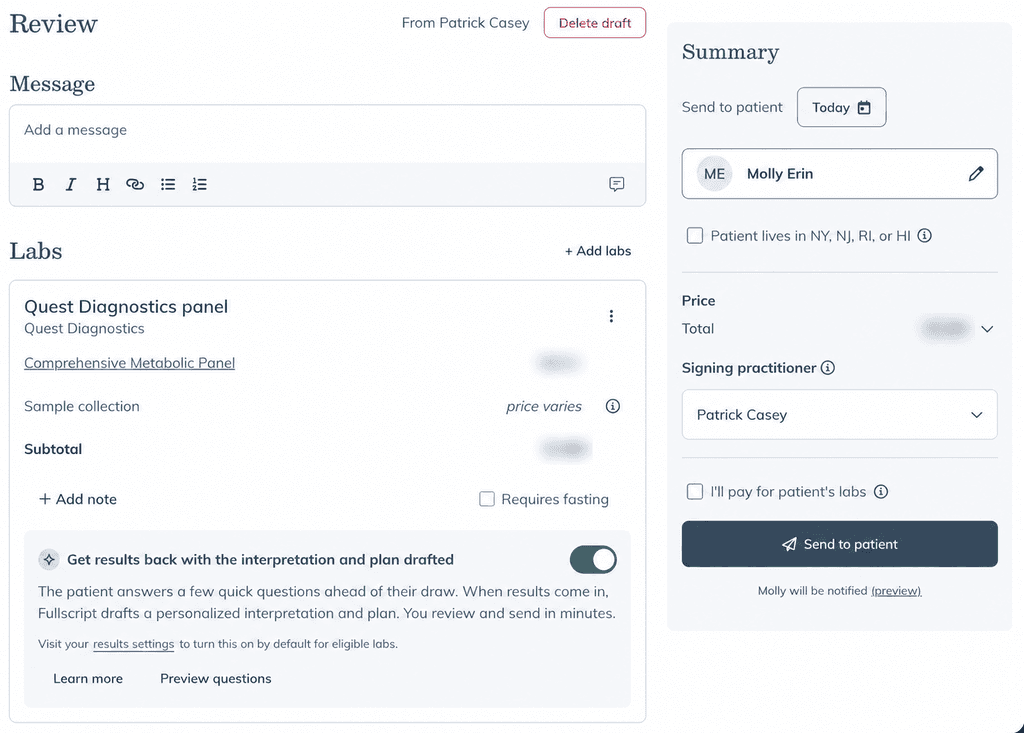
You can’t turn on Get results back with the interpretation and plan drafted after you send the order. If you forget to turn it on, you can still draft the interpretation and plan manually when results are available, with Fullscript Assist available to help.
Turn on drafting by default for eligible labs
You can turn on drafting by default for all eligible labs from your lab settings.
- Go to Labs > Lab Settings.
- Select Results.
- Find Automatically draft the interpretation and plan for eligible labs.
- Turn on Enable for all eligible labs.

With this on, drafting is turned on automatically when you add an eligible lab. You can still turn it off for an individual order before sending it.
What your patient sees
When you send an eligible lab with drafting turned on, your patient sees a Complete your health questionnaire step before their sample collection. The questionnaire asks a few quick questions about their health. Fullscript uses their answers and lab results to draft the interpretation and plan for you to review.
To see the questions before you send the lab, select Preview questions in the lab section of the review step.
Review the drafted interpretation
When your patient’s results are ready, the results review page includes a drafted Summary and a drafted note for each health area. Review and edit these drafts before building the plan.
- Open your patient’s results.
- Review the Summary, the letter your patient receives. Select the pencil icon to edit it.
- Under All biomarkers, select each health-area tab to review its drafted note. Select the pencil icon to edit a note.
- Continue to build the plan.
For more patient details, select Patient quick-look on the patient card.
If you continue before reviewing every health-area note, you’ll be prompted to review the remaining notes. Select Review notes to return to them or Build plan anyway to continue.
When you continue, the plan opens with a drafted message and lifestyle recommendations already added. Review them, add any products or other items, and send the plan to your patient.
After you send the plan, you can still edit the Summary and health-area notes, or edit the plan and add products and labs. Select Update plan to send your changes, and your patient gets an email.