
You can add patients to your dispensary by importing a patient list, inviting patients individually, or sharing your Fullscript storefront so patients can sign up themselves.
Your storefront gives patients a place to explore the protocols and collections you share and create an account when they’re ready to order. Learn more in Getting started with your Fullscript storefront.
Once added, patients may also be able to share health information, such as what they’re currently taking, lab uploads, wellness score check-ins, or wearable data, depending on available features and sharing settings.
Storefront visibility and catalog access are separate settings. A public storefront lets visitors browse your published collections, public protocols, and shared products before signing in. Open catalog access determines whether signed-in patients can browse the full Fullscript catalog. See Manage storefront privacy and catalog access.
Video: Adding your patients to your dispensary
Importing patient lists
Have a list of patients ready to add? Use the import patients tool to upload them in bulk. Check off the optional invite email during the import process to direct your patients to sign in right away.
Invite patients with a plan
Invite patients to your dispensary when you send their first plan. To view their plan, they’ll need to create an account or sign in.
To invite a patient while sending a plan:
- Click Products in the navigation bar.
- Click Catalog.
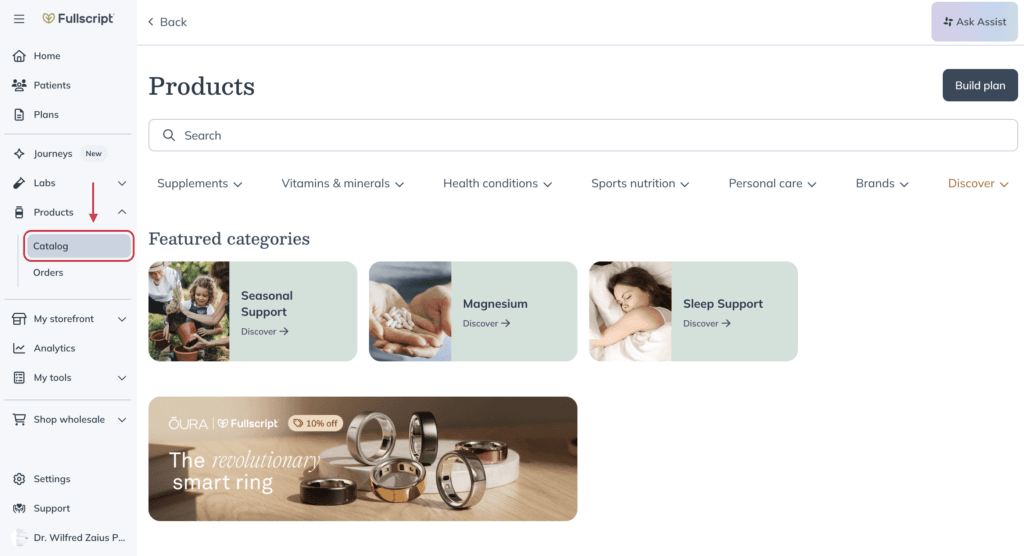
- Click Build plan.
- Click + New patient.
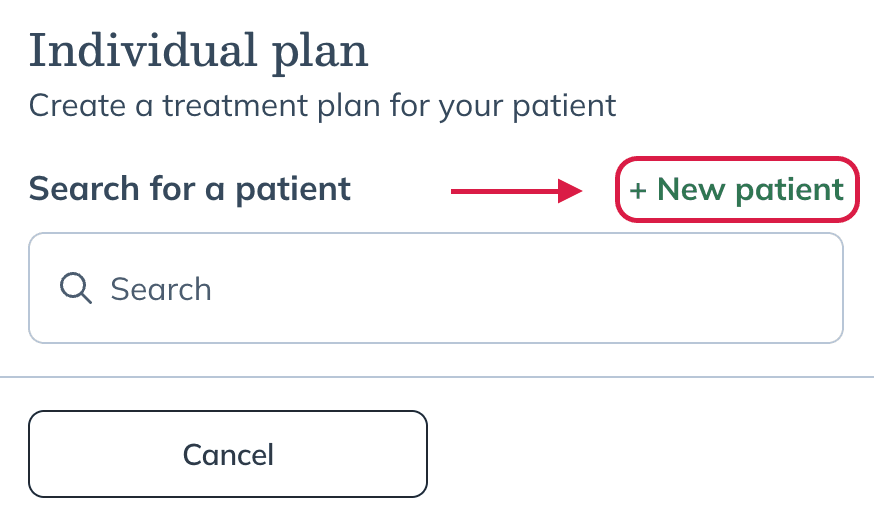
- Complete the patient creation form.
The following discounts are available on profit accounts only. You can set an individual patient discount when adding a patient and assign a practitioner if applicable.
- Click Create patient.
- After creating the patient, you’ll land on their profile. Click Products in the navigation bar.
- Click Catalog.
- Click Select patient(s).
- Search for the new patient using their name or email address and click the desired patient account.
- Add any products, labs, and resources you’d like in the patient’s plan.
- When you’re ready, click Review draft.
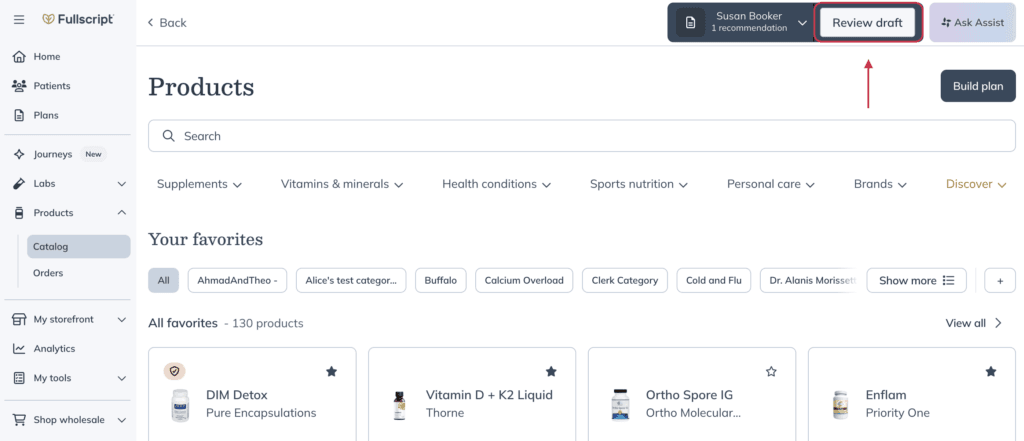
- Complete the plan by adding resources, a message snippet, and updated dosage instructions.
- Click Send to patient.
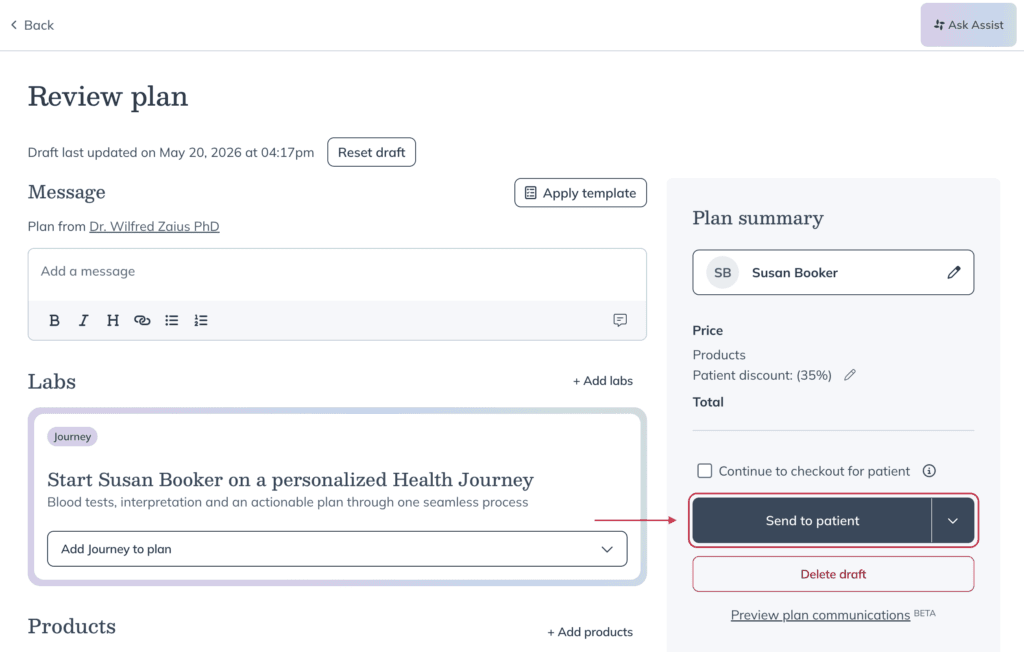
The patient will be notified about their new account and plan. They can sign in to view their plan and start ordering the products you’ve recommended.
Check out the plan building tool for general navigation and plan writing tips.
Invite patients without a supplement plan
Patients added without a plan can order products through the catalog as long as catalog permissions allow catalog access.
To invite a patient without sending a plan:
- Click Patients in the navigation bar.
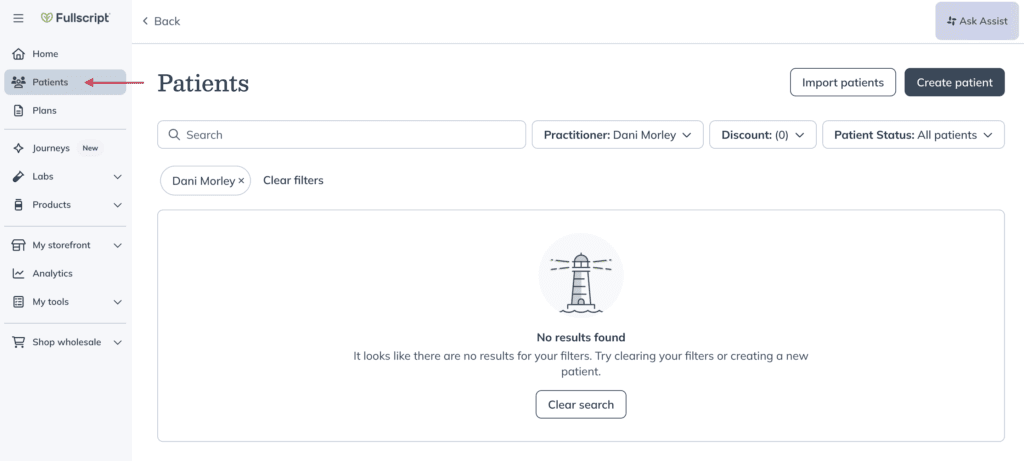
- Click Create patient.
- Complete the patient creation form.
The following discounts are available on profit accounts only. You can set an individual patient discount when adding a patient and assign a practitioner if applicable.
- Make sure Send welcome email and/or Send welcome SMS are toggled on.
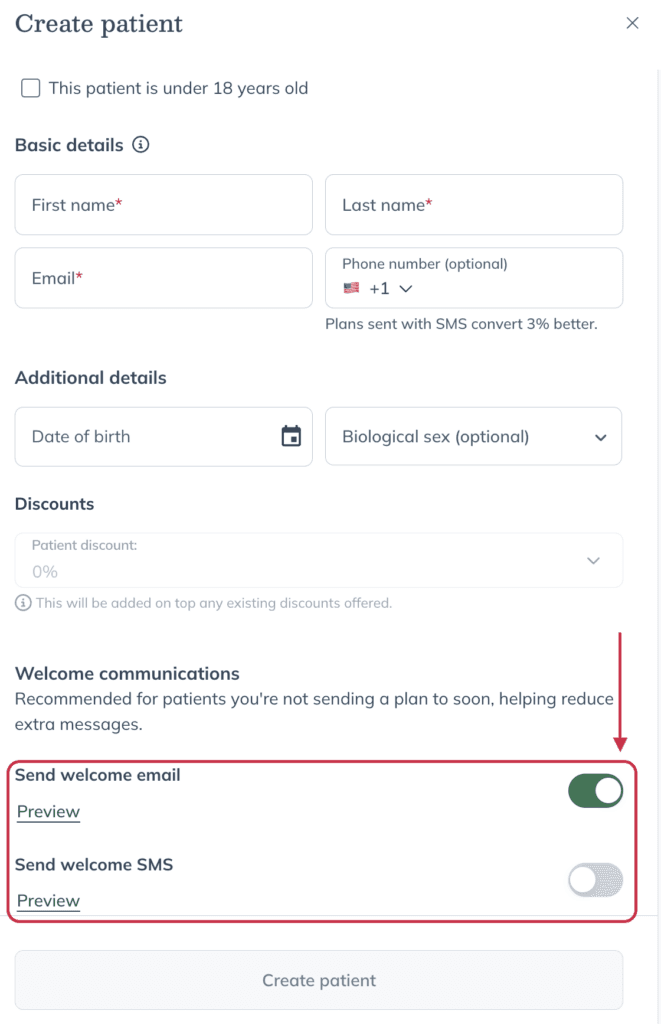
- Click Create patient.
Patients added without sending the optional welcome email will be prompted to log into their account when a plan is sent.
Patient self-sign-up options
Equipping patients with the tools to self-serve saves time and promotes adherence. Consider any of the options below to encourage self-service among your patients.
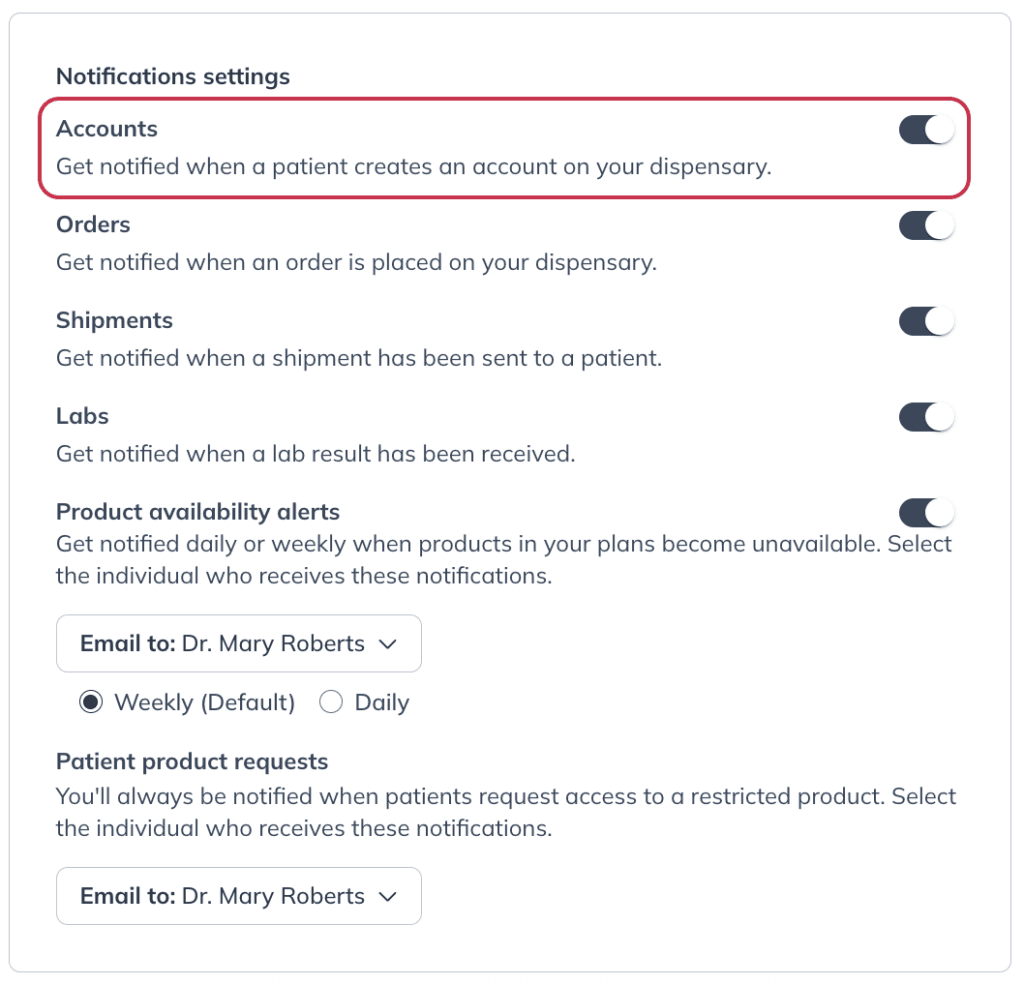
You’ll be notified of all new patient sign-ups as long as you have these notifications enabled. This helps you be aware of who is signing up to your Fullscript dispensary as well as those you may want to limit access to.
To check if patient sign-up notifications are enabled:
- Navigate to Account settings.
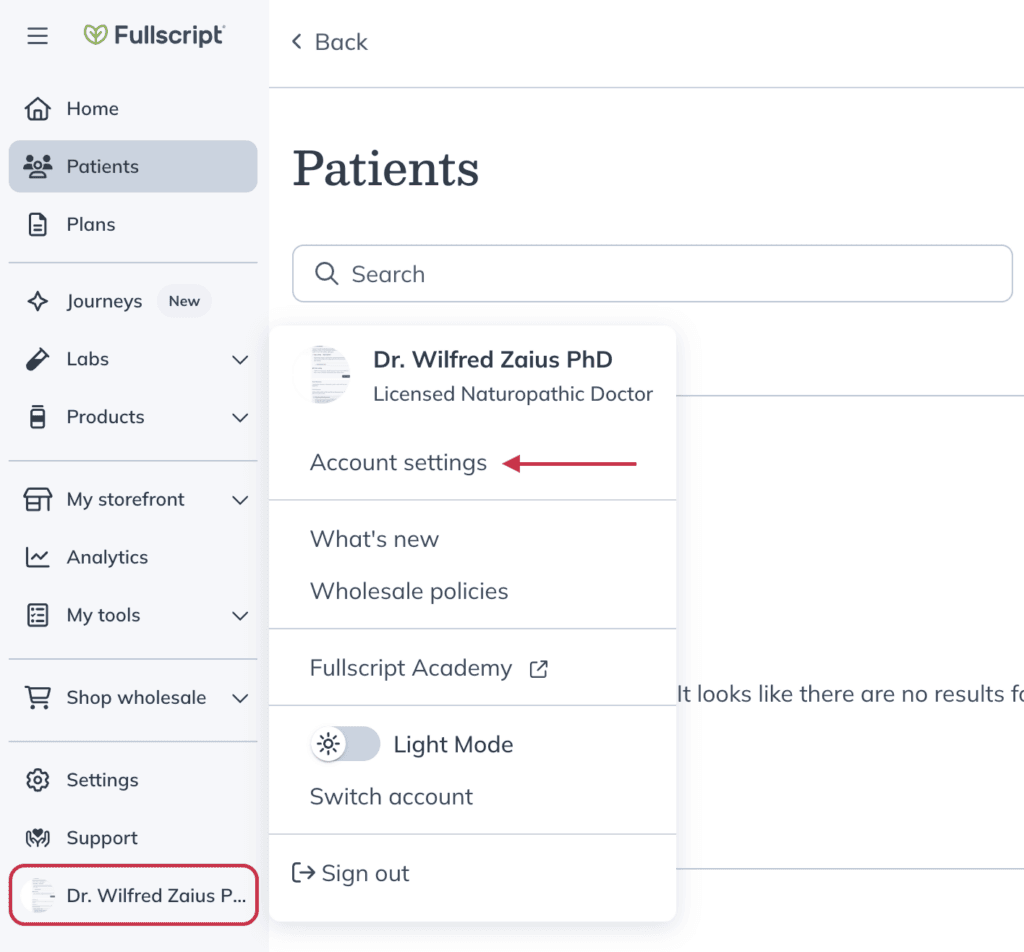
- Click the Preferences tab.
- Under Notification settings, confirm Accounts is toggled on to ensure new patient account notifications are sent.
Share your storefront link
Share your storefront link through email, newsletters, or in-office resources so patients can explore your recommendations and sign up themselves.
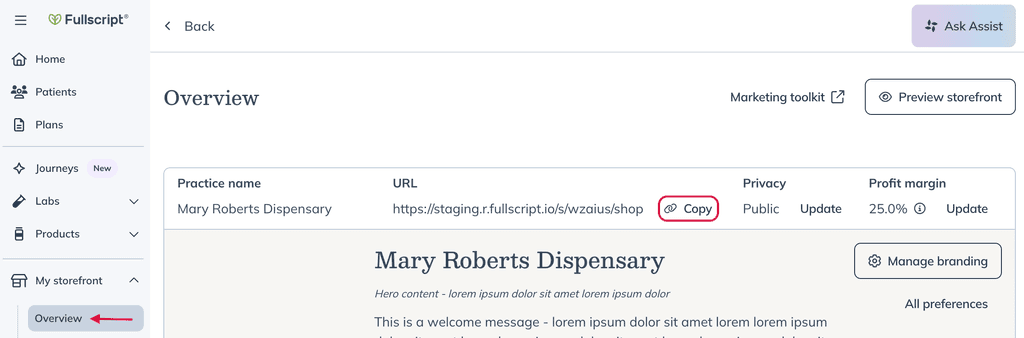
To copy your storefront link:
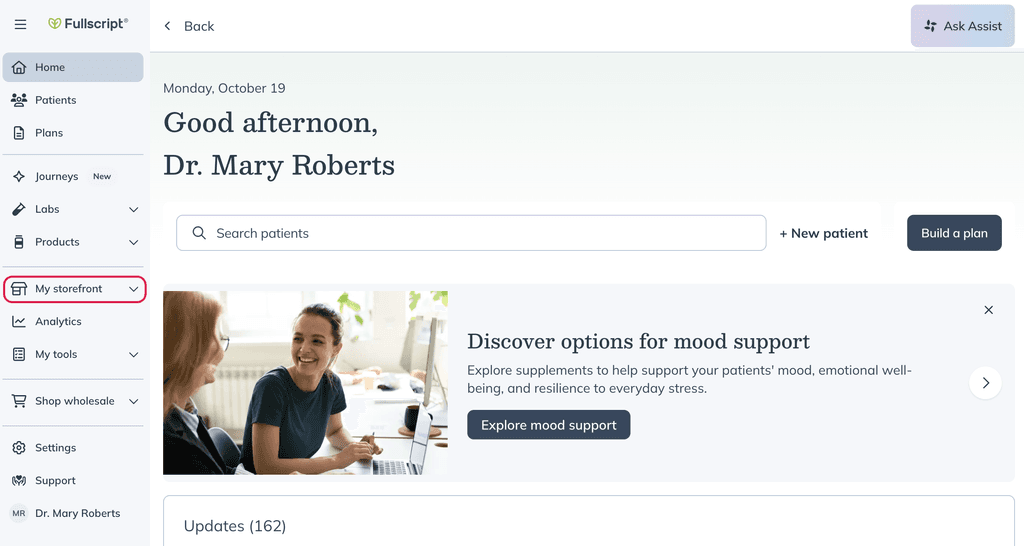
- Click My storefront, then Overview.
- Click Copy.
Share the copied link with your patients. What visitors can browse before signing in depends on your storefront privacy settings.
Let patients invite friends
If your dispensary uses an open catalog, patients can invite friends to create their own Fullscript account and join your dispensary. Invited friends are added as new patients and appear in your standard Patients list alongside patients who sign up through other methods.
Each patient can invite up to 5 friends. Friends who join through an invitation can’t invite additional people.
Patient profiles also include invitation details, allowing you to see:
- Who invited the patient to your dispensary.
- Which patients they have invited.
To enable or disable patient friend invites, go to Settings > Privacy, security, and disclosures, then turn the Friend invites toggle on or off.
Whether patients can use friend invites also depends on your catalog permissions. Friend invites are enabled by default for open-catalog dispensaries and disabled by default for restricted (curated) dispensaries. See Manage storefront privacy and catalog access for more information.
Share protocols
Patients can view protocols you share through your storefront. If your storefront is public, anyone with the link can browse a public protocol without an account, and they'll be asked to create an account or sign in at checkout. If your storefront is private, visitors need to sign in or request access first. Private protocols always require patients to sign in. Learn more in Managing supplement protocols in your Fullscript storefront.
Add a website button
Add a Fullscript website button to your clinic or personal website to direct visitors to your storefront.
To find available buttons, go to My storefront > Preferences > Website buttons. Choose a button and add it to your website using the instructions in Fullscript website buttons and embedded product cards.

Add a Fullscript website button to help patients visit your storefront.
Embed product cards
Display individual products on your website or blog using embedded product cards. When someone selects a card, they’re taken directly to that product in Fullscript.
Before sharing a product, review your storefront privacy and catalog settings to make sure patients can access it. For setup instructions, see Fullscript website buttons and embedded product cards.
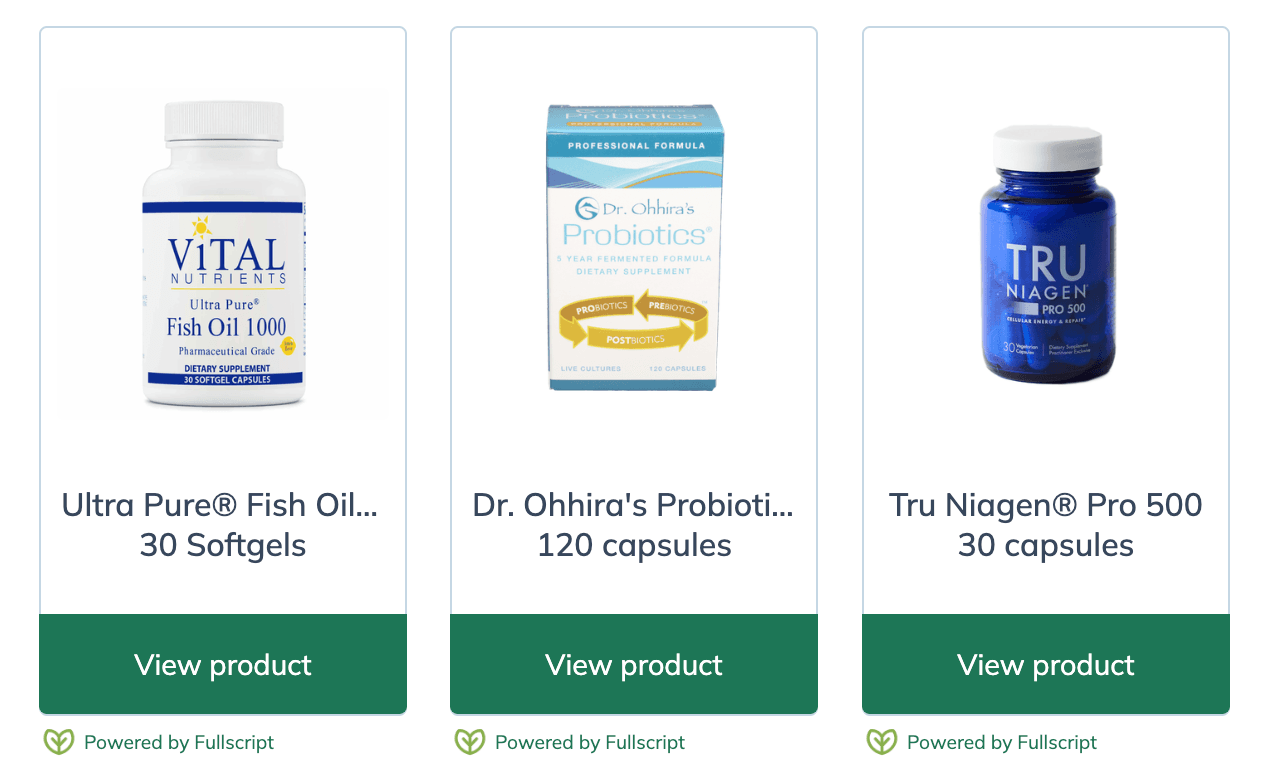
Embeddable product cards on an external website.