
Last modified: May 15, 2026
OptiMantra integration
Providers
An introduction to OptiMantra
OptiMantra is an EMR/EHR that empowers you to leverage the same platform and collaborate effectively in multi-disciplinary, multi-practitioner group settings through customizable modality-specific features and functionality.
Key features
- Customized electronic charting
- Integrated diagnostics and labs
- POS system and integrated payments
- Inventory management
- Insurance billing
- Scheduling and appointment management
- HIPAA compliant patient portal and messaging
Integration setup: OptiMantra + Fullscript
The OptiMantra integration uses oAuth for setup and activation.
To integrate OptiMantra + Fullscript:
- Log in to OptiMantra.
- Select Patients from the top menu.

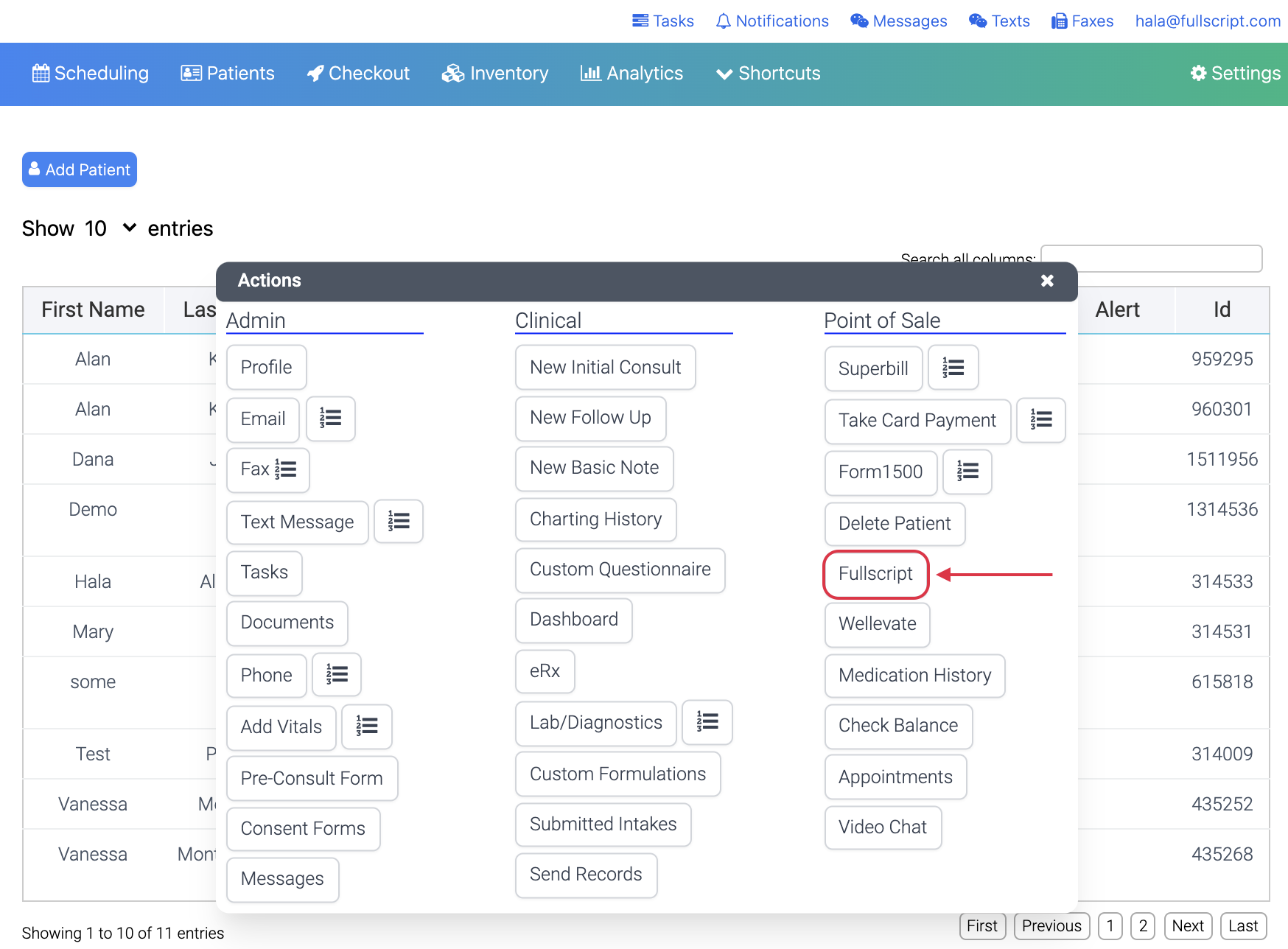
- From any patient record, click the menu icon ( ) displayed in the Actions column.
- Select Fullscript from the Point of Sale category.

- A new tab will open — enter your Fullscript credentials (username and password) or create a new Fullscript dispensary.
- Click I agree.
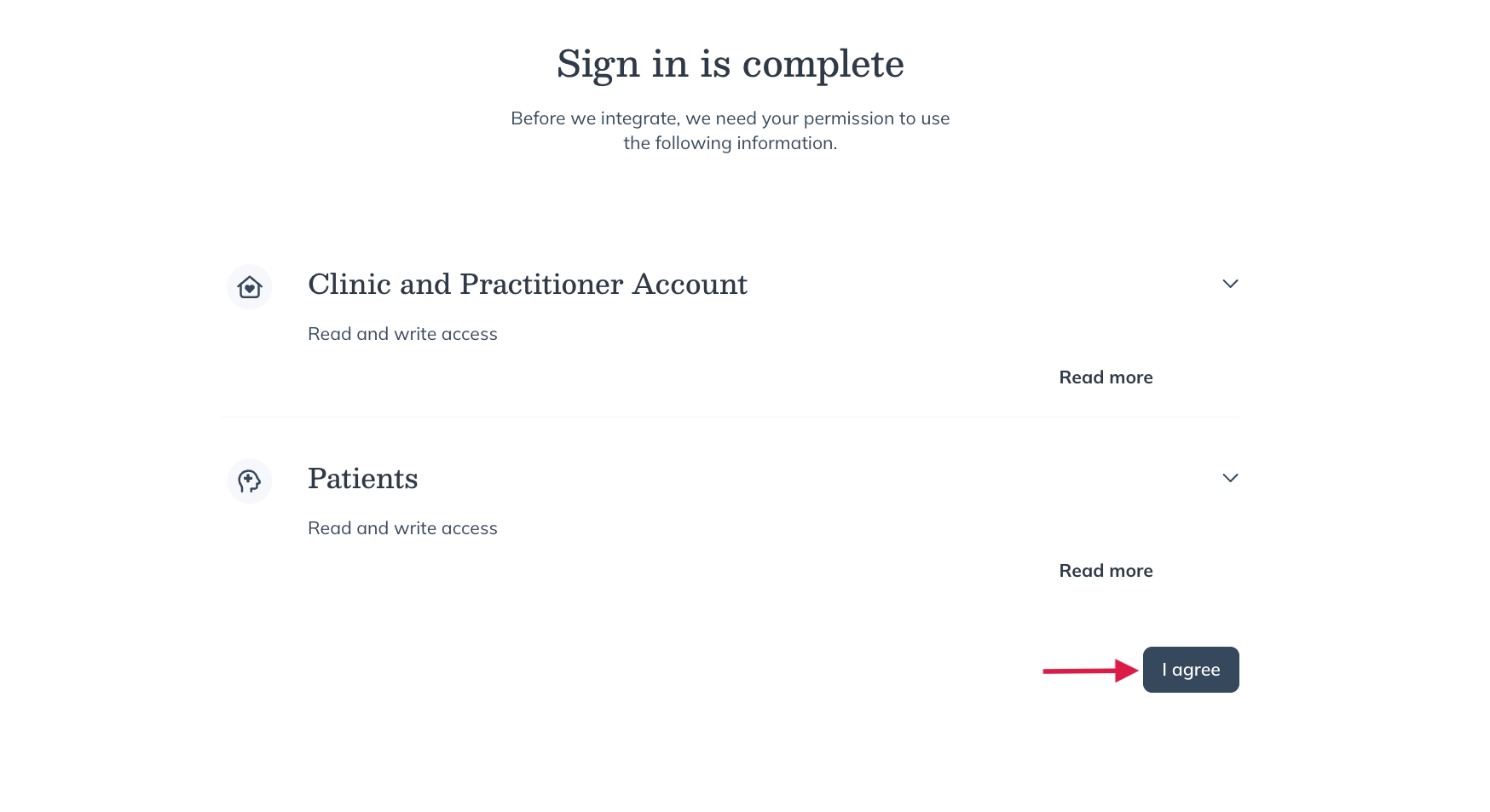
- Return to the Patients page in OptiMantra. Exactly like step four, select a patient menu icon ( ) to view available actions, then click Fullscript.
- The Fullscript Prescription Writer modal will open. Use the drop-down menu to select and confirm your Fullscript practitioner account.

Disconnecting the Fullscript + OptiMantra integration
With OptiMantra, you can disconnect from a Fullscript integration to match to a different dispensary if needed.
To sever a connected account:
- Select Patients from the top menu.
- From any patient record, select the menu icon ( ).
- In the Fullscript Prescription Writer modal, select Fullscript from the Point of Sale category.

- From the top-right corner, select the Reset Option menu, then select Reset User.

- After this reset, follow the integration setup steps to re-authenticate with a different Fullscript dispensary.
Adding new patients
To add a new patient in OptiMantra:
- From the top menu, select Patients.
- Select Add Patient.
- In the Patient Profile modal, complete the necessary fields and Save. Email addresses are used to match (existing) or create (new) patient accounts in Fullscript.

Matching new Optimantra patients to existing Fullscript patient accounts
To link to an existing patient in Fullscript, the patient email addresses in OptiMantra and Fullscript must match. As new patients are added to OptiMantra, and a patient match is found in Fullscript, the patient’s prescription history is passed to the patient’s profile in OptiMantra.
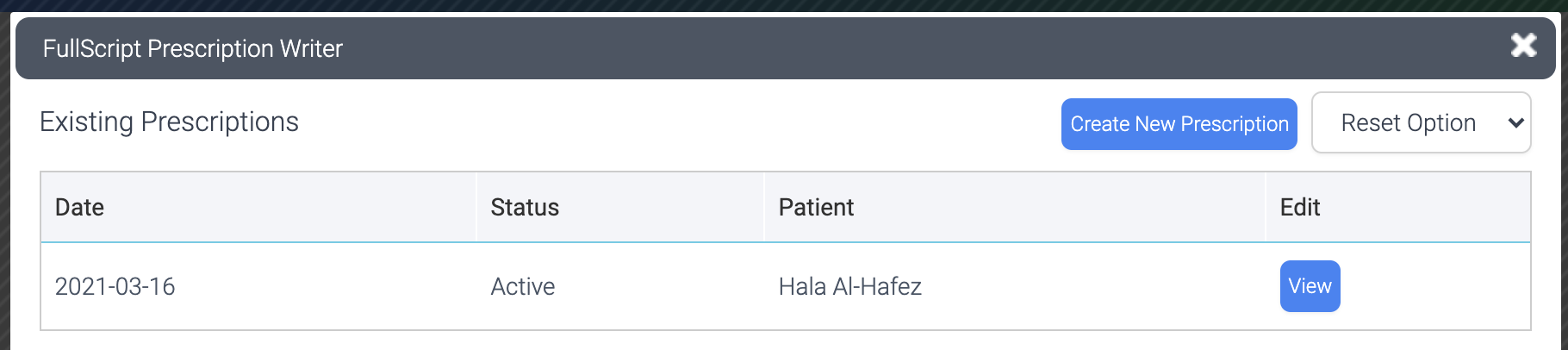
To access prescription history or existing prescriptions, go to the Patients page, find the patient, select the menu icon ( ) from the Actions column, then click Fullscript to launch the Fullscript Prescription Writer.
Adding a new patient to OptiMantra and Fullscript
When a new patient is added to OptiMantra, and a match (via email address) isn’t found in Fullscript, a new Fullscript patient account is created. The patient account is created after the patient is added to OptiMantra and only once Fullscript has been selected from the Actions modal.
When added successfully, new Fullscript patients are sent a welcome email to set a password and sign in to place orders.
Writing prescriptions in OptiMantra
To write a Fullscript prescription in OptiMantra:
- From the Patients page, search for a patient.
- Select the menu ( ) icon and then Fullscript.

- From the modal, click Create new recommendation.

- Using Fullscript’s plan building tool, write a new prescription.
- Then click Send prescription.
Adding prescribed products to patient charts (consults and follow-ups)
Charting for patients is managed through OptiMantra’s Initial Consult and Follow-Up tools.
Prescribed products can be added to patient charts by adding them to the Plan (Practitioner Recommendations) section within the chart. This will show prescribed Fullscript products in the patient’s portal available through OptiMantra versus Fullscript alone.
To write a prescription in a patient chart:
- Start a new plan for a patient.
- In the chart, select the + Plan (Practitioner Recommendation) to expand this section of the chart.
- Select Fullscript from the right-hand bottom corner to launch the Fullscript Prescription Writer modal.

- In the patient’s prescription history, select a prescription’s View button to review prescribed products.

- Beneath a prescribed product’s name, click Add To Plan to add the product to the chart.

- Returning to the chart and the Plan (Practitioner Recommendations) section, complete any additional dosage timing, number of refills, etc., to finish appending supplements to the patient chart.

Viewing labs in OptiMantra
You can access recommended lab tests and their results in multiple areas within OptiMantra. While lab tests and supplements can be recommended together, they appear and function differently within notes. You can view lab results from the Lab orders section, patient dashboard, or from the documents section.
Viewing sent labs in OptiMantra
You can view recommended lab tests and their status from the Fullscript integration launched within a note (e.g., Initial consult, Follow up, or Basic note) or from the Point of Sale options in a patient’s profile.
From the Existing recommendations screen:
- Select a plan to view its details.
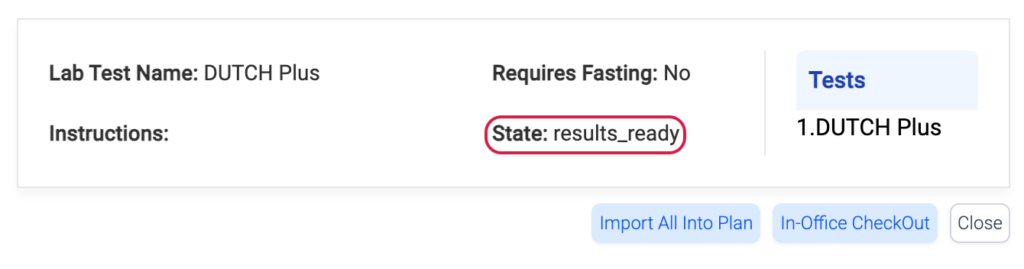
- Review the status of each lab test.
Lab test statuses include: - Results ready
- Not purchased
- Purchased
Viewing lab results in OptiMantra
From labs/diagnostics:
Lab results are available under Lab orders, accessed from the Clinical section in the Actions menu.
To view results:
- Select Lab orders (icon with horizontal bars and numbers).
- Click Result PDF.
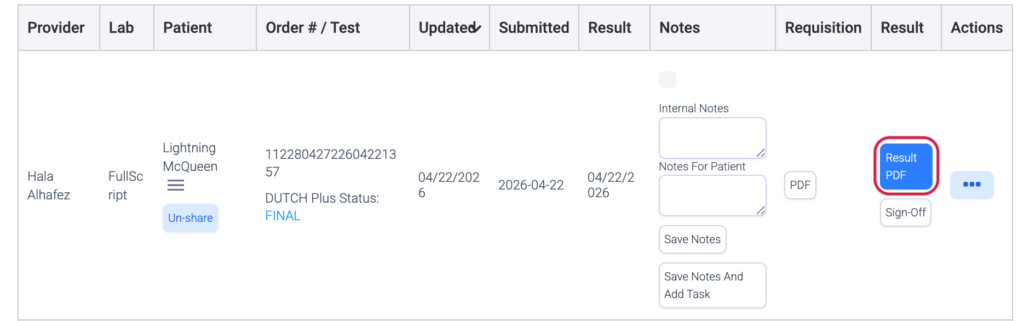
The result opens in a PDF viewer in a new window.
From this view, you can:
- Sign off on results
- Add internal notes
- Share results through the patient portal
From the patient dashboard:
- From the Patient dashboard, select the Timeline tab near the top of the page.
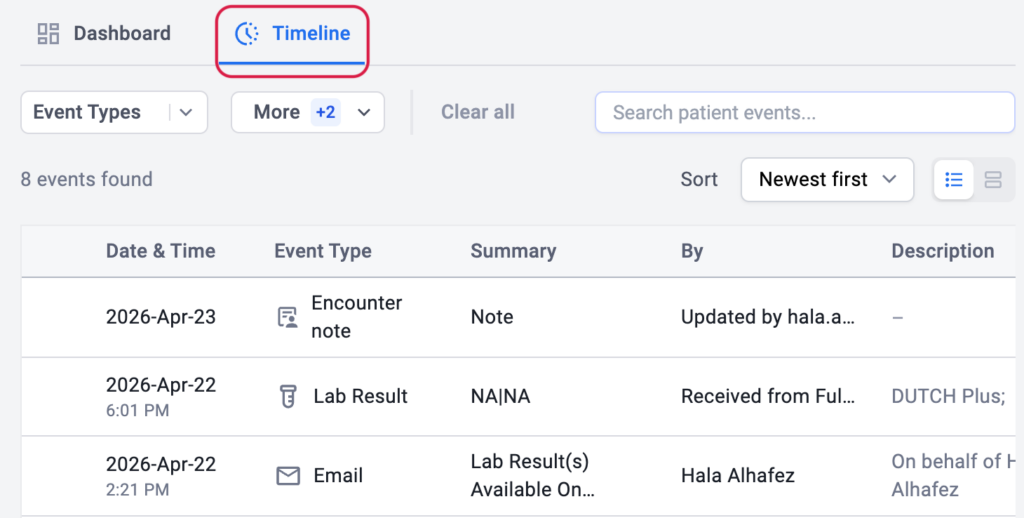
- Lab results appear as events labeled Lab result.
- Select the event to open the result in a PDF viewer.
- The lab requisition is also available from this view.
From documents:
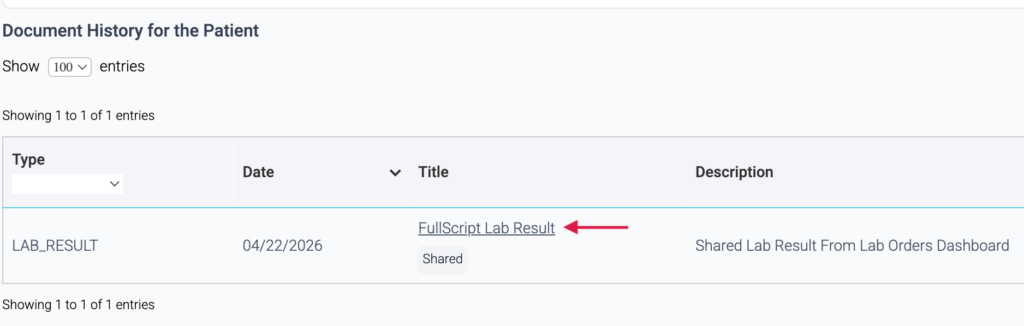
Lab results are also stored in Documents, located under the Admin section in the Actions menu.
- Documents are titled Fullscript lab result with the date results became available.
- Select the document to open the PDF in a new window.
Frequently asked questions
Can a Practitioner export a patient list from OptiMantra to import into Fullscript?
They can export the patient list but not directly to Fullscript. The Practitioner would click Analytics in the top banner, then List of Reports and then under Patient Lists and Counts, select the Patient list with Demographics. They would next click the Export icon and select the desired file type.
Do Fullscript treatment plans automatically go to the notes/plan section of the patient’s chart?
No, the Practitioner must click on the completed plan and select the Import Into Plan button.
Can I edit a patient’s discount through the integration?
Yes, through the embedded Fullscript plan tool, the patient’s discount can be edited by clicking the Pencil icon besides Savings in the bottom left corner. This will open the Edit Patient menu where first name, last name, phone number and date of birth can also be modified.
Can you edit treatment plans within OptiMantra that have already been sent?
No, plans can’t be edited through OptiMantra. The plan can be sent in OptiMantra and after that, it must be edited or deleted through Fullscript.
How many OptiMantra accounts can be integrated to a single Fullscript account?
It is one Fullscript dispensary for one OptiMantra account. If there are sub-practitioners, they will be able to integrate as well. They will want to make sure that they have a sub-practitioner account created first and then once logged into OptiMantra, they can follow the integration flow as per usual.
Helpful resources
- Fullscript landing page: OptiMantra integration