
An introduction to Zenoti
Zenoti is a cloud-based software platform for beauty, wellness, and fitness businesses, including salons, spas, medspas, barbershops, and multi-location brands. It combines tools such as appointment booking, point-of-sale payments, memberships, marketing, payroll, inventory, and business intelligence in one platform.
This integration supports labs only and is available to providers in the United States.
Video: How to leverage Fullscript in Zenoti
Integration setup: Zenoti + Fullscript
Connect Zenoti and Fullscript to place lab orders, manage lab plans, and view lab results from a patient’s guest profile in Zenoti.
Enable lab orders
Before connecting your accounts, contact your Zenoti representative to enable the Lab integration feature.
Zenoti Owner and Service Provider roles have View and Place permissions for lab orders enabled by default.
Grant lab permissions to other roles
To give another role, such as Front Desk, access to lab orders:
- At the organization level in Zenoti, go to Configurations > Security > Security Roles.
- Select the role you want to update.
- Open the Permissions tab.
- Expand Medical Hub.
- Select the permissions the role needs:
- View — view existing lab orders and results.
- Place — place new lab orders.
- Select Save.
Connect Fullscript to Zenoti
- Open the Appointment Book in Zenoti and select More.
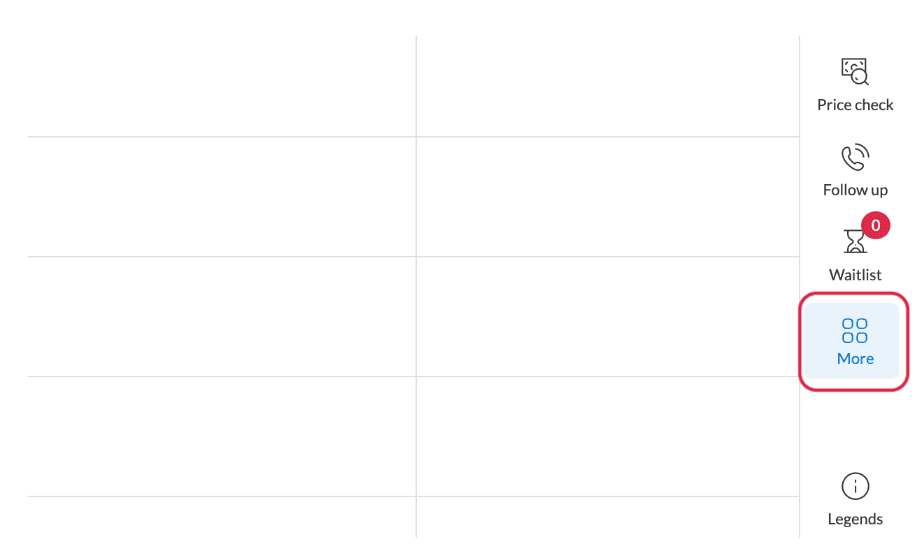
- Select Connect to Fullscript. You can also start the connection from the Medical Record tab in a guest profile.
- If you already have a Fullscript account, sign in with your existing credentials.
- If you’re new to Fullscript, follow the prompts to create an account using your license number, NPI, and practice address. You’ll also need to agree to Fullscript’s terms of use.
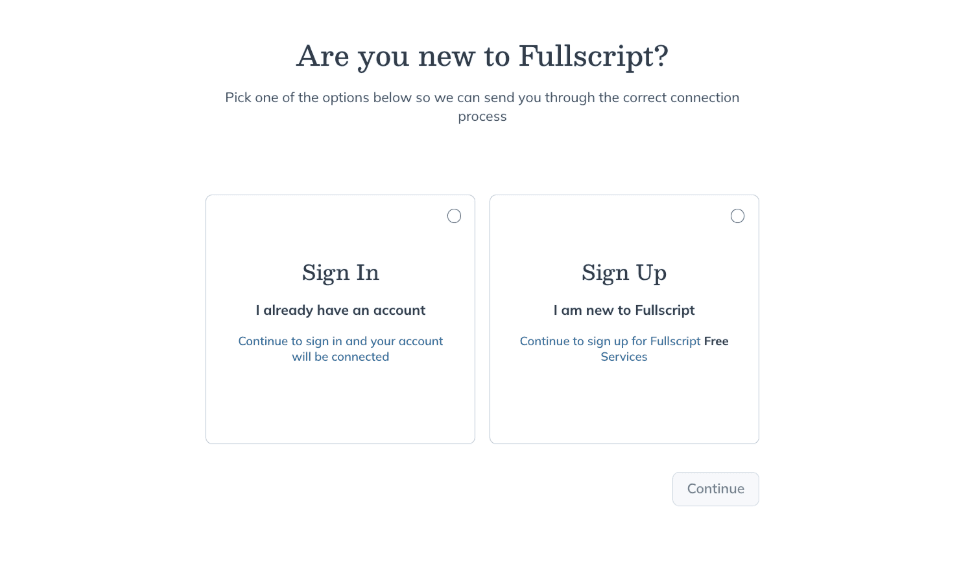
Only the first person connecting your practice should create a new Fullscript account. That person becomes the account owner. Additional team members are directed through Fullscript’s invitation flow so your practice can use one shared Fullscript account.
Placing a lab order and completing checkout
Lab plans are created using the Fullscript plan-building experience from within the patient’s guest profile.
To place a lab order:
- Open the patient’s guest profile.
- Go to the Medical Record tab.
- Select the option to place a lab order.
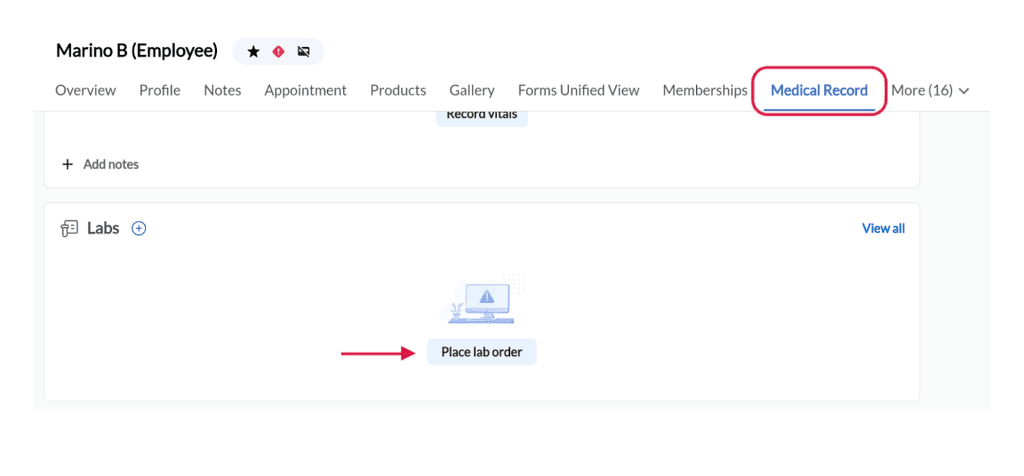
- Choose a lab vendor and add the tests you need.
- At checkout, choose how the order will be paid for:
- Send the order to the patient by email or SMS so they can complete payment.
- Pay for the order using a card saved to your practice’s Fullscript account.
- Select the signing practitioner.
- Select Send to patient.
You can also start a lab order from the Appointment Book by selecting Place Lab Order and entering the patient’s details. Zenoti sends those details to Fullscript, where the patient is matched to an existing profile or a new profile is created.
Where the lab order appears in Zenoti depends on where you start it:
- Orders started from the Treatment Hub are linked to the related service in the patient’s history.
- Orders started from the Medical Record or Appointment Book appear independently.
You can save frequently used combinations of lab tests as a Custom Panel in Fullscript.
Where lab orders appear in Zenoti
Lab plans and orders appear in the patient’s guest profile under Medical Record > Labs.
The following statuses can appear:
- Drafted — the plan was sent to the patient, but payment hasn’t been completed.
- In Progress — payment is complete and testing is in progress.
- Results Ready — the lab report is available to view.
- Cancelled — the lab plan has been canceled.
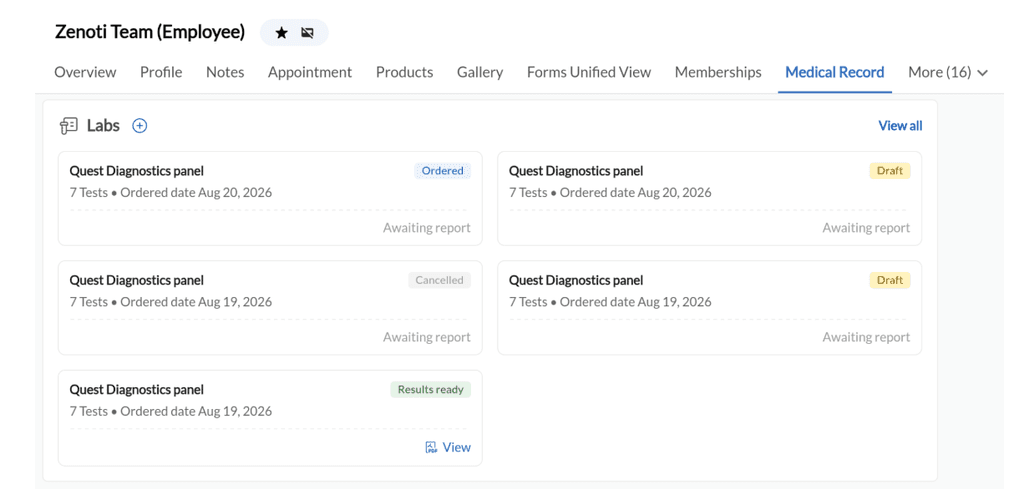
Opening an order also shows who placed it and which Fullscript account was used.
If a patient has multiple lab orders, they appear together in the Labs section.
Only lab plans, orders, and results are written back to the guest profile. Supplement plans aren’t written back to Zenoti.
Viewing lab results in Zenoti
When results are available:
- Open the patient’s guest profile.
- Go to Medical Record > Labs.
- Open an order with a Results Ready status to view the report.
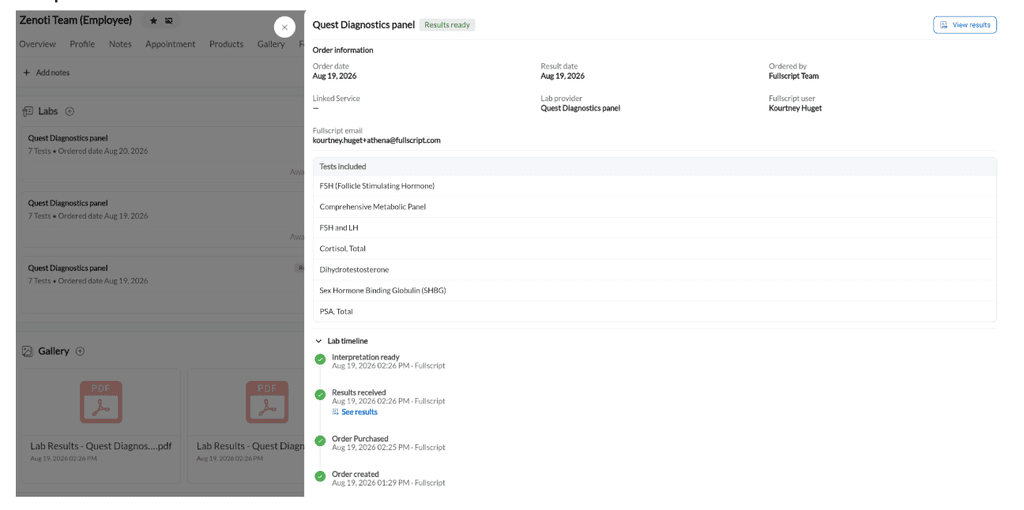
Zenoti doesn’t currently provide a notification when lab results become available, so you’ll need to check the guest profile for the updated status.
Disconnecting Fullscript from Zenoti
If you need to unlink an account—for example, if the wrong Fullscript dispensary was connected—follow the steps below.
Disconnect in Fullscript
- Sign in to Fullscript.
- Go to Settings.
- Under Integrations, select Zenoti.
- Select Disconnect.
After disconnecting, contact Zenoti to refresh your account. Once refreshed, Connect to Fullscript will appear again in the Appointment Book > More menu and in the guest profile’s Medical Record tab.
Frequently asked questions
What types of practitioners commonly use Zenoti?
Zenoti is most commonly used by physicians (MD/DOs), nurse practitioners (NPs), physician assistants (PAs), registered nurses (RNs), medical assistants, estheticians/aestheticians, massage therapists, hair stylists and colorists, barbers, nail technicians, lash and brow artists, personal trainers, and fitness instructors
Can providers pay for lab orders?
Yes, providers may pay on behalf of patients for lab-only orders by selecting I'll pay for my patient's order. It will redirect to a Fullscript checkout page with the selected labs in the cart.
Do sent lab plans appear in the guest profile in Zenoti?
Yes, plans and orders will both appear in the guest profile within the Medical Record > labs section.
Can you make supplement recommendations in Zenoti?
Yes, but only lab plans, orders, results will be written back into the guest profile.
Will labs ordered directly through Fullscript appear in Zenoti?
Yes, orders placed directly in Fullscript will sync to Zenoti after the guest's Zenoti account has been connected to Fullscript.
Which Zenoti permissions are required to utilize Fullscript?
Administrators should enable the following permissions in Zenoti for roles that require:
- View (see existing lab orders and results)
- Place (place new lab orders).