
An introduction to Ultralight
Ultralight is an AI-powered clinical platform for functional, integrative, and longevity medicine that combines EHR, practice management, billing, patient engagement, and telehealth in one system. It includes an AI clinical co-pilot that automates routine clinical work for direct-pay, concierge, and hybrid clinics.
This integration is only available to providers in the United States.
Integration setup: Ultralight + Fullscript
Practitioners with both an Ultralight and Fullscript account can connect the two platforms from the Integrations page in Ultralight.
- Log in to Ultralight.
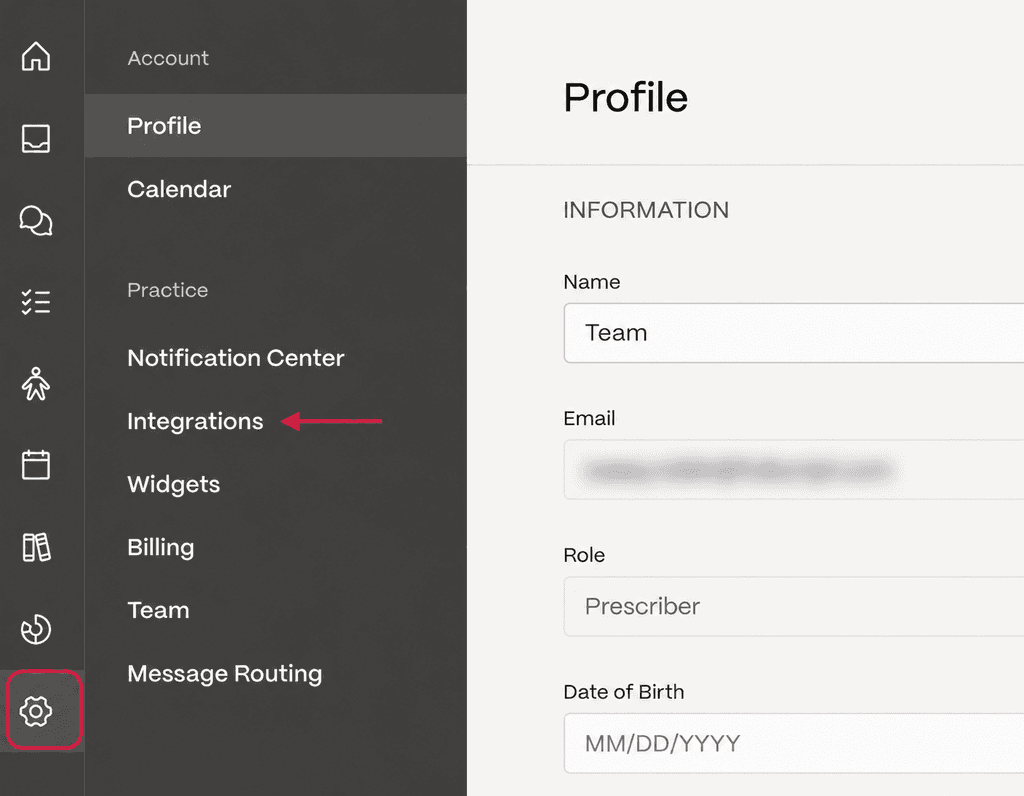
- Select the Settings icon (⚙) on the left side panel.
- Select Integrations.
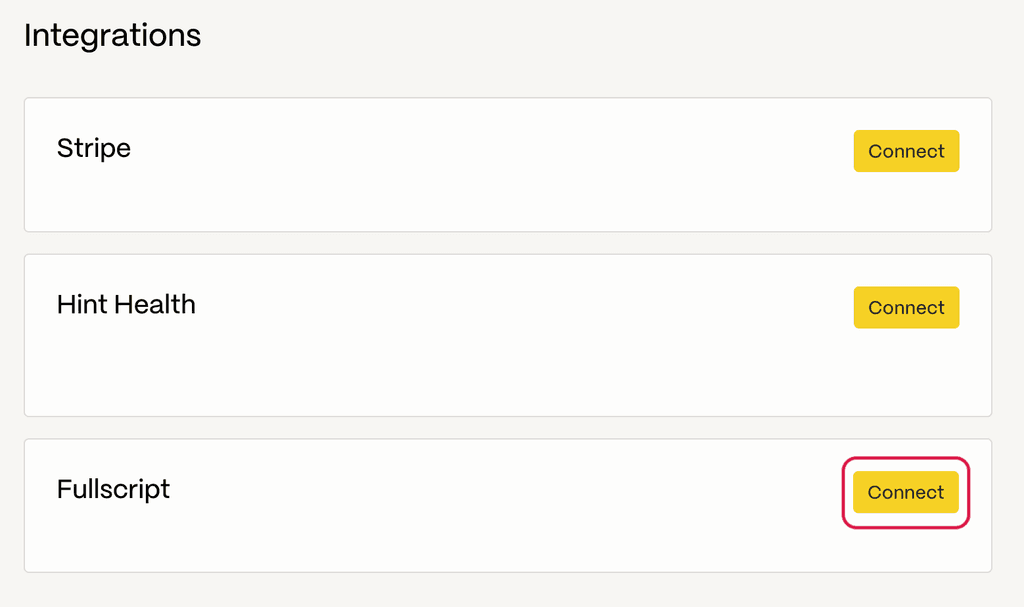
- Find Fullscript and click Connect.
- Follow the prompts to sign in to or sign up for Fullscript and click I agree to authorize the connection.
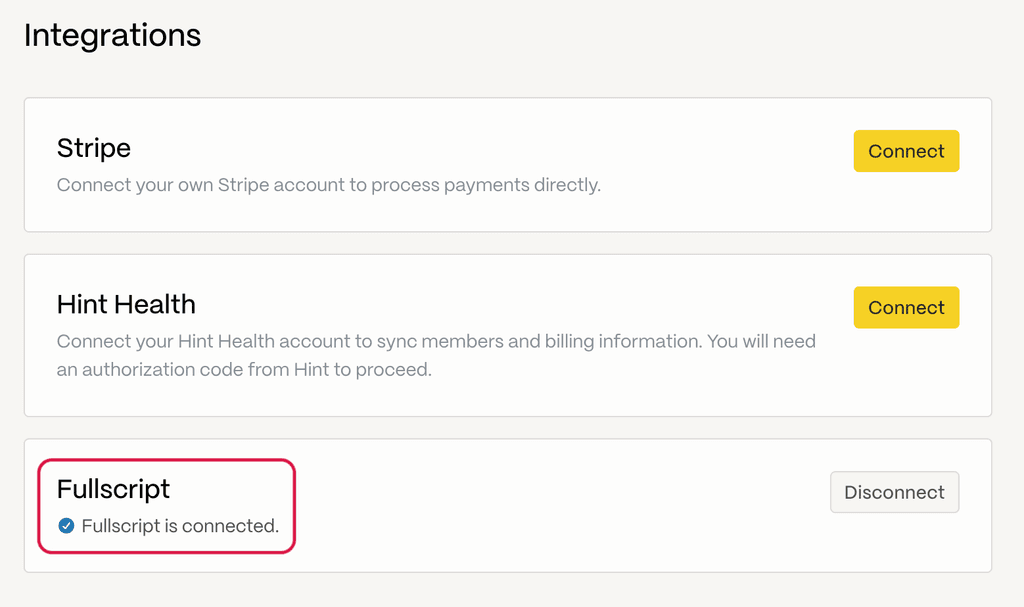
- You’ll be redirected back to the Integrations page in Ultralight, where Fullscript now shows as connected.
Creating a Fullscript plan in Ultralight
Practitioners can open the Fullscript supplement plan builder from a patient’s profile in Ultralight. The builder opens inside the patient record and includes the same tools available on Fullscript, including the full catalog, favorites, protocols, and the patient’s plan history.
To create a new Fullscript plan for a patient in Ultralight:
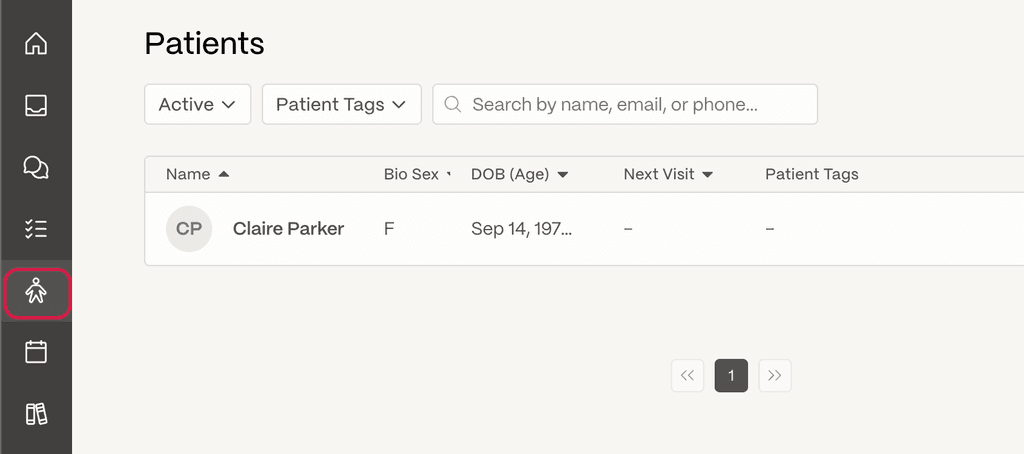
- Select the Patients icon on the left side panel, then search for and open a patient profile.
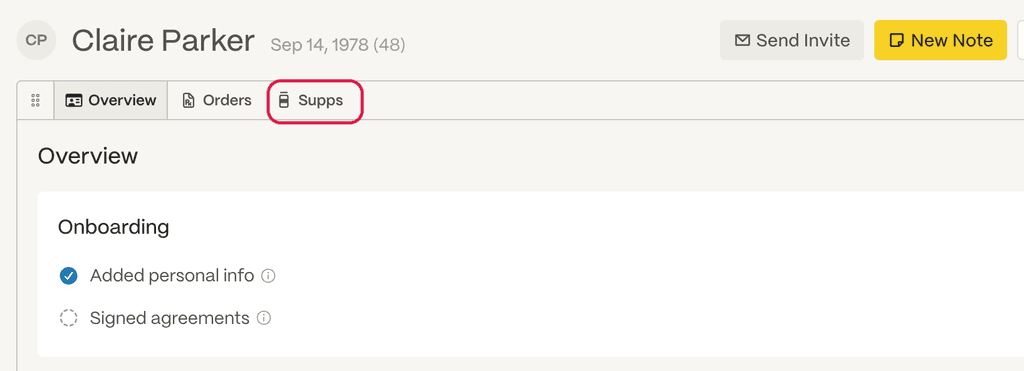
- Select Supps from the tabs at the top of the patient’s profile, then click New +.
- Add supplements by searching for products and selecting Add to plan.
- When ready, click Review draft, then Send to patient.
- Your patient receives the plan from Fullscript by email and text.
- A confirmation message appears in the embedded Fullscript experience, and Ultralight shows a confirmation in the bottom-right corner.
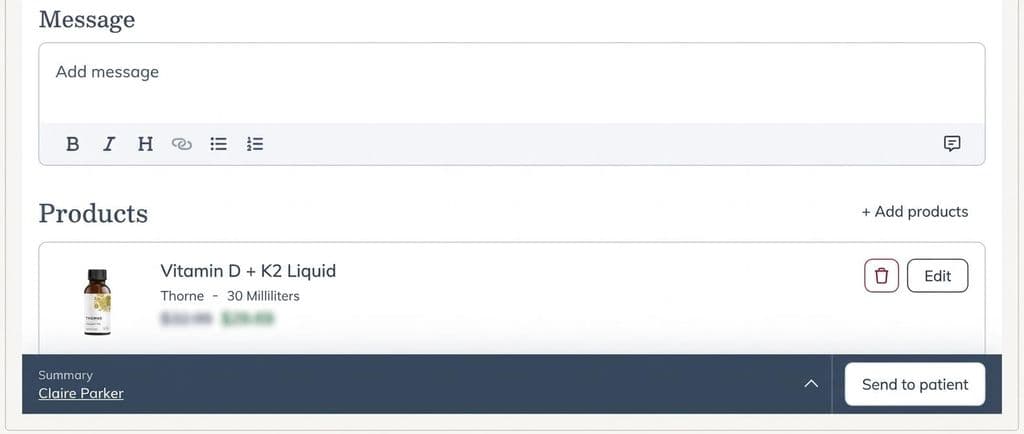
- Select Copy plan notes if you want to paste the plan text into the patient’s clinical note in Ultralight.
Ultralight is highly customizable, so the Supps tab may appear in a different location depending on how the account is set up. If you don’t see it, click the More options icon (⋮) in the patient’s profile and add the section from the checklist that appears.
Where plans appear in Ultralight
Sent plans appear in the Supplements section of the patient’s profile, which lists each product’s name, its dosage, and the date the plan was sent. To review more detail about previously sent plans, click New + to open the embedded Fullscript experience for that patient.
Sent supplement plans write back to Ultralight, but they can’t be edited there.
Disconnecting Fullscript from Ultralight
If the wrong Fullscript dispensary was connected, you can disconnect the integration from either Ultralight or Fullscript.
To disconnect in Ultralight
Follow these steps:
- Select the Settings icon (⚙) on the left side panel.
- Select Integrations.
- Find Fullscript.
- Click Disconnect.
To disconnect in Fullscript
Follow these steps:
- Log in to Fullscript.
- Go to Settings.
- Select Integrations.
- Locate Ultralight.
- Click Disconnect.
Frequently asked questions
What kind of practices benefit most from Ultralight?
Ultralight is designed for independent, direct-pay, concierge, and hybrid practices in root-cause, integrative, or longevity medicine. It supports preventive, high-touch care models.
How does Ultralight’s AI support clinical workflow?
Ultralight includes an AI clinical co-pilot that surfaces clinical insights, turns patient data into personalized care plans, and recommends protocols. This reduces admin work so clinicians can spend more time with patients.
Can sent plans be edited in Ultralight?
No. Plans sent through the integration can’t be edited. You can review or cancel a sent plan from the Supplements section of the patient’s profile.
Can providers access favorites, templates, and protocols?
Yes. The embedded builder includes the full catalog, favorites, protocols, and patient history.