
An introduction to Oli Health
Oli Health is an EHR and practice management platform for private practices that helps clinics manage charting, scheduling, billing, telehealth, and patient follow-ups. It includes AI tools that transcribe visits and draft clinical notes for practitioners to review.
This integration is available to practitioners in the US and Canada. Lab recommendations are only available in the US.
Integration setup: Oli Health + Fullscript
Practitioners with both an Oli Health and Fullscript account can connect the two platforms from the Integrations page in Oli Health.
- Log in to Oli Health.
- Select Integrations from the left-side menu.
- Select Fullscript and click Connect Fullscript.
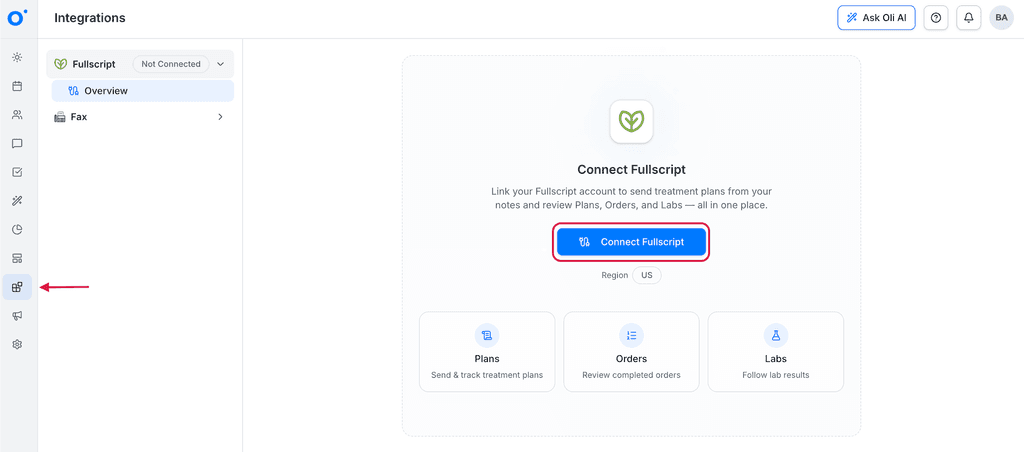
- Follow the prompts to sign in to or sign up for Fullscript and click I agree to authorize the connection.
- Oli Health opens again with Fullscript listed as Connected.
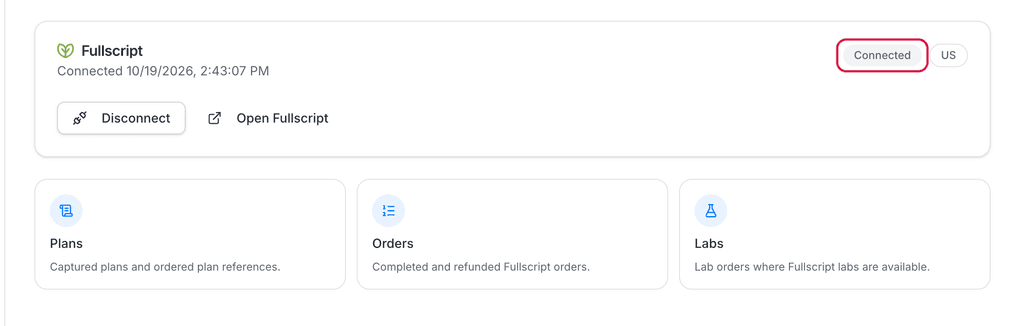
Each Oli Health account connects to one Fullscript dispensary. Once connected, the Fullscript integration page includes an Open Fullscript button and a consolidated list of plans, orders, and labs across all patients.
Creating a Fullscript plan in Oli Health
Practitioners can open the Fullscript plan builder from a Fullscript Plan block in a patient’s chart note. The builder opens inside Oli Health with a draft plan already started for that patient, and includes the same tools available on Fullscript, including the full catalog, favorites, and the patient’s plan history.
To create a new Fullscript plan for a patient in Oli Health:
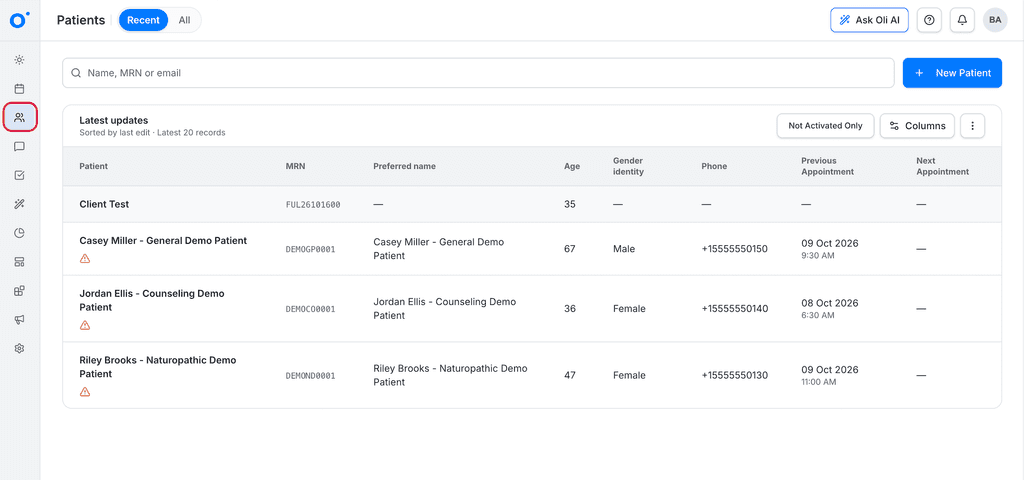
- Select Patients from the left-side menu, then search for and select a patient.
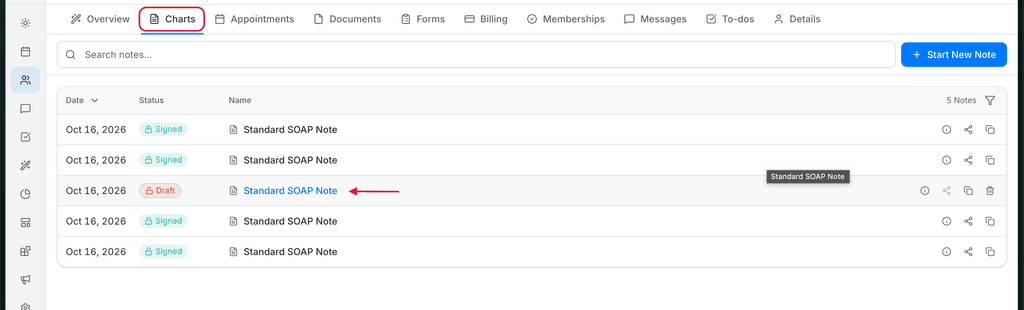
- Select the Charts tab.
- Click Start New Note, or open a draft note.
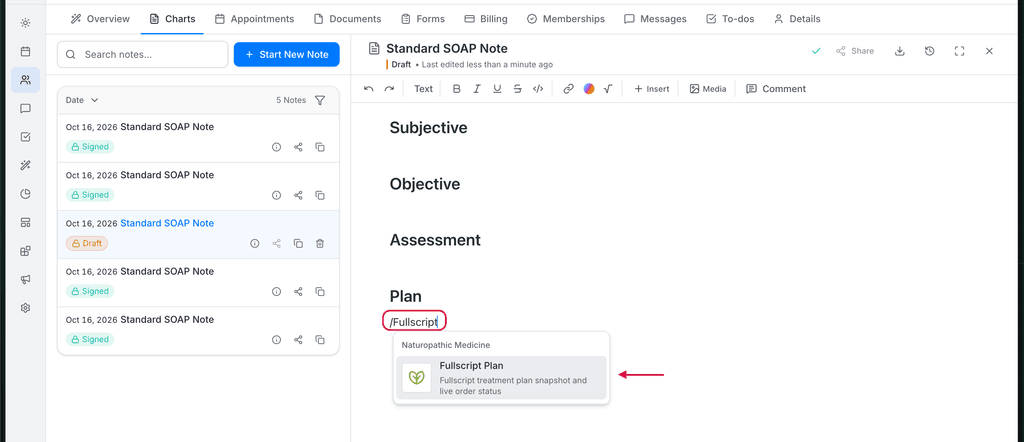
- Type /Fullscript in the note and select Fullscript Plan.
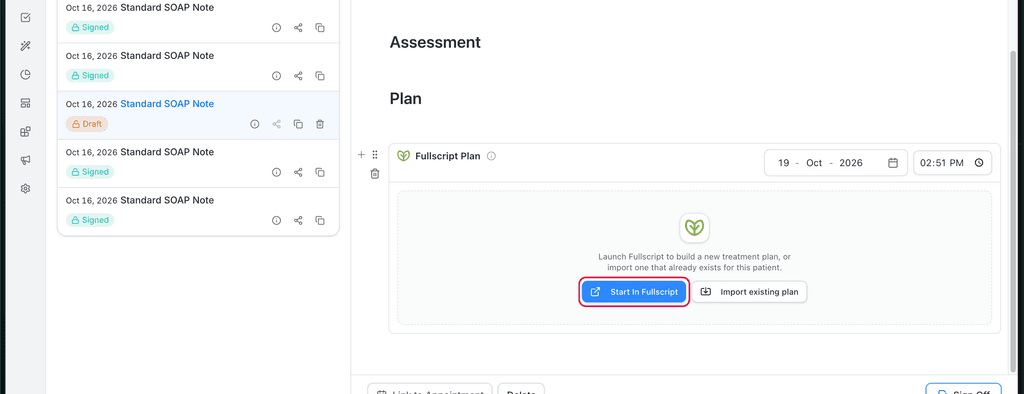
- In the Fullscript Plan block, click Start in Fullscript.
- Add supplements by searching for products and selecting Add to plan.
- To include a lab (US only), select a lab panel from the catalog and add it to the plan.
- To add context, attach resources and write a personal message.
- When ready, click Review plan, then Send to patient.
- Your patient receives an email from Fullscript with instructions to view their plan.
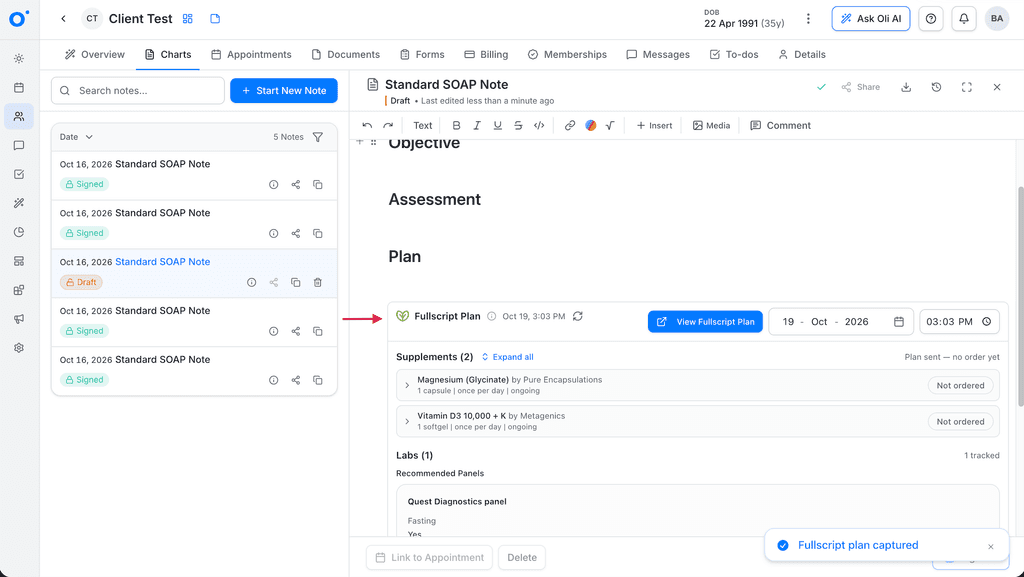
- A Fullscript plan captured message appears at the bottom right of the screen in Oli Health.
Where plans appear in Oli Health
Sent plans appear in the Fullscript Plan block in the chart note where you created them, with supplements and labs together. The block shows:
- Plan details: The date and time the plan was sent and the overall plan status.
- Supplements: Each product’s name, brand, dosage, frequency, duration, and order status.
- Labs: Recommended panels, the lab company, and test requirements such as fasting.
To see plans for all patients, go to Integrations and select Fullscript.
Sent plans write back to Oli Health. Order and lab statuses update in the block, but edits made in Fullscript after sending don’t appear. Click View Fullscript Plan to see the current version.
Viewing lab results in Oli Health
Practitioners in the US can add labs when creating a plan using the Fullscript builder. Lab orders and results are visible in the Fullscript Plan block:
- Lab statuses update in the block as the order progresses.
- Lab results are available as a PDF when the status changes to Results ready.
To download lab results:
- Open the patient’s chart note that contains the Fullscript Plan block.
- Click Results PDF.
Disconnecting Fullscript from Oli Health
If the wrong Fullscript account was connected, disconnect the integration from Oli Health or Fullscript.
To disconnect in Oli Health
Follow these steps:
- Log in to Oli Health.
- Select Integrations > select Fullscript.
- Click Disconnect.
To disconnect in Fullscript
Follow these steps:
- Log in to Fullscript.
- Go to Settings.
- Select Integrations > select Oli Health.
- Click Disconnect.
Frequently asked questions
Who can use the Fullscript integration?
The integration is available to Oli Health practitioners with a Fullscript account in the United States and Canada. Each Oli Health account connects to one Fullscript dispensary.
How do I connect Fullscript to Oli Health?
In Oli Health, go to Integrations > Fullscript > Connect. You’ll be redirected to Fullscript to sign in or create an account. After accepting the connection, you’ll return to Oli Health and see Fullscript marked as ✓ Connected.
How do I create a lab recommendation?
Select the patient you’d like to make a recommendation for, and within a chart note, type /Fullscript to open a Fullscript block and select create a new recommendation. This will open up an embed experience of Fullscript. Select the desired labs from the embedded Fullscript catalog, add any resources or a personal message, then select Review Plan and Send to patient.
Can I send supplements and labs in the same plan?
Yes. Supplements and labs can be included in the same plan. After the plan is sent, supplements and labs appear together in the Fullscript Plan block in the chart note.
What lab statuses can I see in Oli Health?
Lab plans can have several statuses. These statuses include:
- Awaiting purchase: Recommended to the patient but not purchased yet.
- Purchased: The patient has paid for the lab.
- Partial results: Some results are in, but the order isn’t finished.
- Results ready: Results are in and nobody has opened them yet.
- Completed: Results are in and someone has opened them.
Will I be notified when Fullscript lab results are ready?
There is no notification in Oli health when results arrive. Instead, the lab status changes to Results ready in the patient's chart, and the Results ready counter increases. Status refreshes when you open the note, when you click Refresh Fullscript Status, and when Fullscript sends updates for the plan, order, lab, or patient. The header always shows the last-synced time.
Why don't I see Fullscript in Oli Health?
Fullscript only appears when you add a Fullscript block to a chart Note. Type /Fullscript to open one.
Can I edit the Fullscript plan snapshot after signing the note?
No. The prescribed snapshot can't be changed from the moment the plan is sent, and the block becomes read-only when the note is signed. Live order and lab status continue to update; to change the plan, create a new one in Fullscript.
What happens to the Fullscript block when I duplicate a note?
The copy contains a fresh, unlinked Fullscript Plan block showing Start In Fullscript. The original plan stays with the source note only.
Why is Labs marked Unavailable in the Fullscript hub?
Fullscript labs are not offered in every region. Supplements and plans keep working; the Labs page and the block's labs section show an unavailable state instead of an error.
Does deleting a Fullscript Plan block cancel the order?
No. Deleting the block detaches it from the note; the order and lab tracking record is kept for audit, and the plan remains in Fullscript.