
An introduction to Decoda Health
Decoda Health is an electronic health record (EHR) and practice management platform for elective-care practices, including med spas, wellness, weight-loss, longevity, and regenerative clinics. It brings clinical workflows, patient management, scheduling, billing, communications, inventory, and other practice tools into one platform.
With the Fullscript integration, you can build and send supplement and lab plans from a patient’s profile in Decoda Health using the embedded Fullscript experience
The Fullscript integration with Decoda Health is available in the United States only.
Video: How to leverage Fullscript in Decoda Health
Integration setup: Decoda Health + Fullscript
Providers with both a Decoda Health and Fullscript account can connect their accounts from Decoda Health.
To connect Fullscript:
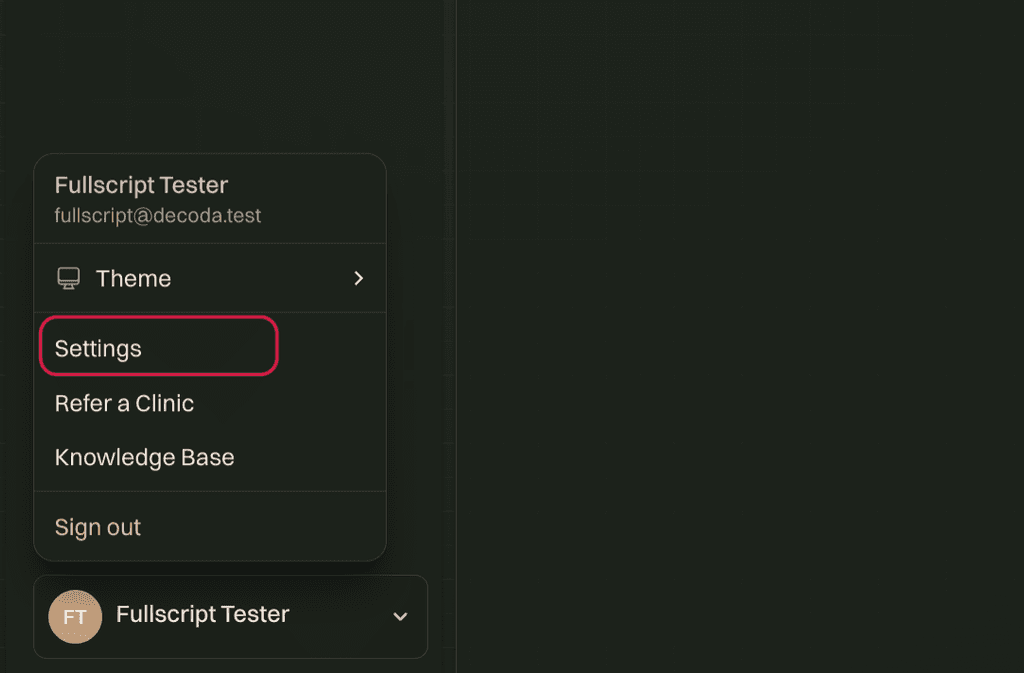
- In Decoda Health, open the dropdown in the bottom-left corner and select Settings.
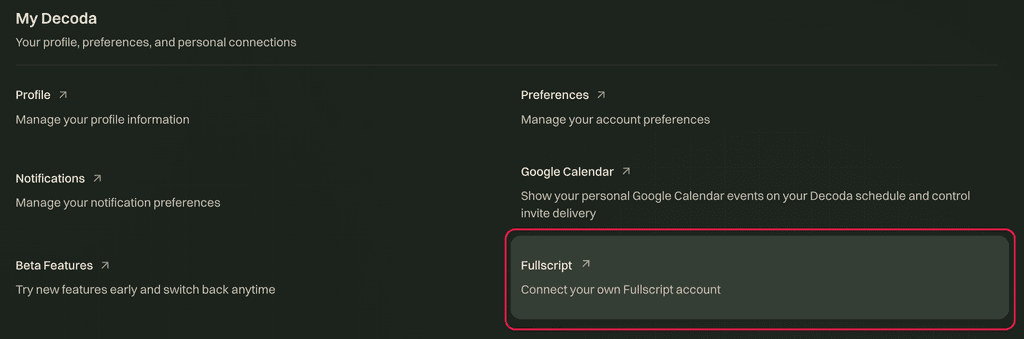
- Under Personal, select Fullscript.
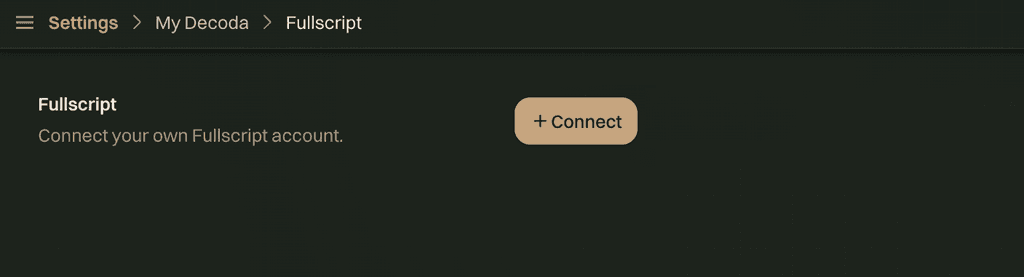
- Select Connect.
- Sign in to your Fullscript account or create an account when prompted.
- Select Agree to authorize the connection.
- You’ll return to Decoda Health, where Fullscript will display as ✓ Connected.
After connecting, the Fullscript page in Decoda Health displays the connected Fullscript account and the date and time the integration was authorized.
Create a Fullscript plan in Decoda Health
Supplements
To create a supplement plan:
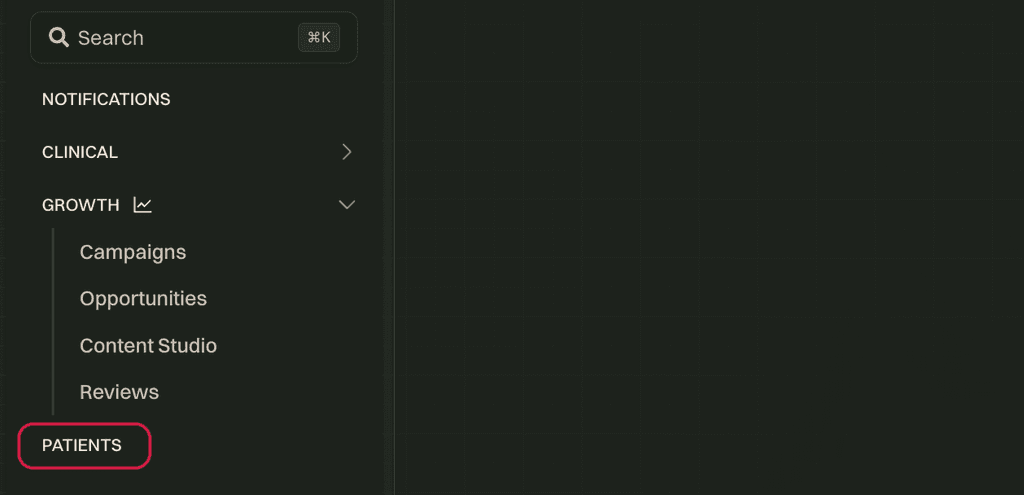
- Select Patients from the left-side navigation.
- Search for and select the patient.
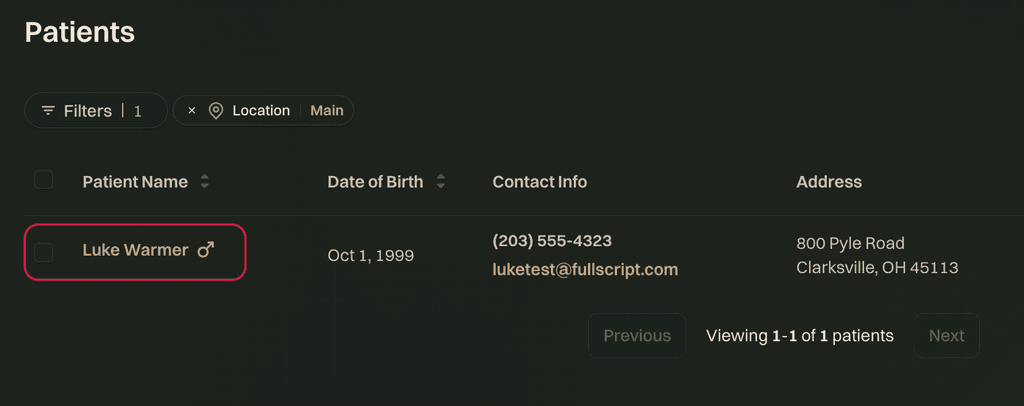
- Select See full profile.
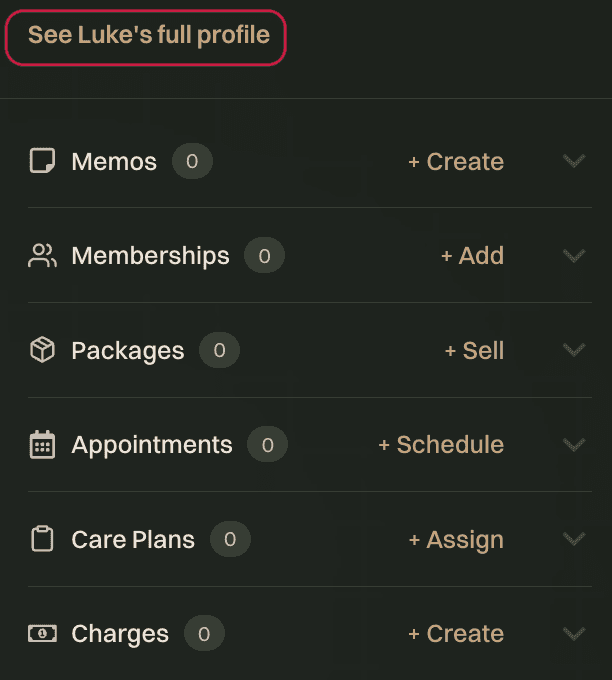
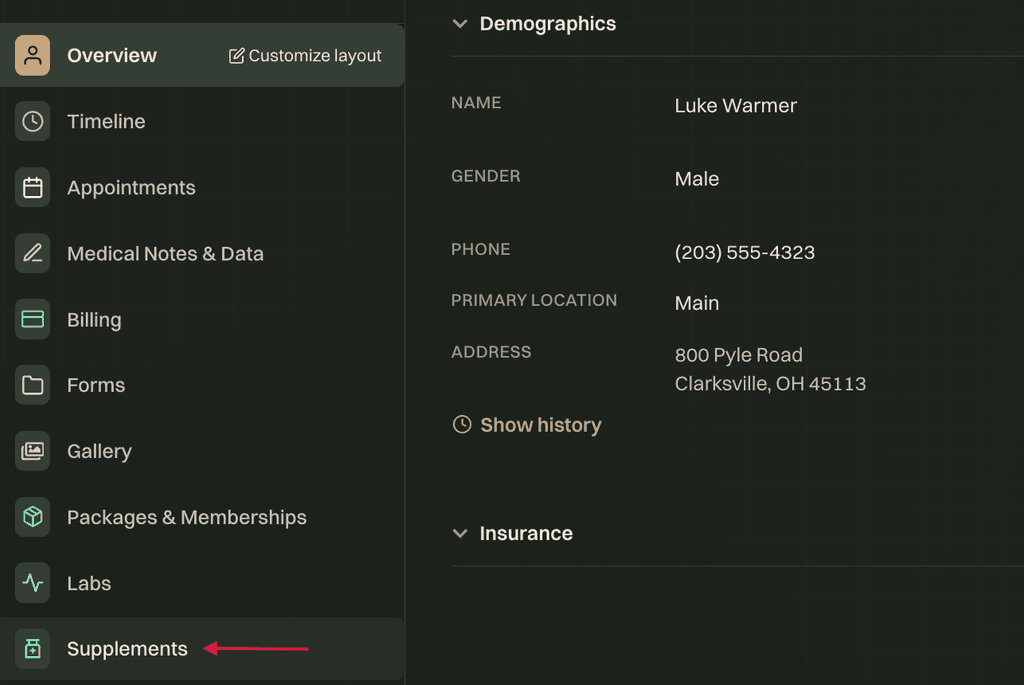
- Select Supplements.
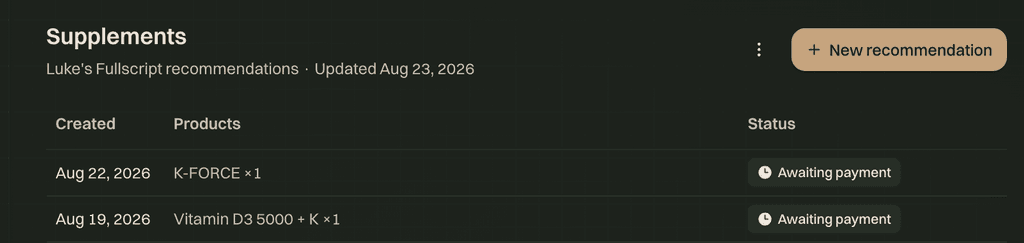
- Select + New recommendation.
- Use the embedded Fullscript catalog to add supplements, attach resources, and include a personal message.
- Select Review Plan when you’re ready to continue.
- Review the plan, then select Send to patient. After the plan is sent, a confirmation message appears with options to copy the plan link or plain-text notes.
Sent supplement plans appear under Supplements in the patient’s Decoda Health profile. Plans are organized from newest to oldest and can include the product name, brand, dosage, frequency, duration, and order status.
Labs
To create a lab plan:
- Open the patient’s full profile.
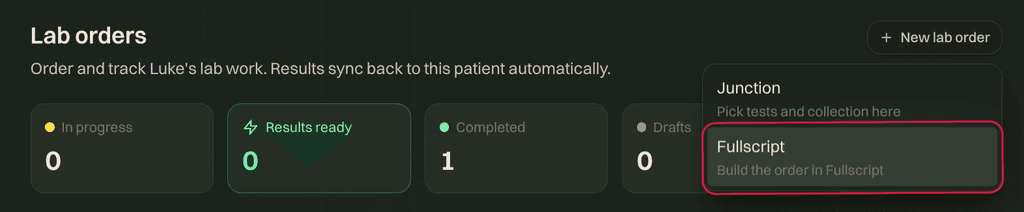
- Select Labs.
-1024x685.png&w=2048&q=75&dpl=41b3972c)
- Select the New lab order, then choose Fullscript from the dropdown.
- Use the embedded Fullscript catalog to add lab tests, attach resources, and include a personal message.
- Select Review Plan.
- Review the plan, then select Send to patient.
Sent lab plans appear under Labs in the patient’s profile. They display the test name, lab provider, and order status.
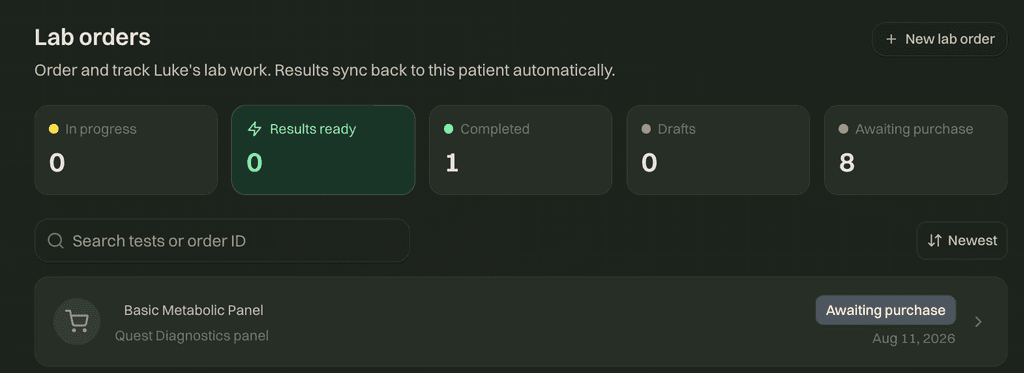
Supplements and labs can be included in the same Fullscript plan. After the plan is sent, supplements appear under Supplements and labs appear under Labs in Decoda Health.
Viewing lab results in Decoda Health
Lab order statuses in Decoda Health can include:
- Awaiting purchase: The lab was recommended but hasn’t been purchased.
- Purchased: The patient purchased the lab.
- Partial results: Some results are available, but the order isn’t complete.
- Results ready: Results are available and haven’t been opened.
- Completed: Results are available and have been opened.
To view available results:
- Open the patient’s profile.
- Select Labs.
- Select the lab plan.
- Select Results PDF to download the results.
Decoda Health doesn’t send a notification when lab results become available. Instead, the lab status changes to Results ready, and the Results ready counter increases.
Disconnecting Fullscript from Decoda Health
If you connected the wrong Fullscript account or need to reconnect the integration, disconnect it from Fullscript first.
- In Fullscript, go to Settings.
- Under Integrations, select Decoda Health.
- Select Disconnect.
- Contact Decoda Health to refresh your account.
- After the refresh, use Connect with Fullscript to connect another account.
Frequently asked questions
Who can use the Fullscript integration?
The integration is available to Decoda practitioners with a Fullscript account in the United States. Each Decoda account connects to one Fullscript dispensary.
How do I connect Fullscript to Decoda?
In Decoda, go to Settings > Personal > Fullscript > Connect. You’ll be redirected to Fullscript to sign in or create an account. After accepting the connection, you’ll return to Decoda and see Fullscript marked as ✓ Connected.
How do I create a lab recommendation?
From the patient's profile, go to Labs > New recommendation. Select the desired labs from the embedded Fullscript catalog, add any resources or a personal message, then select Review Plan and Send to patient.
Can I send supplements and labs in the same plan?
Yes. Supplements and labs can be included in the same plan. After the plan is sent, supplements appear under the patient's Supplements tab and labs appear under Labs.
What lab statuses can I see in Decoda?
Lab plans can have several statuses. These statuses include:
- Awaiting purchase: Recommended to the patient; not bought yet.
- Purchased: The patient has paid for the lab.
- Partial results: Some results are in, but the order isn’t finished.
- Results ready: Results are in and nobody has opened them yet.
- Completed: Results are in and someone has opened them.
Can I view lab results in Decoda?
Yes. When a lab order is complete, its status changes to Results Ready. Open the plan under the patient's Labs tab and select Results PDF to download the results.
Will I be notified when Fullscript lab results are ready?
There is no notification in Decoda when results arrive. Instead, the lab status changes to Results ready in the patient's chart, and the Results ready counter increases. You can also manually sync lab orders if needed. The notification of when an order occurs or if results become available will be sent from.
Why don't I see Fullscript in Decoda?
Fullscript only appears when the Fullscript feature is enabled for your clinic. If it is enabled, you also need to connect your personal Fullscript account under Settings > Personal > Fullscript.