
An introduction to SigmaMD
SigmaMD is an electronic medical record (EMR) and practice management platform for clinics, including direct primary care, concierge, functional and integrative medicine, and specialty practices.
With the Fullscript integration, you can create and send supplement plans from a patient’s chart in SigmaMD using the embedded Fullscript experience. Sent recommendations sync back to the patient’s medication chart, and patients can purchase supplements through the SigmaMD app.
Video: How to leverage Fullscript in SigmaMD
The SigmaMD + Fullscript integration is only available in the United States.
Integration setup: SigmaMD + Fullscript
The integration is available to all users in a SigmaMD account. A user with an admin role in SigmaMD must start the integration. After the integration is set up, other users can connect their individual Fullscript accounts.
To connect Fullscript:
- In SigmaMD, select Personal Settings from the left-side navigation.
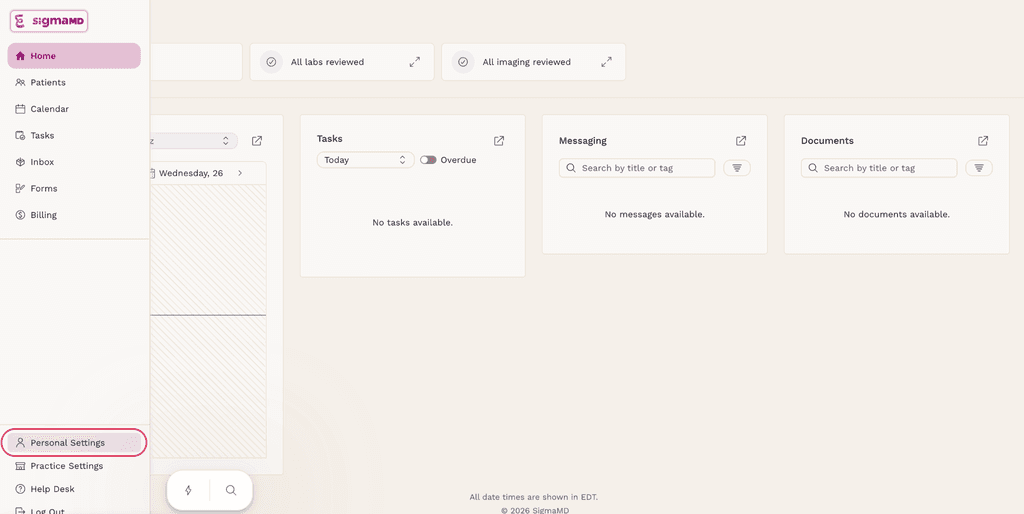
- Select Integrations.
- Find Fullscript, then select Connect.
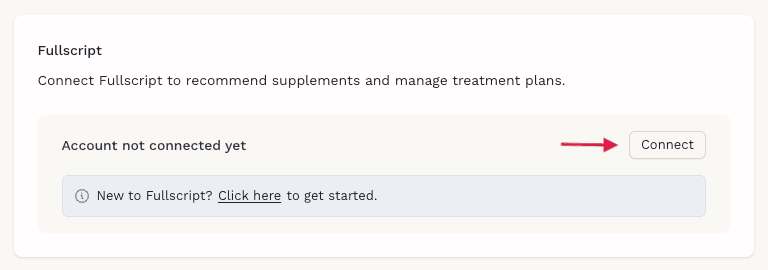
- You’ll be redirected to Fullscript. Sign in and agree to the integration permissions.
- Return to SigmaMD, where the integration status will display as Connected.
Create a Fullscript plan in SigmaMD
To create a supplement plan:
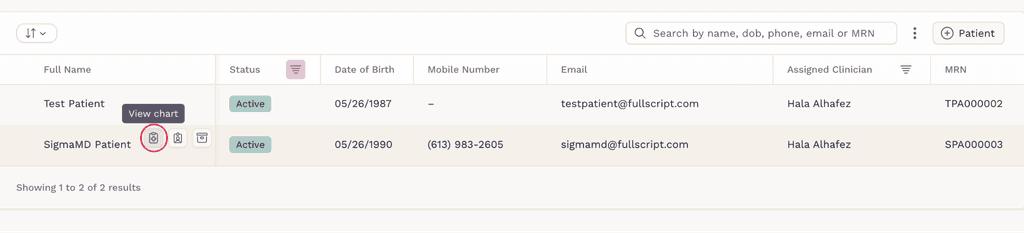
- Select Patients from the left-side navigation.
- Find the patient, then select the patient chart icon next to their name.
- Select the supplement icon in the patient chart header.
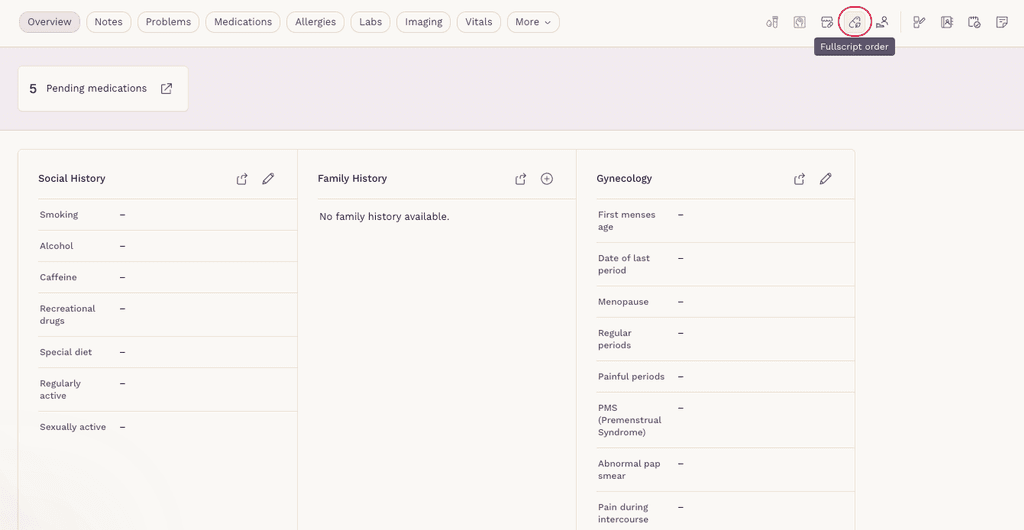
- Use the embedded Fullscript experience to build the supplement plan.
- Add the supplements and messages you want to include.
- Select Send to patient.
Where does the plan go in SigmaMD?
- The recommendation syncs back to the Medication tab in SigmaMD. You can find it under Pending Requests by selecting View Prescription.
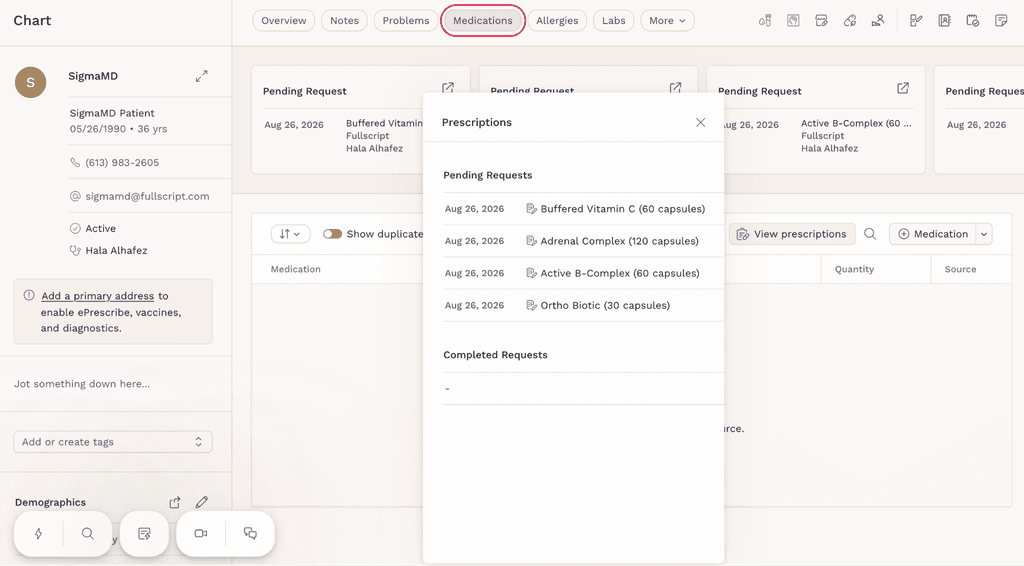
- After the patient places their supplement order, the supplements appear as active medications under the Medication tab.

Disconnecting Fullscript from SigmaMD
You can disconnect the integration from either SigmaMD or Fullscript.
To disconnect in SigmaMD:
- Go to Personal Settings > Integrations.
- Find Fullscript.
- Select Disconnect.
To disconnect in Fullscript:
- Go to Settings > Integrations.
- Select SigmaMD.
- Select Disconnect.
Frequently asked questions
How much does SigmaMD cost?
SigmaMD is priced per clinician license, monthly, with no long-term contract. Pricing can be found here.
Can my staff use the SigmaMD integration?
Yes, as long as your staff are added to your Fullscript account. They can connect the integration under “Personal Settings”.
Where can I learn more about SigmaMD?
You can book a demo here.