
Patient memory helps Fullscript Assist remember details about a patient between conversations. This gives Assist context from your previous conversations when you return to work with that patient.
Learn how details are added to a patient's memory and how to view, edit, or delete what's saved.
Add details to a patient's memory
When you open Assist, select the patient you want to chat about. As you chat about the selected patient, Assist can save details you share, including:
- Conditions and symptoms
- Medications
- Treatment history
- Lifestyle
- Goals
You don't need to confirm each detail before it's saved. When Assist updates the patient's memory, Patient memory updated appears in the chat with a check mark. Select it to see a summary of what was saved.
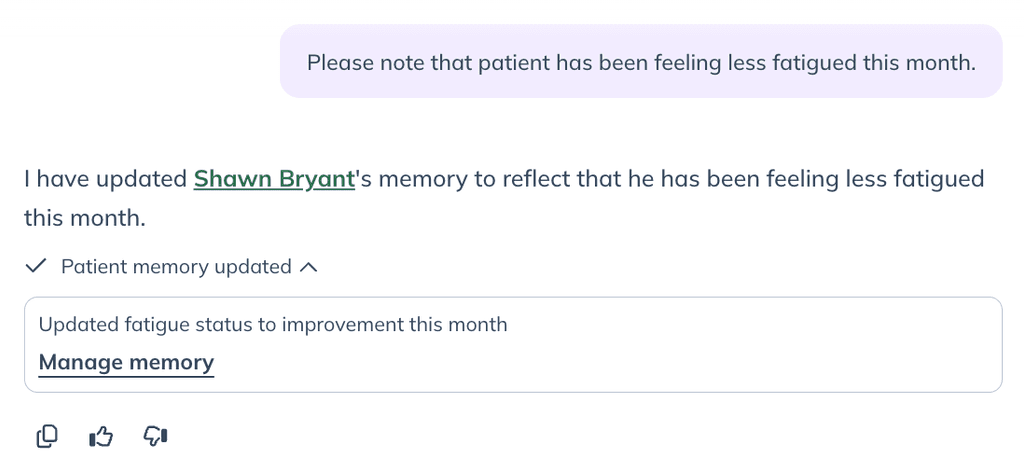
Patient memory stores details Assist remembers about a patient. To manage what Assist remembers about you, see Set your Fullscript Assist preferences.
Manage a patient's memory
View memory
- From the patient’s profile, select Patient details next to their name.
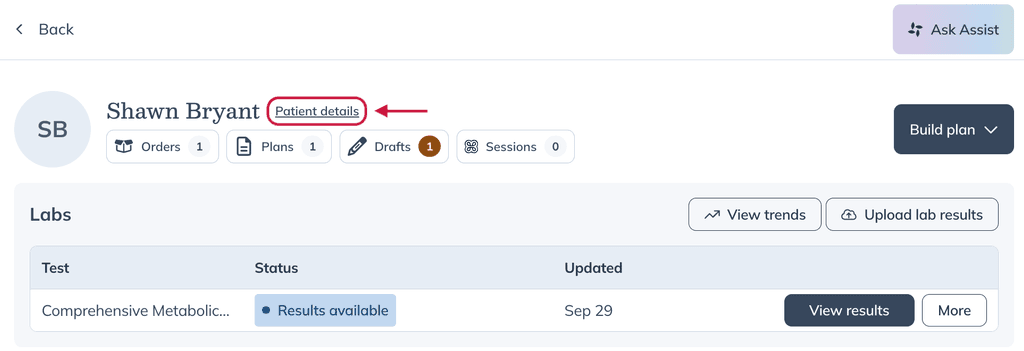
- In the Patient information panel that appears, find Memory at the bottom.
Each saved entry is dated. If no details have been saved for the patient, the Memory section doesn't appear.
Edit memory
To edit a patient's memory:
- In the Memory section, select Edit (pencil icon).
- Make your changes in the text box.
- Select Save to save your changes, or Cancel to close without saving.
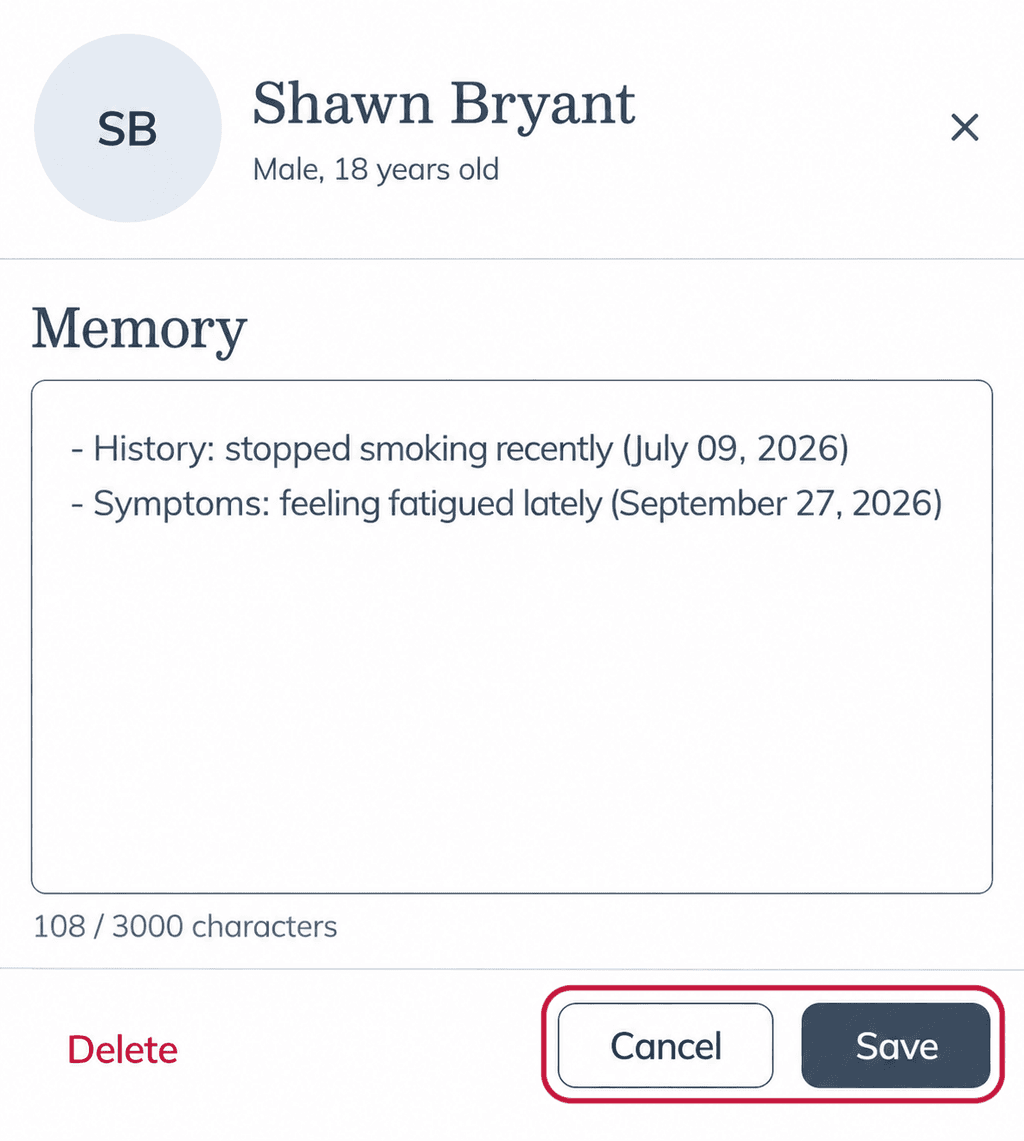
You can also select Manage memory in the Assist chat to open the editable Memory panel directly.
Patient memory can contain up to 3,000 characters, and Assist may update or rewrite what's saved as you continue chatting. If the memory gets full, remove outdated details to make room. Because Assist continues to manage this information, don't use patient memory as a place to keep your own notes.
Delete memory
To permanently delete a patient's memory:
- In the Memory section, select Edit (pencil icon).
- Select Delete.
- In the Delete patient memory? window, select Delete memory.
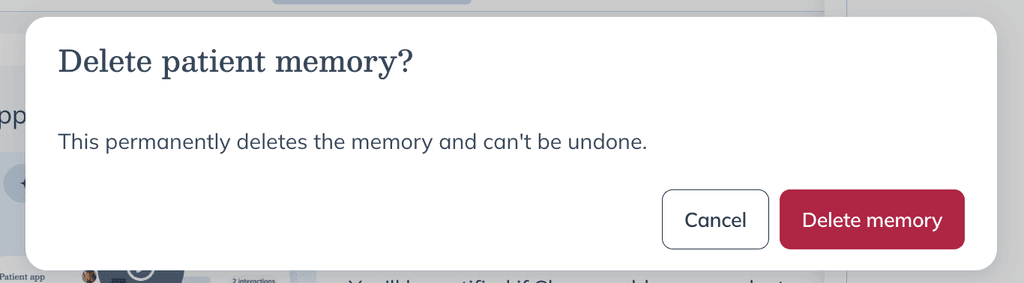
Deleting patient memory can't be undone. Select Cancel to keep it instead.
For information about how patient data is stored and kept, see Fullscript Assist data and privacy.