
Preferences give Fullscript Assist context about how you practice. Assist considers them when creating plan drafts, including plan messages, product recommendations, lifestyle guidance, and lab suggestions. Preferences apply to every patient. To save details about one patient, use patient memory.
Your preferences apply only to you, not to other practitioners or staff on your account.
Open Assist settings
You can review and manage all your preferences from Assist settings.
- Open Fullscript Assist.
- Click in the chat box to show the toolbar.
- Click the Assist settings icon (sliders), then select Personalize.
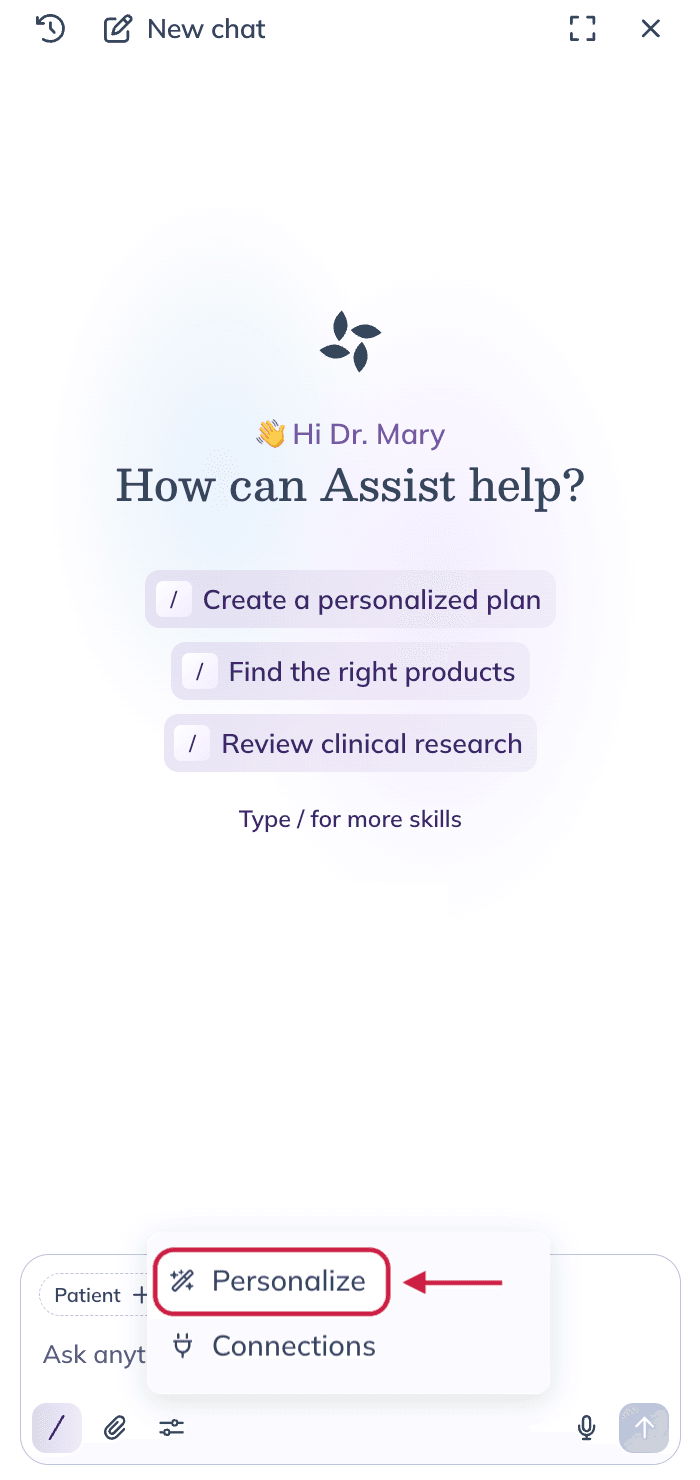
The Personalize page shows your preferences, grouped by category.
Preference categories
- General preferences: Add context about your practice and patients that Assist should keep in mind in every conversation. For example, “Most of my patients are perimenopausal women.”
- Patient message style: Set preferences for the tone and wording of plan messages and patient instructions, such as greeting patients with “Hello” or closing with your name.
- Supplement and product preferences: Add preferences for brands, dosage forms, and plan limits. For example, “Prefer vegetarian capsules” or “Keep plans under 5 products.”
- Lab recommendation and results preferences: Guide how Assist suggests labs or follow-up testing and how it reads your patients’ results.
- Lifestyle recommendation style: Guide how Assist suggests nutrition, sleep, movement, stress, and behavior changes.
Manage preferences in Assist settings
In Assist settings, you can add, update, or remove your preferences.
Add a preference
- Go to the category you want and click Add.
- Enter your preference, then click Save.
Assist checks each preference before using it. If a preference shows Flagged — edit or delete it, Assist won’t use it. Edit the preference and save it again, or delete it.
Update or remove a preference
- Hover over the preference.
- Click the edit icon (pencil) to update it, or the delete icon (trash can) to remove it.
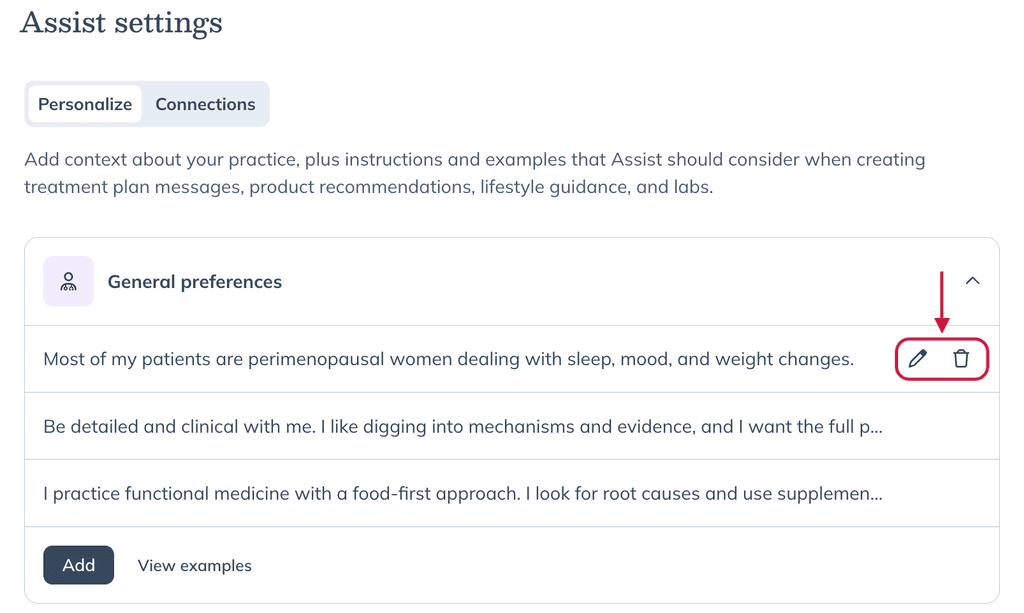
- Update the text and click Save, or click Delete preference to confirm.
Manage preferences in chat
You can also tell Assist about your preferences as you chat. Assist shows you the preference it wants to add, update, or remove before anything changes.
Add a preference
- Tell Assist how you practice. For example, “For lifestyle tips, I always recommend 10 minutes of morning sunlight.”
- When the Save preference banner appears, check the wording.
- Click Save to add the preference, or click X to skip it.
After you save it, a Preference saved note appears in the chat. Click the note to see the saved text and a Manage preferences link to Assist settings.
Update a preference
If something you tell Assist conflicts with a saved preference, you’ll see Update your saved preference? with a summary of the change.
- Click Review full text to compare Currently saved with New.
- Click Update to replace the saved preference, or click X to keep it as is.
A Preference updated note appears when you save the change.
Updating replaces the saved text with the new text. Check Review full text first so you don’t lose details you want to keep.
Remove a preference
- Ask Assist to remove the preference. For example, “Remove my morning sunlight preference.”
- When the Remove saved preference? banner appears, review the preference.
- Click Remove to delete it, or Keep to leave it saved.
A Preference removed note appears in the chat.
See what you’ve saved
Ask Assist, “What have I saved?” to see your preferences grouped by category.