
Fullscript’s analytics dashboard gives you powerful insights into your practice performance and patient behavior, helping you drive growth, optimize patient engagement, and make data-driven decisions with ease.
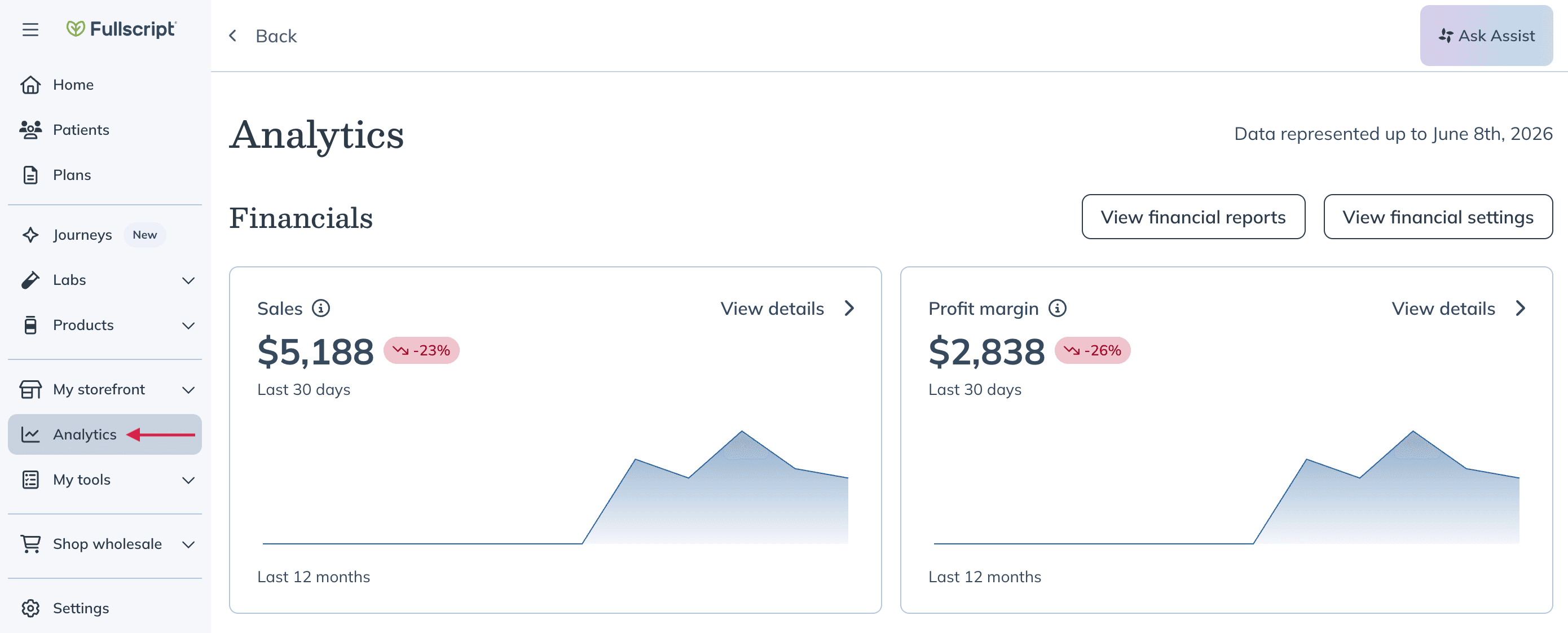
View the Plans sent chart.
Data presented is not real-time. In the 30-day view, data includes up to the previous day.
The dashboard
In the analytics dashboard, you’ll find different, expandable charts that show your account’s performance over the last 7 days, 30 days and 12 months. You can select any of the analytics charts to view more information by clicking the different timeframes in the upper right-hand corner of the chart.

Viewing orders placed over the past 12 months.
By default, the analytics dashboard is available only to store owners. However, access can be enabled for staff accounts.
The dashboard divides data into five groups: Financials, Orders, Patients, Plans, and Auto refill.
Financials
Sales
This chart shows your account’s total sales revenue – the price paid by patients for their orders after discounts, before taxes. Expand the sales graph to view monthly sales breakdowns, including revenue from individual plans, protocols, and self-serve through your store.
Self-serve refers to revenue from products that didn't have an associated plan or protocol in the referenced month. These can be products purchased through the patient’s catalog (if they have access) or their order history.

Viewing three months worth of sales statistics.
Profit margin
Here you’ll see your account’s earnings from individual plans, protocols, and self-serve orders. Earnings are what you receive at the end of each payout period into your bank account.
Profit margin statistics are only available to profit accounts.
Orders
Orders placed
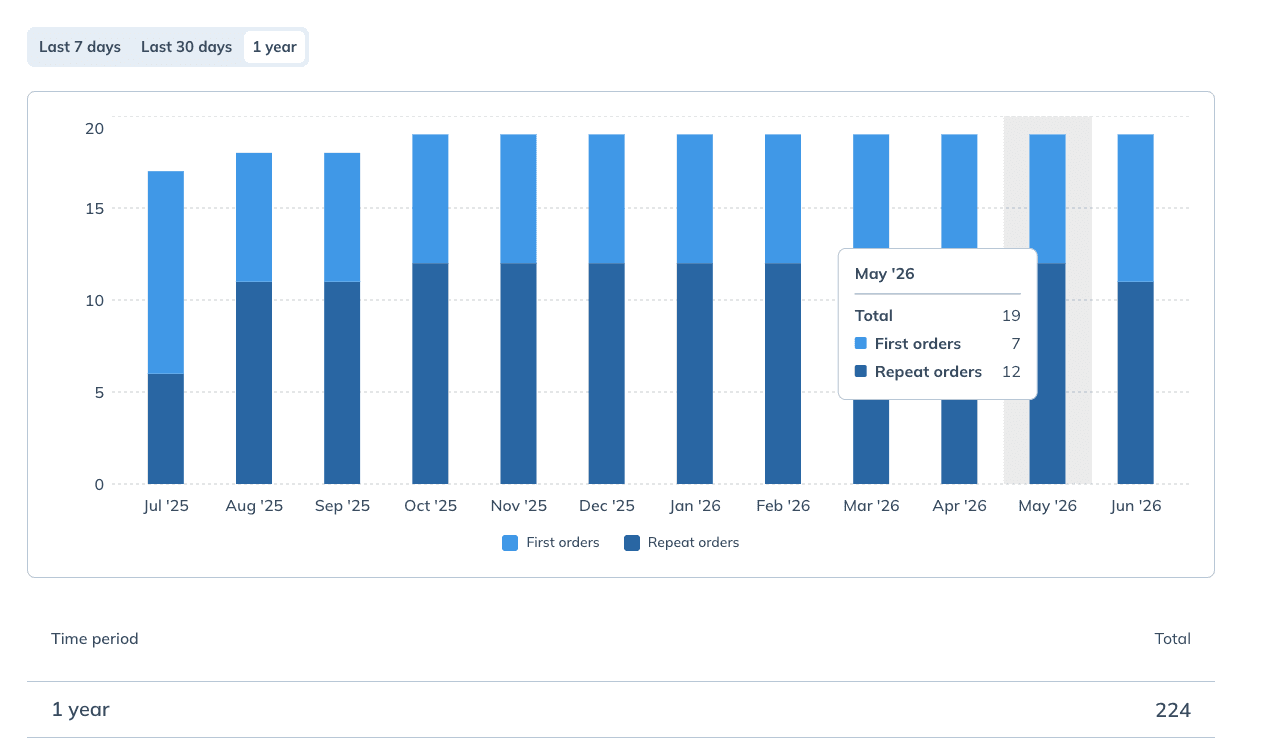
When expanded, this graph shows the number of orders placed by your patients over the last 7 days, 30 days and 12 months. Hover your cursor over a specific month to see a breakdown of first-time and repeat orders.
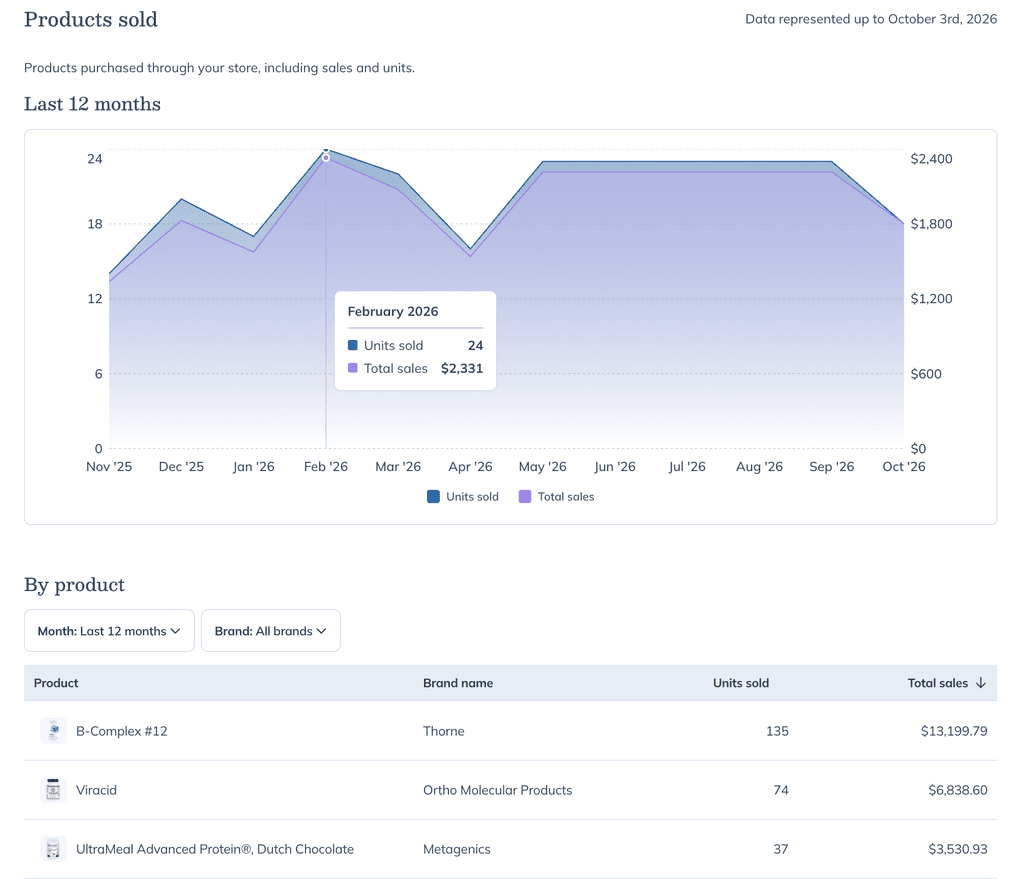
Products sold
This graph shows the total quantity and value of products patients purchased.
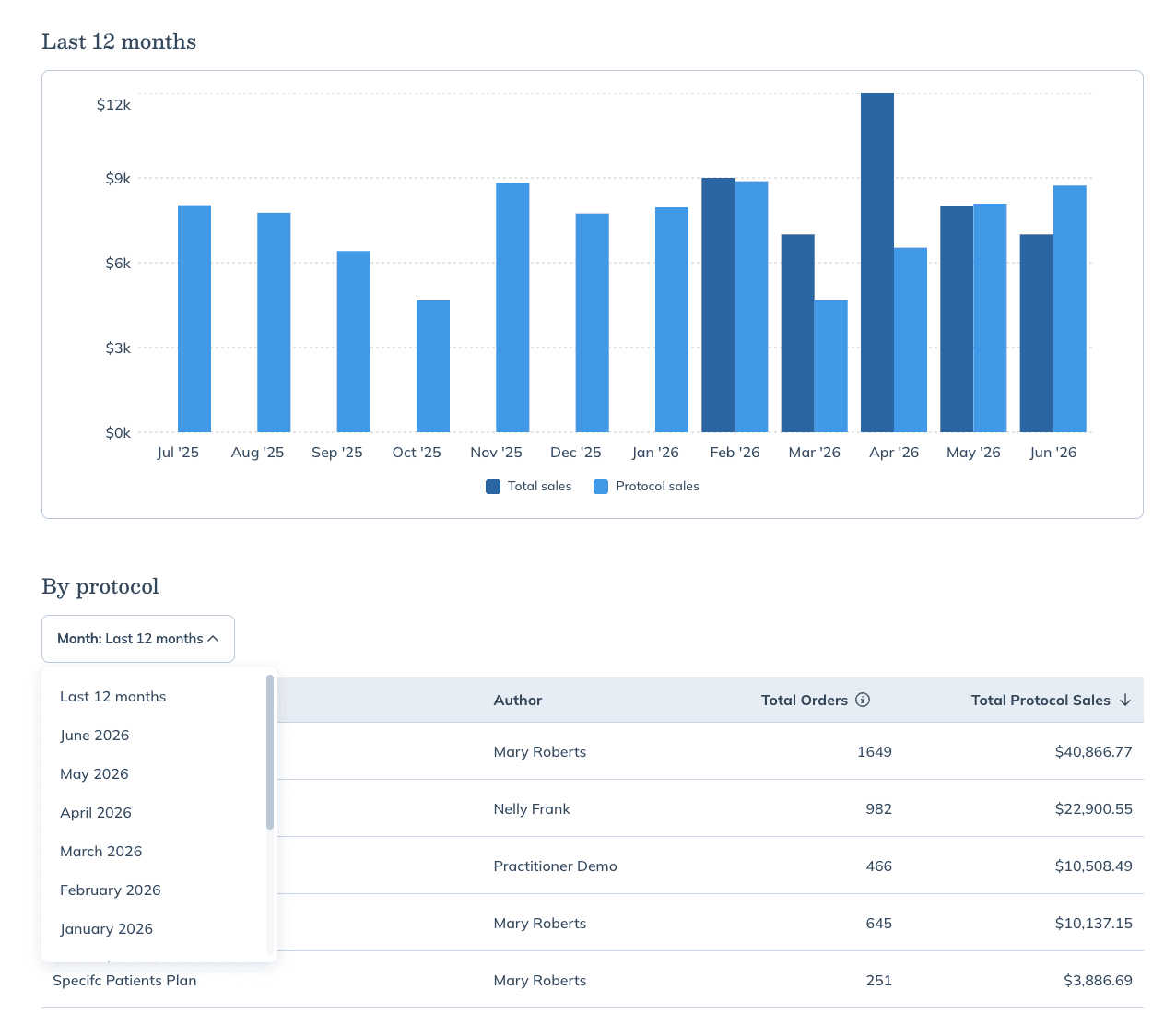
Protocol sales
This chart shows protocol performance, orders, and sales over time.
Patients
Ordering patients
This graph shows the number of individual patients who placed an order each month. The expanded graph offers breakdowns between first-time orders and repeat orders within each month.

New patients
ou can use this chart to track the number of patients added to your practice over time.
Plans
Plans sent
This chart shows the number of new individual plans that were created and assigned to patients each month.
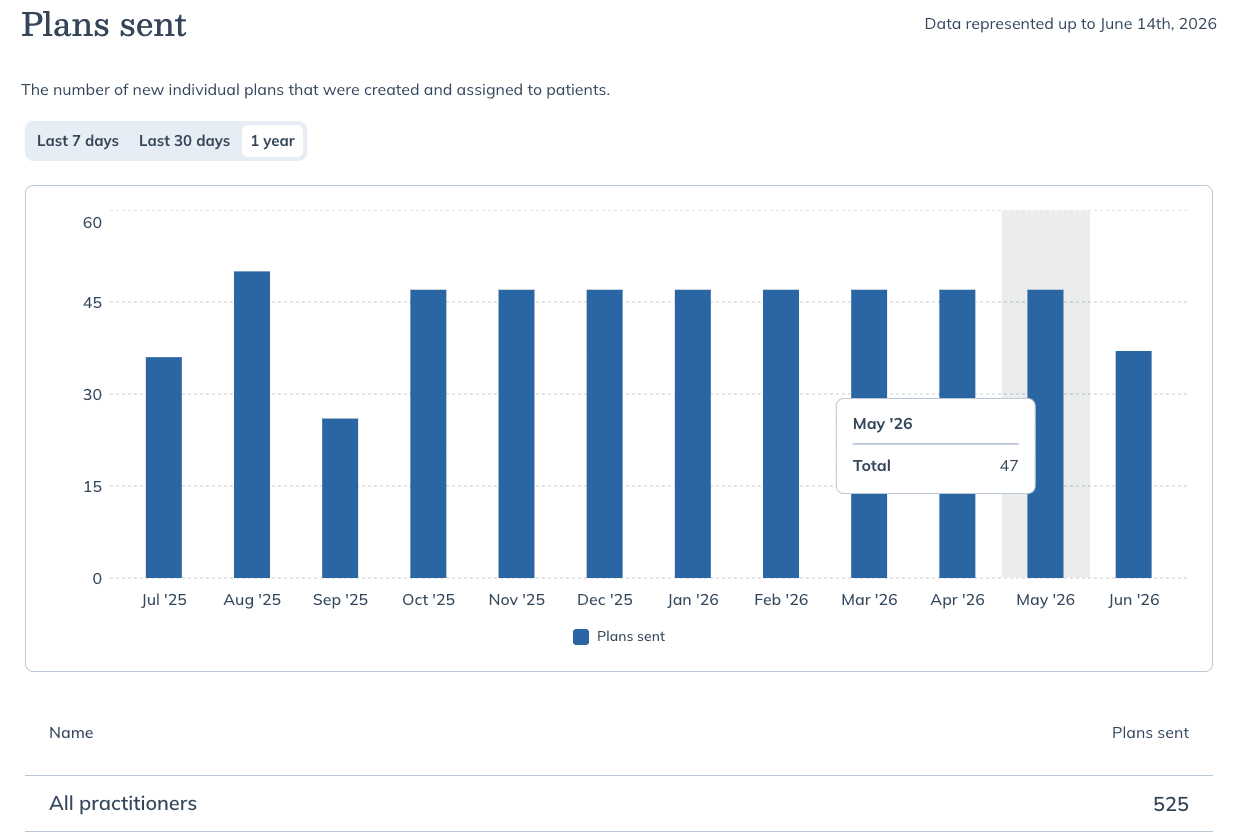
View the Plans sent chart.
If your store includes multiple providers, there’s a table below the chart that breaks down the number of plans sent by each provider.
Plan conversion
This data shows the proportion of individual patient plans ordered within 30 days of being activated by the practitioner.
Protocol conversions aren't included in this data.
Auto refill
Auto refill sales
This chart works similarly to the Sales chart in the Financials section. In this case, it shows only revenue from orders that are part of an auto refill subscription.
First-time auto refills
This shows the number of patients that placed their first auto refill order within 7 days, 30 days and 12 months.
Encourage your patients to activate auto refills by offering auto refills discounts.
Auto refill orders
This chart shows the total number of auto refill orders fulfilled through your store every 7 days, 30 days and 12 months.
Expanding certain charts provides insights on improving store performance. These may include handouts about the Fullscript mobile app or articles on optimizing your patient plans.