
Fullscript Assist can draft a plan from your clinical notes or a description of your patient’s symptoms or condition. You bring the clinical judgment and decide what goes to your patient.
Start a plan draft
Start from the patient’s profile so Assist can use what it remembers about them when drafting the plan.
- Select Ask Assist. Or, select Build plan, then Build faster with Assist.
- Select Create a personalized plan.
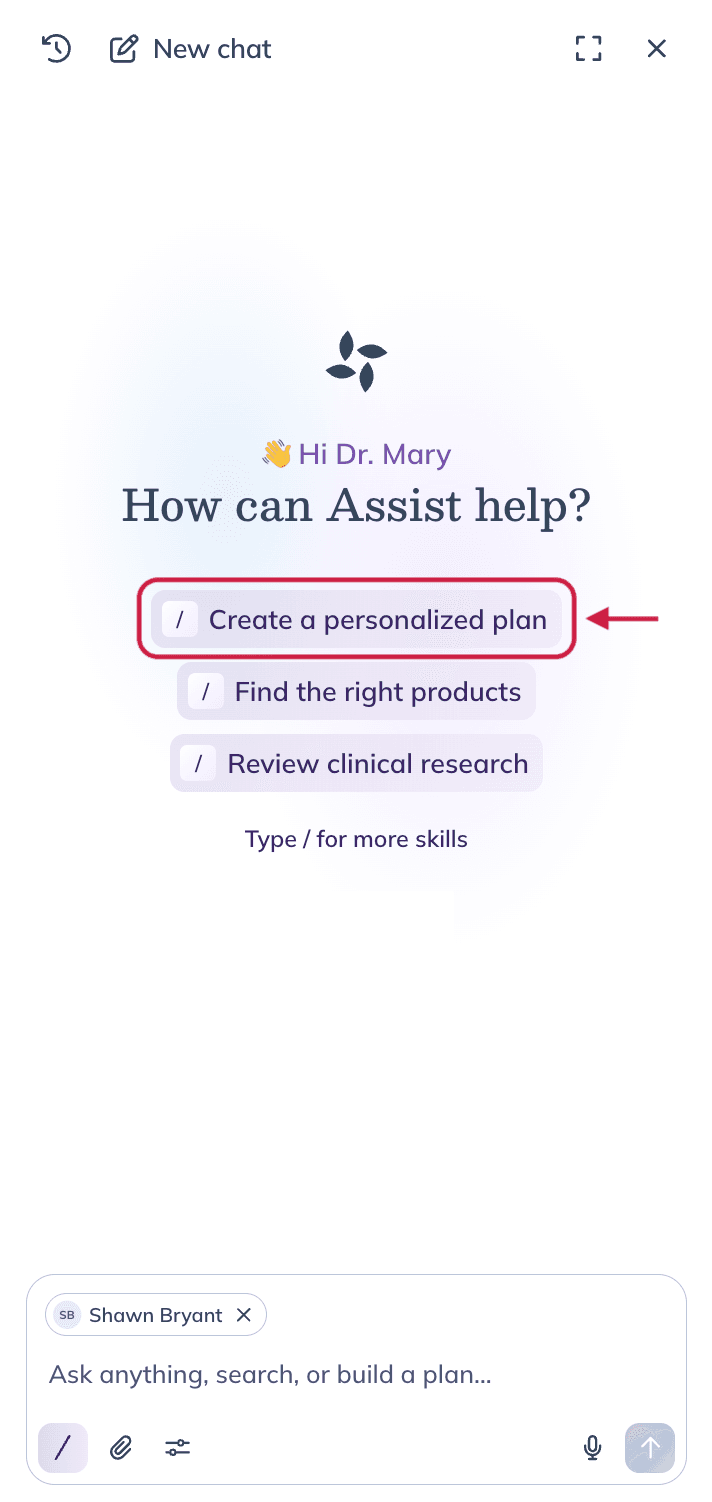
- Paste or upload a chart note, SOAP note, intake form, or visit transcript (PDF, JPG, or PNG, up to 10 MB). Or describe your patient’s symptoms or condition.
- Include your patient’s current medications so Assist can flag potential interactions and nutrient depletions.
- Send your request.
You can also describe the patient’s symptoms or condition instead of providing a note. Include their current medications so Assist can flag potential interactions and nutrient depletions.
Assist uses your Assist preferences when drafting the plan.
Review the draft
When the draft is ready, Assist shows a plan card with a message for your patient and recommended supplements, lab tests, lifestyle recommendations, or patient resources. Lab recommendations are for US practitioners only.
- Review each recommendation. Select Why? to see why Assist included it.
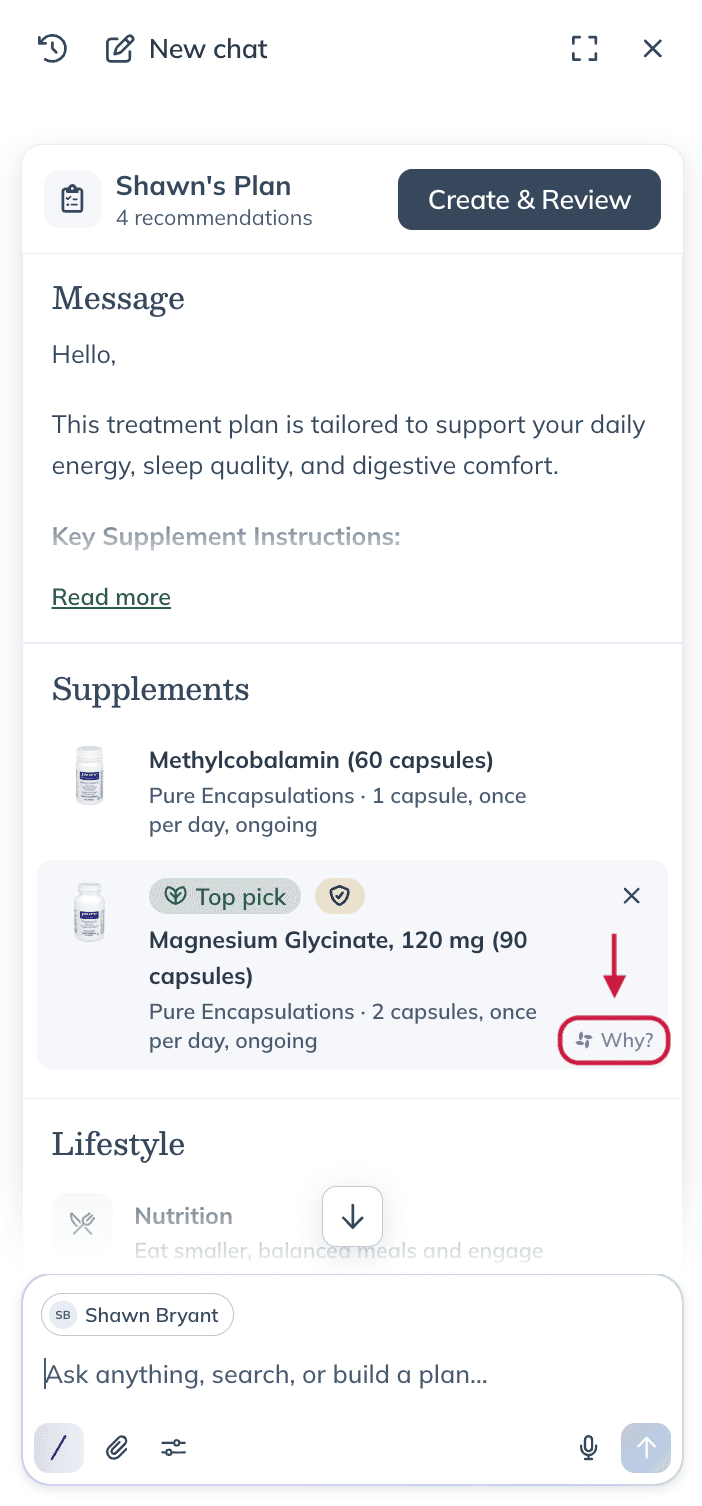
- To remove a recommendation, hover over it and select the X.
- Select Create & Review to open the plan on the Review page. From there, you can edit and send it using the plan-building tool.
If the patient already has a draft plan, you’ll be asked whether you want to replace it. Replacing it permanently deletes the existing draft. Select View draft to review the existing plan before deciding.
Assist doesn’t send anything to your patient. The plan is only sent when you select Send to patient.