
Connect your Heidi account to bring your Heidi sessions into Fullscript. From any session, Fullscript Assist drafts a plan from the session note you choose. You review and edit every plan before anything goes to your patient.
To use it, you need an active Heidi account and access to Fullscript Assist. Each practitioner connects their own Heidi account and sees only their own sessions.
Connect your Heidi account
Connect Heidi from your homepage or from Assist settings.
From your homepage
- In the Updates area of your homepage, click Connect Heidi.
- Click Continue in a new window.
- Sign in to Heidi and follow the on-screen steps.
- When the success message appears, you're connected.
From Assist settings
- Open Fullscript Assist.
- Click Assist settings, then Connections.
- Find Heidi and click Connect.
- Sign in to Heidi and follow the on-screen steps.
For more on Assist settings, see Fullscript Assist.
Heidi opens in a new tab for you to sign in. If nothing opens, check that your browser isn't blocking pop-ups. If Heidi is already open in another tab, log out of Heidi, close that tab, and try again.
View your Heidi sessions
Your Heidi sessions appear on your homepage, on the Sessions page, and on each patient's profile. Sessions sync from Heidi on their own. To pull in new sessions right away, click Sync now.
On your homepage
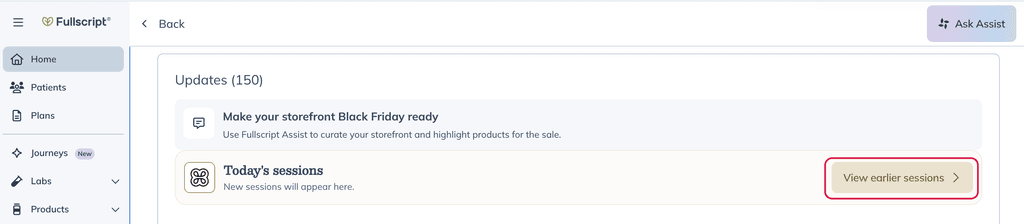
The Heidi banner in Updates shows today's sessions.
- Click View earlier sessions to see all your sessions.
On the Sessions page
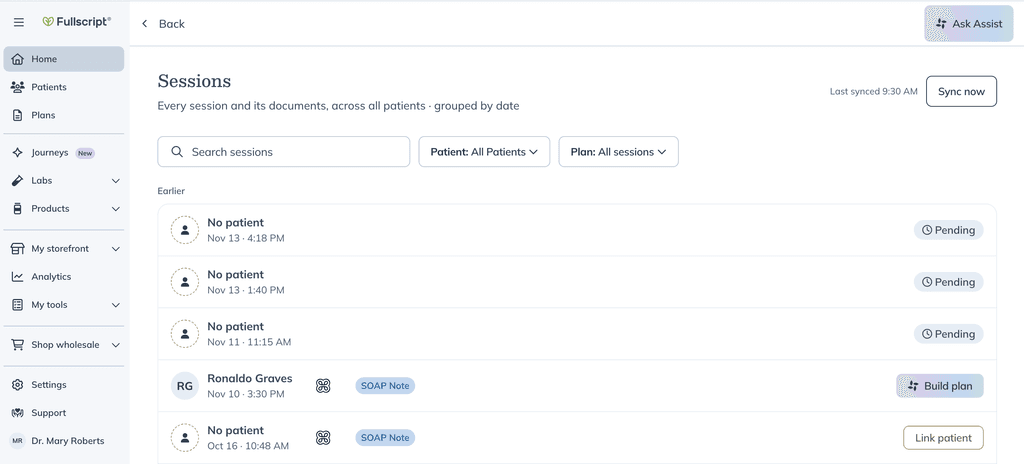
The Sessions page lists your sessions across all patients, grouped by date.
- Search for a session, or filter by Patient or Plan.
- Check the note chips, such as Clinical Note and SOAP Note, to see which notes each session has.
- Click the patient name to open their profile, or the session date and time to open the session.
- Click Sync now to pull in new sessions. The last sync time appears beside it.
- Click Build plan to start a plan in Fullscript Assist.
On a session
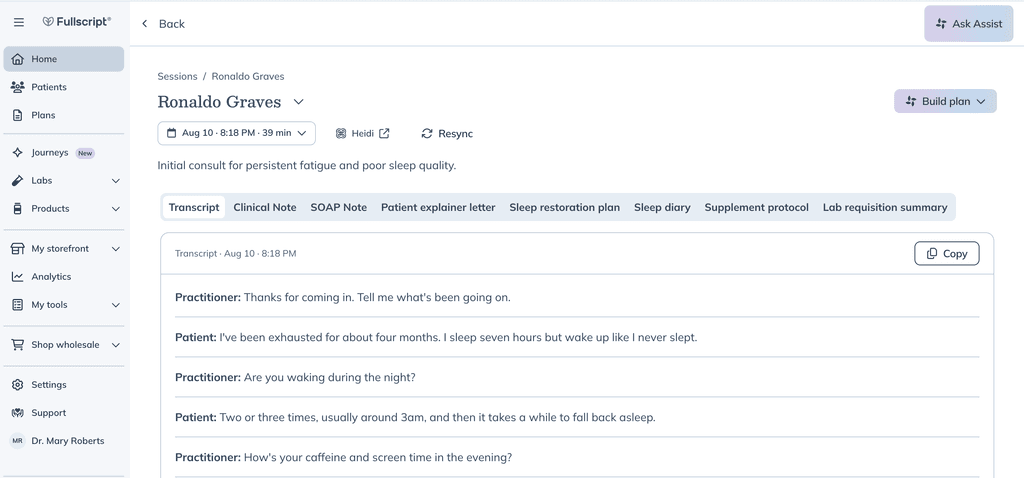
Open a session to see everything Heidi captured for that visit.
- Use the tabs to switch between the Transcript and your Heidi notes.
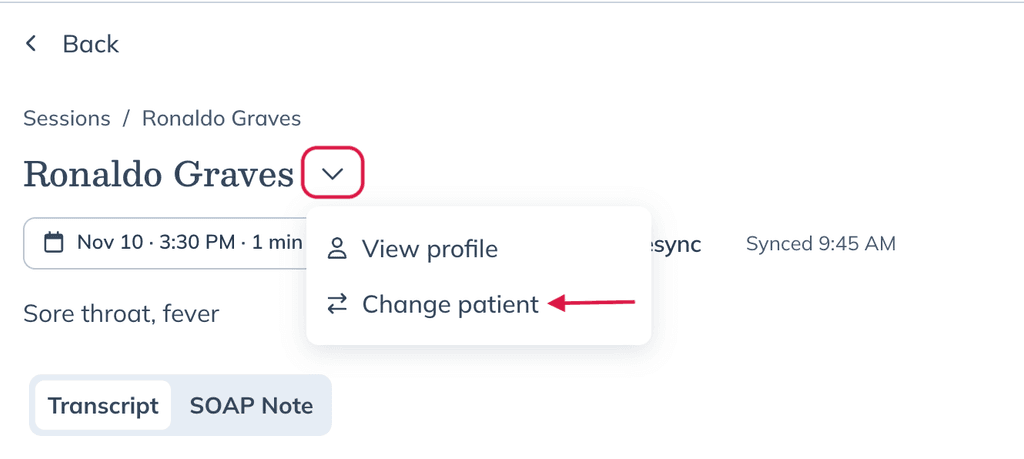
- Click the arrow beside the patient's name to View profile or Change patient.
- Click the session date and time to switch to a past session with the same patient.
- Click Heidi to open the session in Heidi.
- Click Resync to pull in the latest updates for this session.
- Click Build plan to start a plan in Fullscript Assist.
On a patient's profile
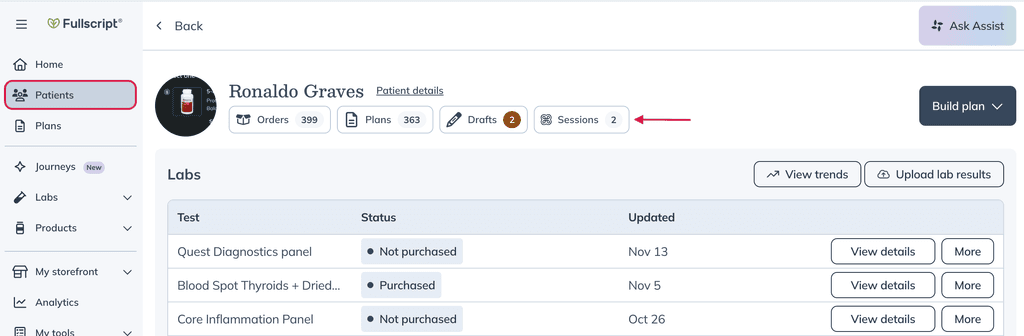
Click Sessions at the top of a patient's profile to open a panel of your sessions with them, most recent first. The number beside Sessions shows how many you've had.
- Check each session's date and time, available notes, and topics.
- Click Build plan to start a plan in Fullscript Assist.
Link sessions to the right patient
Fullscript matches each session to one of your Fullscript patients by name, email, and date of birth. Some sessions show a status instead.
- Pending: Heidi is still writing up the session. Check again in a few seconds.
- No patient: Fullscript couldn't confidently match the session to a patient. Click Link patient, then select the patient or create a new one. You only do this once per patient. Their later sessions link on their own.
To fix a session linked to the wrong patient:
- Open the session.
- Click the arrow beside the patient's name.
- Select Change patient, then select the right patient.
Build a plan from a session
Build plan opens Fullscript Assist with the session attached.
- Click Build plan next to any session.
- If the session has more than one note, choose the note to use, such as your SOAP note. If it has one note, Assist starts right away.
- Assist drafts a plan from the note you selected, including a patient message, product recommendations with dosing, lab recommendations, lifestyle recommendations, and relevant resources.
- Click Create and review plan.
- Review and edit the plan, then click Send to patient.
A session can have more than one plan. More detailed notes lead to more complete drafts. Always review products, dosing, and patient instructions before you send.
Unlink Heidi
- Open Fullscript Assist.
- Click Assist settings, then Connections.
- Find Heidi and click Unlink.
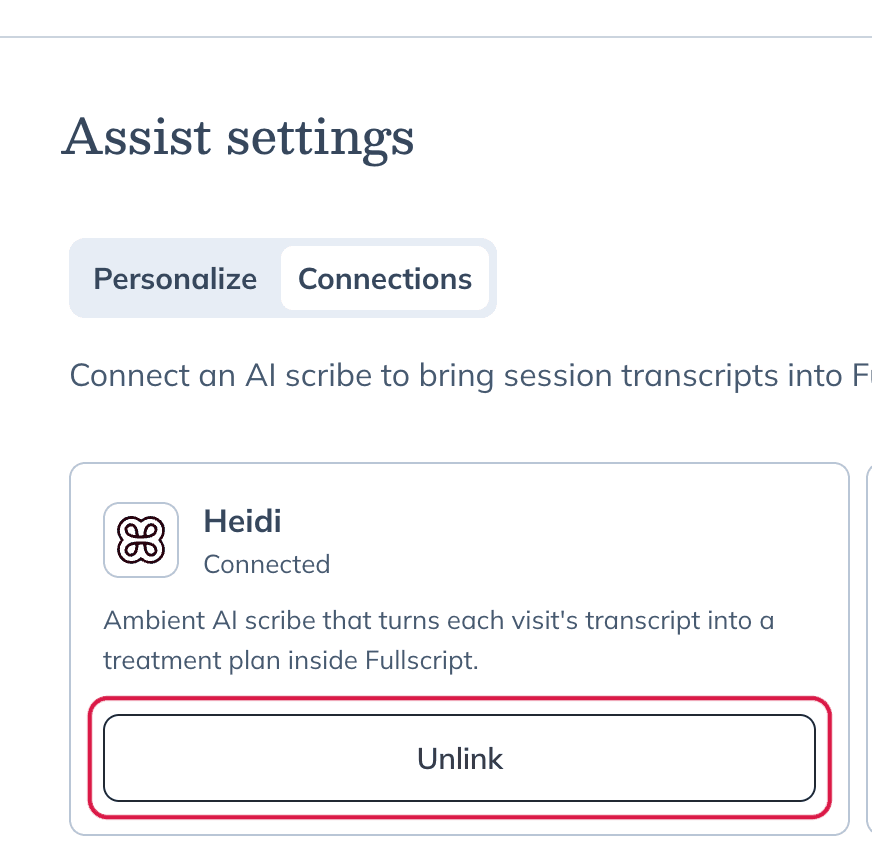
After you unlink Heidi, new sessions stop syncing. Sessions already in Fullscript stay and can't be removed.
FAQs
I don’t see the Connect Heidi option. Why?
The Heidi integration is in early preview with a small group of practices that use both Heidi and Fullscript. We plan to expand it. If you don’t see Connect Heidi on your homepage or in Assist settings, it isn’t on your account yet.
Does Fullscript change anything in Heidi?
No. Fullscript only reads your sessions from Heidi. Nothing is written back to your Heidi account.
Is my patient data secure?
Fullscript Assist runs within HIPAA secure systems and workflows, designed to safeguard protected health information (PHI) appropriately. The contents of an Assist chat are not used to train general purpose models.
Create patient put the name in the wrong order. What should I do?
For now, enter the first name, then the last name. We’re working on supporting both “First Last” and “Last, First.”
Can I order from a session?
Ordering isn’t included yet. It’s in development.