
Labs on Fullscript simplifies your workflow by bringing test ordering and management into one platform. You can browse a comprehensive catalog of specialty and blood tests and send your first order in seconds.
Before you send your first lab test recommendation:
- Ensure you’re registered for labs by verifying your credentials and accepting the terms of service.
- Depending on your ordering access, we’ll prompt you to sign up for the authorization network.
Labs are available to patients across all 50 states, but test availability can vary based on location. See Lab availability in New York, New Jersey, Rhode Island, and Hawaii for information about lab availability in these states.
Patients in offshore US territories aren't currently eligible for labs.
Video: Order a lab test for a patient
If you use a supported EHR or partner integration, you may be able to create lab plans directly from your EHR. See Integrating Fullscript with your EHR software for more information.
Creating a lab recommendation
To send a lab test recommendation, follow the same steps you use to start a new supplement plan. If you already have a preferred workflow in your Fullscript account, keep using it.
Lab testing can’t be added to protocols.
You can create a lab recommendation from the Labs catalog, directly within a patient’s profile, or—if supported by your integrated EHR or partner platform—through your integration. Regardless of where the lab plan is created, your patient completes the same Fullscript checkout experience.
As you add tests from the catalog, a cart stays visible on the screen so you can review the plan as you build it.
To add a lab recommendation to a patient plan:
- In the left-hand navigation, click Labs, then select Catalog.
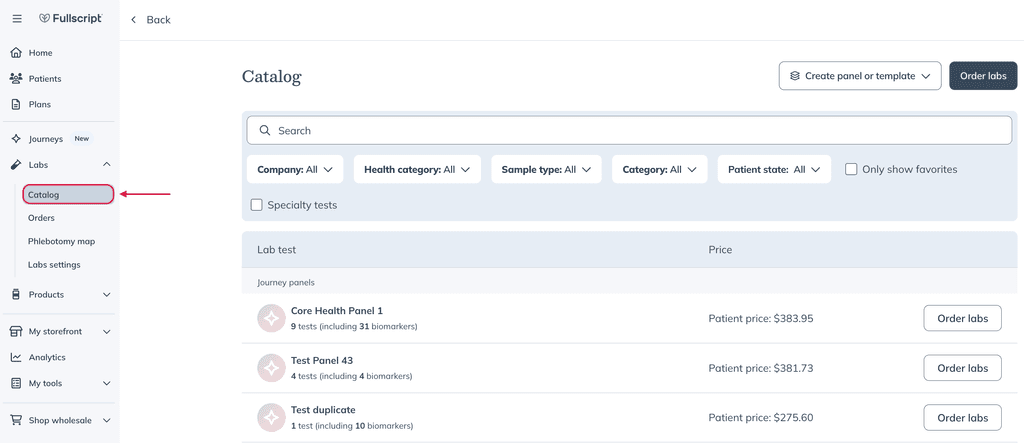
- Search the catalog by test name, lab company, health category, or sample type.
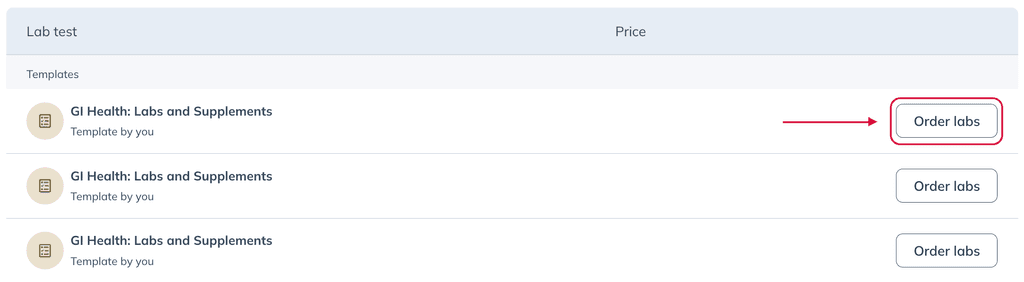
- Click Order labs or Add to plan when you’ve found the test(s) you’d like to recommend to your patient.
Want to compare lab tests side-by-side before adding one to a plan? Learn how in Comparing lab tests.
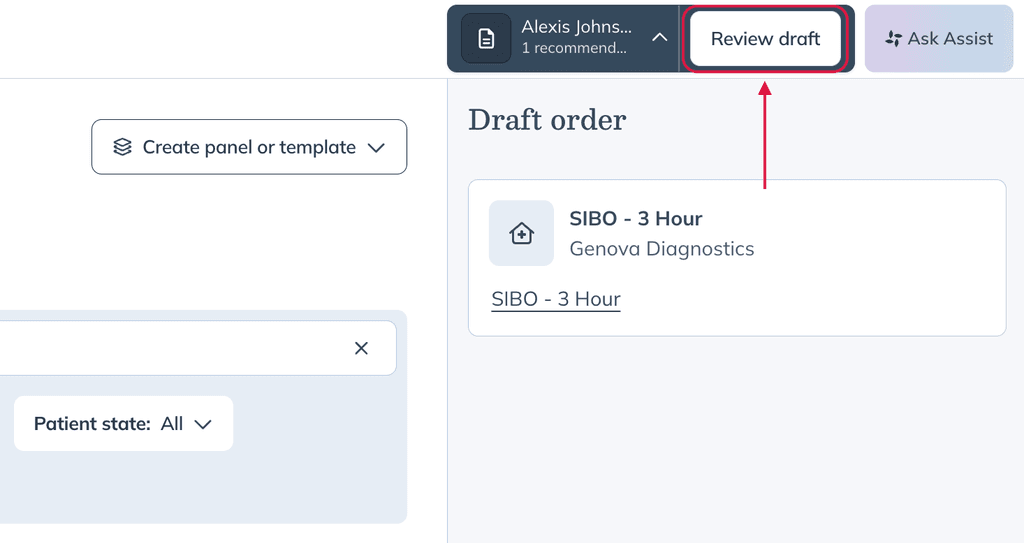
- Click Review draft.
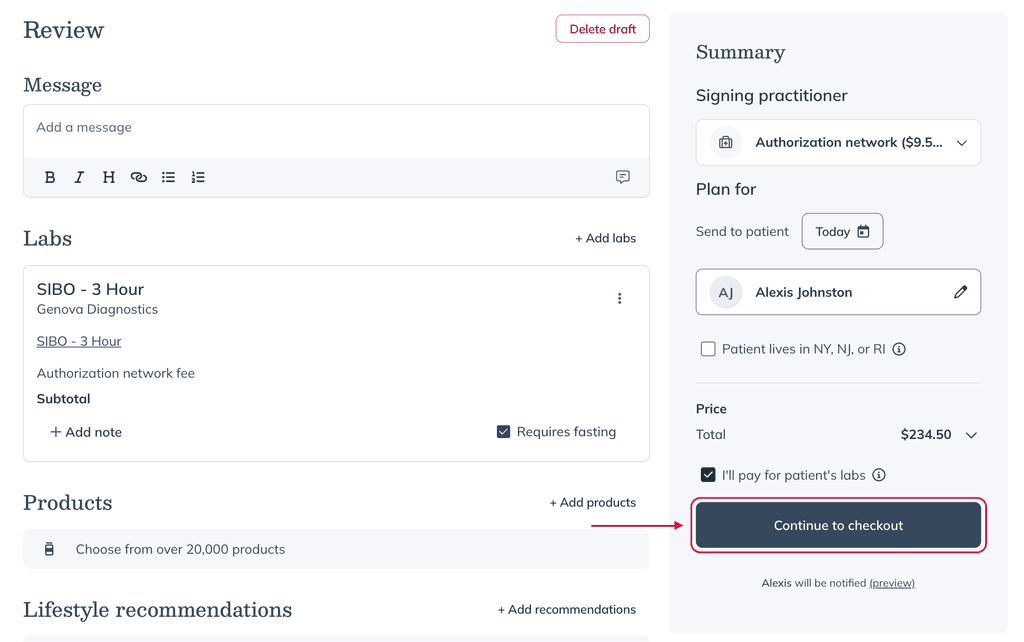
- Add products, additional resources, or a message for your patient.
Lab plans can only be edited before they’re purchased. If changes are needed after the order is placed, a refund or a new order may be required.
- Click Continue to checkout to send the lab plan now, or select a future date to schedule it for later.
If you created the lab recommendation from a supported EHR integration, the recommendation appears in Fullscript in the same way as a plan created in the platform. Patients receive and complete their lab order through the standard Fullscript checkout experience.
Lab test add-ons
If add-ons are available for a test, you’ll have access to those through the lab display page. Add-on tests are optional, often single-biomarker tests that attach to a parent test. They let you expand or customize a panel without ordering a separate test at full price.
To include an add-on with a test:
- Add the main (parent) test to the plan.
- Click the lab test name to open the lab display page.
- Click Add-ons available to view available add-ons.
- Find the add-on(s) you’d like to include and click Add to plan.
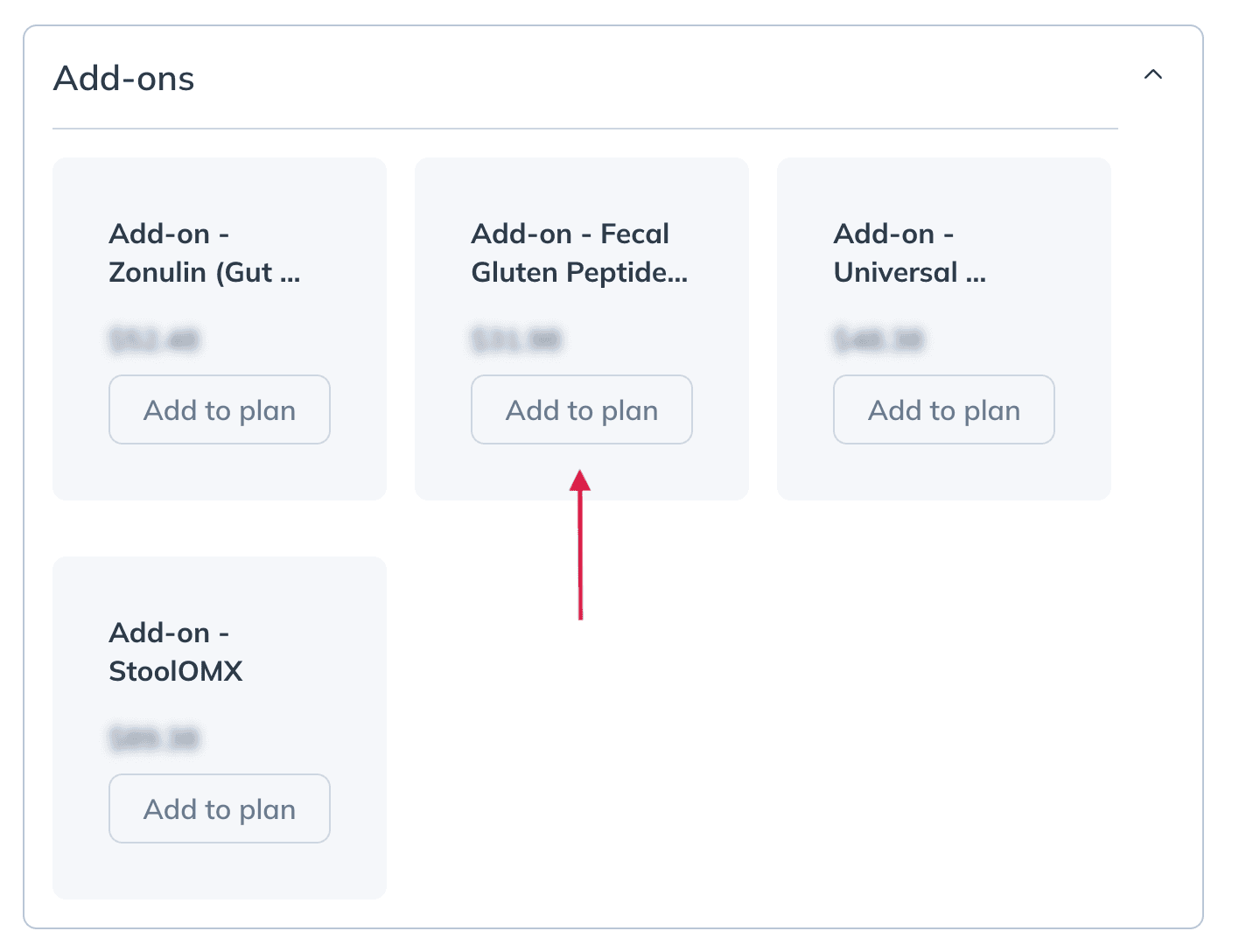
- Complete the process in the same way you would to send a new supplement plan.
Viewing sent labs
You can find patient plans with lab testing on the Lab orders dashboard — your all-in-one place to view orders, track statuses, and find results. Both Journey and standard lab orders appear in this dashboard.
Find your practice’s lab orders dashboard from the main left-hand navigation by choosing Labs and then clicking Orders.
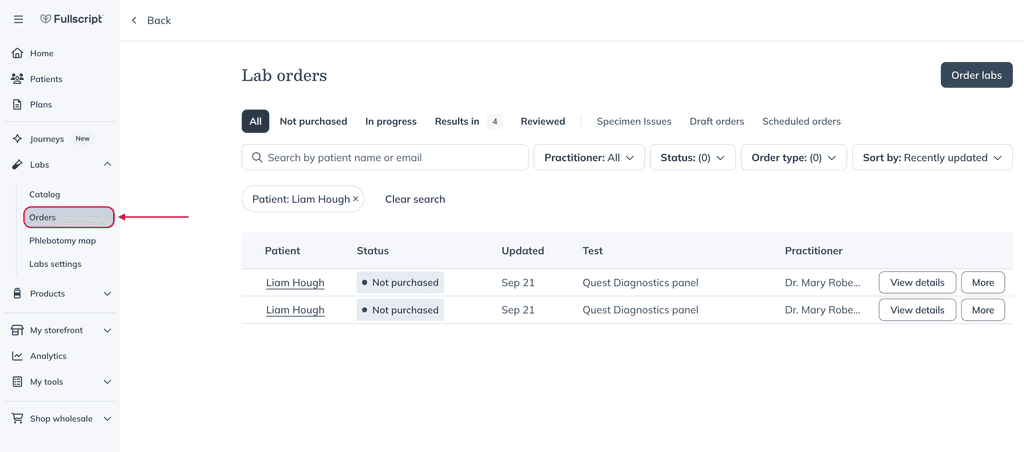
The lab orders dashboard.