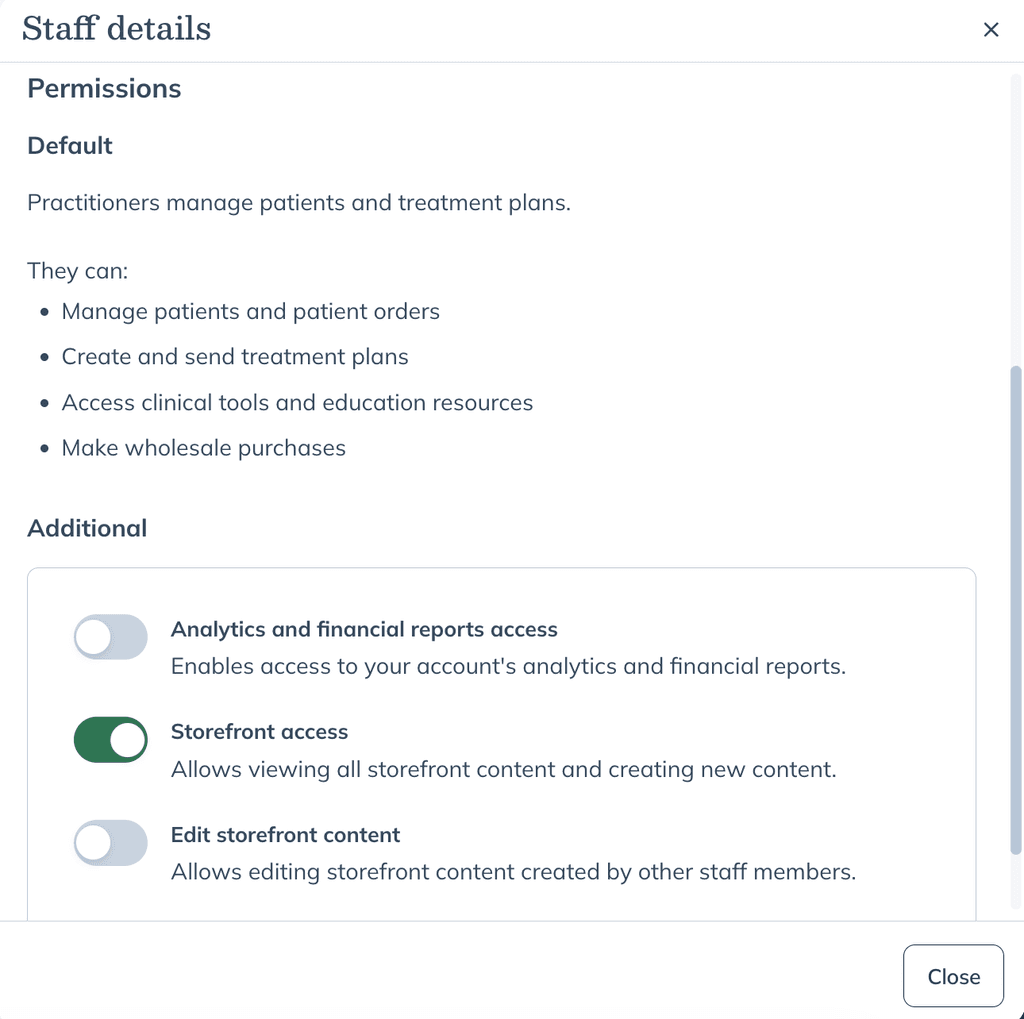
Staff management lets you view all staff members and manage their roles and permissions. From the Staff page, you can control access to storefront tools, analytics, financial reports, patient visibility, and security settings.
Access staff management
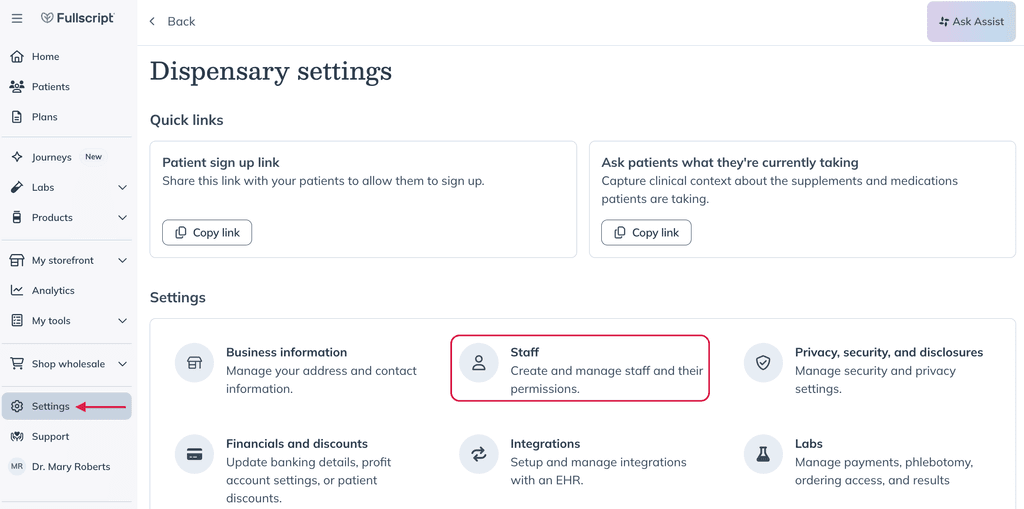
To open staff management:
- Go to Settings.
- Select Staff.
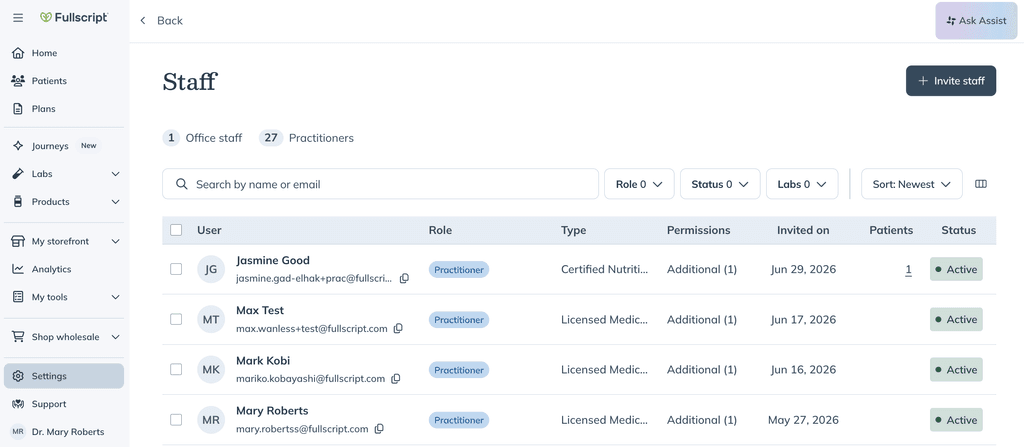
The Staff page lists everyone in your store, along with their role, permissions, and account status.
Storefront permissions
Storefront permissions control who can view and manage storefront content, including Collections and Protocols.
You can give each staff member the level of access they need based on their responsibilities.
Only the store owner can manage staff permissions.
Storefront access
Enable Storefront access for staff members who need to create or manage storefront content.
When Storefront access is enabled, staff members can:
- Access My storefront from the navigation menu
- View all Collections and Protocols in your store
- Create new Collections and Protocols
- Edit Collections and Protocols they created
If this permission is turned off, the staff member won't have access to storefront tools.
Staff members with Storefront access can view Collections and Protocols created by other staff members. They can only edit content they created unless Edit storefront content is also enabled.
Edit storefront content
Enable Edit storefront content for staff members who need to manage storefront content across your entire store.
When enabled, they can:
- Edit any Collection in the store
- Edit any Protocol in the store, regardless of who created it
If this permission is disabled, staff members can only edit the Collections and Protocols they create.
Analytics and financial report access
You can allow staff members to access your store's analytics and financial reports. This permission is useful for staff members who need visibility into store performance, payouts, or financial reporting.
When enabled, staff members can:
- View the Analytics dashboard
- Access available financial reports for your store
By default, only the store owner has access to financial reports. Granting financial report access also provides access to Analytics.
Privacy, security, and disclosures
The Privacy, security, and disclosures section includes settings that help protect patient privacy and strengthen account security.
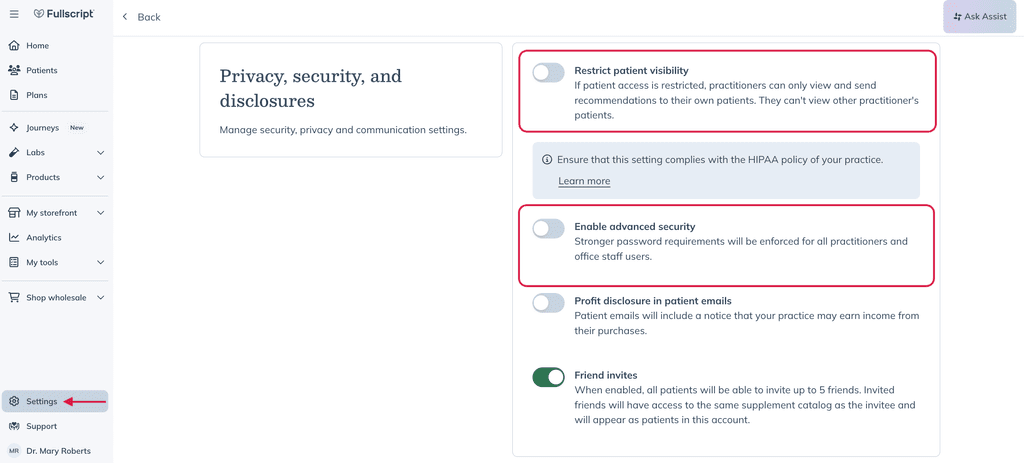
Restricted patient visibility
Restricted patient visibility limits which patient records a staff member can view.
Learn more in Restrict patient access.
Enable advanced security
You can require additional account protection by enabling multi-factor authentication (MFA) for eligible staff members.
Learn more in Securing your practitioner account with multi-factor authentication (MFA).
Update a staff member's permissions
To change a staff member's permissions:
- Go to Settings.
- Select Staff.
- Select the staff member you want to update.
- Turn permissions on or off as needed.
- Save your changes.
Review staff permissions whenever team members change roles or responsibilities.