
Your provider is moving lab testing to Fullscript to bring lab results, order management, and ongoing care together on one platform. When your provider moves from Rupa to Fullscript, you’ll be invited to join them and will have access to your full order history in Fullscript.
The next time you log in to Rupa, you’ll be prompted to start using labs on Fullscript for a seamless experience with lab testing and supplement ordering.

Choose View My Labs on Fullscript or Not Now to continue using Rupa for any existing lab orders.
If your lab order was originally placed through Rupa, you’ll pay for and complete that order through Rupa.
• Payment, reminders, and order updates will continue to come from Rupa. • Testing instructions, requisitions, and blood draw options will remain available in your Rupa account. • Once results are ready, they’ll appear in both Rupa and Fullscript.
Any new lab orders placed after your provider moves to Fullscript will be managed entirely in Fullscript.
This article explains how to activate your Fullscript account, introduces labs on Fullscript, and includes helpful links to support you along the way.
Video: Joining your Rupa practitioner on Fullscript
Activating your Fullscript account
Your account information, like your order history and past test results, will be moved to Fullscript when your practitioner completes their account transfer.
To activate your Fullscript patient account after your practitioner has completed their move to Fullscript:
- Sign in to your Rupa account.
- Click View My Labs on Fullscript.
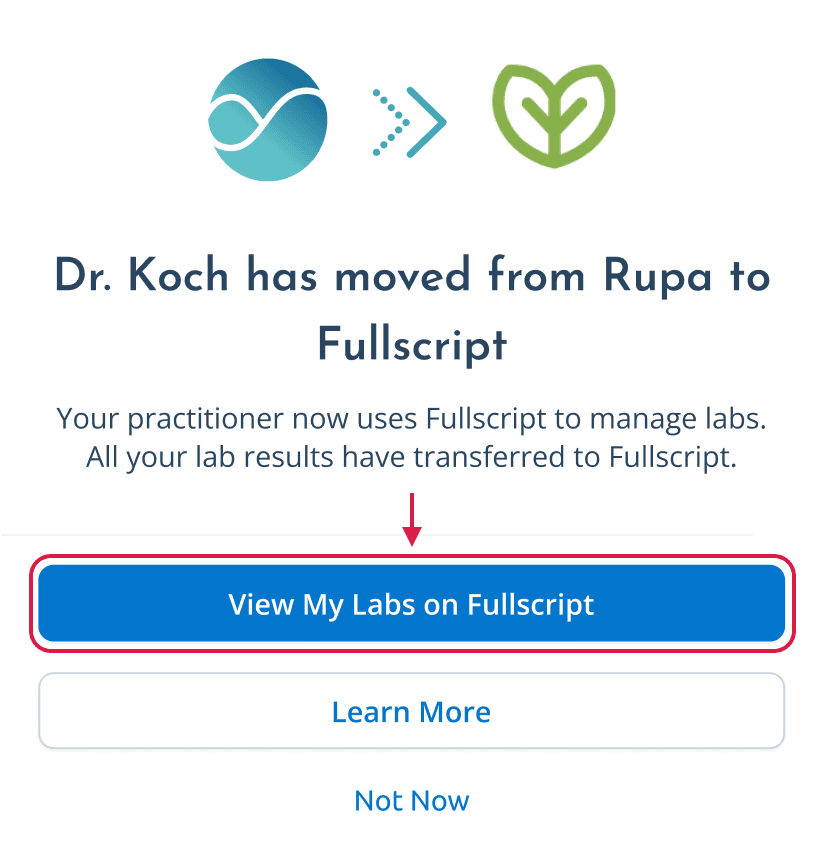
If you click Not Now, you can continue accessing your Rupa account to manage existing lab orders.
If you have unpaid lab orders on Rupa, you’ll need to complete those directly through Rupa using your existing checkout links and patient portals.
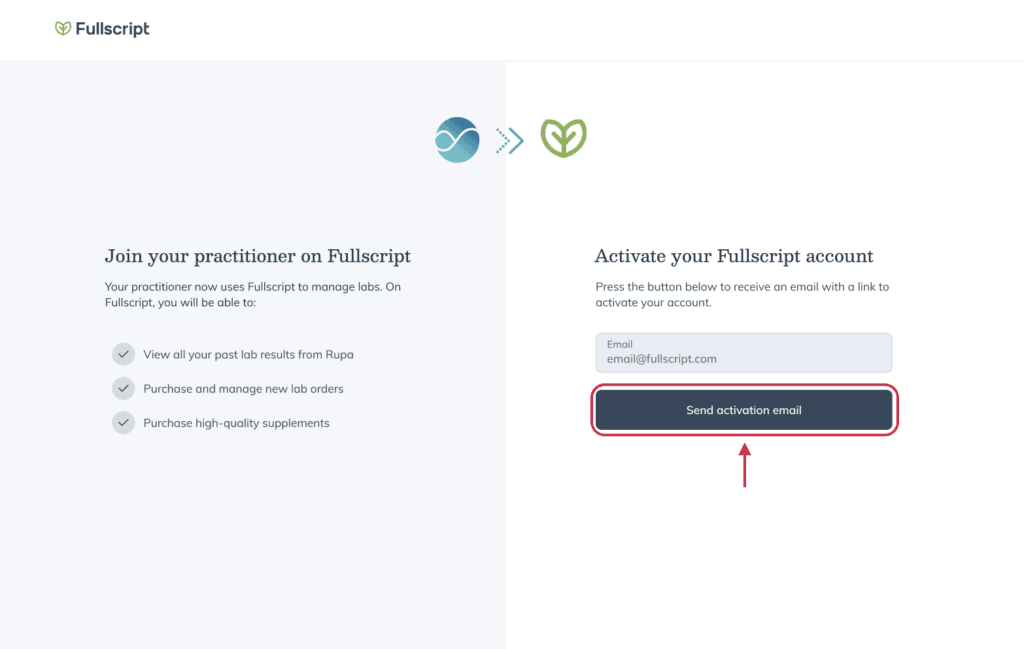
- Enter your email address and click Send activation email.
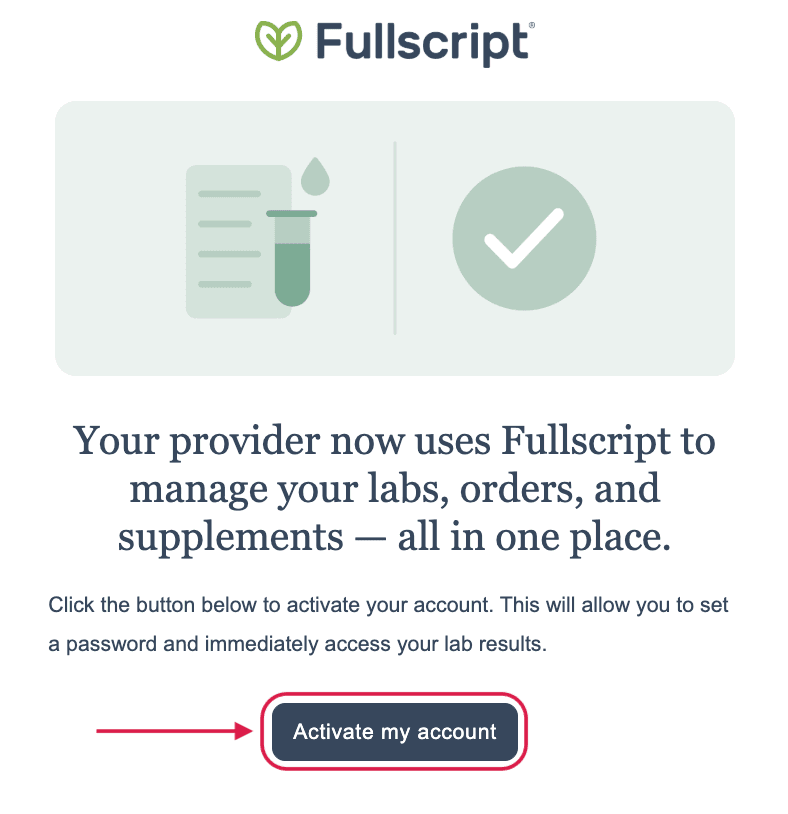
- Use the link in the activation email to activate your account.
- If you’re new to Fullscript, you’ll be asked to create a password, then click Create account. Existing Fullscript users won’t be asked to create a password.
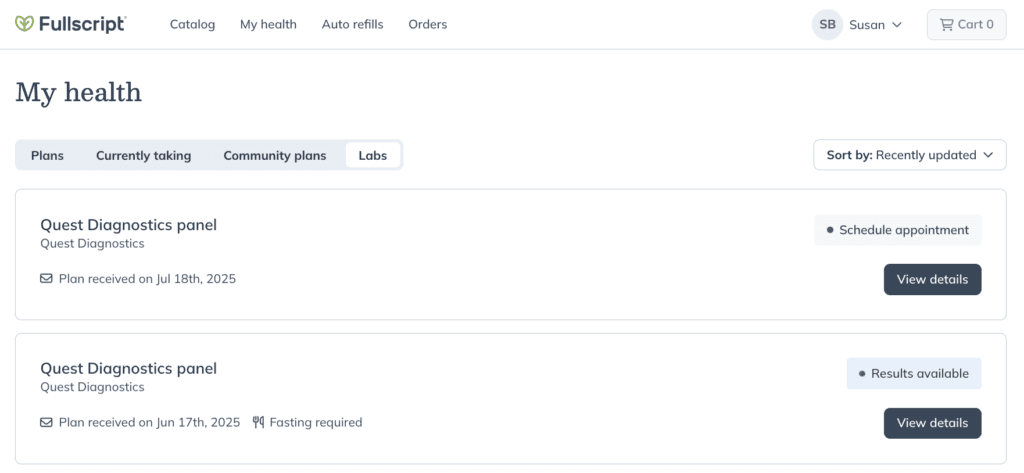
- You’ll be directed to the My health page on your new Fullscript account.
Labs on Fullscript
Labs on Fullscript keeps everything in one place—recommendations, scheduling, and results—so you can stay focused on your health. Fullscript simplifies the process and supports your wellness journey.
Video: The Patient Experience
Viewing your plans
When using the labs on Fullscript experience, your practitioner will send you lab testing recommendations as part of a patient plan.
To view your plans on Fullscript:
- Log in to your Fullscript account.
- Click My health in the navigation at the top of the page.
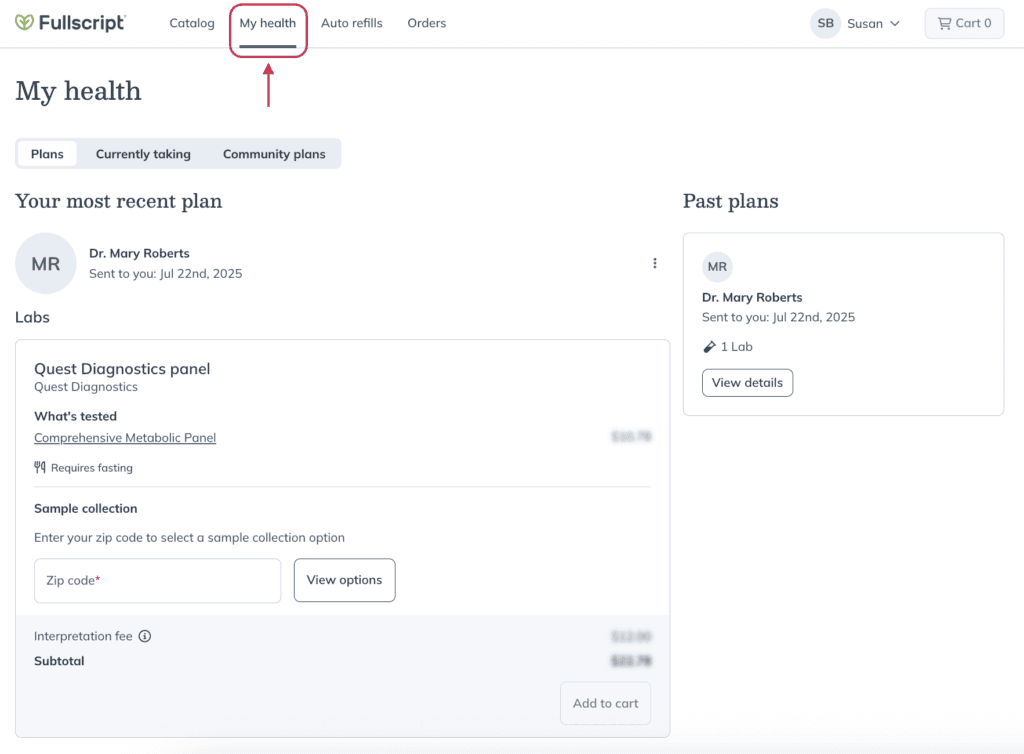
- Find your most recent plan under the Your most recent plan heading. You can view older plans under the Past plans heading.
In the Fullscript mobile app, your plans will appear in a list sorted by date.
Ordering a lab test
If you haven’t ordered testing through Fullscript before, you’ll be prompted to provide your phone number, date of birth, biological sex, and accept the terms and conditions for ordering labs on Fullscript.
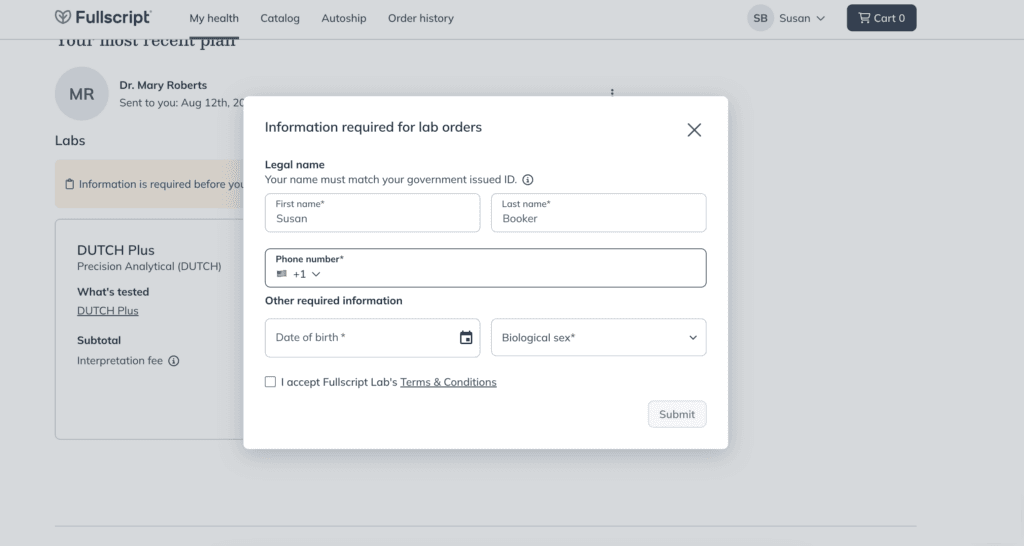
Adding your demographic information before ordering labs for the first time.
Once you’ve entered the required information, you can place an order for your recommended lab test. We’ll guide you through the rest of the process based on the type of lab test your provider has recommended. To see what the process looks like, review our guides for specialty labs or for blood draws through Quest, Access Labcorp, or an independent phlebotomist.
Tracking testing status and viewing results
After your sample(s) have been collected by or shipped to the lab, you can track your testing status within your account.
To track your testing status or find your test results:
- Log in to your Fullscript account.
- On the My health page, click the Labs tab.

- Find the test you’d like to see the status or results for and click View details. The current status is shown above the button.

- On the test details page, you can view the status history under Test history.
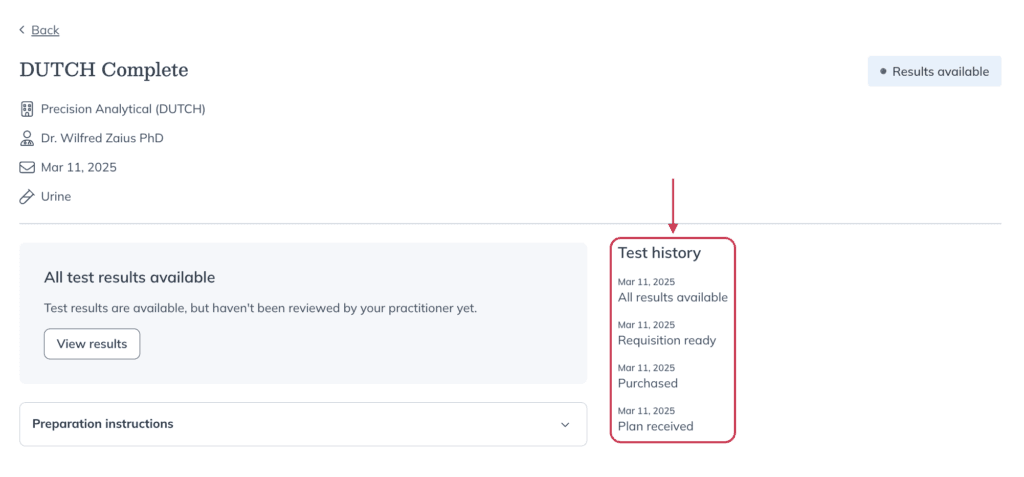
- To access your test results, click View results.
Visit Tracking lab kits and testing status for more on tracking and accessing your lab results.
Navigating multiple patient accounts
If you already have a patient account with another provider on Fullscript, you can switch between accounts from your account menu.
When to contact your provider
Your provider and their practice will continue to be your clinical resource if you have any specific questions about:
- Preparing for your test as it relates to your unique medical history or specific medication/supplement prescriptions.
- Any additional testing requests.
- Interpreting and understanding your test results.
- How to schedule a follow-up to review your lab test results.
Not sure who to contact? Reach out to Fullscript, and we’ll direct you to your provider if needed.