
Last modified: March 18, 2026
Adding products to auto refills
Patients
You can add products and schedule an auto refill from the catalog, your plans, the Auto refills page in your account, or the shopping cart while placing an order.
Scheduling auto refills from the shopping cart
As products are added to your shopping cart, an auto refills menu will be displayed under each product. To add a product to an auto refill order in the iOS/Android app, select the Auto refill checkbox, then choose a shipping frequency. The auto refill order will be activated when the order is placed.
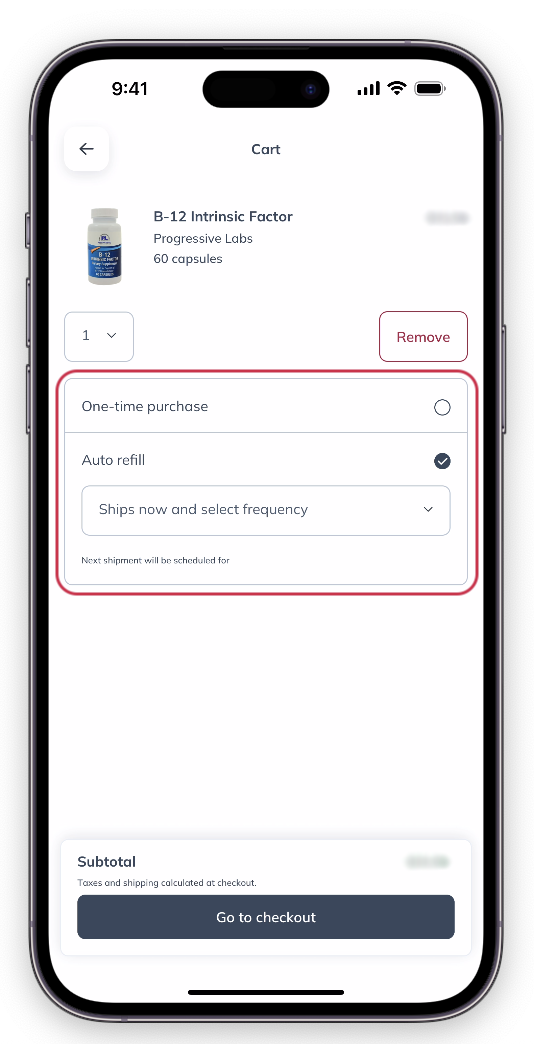
Setting up an auto refill in the cart.
When you go to your cart to begin placing your order using a desktop browser, you’ll see an Auto refills box underneath menu under each item. To set up auto refills, select the checkbox, then choose a frequency using the dropdown. Your auto refills will be activated when the order is placed.
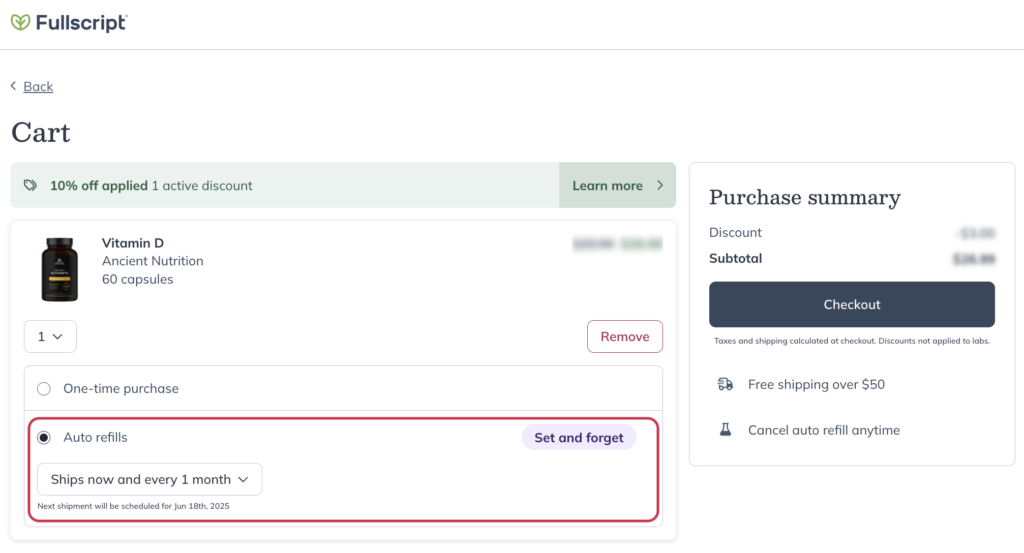
Setting up auto refills when placing an order.
Selecting a frequency from the Autoship every menu.
When you go to your cart to begin placing your order using a mobile browser, you’ll see an Auto refills box underneath menu under each item. To set up auto refills, select the checkbox, then choose a frequency using the dropdown. Your auto refills will be activated when the order is placed.
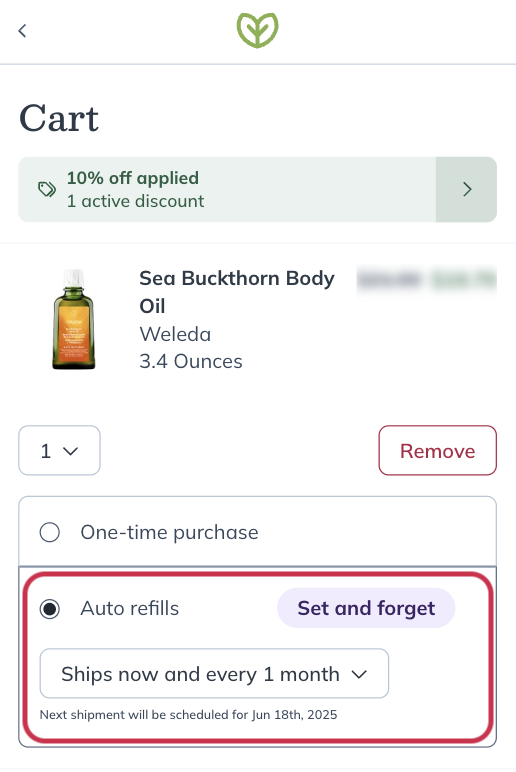
Setting up auto refills in checkout.
Scheduling auto refills from your plan or the catalog
In the iOS/Android app, you can add new products as auto refills from the catalog:
- Tap the product.
- Under purchase options, tap Auto refill.
- Adjust the number of units and click Next.
- Select the shipping frequency and Schedule auto refill.
- You’ll need to set your shipping and billing information to successfully set up new auto refills. Head to the Orders page to manage existing auto refill schedules.
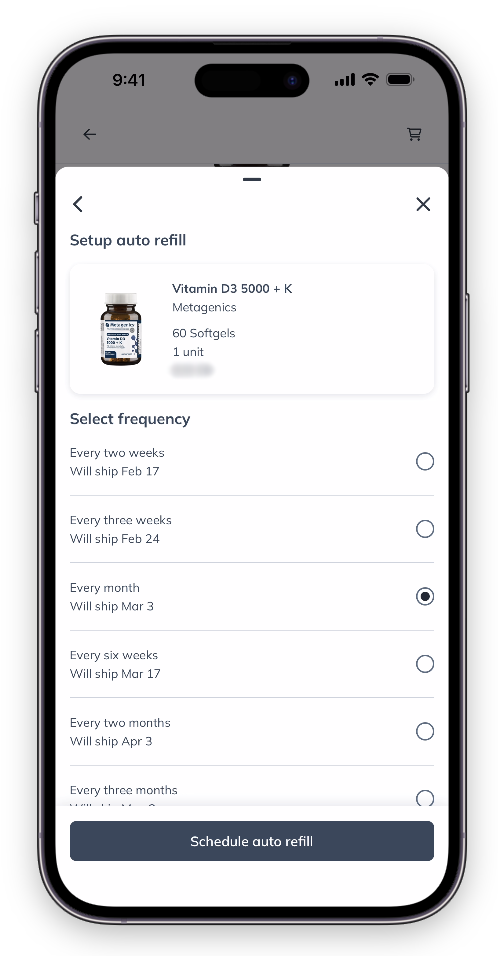
Setting up auto refills from a product card.
In a desktop browser, you can add new products to auto refills from the catalog by:
- Hovering your cursor over the product card.
- Clicking on the options menu ( )
- Then, select Schedule.
You’ll need to set your shipping and billing information to set up new auto refill schedules successfully. Head to the Auto refills page to manage existing auto refill schedules.
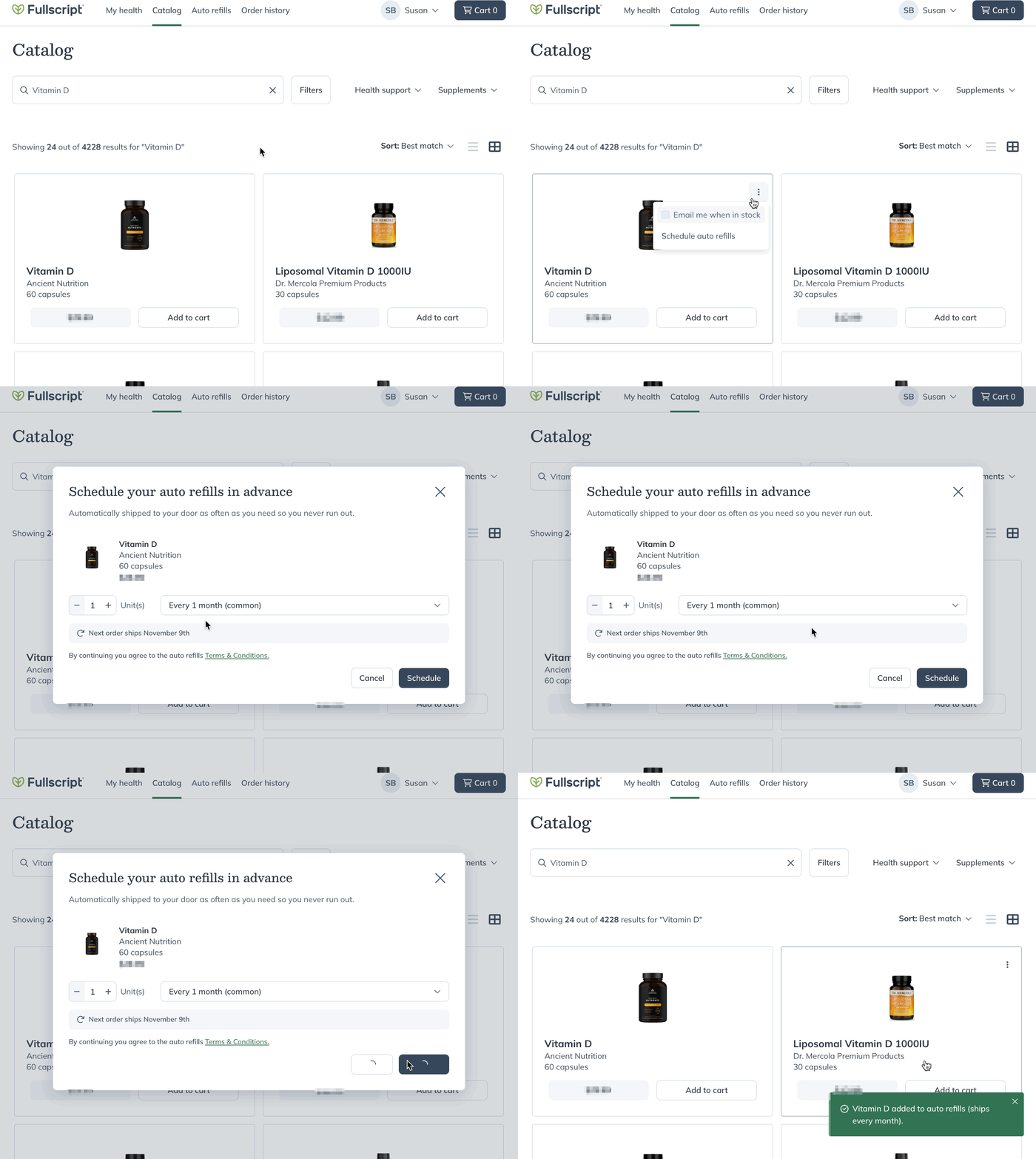
Setting up auto refills from the catalog.
In a mobile browser, you can add new products to auto refill from the catalog by:
- Tapping on the options menu ( ).
- Then, tapping Schedule auto refills.
You’ll need to set your shipping and billing information to set up new auto refill schedules successfully. Head to the Auto refills page to manage existing auto refill schedules.
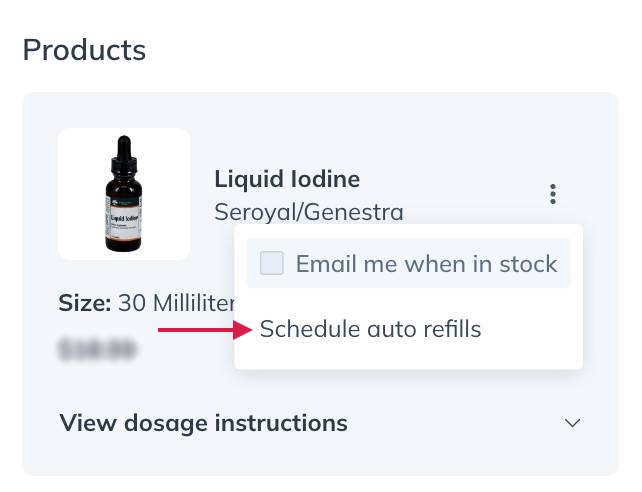
Setting up auto refill from a plan.
Previously ordered products
To schedule a past order on auto refills in the iOS/Android app, go to the Orders page and tap Refill. You can add the product to your shopping cart and set up your auto refills from there.
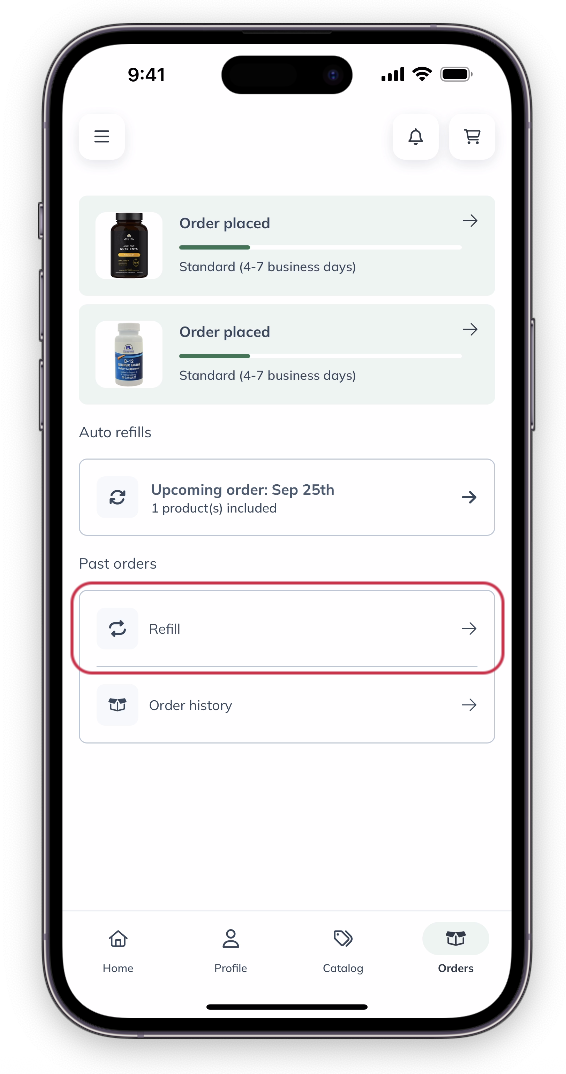
Tap Refill on the Orders page.
Adding an individual product to auto refills from order history
To auto refill individual products:
- Tap Order history on the Orders page.
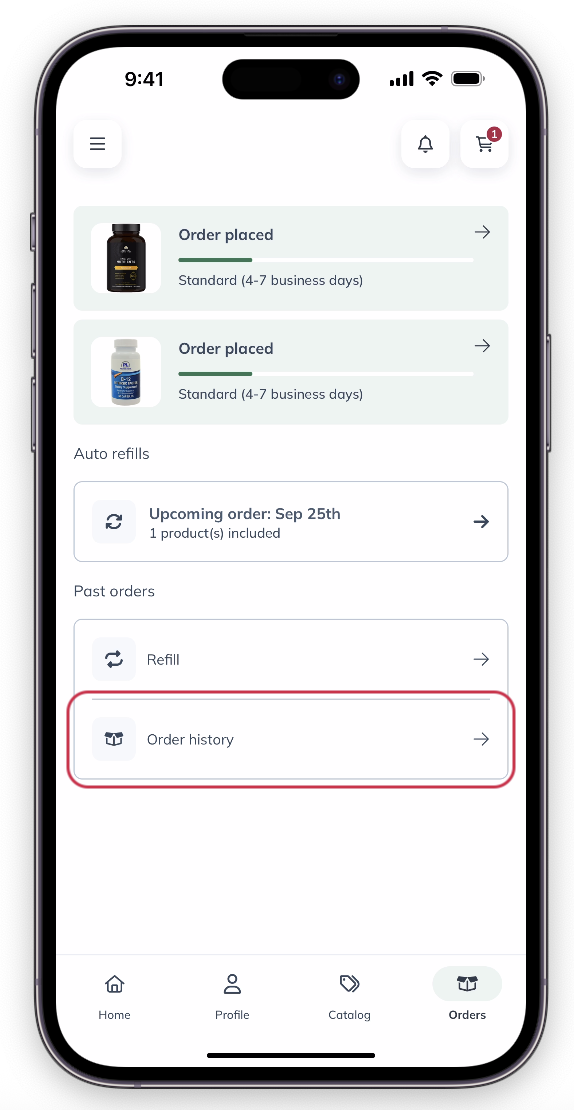
- Tap the order that contains the item.
- Tap the product on the order page.
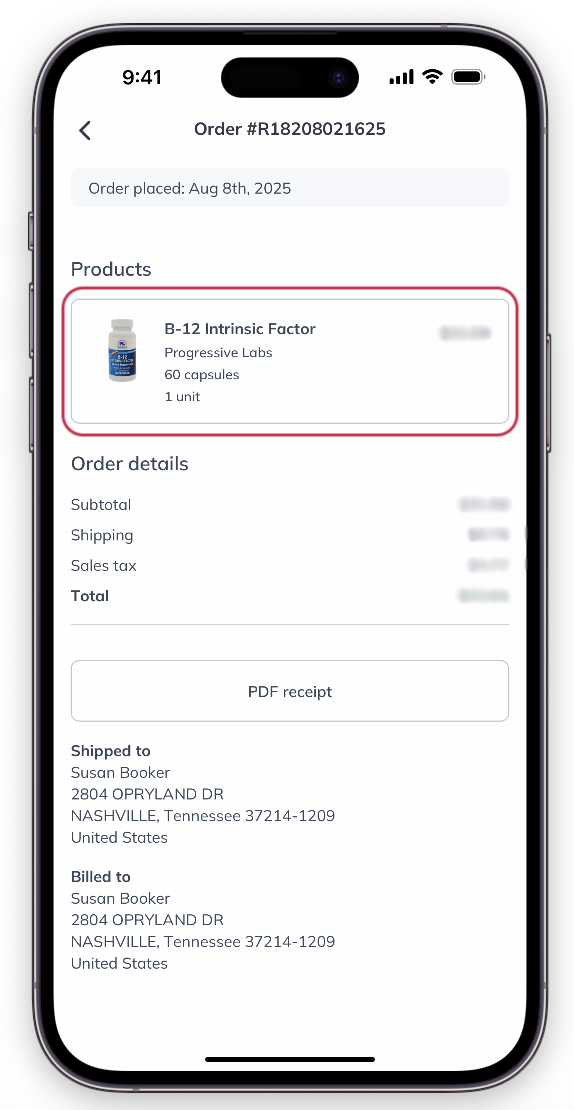
- Tap Auto refill.
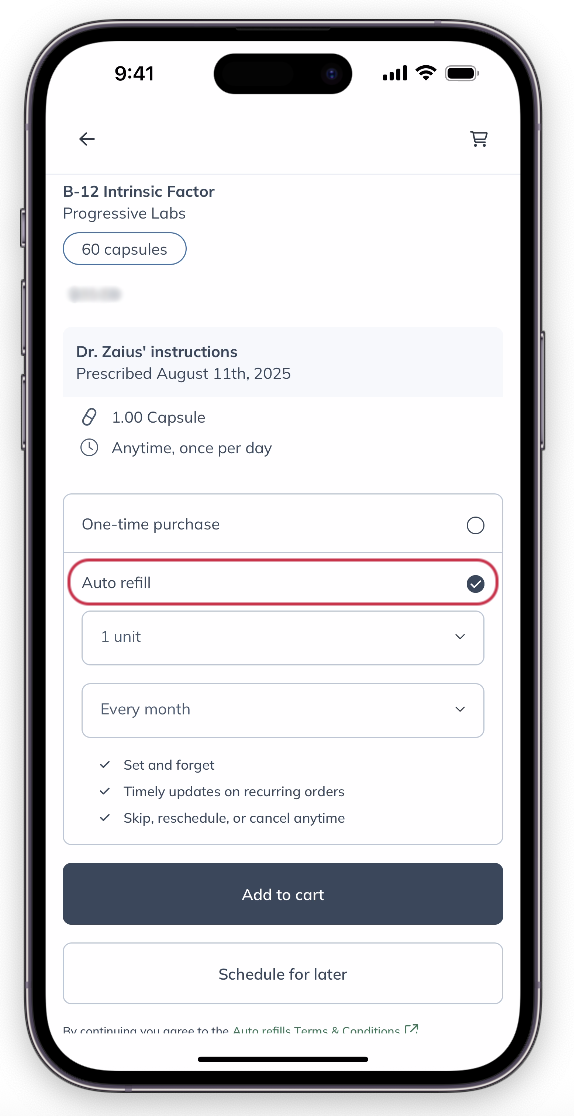
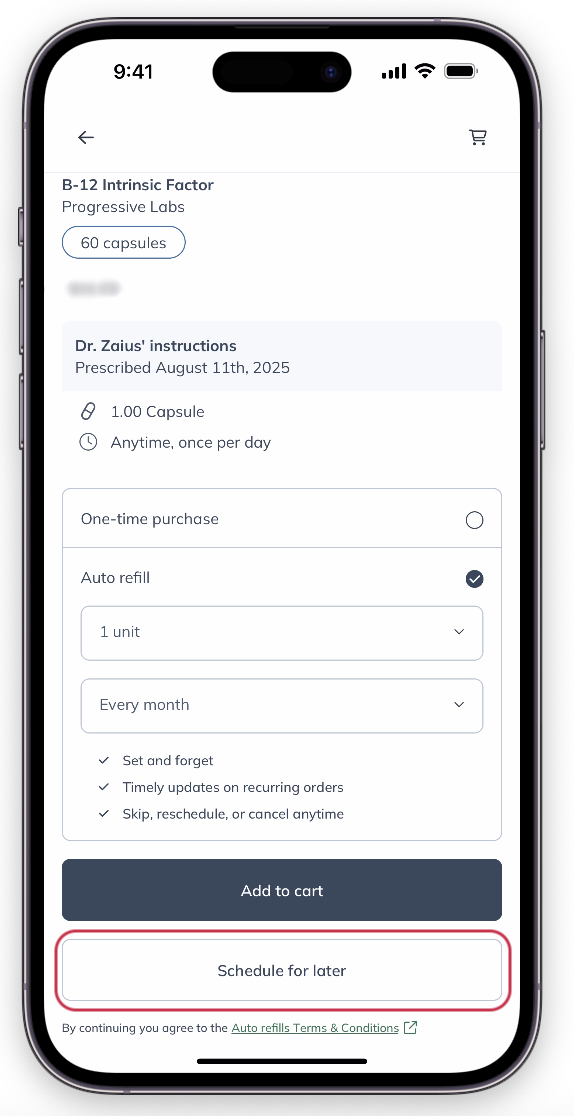
- Set up the number of units and the the shipping frequency.
- Tap Schedule for later. If you’d like to place an order now, tap Add to cart.
Previously ordered products can be added to auto refills from your Orders and Auto refills pages.
To schedule a past order for auto refills on a desktop browser:
- Go to the Orders page.
- Find the order you’d like to add a product from an click View details.

- Select the Add all to auto refills button. To auto refill individual products, select the Schedule auto refills button next to any product.
To schedule previously ordered products from the Auto refills page:
- Find a product under the Recommended products heading .
- Select Schedule auto refills.

Scheduling an auto refill for a product from the Auto refills page.
Previously ordered products can be added to auto refills from your Order history and Auto refills pages.
To schedule a past order for auto refills in a mobile browser:
- Go to the Orders page.
- Tap the order containing the product(s) that you’d like to schedule for auto refills.
- Tap the Add all to auto refills button at the top of the order to add all products to auto refills. To auto refill individual products, tap the Schedule auto refills button below any product.
To schedule previously ordered products to auto refill from the Auto refills page:
- Find a product under the Recommended products heading.
- Then, tap Schedule auto refills.
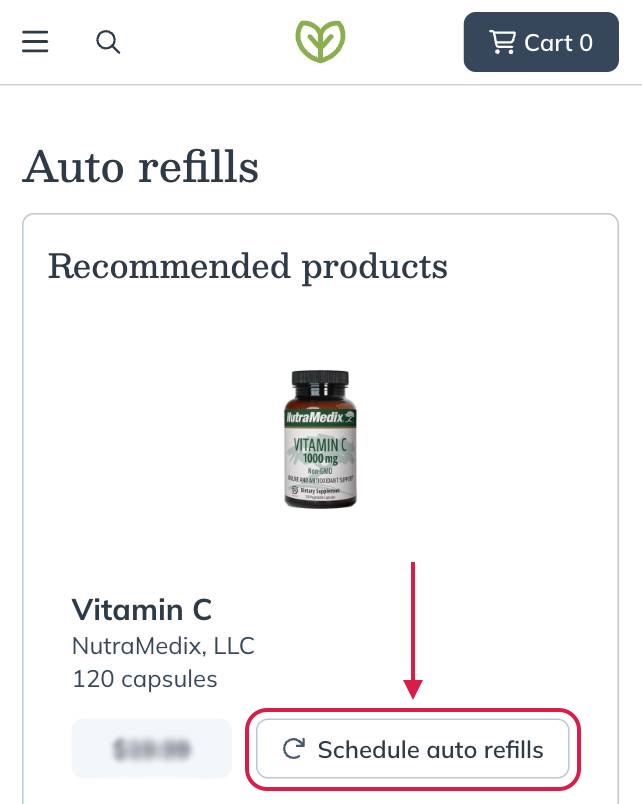
Setting a product to auto refill from the Auto refills page.
Adding a product to an existing auto refill schedule
You can add new products to existing auto refills at any time. It’s important to note that new products won’t be added to confirmed orders. As we prioritize filling orders as quickly as possible, we can’t cancel or change an order once it’s placed.
New products added to an existing auto refill will use the current discount set by your provider.
Adding products from your plan or catalog
To add new products to an existing auto refill from the catalog or your plans in the iOS/Android app:
- Tap the product.
- Tap Auto refills.
- Adjust the number of units you would like.
- Select the same shipping frequency as your current auto refill.
- Tap Add to cart to create a new scheduled auto refill schedule while placing a new order, or tap Schedule for later to create an auto refill schedule without checking out.
When you complete the setup, the product will be added to your auto refill schedule with the same frequency as the previously scheduled products.
Adding products from your shopping cart
As you’re adding products to your cart, an auto refill checkbox will be under each product. To add a product to an auto refill order in the iOS/Android app:
- Tap Auto refill.
- Select the same shipping frequency as the other items on auto refill.
- Click Go to checkout and place your order.
The new product will be included in your new order, and will be added to your existing auto refill schedule and sent with the next shipment as well.
Adding products from your plan or catalog
In a desktop browser, you can add new products to auto refills from your plans or the catalog by:
- Hovering your cursor over the product card.
- Clicking on the options menu ( ).
- Then, select Schedule auto refills.
- Select the same shipping frequency as the products already on auto refill.
- Click Schedule.
The new product will be added to the products already set up for that frequency, and will be sent with the next order.
Adding products from the shopping cart
While viewing your cart using a desktop browser, you’ll see an Auto refills checkbox under each item. To add a product in your cart to auto refills:
- Click the checkbox.
- Choose the same frequency as the products already on auto refill.
- Continue placing your order.
The newly added product will be sent with the order you place, and your next auto refill shipment.
Adding products from the orders page
Previously ordered products can be added to auto refills from your Orders page.
To add an a entire past order to and existing auto refill using a desktop browser:
- Go to the Orders page.
- Find the order you’d like to add a product from an click View details.
- Select the Add all to auto refills button.
By default, the products will be added to your next scheduled auto refill, at the same frequency as those products.
To add a single item from a past order to an existing auto refill:
- Go to the Orders page.
- Click the item you’d like to add to auto refills.
- Click the Auto refills checkbox.
- Select the same shipping frequency as your existing auto refill.
- Click Schedule auto refills.
- Click Schedule.
Adding products from your plan or catalog
In your mobile browser, you can add new products to auto refills from your plans or the catalog by:
- Tap on the options menu ( ) in the product card for the item you’d like to add to auto refills.
- Tap Schedule auto refills.
- Select the same shipping frequency as the products already on auto refill.
- Click Schedule.
The new product will be added to the products already set up for that frequency, and will be sent with the next order.
Adding products from the shopping cart
While viewing your cart using your mobile browser, you’ll see an Auto refills checkbox under each item. To add a product in your cart to auto refills:
- Click the checkbox.
- Choose the same frequency frequency as the products already on auto refill.
- Continue placing your order.
The newly added product will be sent with the order you place, as well as with your next auto refill shipment.
Adding products from the orders
Previously ordered products can be added to auto refills from your Orders page.
To add an a entire past order to and existing auto refill using a desktop browser:
- Go to the Orders page.
- Tap the order you’d like to add to auto refills.
- Scroll down and tap the Add all to auto refills button.
By default, the products will be added to your next scheduled auto refill, at the same frequency as those products.
To add a single item from a past order to an existing auto refill:
- Go to the Orders page.
- Tap the order with the item you’d like to add to auto refills.
- Scroll down to the product and tap the Schedule auto refills button.
- Select the same shipping frequency as your existing auto refill.
- Tap Schedule.
The new item will be sent with your next auto refill shipment.