
Last modified: April 23, 2026
Switching between linked accounts
Patients
Providers
If you have more than one Fullscript account linked to the same email address, you can switch between them without signing out. This is helpful if multiple people in your household use the same login, or if one person is connected to multiple providers. When switching accounts, you’ll be asked to select a profile, which represents an individual person.
You can only switch between accounts that are linked to the same email address. If you don’t see the account or profile you’re looking for, it may be associated with a different email. Check your inbox for invitations or try signing in with another email if needed.
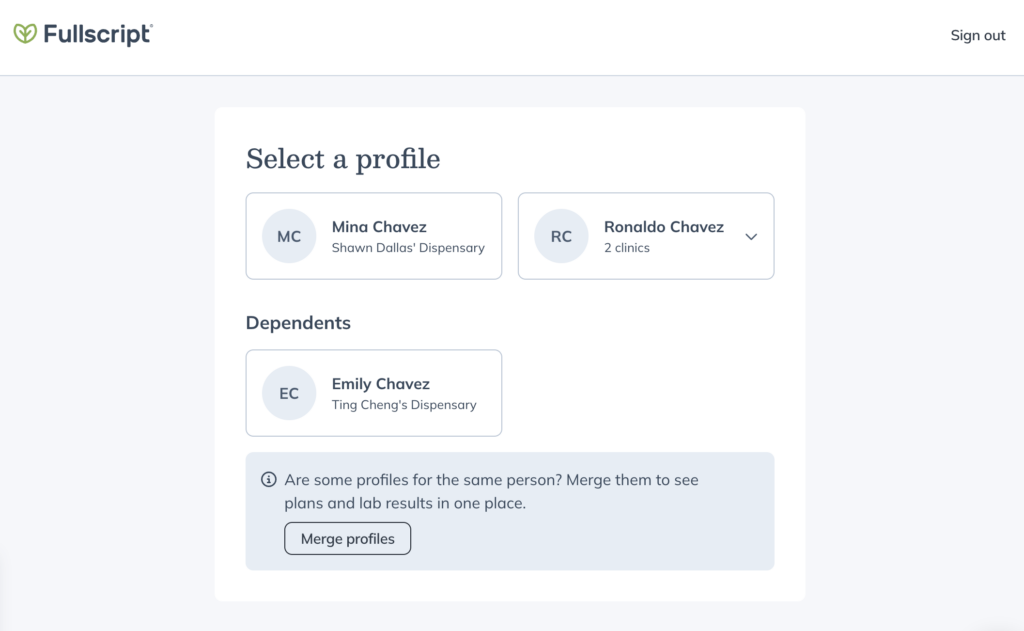
The profile selection screen for patients
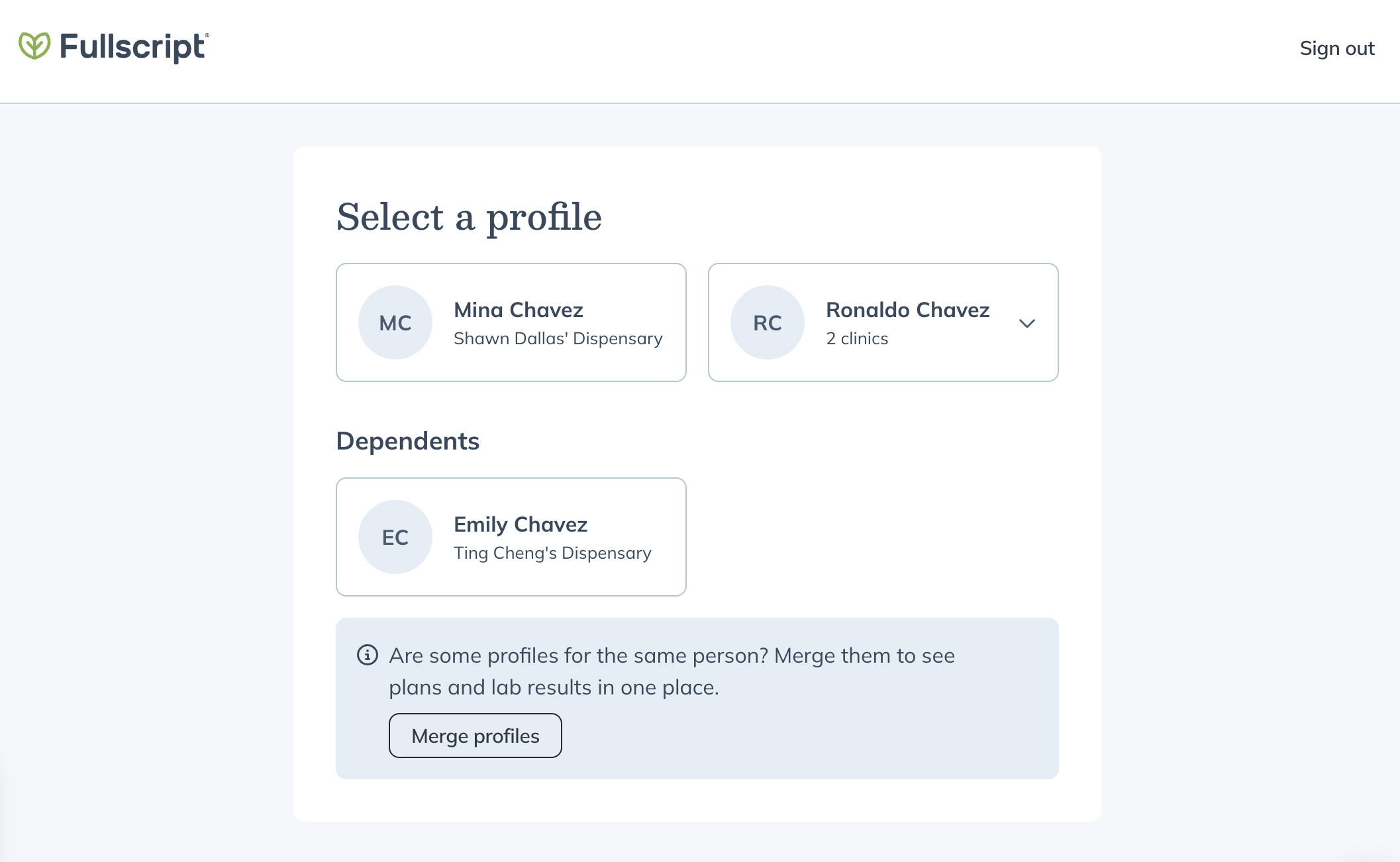
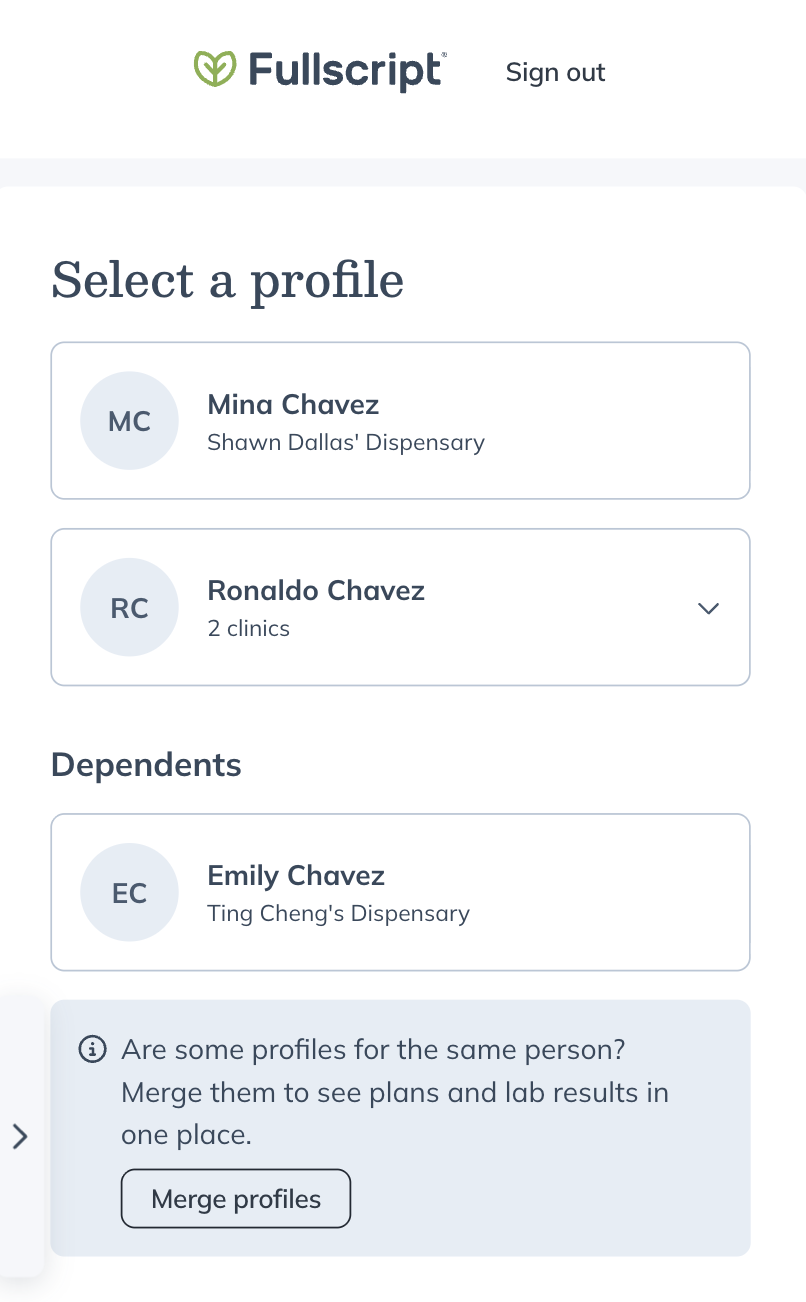
When you sign in to Fullscript, you may see a profile selection screen if multiple profiles are linked to your email address. Select the profile you want to access to continue.
If a profile is connected to more than one clinic or provider, you may be asked to choose the right clinic after selecting the profile.
Merging profiles
If you see a Merge profiles option on the profile selection screen, it means there may be duplicate profiles for the same person.
Selecting Merge profiles starts a short process to combine those profiles. During this process, you’ll:
- choose which profiles to merge
- review and confirm your details (such as name, date of birth, and sex)
- choose how your information is shared with clinics

Switching between linked patient profiles
If multiple profiles are linked to your account, you can switch between them at any time.
Orders, plans, and discounts remain tied to the selected profile or provider connection and can’t be combined across profiles.
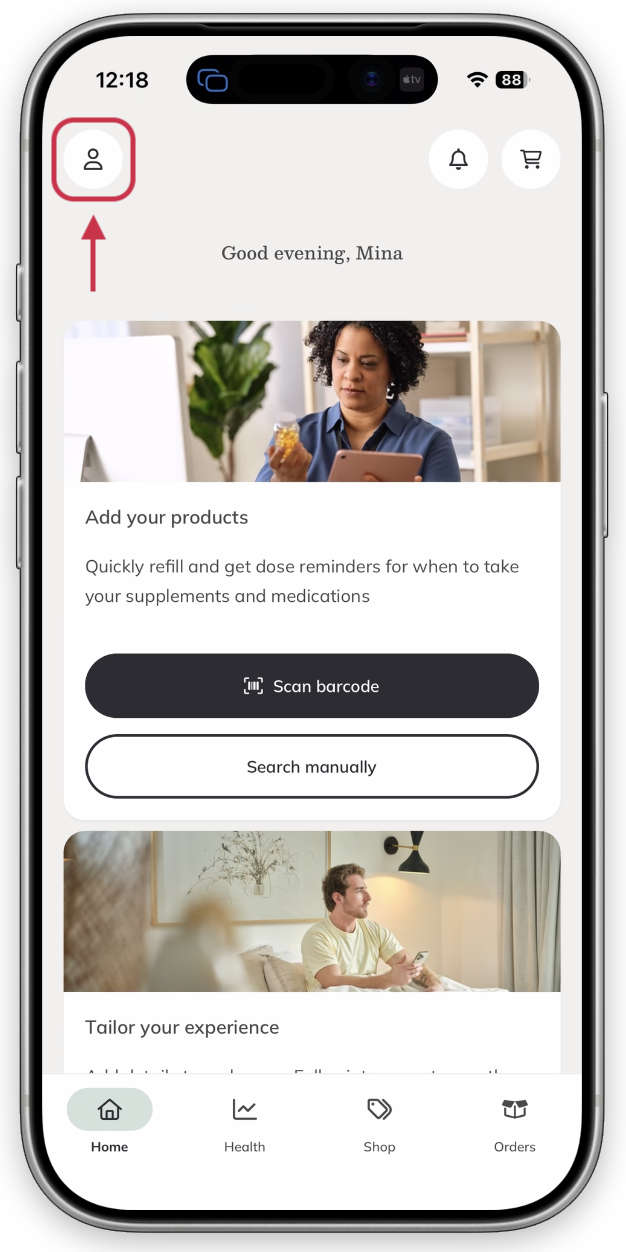
To switch profiles in the mobile app:
- Tap the profile icon ( ) in the top-left corner.
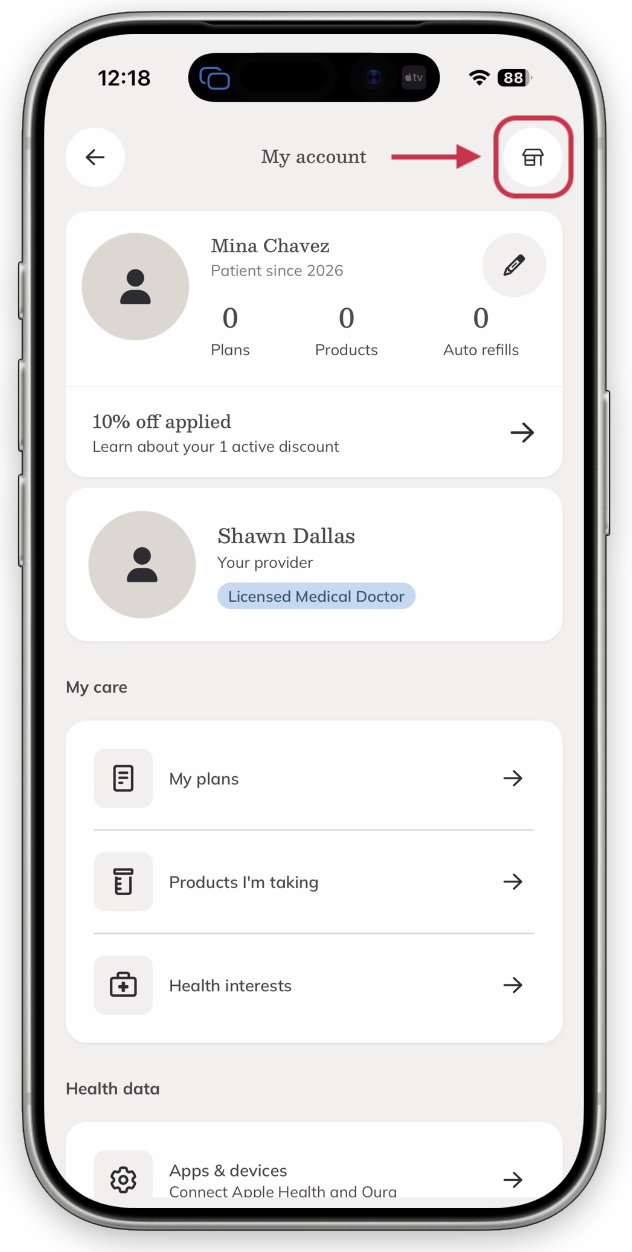
- On the My account page, tap the dispensary icon ( ) in the top-right corner.
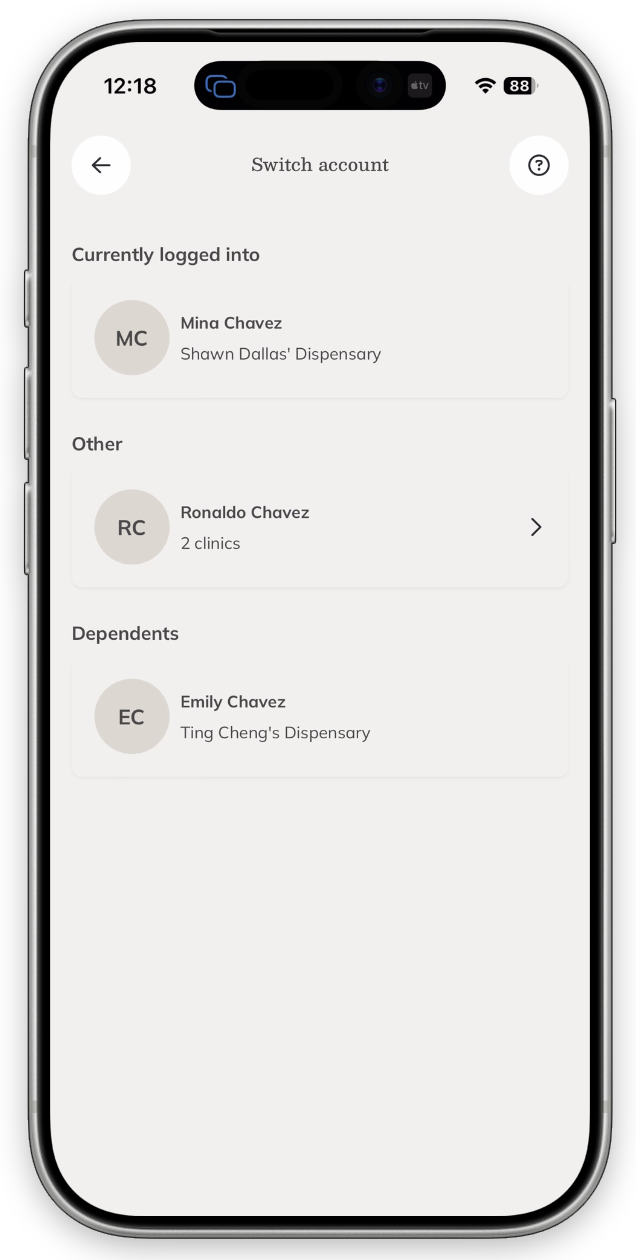
- Select the profile you want to access. If that profile is connected to more than one clinic or provider, choose the one you want to view.
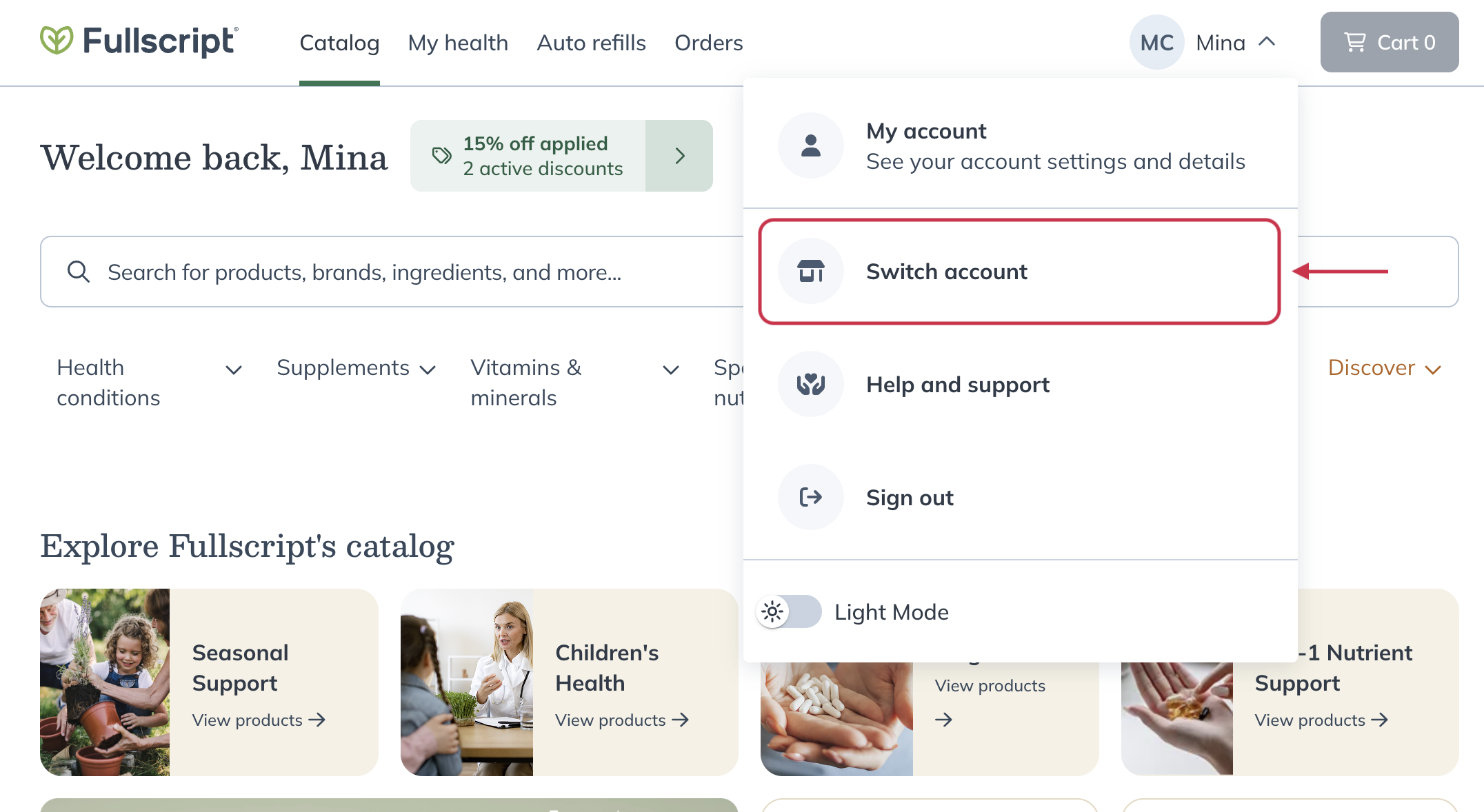
To switch profiles in the desktop experience:
- Select your name or photo in the top-right corner of your screen.
- Click Switch account.
- Select the profile you want to access.
- If that profile is connected to more than one clinic or provider, choose the one you want to view.
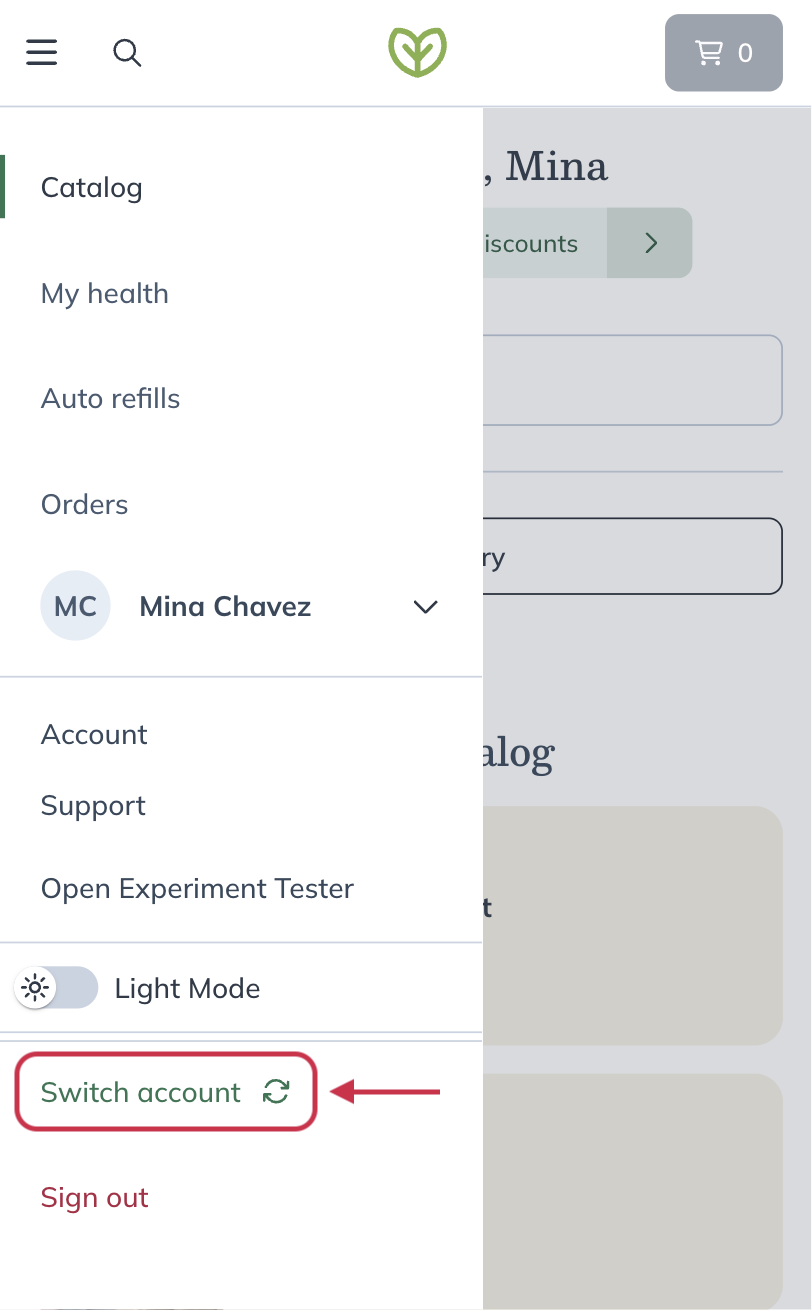
To switch profiles using your mobile browser:
- Tap the menu ( ) in the top-left corner.
- Tap your name at the bottom of the menu.
- Tap Switch account.
- Select the profile you want to access.
- If that profile is connected to more than one clinic or provider, choose the one you want to view.
The profile selection screen for providers
If multiple roles or accounts are linked to your email address, you’ll see a profile selection screen when you log in. Options may be grouped under staff, patients, or dependents. Select the profile or role you want to access to continue.
To help you navigate your linked accounts, each one is labeled as Practitioner, Clerk, Patient, or Client. Practitioner and clerk accounts display your first and last name as set in your account settings. Patient accounts show either Patient or Client (depending on the dispensary’s terminology settings) along with the name of the dispensary.
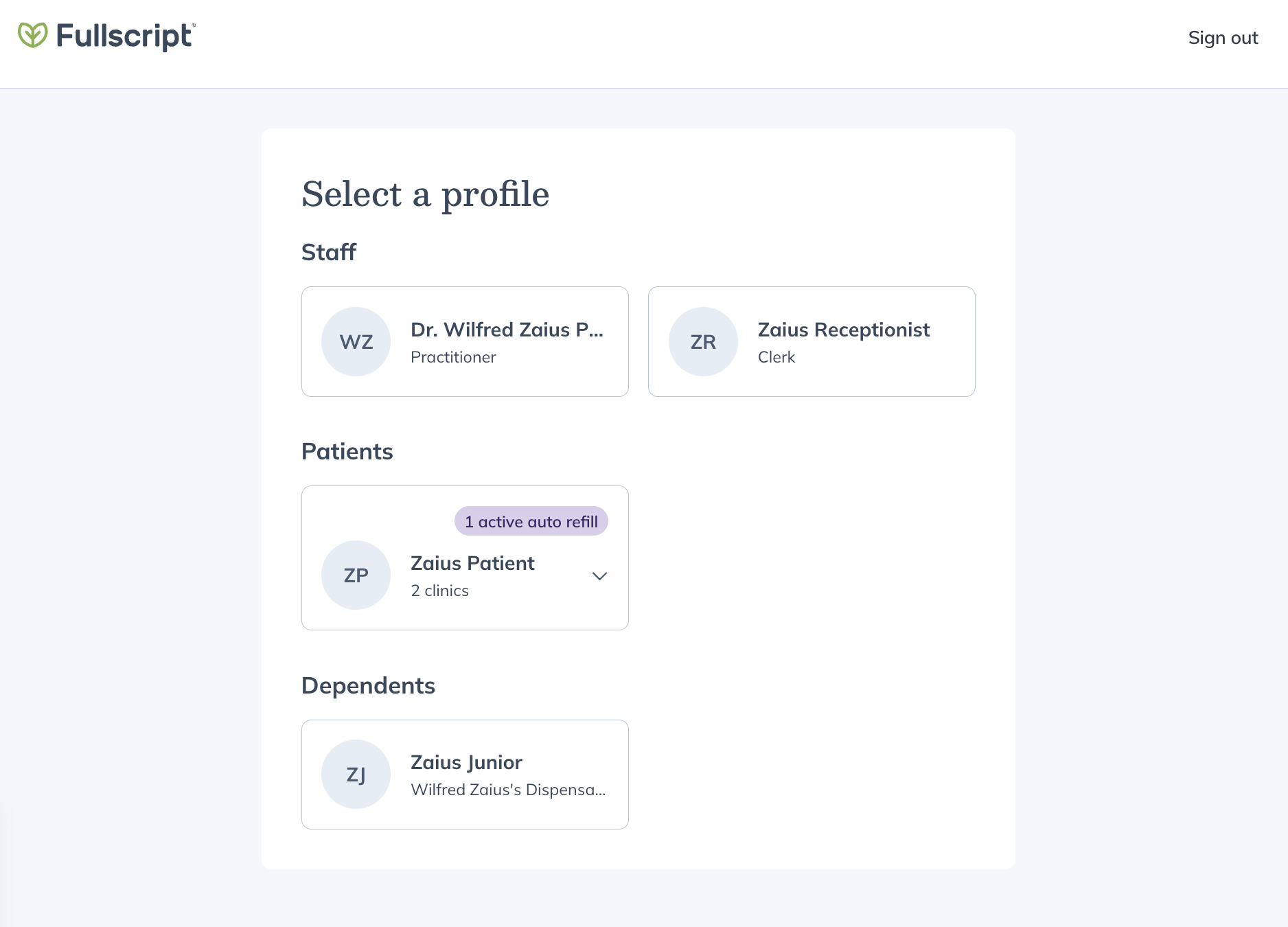
The profile selection screen for provider and staff accounts.
Switching between accounts as a provider
Each email can be linked to one practitioner or staff account, but multiple patient accounts can share the same email. To connect accounts, sign up or accept an invitation using the same email address.
If you use Emerson Ecologics through Fullscript, you can switch to your Emerson account in the same way.
To switch between accounts:
- Select your name in the upper right-hand corner.
- Click Switch account.
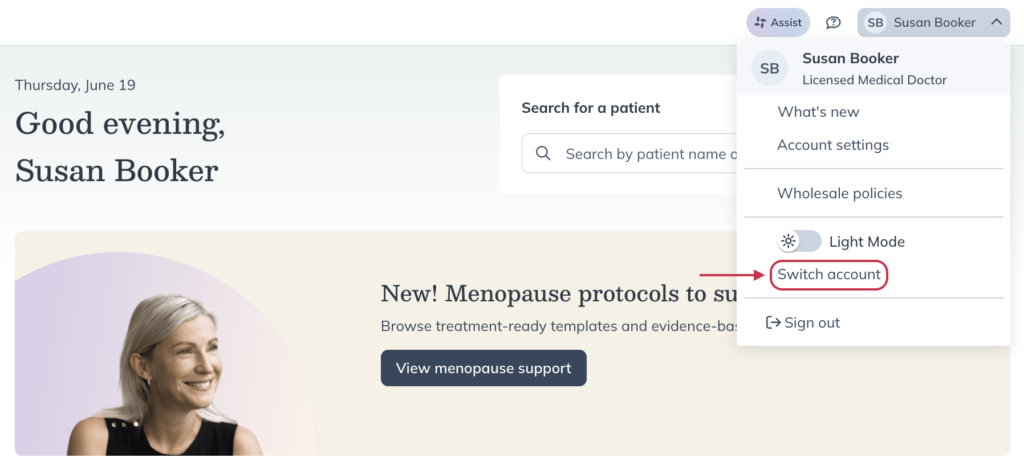
- Select an account.
Switching to your Emerson account
You can switch to your Emerson Ecologics wholesale account while logged in to your Fullscript account, without the need to log out of Fullscript or log in through an Emerson portal.
To switch to your linked Emerson account:
- Click on your name in the upper right-hand corner of your account.
- Click the Emerson Ecologics Wholesale button.
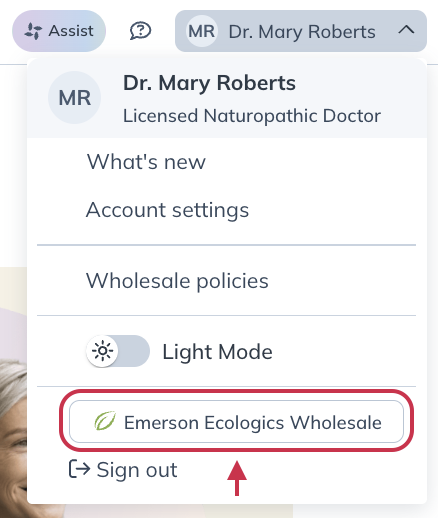
This will take you to your Emerson account, where you can enjoy the same wholesale ordering experience you’ve always loved.
Switching back to your Fullscript account
To go back to your connected Fullscript account from your Emerson account:
- Click on the avatar or initials in the upper right corner of your account.
- Click on the Fullscript – Writing plans button.

You’ll be logged back in to your Fullscript account, where you can add patients, build plans, and more.
Manage your accounts
Joining or leaving an account: To join a new account, use an invitation if you are patient or sign-up link if you are a provider. To leave or be removed from an account, contact support.
Unlinking accounts: Accounts linked under the same email can’t be unlinked. If you need help deactivating an account, contact support.