
Your Fullscript storefront gives patients a simple way to explore your supplement and lab recommendations before creating a Fullscript account. They can browse the products, collections, protocols, and lab tests you share without signing in and only need an account when they're ready to purchase.
Whether you're recommending a single supplement or a complete protocol, your storefront helps you extend care beyond the appointment by giving patients a convenient place to revisit your recommendations whenever they're ready.
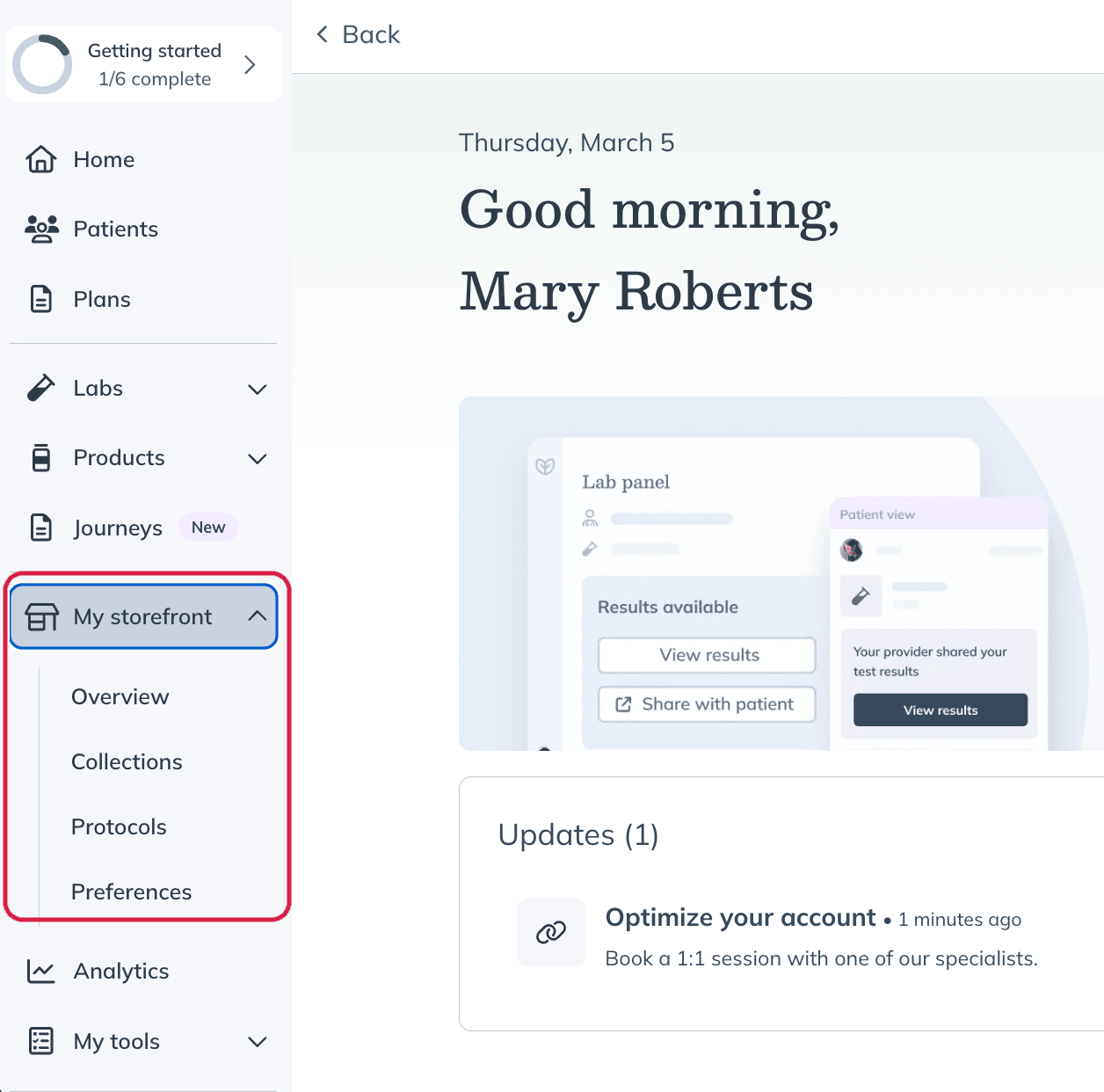
How your storefront supports your practice
Patients can revisit your recommendations whenever it's convenient for them, whether they're reviewing a protocol after a visit, exploring a collection you've shared, discovering products through your storefront, or ordering lab tests you've made available. This gives you another way to support patients between appointments while making your supplement and lab recommendations easier to access.
What can you share?
Choose the format that best fits how you'd like to guide your patients.
Share type | Best for |
|---|---|
Complete supplement recommendations that include dosage instructions and clinical context. | |
Groups of products organized around a topic, condition, season, or wellness goal. | |
Sharing a single product without creating a protocol or collection first. | |
Lab tests you've made available for patients to order directly from your storefront. |
Labs
Along with supplements, your storefront can offer lab tests. You choose which tests, panels, and specialty kits appear, and patients can browse and buy them directly from your storefront. To set this up, see Setting up your labs storefront.
Patients have a step-by-step guide too: Buying a lab test from a provider's storefront.
What your patients experience
Patients can browse your shared recommendations immediately without creating a Fullscript account. When they're ready to purchase, they simply create or sign in to a Fullscript account to view any practitioner discounts you've chosen to offer and complete checkout.
If they added products to their cart before signing in, those items remain in their cart after they create an account.
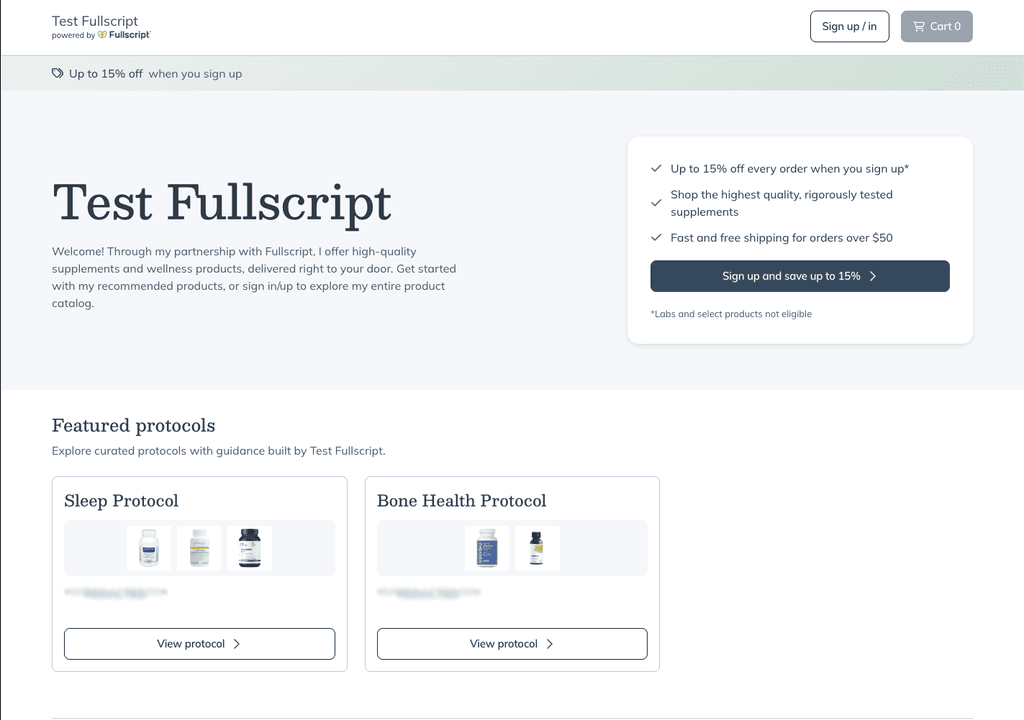
What visitors can see before signing in
Visitors can explore the content you've chosen to share before creating a Fullscript account.
Available without signing in
- Published protocols
- Published collections
- Individual product pages shared through a direct link
- Product pricing at MSRP, along with your configured patient discount
- Lab tests that have been added to the storefront
Available only after signing in
- The full Fullscript catalog
- Patient-specific supplement plans
- Protocols shared only with specific patients
- Purchasing a lab test
Which products can be shared?
You can share any product in the Fullscript catalog through your storefront.
For some brands, including Ortho Molecular Products, the purchasing experience is slightly different. These products typically need to be included in a protocol before patients can purchase them because protocols include your professional recommendation.
If a patient opens one of these products from a collection or the Fullscript catalog, they'll be prompted to Request access. Once they request access, you can create and share a protocol that includes the product.
Is my storefront public?
New storefronts are public by default, allowing anyone with a shared link to browse your recommendations without creating a Fullscript account.
If you'd prefer to require visitors to sign in before viewing your shared content, go to My storefront > Preferences > Privacy and controls and turn off Public storefront.
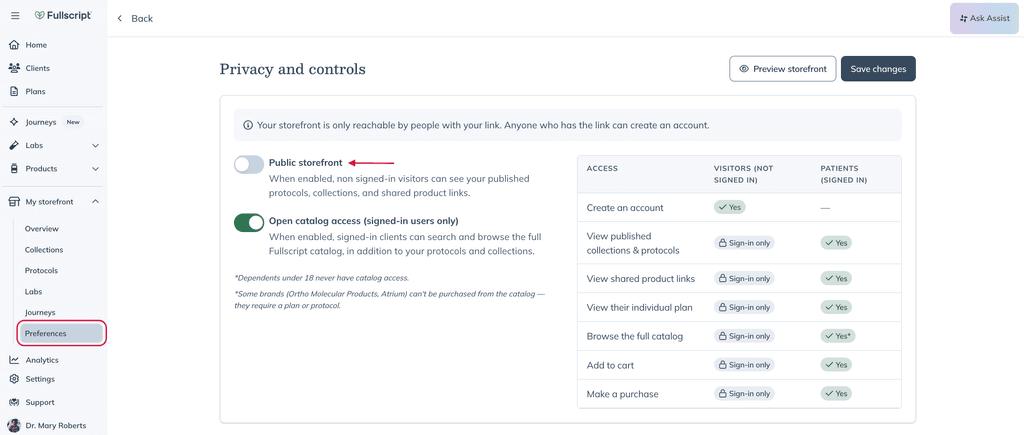
Public storefronts aren't searchable on the internet. Only people you share your storefront or content links with can access them. Visitors only need a Fullscript account when they're ready to purchase.
Ready to customize your storefront?
Now that you're familiar with how storefronts work, you're ready to customize your storefront. Before you continue, consider reviewing your published protocols and collections to make sure you're happy with their content and sharing settings. If you've already shared storefront or content links, they'll continue to work automatically.
Learn how to:
- Brand your storefront
- Configure practitioner discounts
- Choose which products can be shared
- Manage storefront visibility
- Enable or disable patient promotions
- Add storefront buttons to your website
Continue to the next step