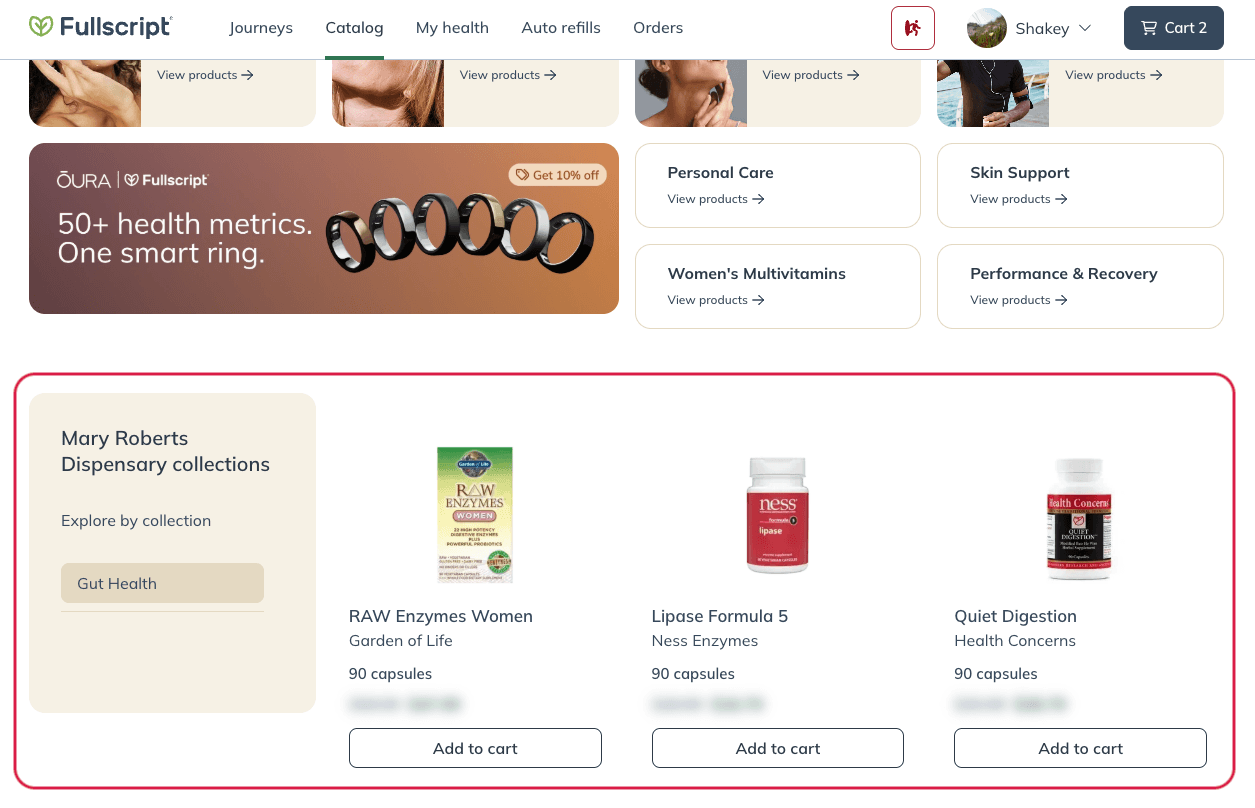
Collections are patient-facing groups of products that make it easy for patients to browse and shop your store. Use collections to organize products by health goal, category, or topic and create curated shopping experiences patients can explore on their own.
Creating a collection
To create a collection:
- Click My storefront in the navigation bar.
- Click Collections.
- Click + Create collection.
- Name your collection, then click Create Collection.
- Add products to your collection using the search bar.
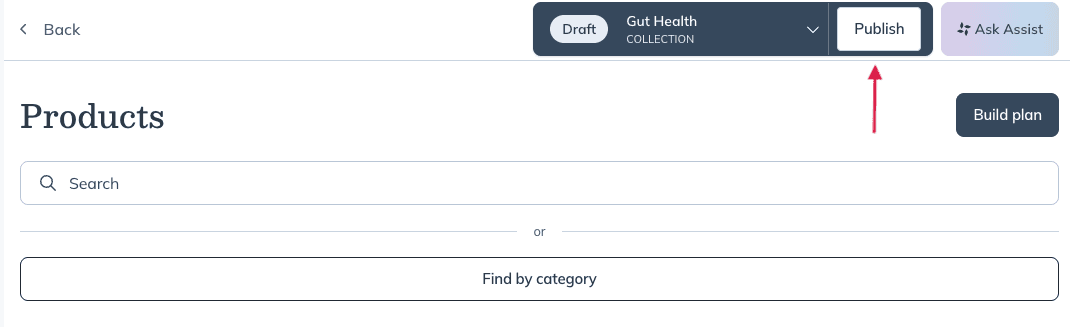
- Once products are added, click Publish.
- Then Confirm and publish to publish in the storefront.
Note
Labs can’t be added to collections.
Editing collections
To edit a collection:
- Click on the collection you created.
- To add more products, click + Add products.
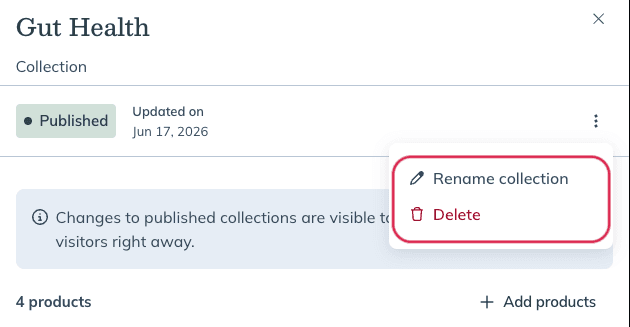
- To rename or delete the collection click the three dots ( ) and select Rename or Delete.
The patient experience
Patients can view shared protocols from the Collections in their accounts under Catalog.
Any updates made to a collection will appear in the patient experience automatically.