Last modified: May 12, 2026
Managing your auto refill schedule
Patients
You can modify auto refills at any time from the Auto refills page in your account. It’s important to note that changes won’t affect confirmed orders. Additionally, as we prioritize filling orders as quickly as possible, we can’t cancel or change an order once it’s placed.
Consolidating your auto refills
Consolidating your auto refill orders into one shipment can help you establish a more efficient delivery schedule and qualify you for free shipping if the order meets your region’s threshold.
In some situations, you may want to reschedule auto refills while keeping the frequency currently set, so items on different schedules will ship together in the next shipment.
To reschedule an auto refill order to consolidate it with another, on an iOS/Android app:
- Go to your Orders ( ) screen.

- Tap the scheduled auto refill order that you would like to consolidate with another.
- Tap Reschedule ( ).

- Tap Select a specific date.
- Choose the date that aligns with the other auto refill you’d like to consolidate with and tap Save.

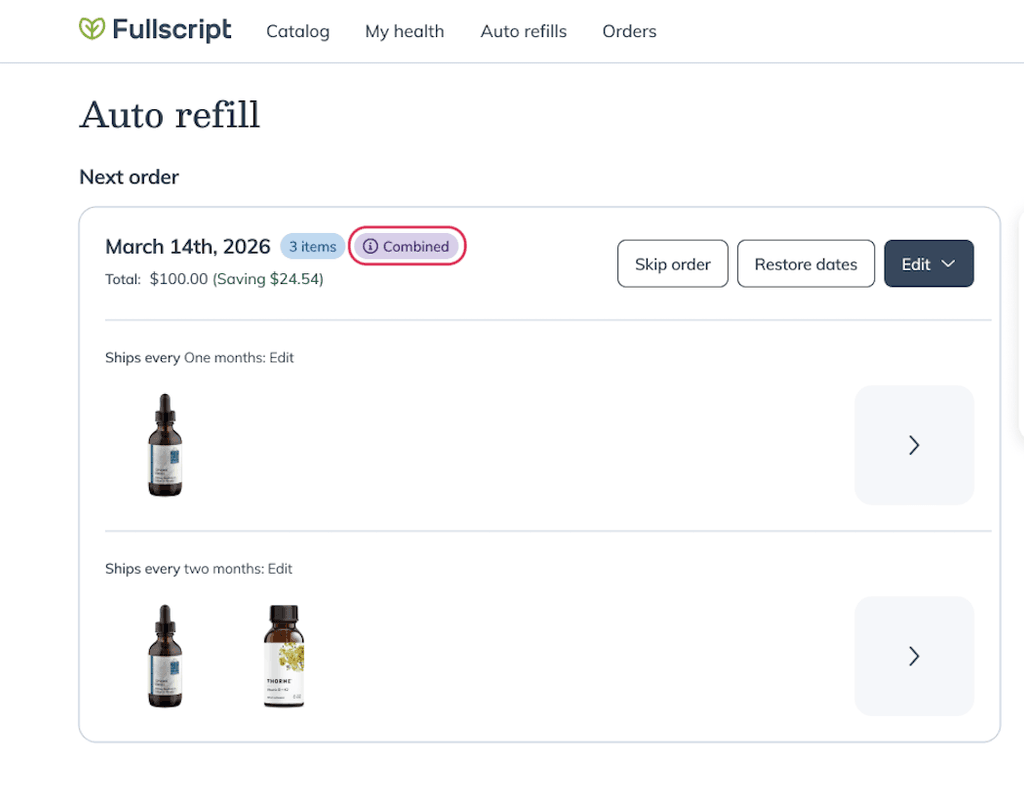
You’ll now see that your next auto refill order contains items on different shipping frequencies. They’ll resume those frequencies after the next order has shipped.

To reschedule an auto refill order to consolidate it with another, on a desktop browser:
- Navigate to the auto refills page.
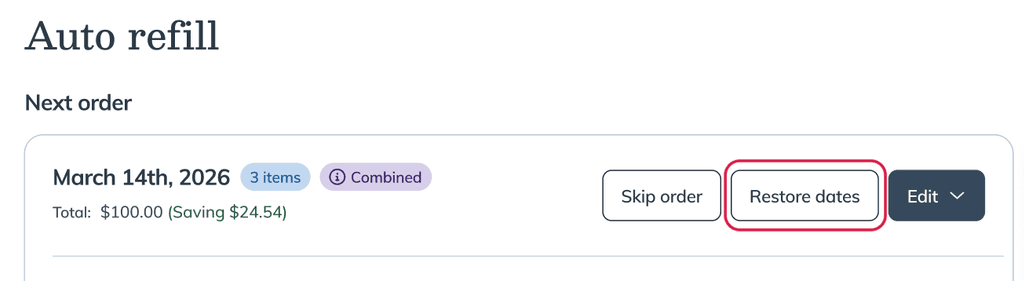
- Find the order you’d like to reschedule and click the Skip order.

- Use the dropdown calendar to find the date to which you’d like to reschedule the next shipment.
- Click Confirm.

You’ll now see that your next auto refill order contains items on different shipping frequencies. They’ll resume those frequencies after the next order has shipped.

A consolidated auto refill order where products have different frequencies.
In some situations, you may want to reschedule an auto refill while keeping the frequency currently set, so items on different schedules will ship together in the next shipment.
To reschedule an auto refill order to consolidate it with another, in a mobile browser:
- Navigate to the auto refill page.
- Find the order you’d like to reschedule and click the Change date button.

- Use the calendar to find the date to which you’d like to reschedule the next shipment.
- Click Confirm.
You’ll now see that your next auto refill order contains items on different shipping frequencies. They’ll resume those frequencies after the next order has shipped.

A consolidated auto refill order where products have different frequencies.
Order now (place order immediately)
If you’re using the iOS/Adroid app and need to reorder certain products immediately, they should be added to your cart individually and placed as a separate order.
- Go to your Orders ( ) page.
- Tap on upcoming order.
- Tap the order with the item you would like to place an order for.

- Tap any products you need to order.
- Tap Add to cart.

If you need products immediately, you can place a scheduled auto refill order directly from the Auto refills page without rebuilding your cart.
To place an auto refill order earlier than scheduled in a desktop browser:
- Go to the Auto refills page.
- Click Edit shipment, then select Order now.
- Review your shipping and payment information, as well as your next auto refill date, and click Place order when you’re done.
If you need products immediately, you can place a scheduled auto refill order directly from the Auto refills page without rebuilding your cart.
To place an auto refill order earlier than scheduled in a mobile browser:
- Go to the Auto refills screen.
- Click the order’s options menu ( ), then Order now.
- Review your shipping and payment information, as well as your next auto refill date, and click Place order when you’re done.
Skip an upcoming auto refill
If you’d like to postpone your next auto refill order in the iOS/Android app:
- Tap Orders ( ) from the bottom menu.
- Tap on an upcoming auto refill.
- Tap the box for the relevant auto refill under the Upcoming heading.

- Tap Reschedule.
- Tap Skip your next shipment.
- Tap Save.

You can skip your next auto refill order by heading to the Auto refills page in your account.
To skip your upcoming auto refill, in a desktop browser:
-
- From the Auto refills page, click Edit shipment.
- click Skip upcoming order.
- Review your next scheduled ship date, then click Skip order to confirm the changes.
Skipping your next auto refill.
To skip an upcoming auto refill, in a mobile browser:
- Tap the options menu ( ) on the Auto refills screen.
- Tap Skip upcoming order.

Removing items from an auto refill
To remove an item from an auto refill orders on the iOS/Android app:
- Tap Orders ( ) from the bottom menu.
- Tap on an upcoming auto refill
- Tap the Upcoming order box.
- Tap on a item.

- Tap Remove from auto refill.

These instructions will help you remove an item from an auto refill.
To remove an item scheduled on a auto refill on a desktop browser:
- Go to the Auto refills page.

- Click on the auto refill.
- Click Edit.
- Click Remove.

- Choose a cancellation reason to tell us why you’re canceling auto refills (optional), then select Cancel auto refills.
To remove an item on a scheduled auto refill from a mobile browser:
- Click the menu icon ( ) in the upper left corner.
- Go to the Auto refills page.

- Click the Edit ( ) menu next to the product you would like to remove from the auto refill.
- Click Remove.

- Choose a cancellation reason to tell us why you’re canceling auto refills (optional), then tap Cancel auto refills.
Canceling an auto refill
If you need to cancel an auto refill, it’s quick and easy. Just make sure to cancel at least 24 hours before your next scheduled shipment to avoid charges. You can cancel individual products or your entire refill schedule anytime.