Use Privacy and controls to manage who can access your storefront and whether patients can browse the full Fullscript catalog. You can also review what visitors and patients can do based on your settings.
Manage storefront access
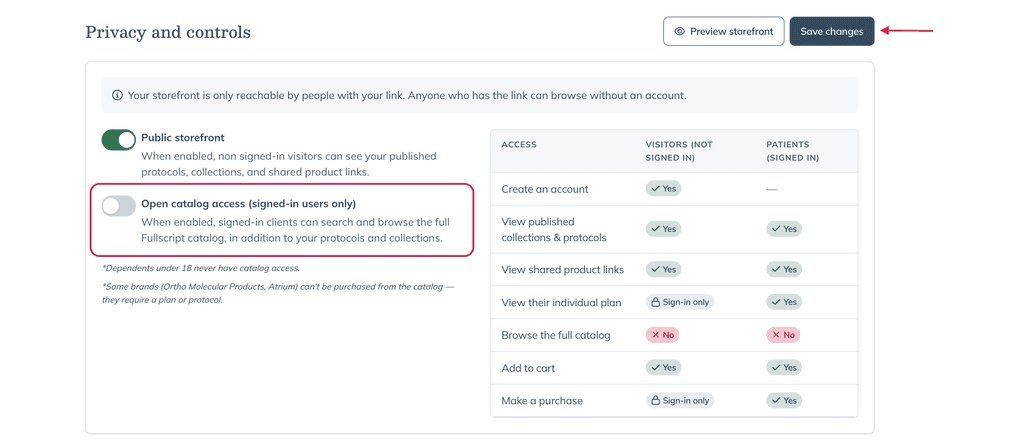
Use Public storefront to control whether visitors need to sign in to view your storefront.
- Public storefront on: Visitors can view published collections, protocols, and shared products without signing in. They must sign in to browse the full Fullscript catalog.
- Public storefront off: Visitors must sign in or request access to view storefront content.
Use Open catalog access to control what logged-in patients can browse.
- Open catalog access on: Patients can browse the full Fullscript catalog and your curated content.
- Open catalog access off: Patients can only browse your curated content, including published collections, protocols, and individualized plans.
Dependents under 18 can only access curated content, regardless of your Open catalog access setting.
The Restricted brands dropdown displays brands that patients can't access directly from the catalog. If a patient requests access to a product from a restricted brand, you'll need to recommend it through a supplement plan.
To update your storefront access settings:
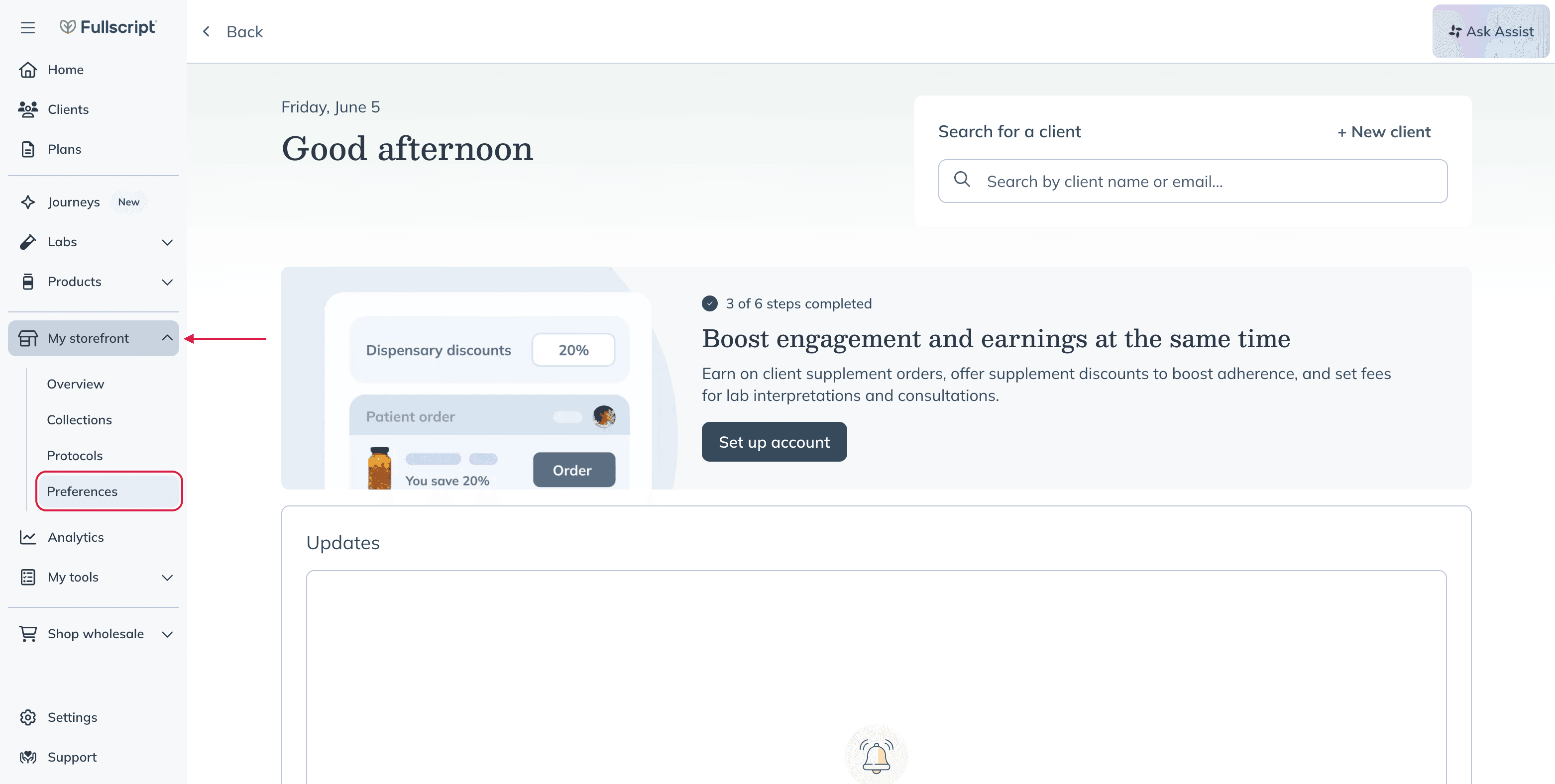
- Select My storefront from the left-hand navigation, then select Preferences.
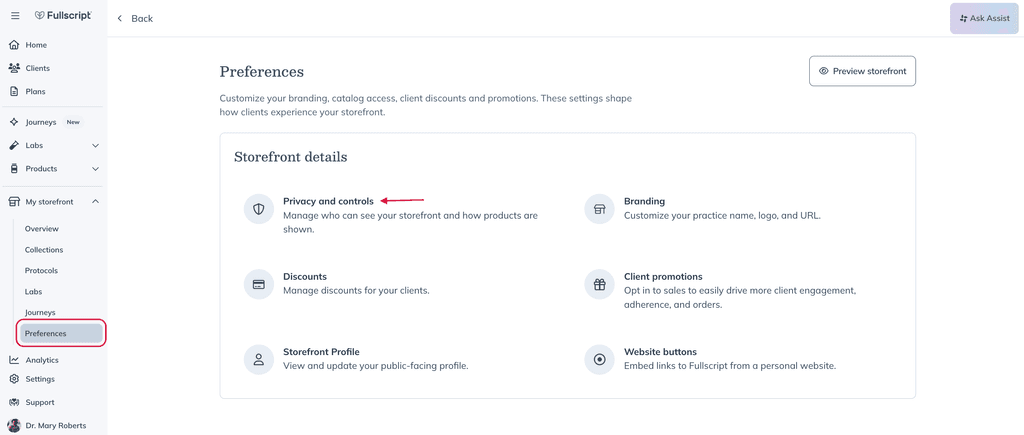
- Select Privacy and controls.
- Turn Public storefront and Open catalog access on or off as needed.
- Review your changes, then select Save changes.
Save changes becomes available after you update Public storefront or Open catalog access.
Patient friend invites
Patient friend invites let patients invite friends to create their own Fullscript account and shop from your storefront.
To manage Friend invites:
- Select Settings.
- Select Privacy, security, and disclosures.
- Turn Friend invites on or off.
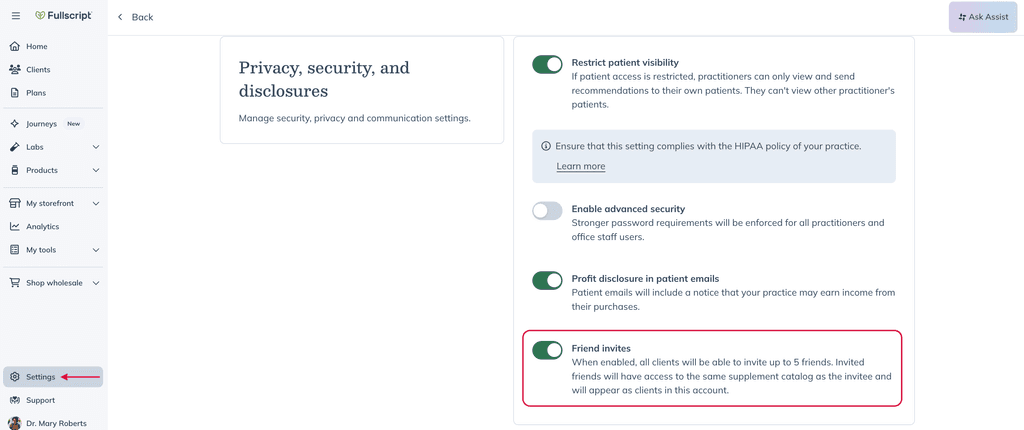
Your Open catalog access setting determines the default:
- When Open catalog access is on, friend invites are enabled by default.
- When Open catalog access is off, friend invites are disabled by default.
You can override this default at any time by turning Friend invites on or off.
Patient friend invites include the following safeguards:
- Patients can invite up to 5 friends.
- Friends who join through an invitation can’t invite other people.
Product badges
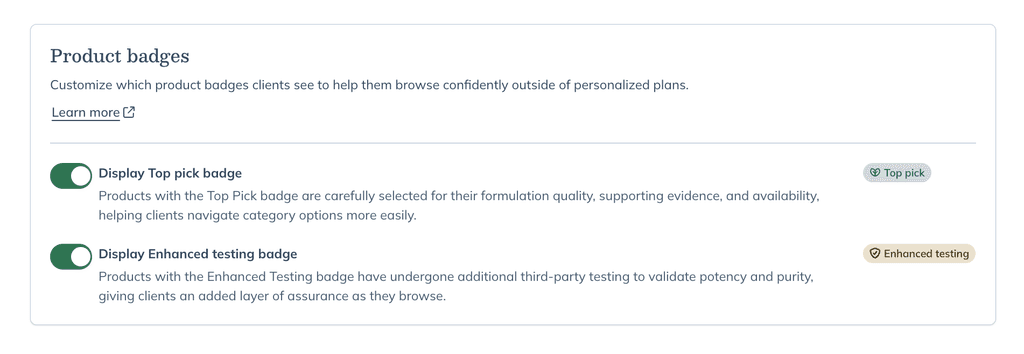
Use the Product badges settings in Privacy and controls to choose which badges patients see when browsing your storefront outside of personalized plans.
- Display Enhanced testing badge: Shows a badge on products that have undergone additional third-party testing to verify potency and purity. This badge provides added transparency into product quality and testing standards.
- Display Top pick badge: Shows a badge on products selected for their formulation quality, supporting evidence, and availability. This badge can help patients compare products and navigate category options more confidently.