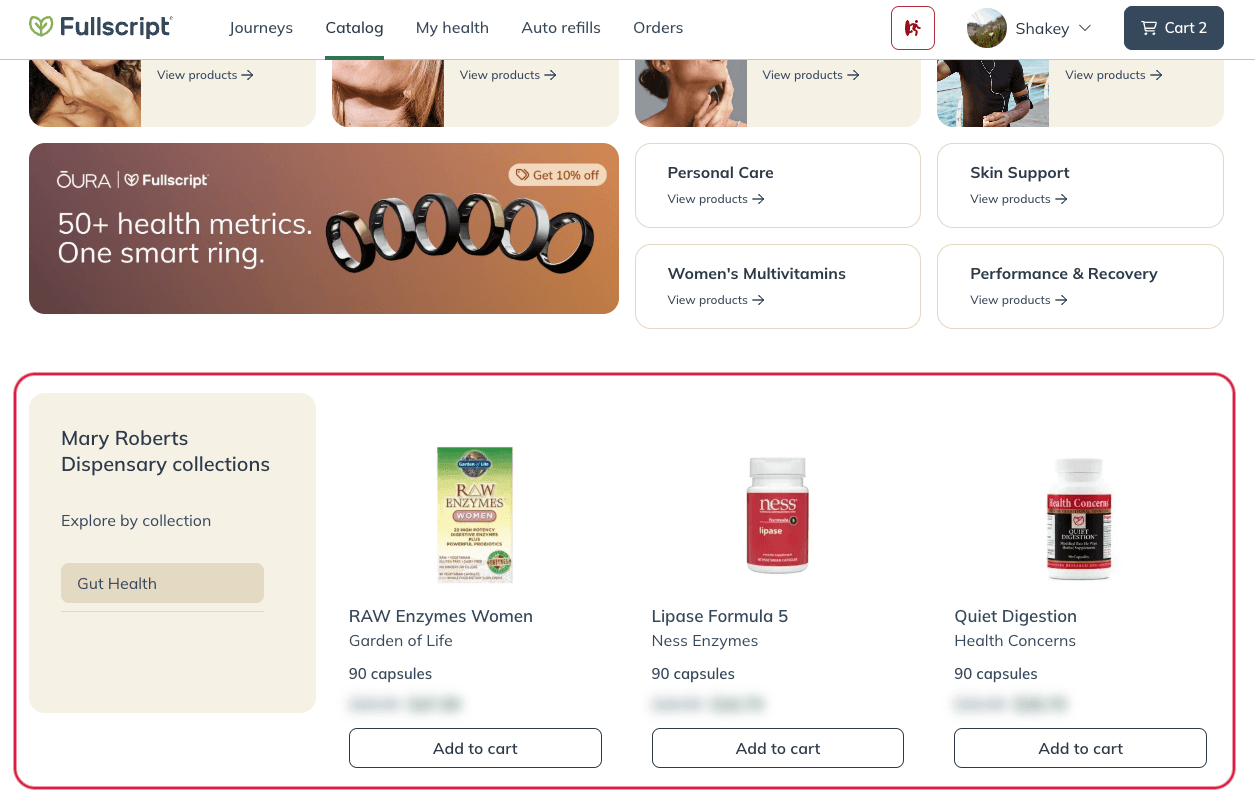
Collections are groups of related products displayed in your Fullscript storefront, making it easy for patients to browse supplements by category or wellness goal. Collections are what patients see in your storefront. Favorites are an internal list for building plans faster, and patients don't see them.
If you want to provide guidance alongside your recommendations, use Protocols instead. Protocols let you combine products with dosage instructions, educational content, and lifestyle recommendations to create a more complete recommendation experience.
Create a collection
To create a collection:
- Click My storefront in the navigation bar.
- Click Collections.
- Click + Create collection.
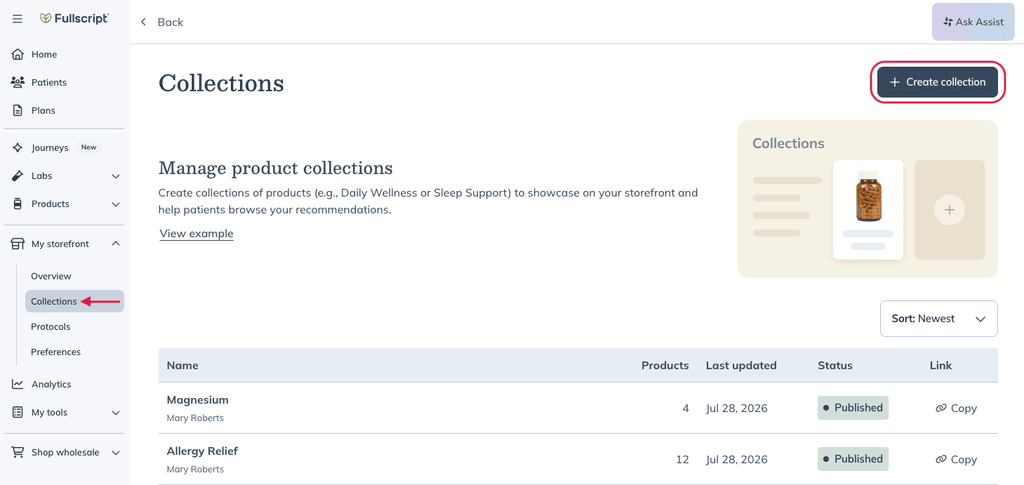
- Name your collection, then click Create Collection.
- Click +Add products to start searching for products to add.
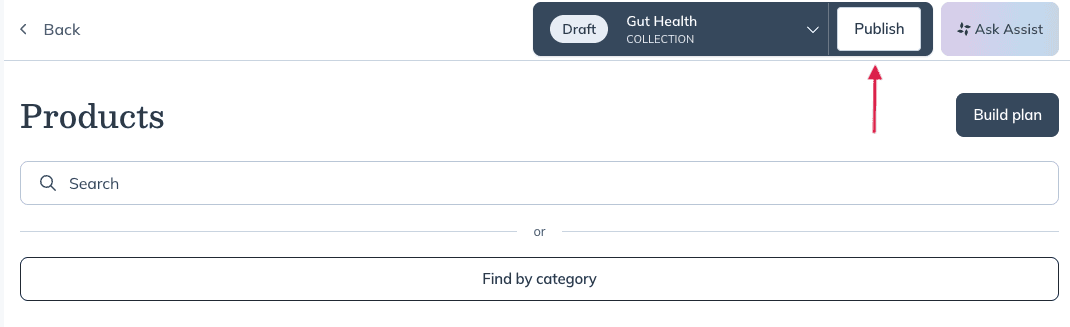
- Once products are added, click Publish.
- Click Confirm and publish to make the collection available in your storefront.
After publishing your collection, you can share it with patients or continue editing it at any time.
Labs can’t be added to collections.
Edit a collection
To edit a collection:
- Open My storefront > Collections.
- Select the collection you want to update.
- To add more products, click + Add products.
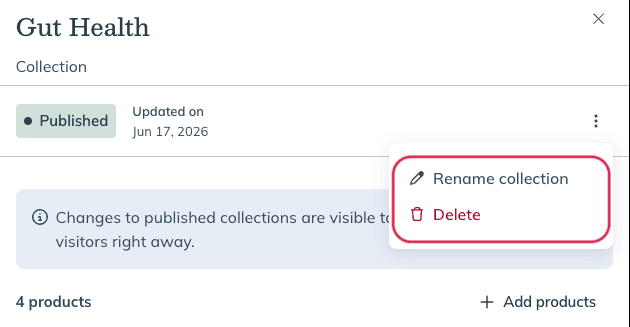
- To rename or delete the collection click the three dots ( ) and select Rename or Delete.
Changes to a published collection appear on your storefront automatically after they're published.
Sharing your collection
After publishing a collection, you can share it with patients so they can browse the products you've grouped together.
To share a collection:
- Go to My storefront > Collections.
- Find the published collection you'd like to share.
- Click Copy link.
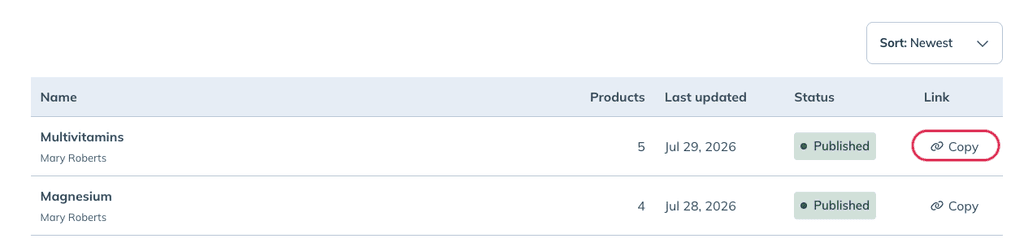
Anyone with your collection link can browse the published collection without signing in.
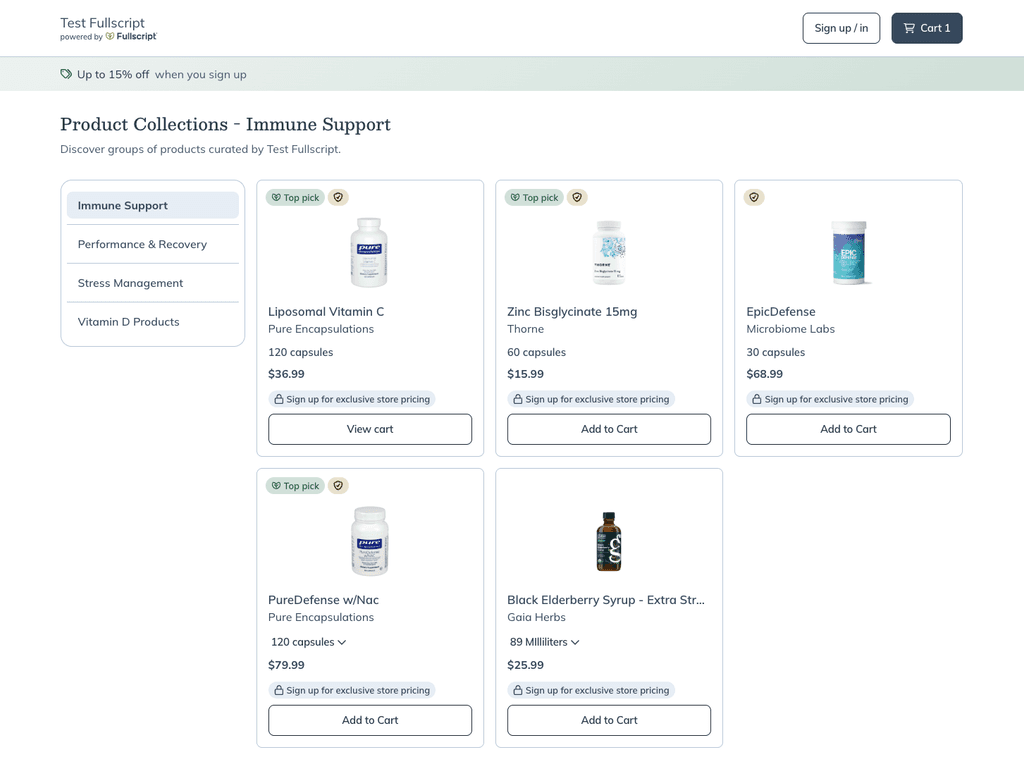
Visitors can:
- View your practitioner or clinic name and logo.
- Browse your published collections.
- View recommended products.
- MSRP pricing.
- Add products to their cart.
When they're ready to check out, they'll be prompted to create a Fullscript account or sign in before completing their purchase.
After signing in
Signed-in patients can view your published collections from their Fullscript account under Catalog, where they can browse your curated products, add items to their cart, and complete their purchase using their existing Fullscript account.
Any updates you publish to a collection appear automatically in the patient experience.