Restricted patient access lets you assign patients to specific providers in your store. Use this setting to restrict access to patient profiles, allocate earnings to practitioners through patient ownership, and control which patients additional providers can share protocols with.
Clerk accounts can't create or share templates, regardless of the Restricted patient access setting. However, they can apply templates to individual patient plans. Clerks with Storefront access can create protocols.
When Restricted patient access is ON: | When Restricted patient access is OFF: |
|---|---|
Dispensary owners and clerks can write plans for all patients. | Additional providers can view all patients and share plans with them. |
Additional providers can only view and send plans to their assigned patients. | Additional providers can view plans created by another provider, but can't edit or cancel them. |
Additional providers can only create private protocols for their assigned patients. | Additional providers can create protocols for all patients. |
Turning Restricted patient access on/off
Please ensure that this setting complies with the HIPAA policy of your practice.
To turn Restricted patient access on or off:
- Click Settings in the navigation bar.
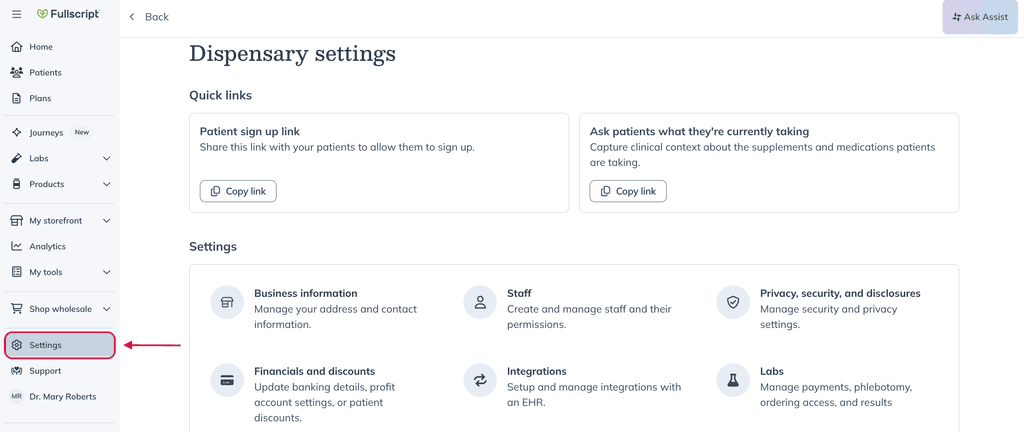
- Click Privacy, security, and disclosures.
- Under Restricted patient access, turn the setting on or off.
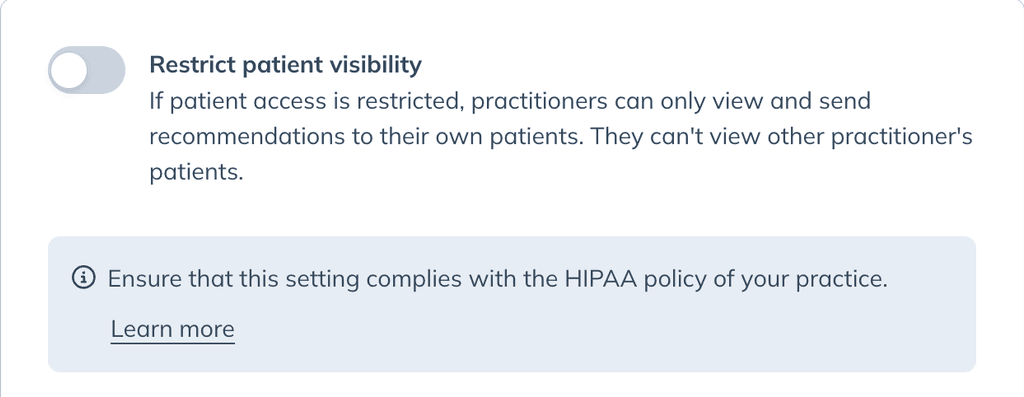
You can update patient access settings at any time.
Assigning patients to practitioners
Store owners have control over this setting. Staff members (clerks and additional practitioners) can't modify Restricted patient access.
When Restricted patient access is turned off, you can assign existing patients to one or more providers from their profiles. By default, patients are assigned to the provider who added them to the dispensary, or to the provider who created the plan if it was written by a clerk. Patients added through a patient import are assigned to the provider who uploaded the file.
Clerks can assign or unassign patients to providers in the dispensary from patient profiles. Patients imported by a clerk are assigned to the dispensary owner (primary provider) by default. You can update assignments at any time from the patient’s profile.
To manage providers assignments in patient profiles:
- Click the Patients tab in the navigation bar.
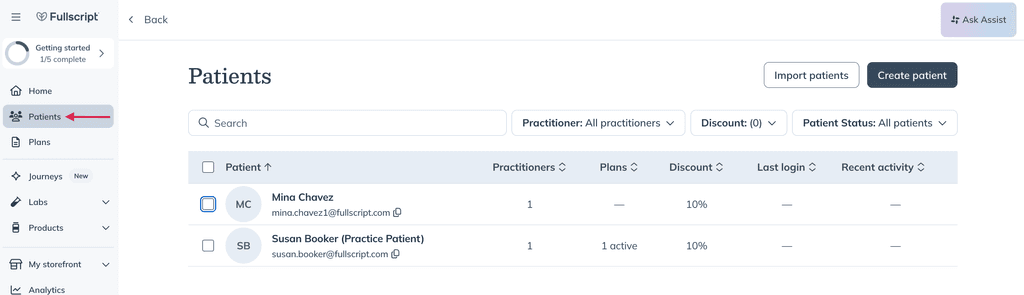
- Search and select a patient.
- Click Patient details.
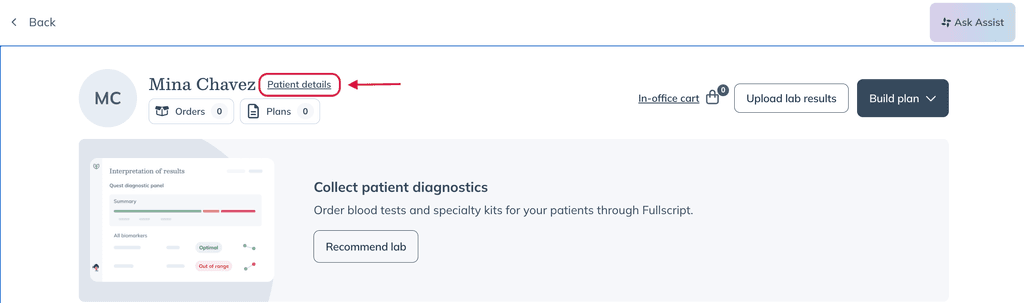
- In the drawer, scroll down to the Assigned practitioners heading.
- Using the dropdown, select the practitioner(s) to whom you’d like the patient assigned.
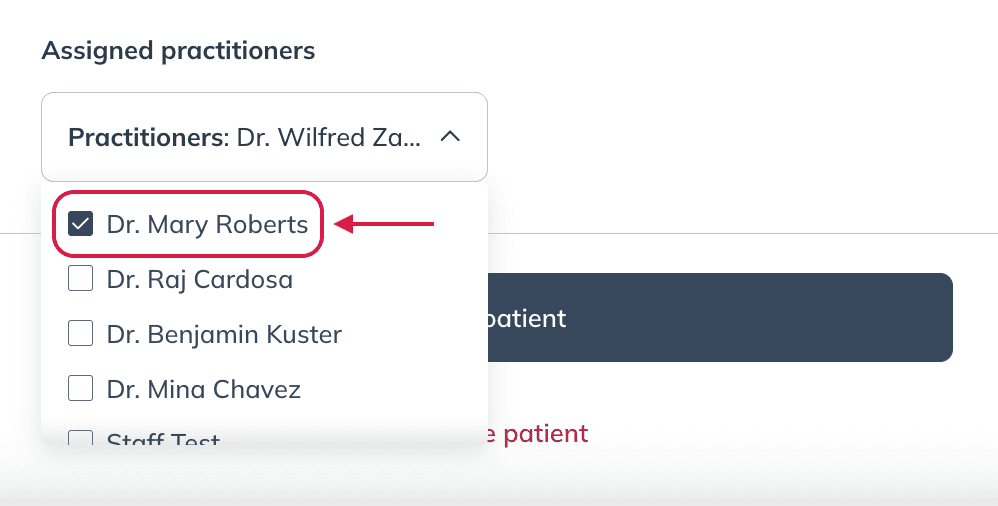
- Once you’ve selected the correct practitioner(s) for the patient, click Edit patient.
Follow the same steps above to unassign providers from patients.
Assigning or reassigning multiple patients
You can also assign or reassign multiple patients at the same time from the Patients page.
The bulk patient assignment feature is only available to store owners.
To select and reassign multiple patients:
- Select any or all of the patients in the list using the checkbox(es) on the left side of the list.
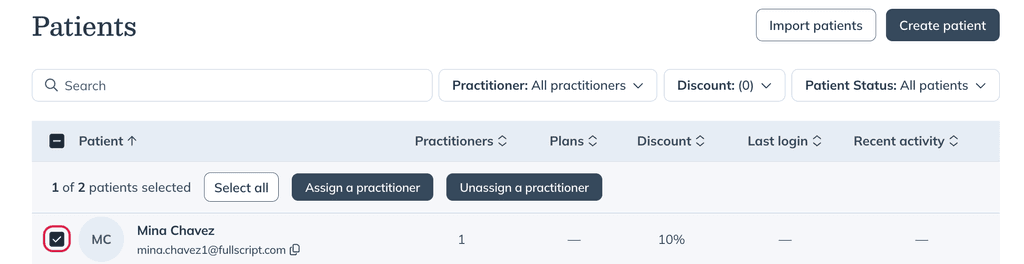
- Click the More options ( ) button at the top of the patient list.
- Click Assign a practitioner.
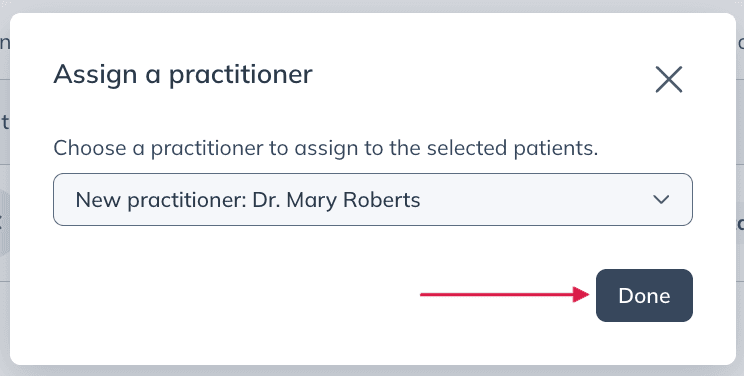
- Select the provider you’d like to assign the patient(s) to, then click Done.