
Protocols help you create guided supplement recommendations that you can share through your Fullscript storefront. Unlike collections, which group related products together, protocols combine supplements with dosage instructions, educational content, resources, and lifestyle recommendations.
You can share protocols publicly through your storefront or privately with specific patients.
Staff with Storefront access, including clerks, can create protocols and view protocols created by others. Staff need Edit storefront content permission to edit protocols created by others, change who they're shared with, or email patients about them. Without it, staff can still view a colleague's protocol and copy its link.
Creating a protocol
To create a protocol:
- Click My storefront in the navigation bar.
- Click Protocols.
- Click Create protocol in the upper-right corner.
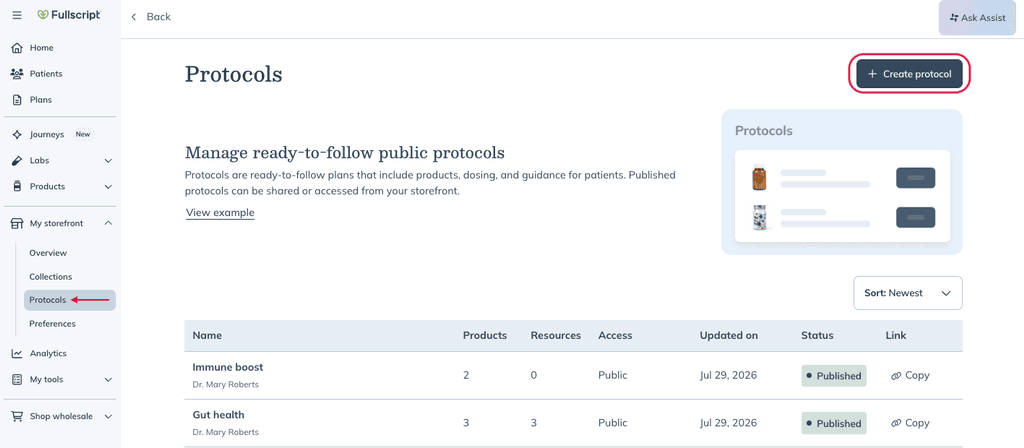
- Name your protocol, then click Create protocol.
- Add products using the search bar.
- Once products are added, click Review.
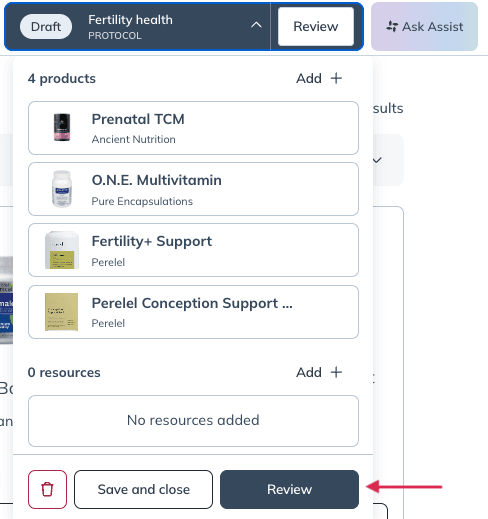
Labs can’t be added to protocols.
- Customize your protocol by adding:
- Product instructions
- Dosage durations
- An educational description
- Resources or handouts
- Lifestyle recommendations
- Additional notes
- Under Summary, click the Edit (pencil) icon next to the protocol's access settings.
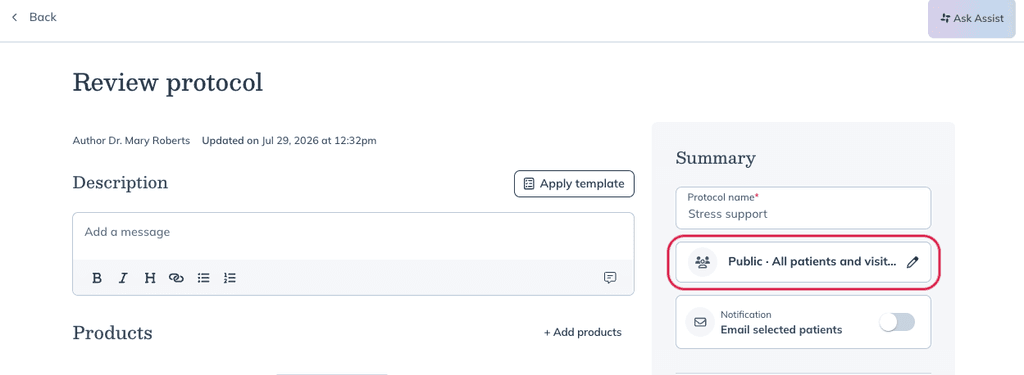
- Choose who can access the protocol:
- Public – All patients and visitors: Makes the protocol available through your storefront, based on your storefront privacy settings.
- Private – Patients assigned to me: Makes the protocol available to patients assigned to you.
- Private – Specific patients: Makes the protocol available only to the patients you select. Search for and select the patients you'd like to share it with.
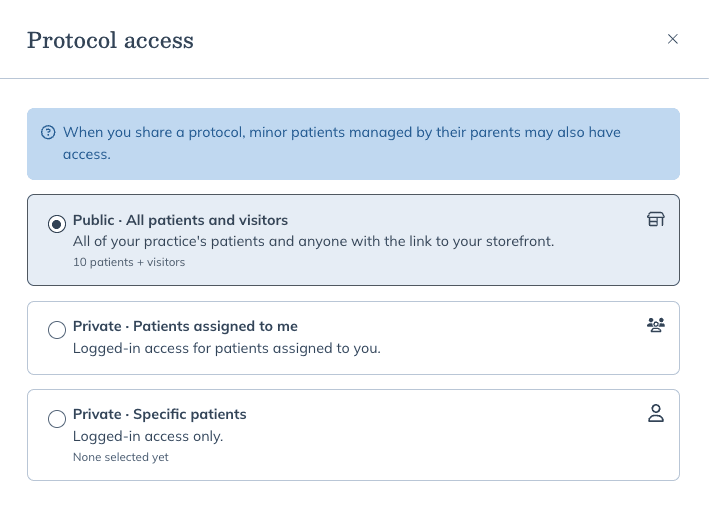
When you share a protocol, minor patients managed by their parents may also have access.
- Turn on Email selected patients if you'd like Fullscript to email the patients who can access the protocol. If you leave this option off, those patients can still access the protocol the next time they sign in.
- Click Confirm and publish.
Sharing access for secondary practitioners
Which protocols a secondary practitioner can create and share depends on their patient access:
- With global patient access, secondary practitioners can create public protocols and share them across the dispensary.
- Without global patient access, secondary practitioners can only create private protocols for their own patients.
Sharing a protocol
After publishing a protocol, you can share it based on the access level you selected.
Public protocols
Public protocols can be shared using a link. Whether visitors can browse a protocol without signing in depends on your storefront privacy settings.
New US storefronts are public by default, and new Canadian storefronts are private by default. Some existing accounts, such as those with closed catalogs, kept their storefront private. See Manage storefront privacy and catalog access for more information.
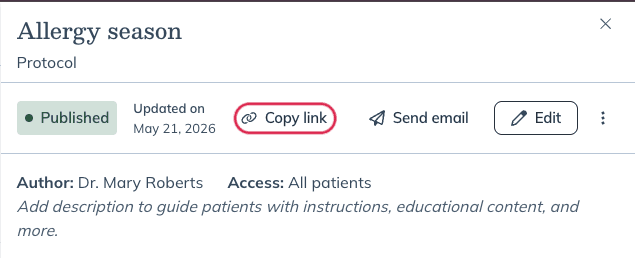
To share a public protocol:
- Go to My storefront > Protocols.
- Find the published protocol you'd like to share.
- Click Copy link.
- Share the link through email, your website, social media, QR codes, or other communication channels.
What patients see
When your storefront is public, anyone with the link can browse the protocol without a Fullscript account. Before signing in, they'll see:
- Practitioner or clinic name
- Clinic logo
- Protocol name
- Your protocol description and educational content
- Lifestyle recommendations and shared resources
- Recommended supplements with dosage guidance
- MSRP pricing
Visitors can browse the protocol and add products to their cart without a Fullscript account. When they proceed to checkout, they'll be prompted to create an account or sign in.
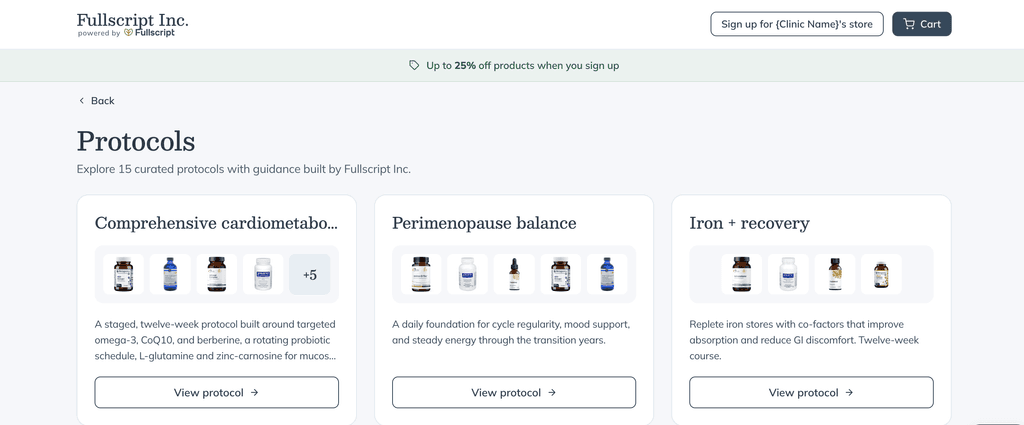
If Public storefront is turned off, visitors must sign in or request access.
Private protocols
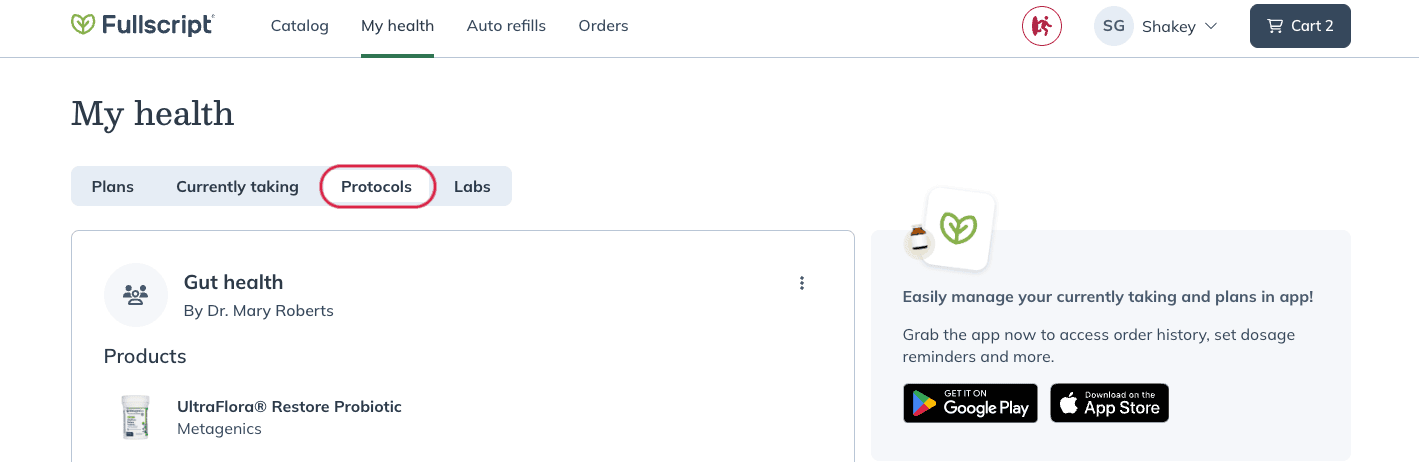
When you share a private protocol with specific patients or with patients assigned to you, they access it through their Fullscript account. After signing in, patients can:
- View your supplement recommendations
- Review product instructions and notes
- Add products to their cart
- Complete their purchase
If a patient doesn't have a Fullscript account, they'll be prompted to create one before accessing the protocol.
Emailing patients about an existing protocol
You can send the protocol email again after a protocol has been published.
- Go to My storefront > Protocols.
- Select the protocol.
- Click Send email.
Where did my multi-patient plans go?
Multi-patient plans are now called protocols and are managed under My storefront > Protocols. This change came with the storefront release, which rolled out from April 2026. Patients now see a Protocols tab where Community plans used to be.
Previously shared multi-patient plans kept their sharing access:
- Plans shared with Entire dispensary became public protocols.
- Plans shared with My patients or Select patients became private protocols. Patients need to sign in to confirm they're eligible to view them.
Use protocols when you want to share one set of supplement recommendations with multiple patients.
Deleting a protocol
To delete a protocol:
- Go to My storefront > Protocols.
- Find the protocol you want to remove.
- Click the more options menu ( ) beside Edit.
- Click Delete.
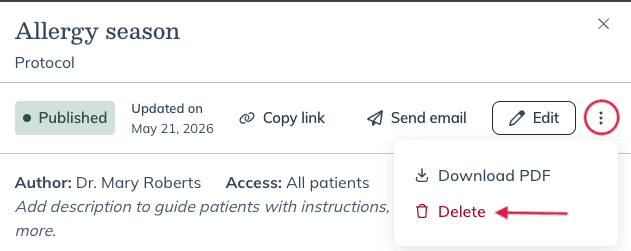
- Confirm that you want to delete the protocol.
Deleting a protocol permanently removes it from your storefront. Patients will no longer be able to access it using a previously shared link.