
Last modified: March 26, 2026
Switching between your linked accounts
Providers
Staff
If multiple accounts share an email address, they’re linked—giving you a single login (email and password) for all of them. Each email address can only be linked to one practitioner or staff account. There’s no limit to how many patient accounts can be linked to one email.
To place retail orders or explore the patient platform, create your patient account with the same email as your practitioner or staff account. This connects your accounts, letting you switch between them with a single login.
If you’re an Emerson Ecologics user and have created your Fullscript account through the Emerson portal, you can also switch to your Emerson account in a similar way.
Switching between your Fullscript accounts
You’ll only see the Switch dispensary option if multiple accounts are linked to the same email address. If you have multiple accounts but don’t see this option in your menu, it’s likely the other account was created with a different email address. Check your inboxes and invites—you may need to log in with a different email to access the other account.
To switch between linked accounts:
- Select your name in the upper right-hand corner.
- Click Switch account.
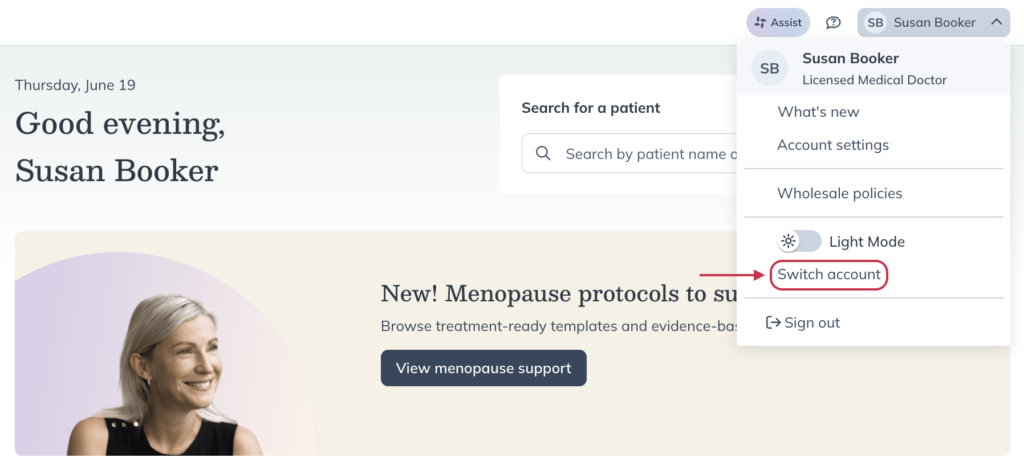
- Select an account.
Finding an account on the account selection page
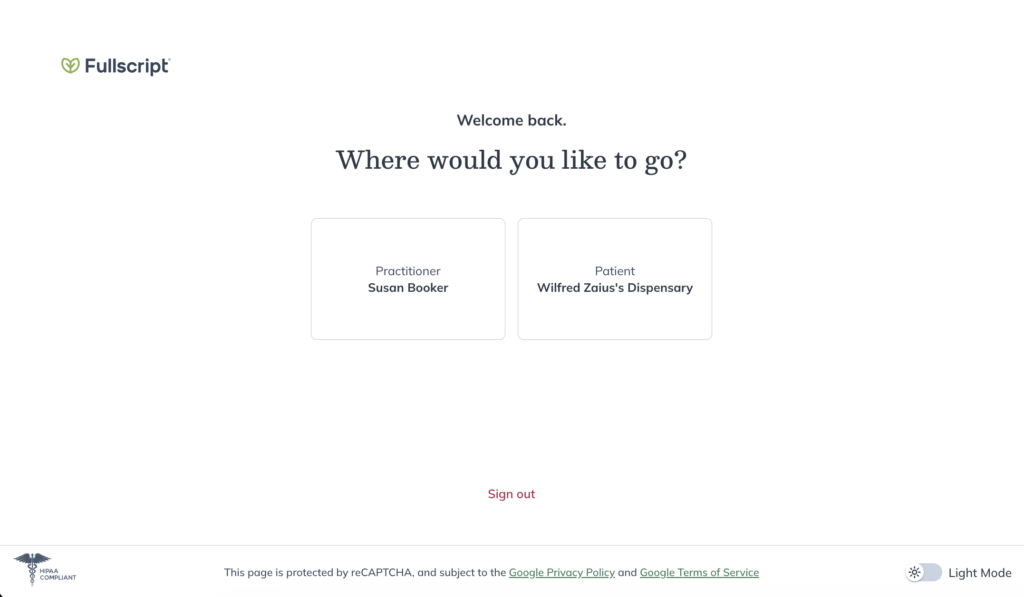
If multiple accounts share the same email address, you’ll see an account selection screen when you log in. Each linked account will appear as a card. Just select the one you want to access.
To help you navigate your linked accounts, each one is labeled as Practitioner, Clerk, Patient, or Client. Practitioner and clerk accounts display your first and last name as set in your account settings. Patient accounts show either Patient or Client (depending on the dispensary’s terminology settings) along with the name of the dispensary.
Switching to your Emerson account
You can switch to your Emerson Ecologics wholesale account while logged in to your Fullscript account, without the need to log out of Fullscript or log in through an Emerson portal.
To switch to your linked Emerson account:
- Click on your name in the upper right-hand corner of your account.
- Click the Emerson Ecologics Wholesale button.
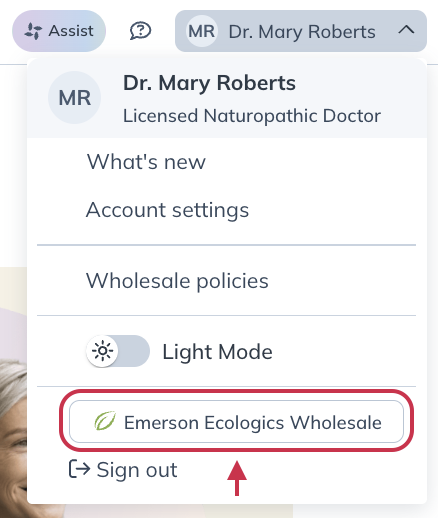
This will take you to your Emerson account, where you can enjoy the same wholesale ordering experience you’ve always loved.
Switching back to your Fullscript account
To go back to your connected Fullscript account from your Emerson account:
- Click on the avatar or initials in the upper right corner of your account.
- Click on the Fullscript – Writing plans button.

You’ll be logged back in to your Fullscript account, where you can add patients, build plans, and more.
Unlinking or deactivating accounts
It’s not possible to unlink an account once it’s been linked to another with the same email address. If you’re looking to deactivate a specific account, contact our support team for assistance.