Last modified: March 11, 2026
Global patient access settings
Providers
Global patient access allows you to assign patients to specific providers in your dispensary. Use this setting to restrict access to patient profiles, allocate earnings to practitioners through patient ownership, and manage shared multi-patient plans more effectively.
| When global patient access is ON | When global patient access is OFF |
|---|---|
| All providers can write plans for all patients. | Additional providers can write plans for patients they’ve added or that have been assigned to them. |
| Additional providers can share plans with all patients in the dispensary. | Dispensary owners and clerks can write plans for all patients. |
| Additional providers are unable to edit or cancel plans written by other providers. | Assigning patients to providers in the dispensary also assigns patients to practitioners in practitioner earnings reports (patient owner compensated model). |
| Order confirmation and shipping notification emails will be sent to the patient’s primary practitioner on file, with all other practitioners on the account copied (CC’d). | Additional providers can share multi-patient plans with assigned patients. |
Turning global patient access on/off
Dispensary owners have control over this setting. Staff members (clerks and additional practitioners) can’t modify global patient access.
To toggle global patient access on or off:
- Click Settings in the navigation bar.
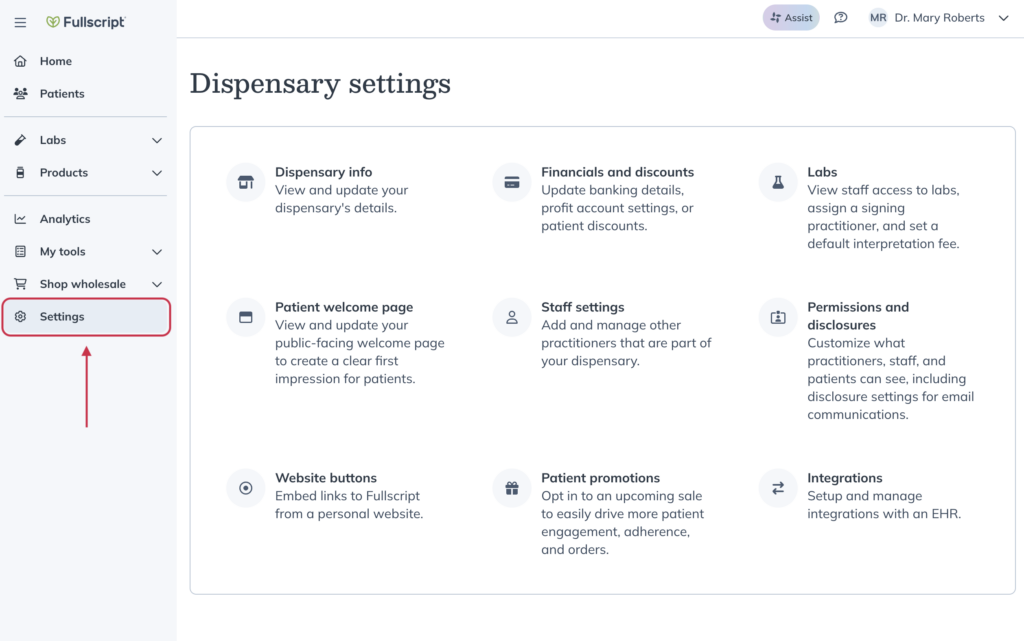
- Click Permissions and disclosures.
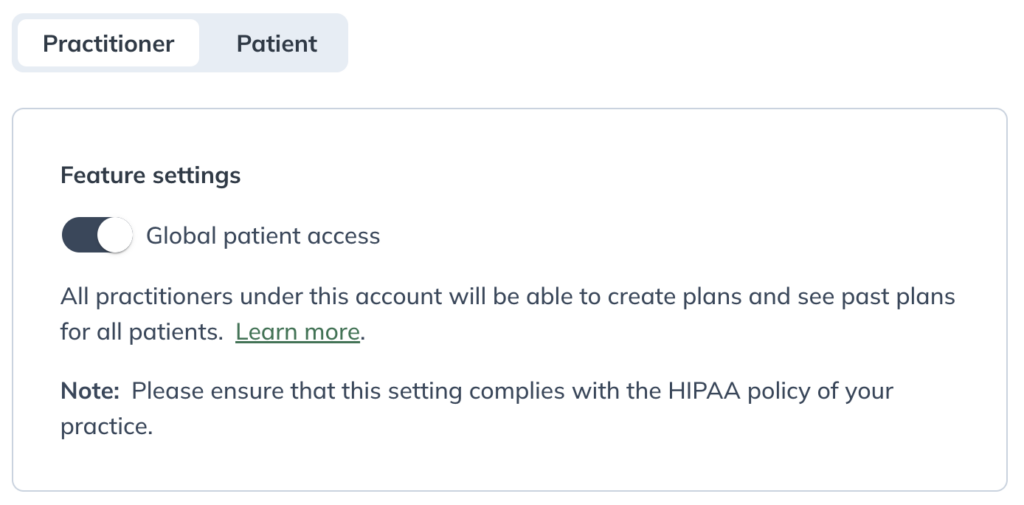
- Under the Practitioner tab, find the Feature settings card and use the toggle to enable or disable global patient access.
- Click Save change in the confirmation window.
Assigning patients to practitioners
When global patient access is turned off, you can assign existing patients to one or more providers from their profiles. By default, patients are assigned to the provider who added them to the dispensary, or to the provider who created the plan if it was written by a clerk. Patients added through a patient import are assigned to the provider who uploaded the file.
Clerks can assign or unassign patients to providers in the dispensary from patient profiles. Patients imported by a clerk are assigned to the dispensary owner (primary provider) by default. You can update assignments at any time from the patient’s profile.
To manage providers assignments in patient profiles:
- Click the Patients tab in the navigation bar.
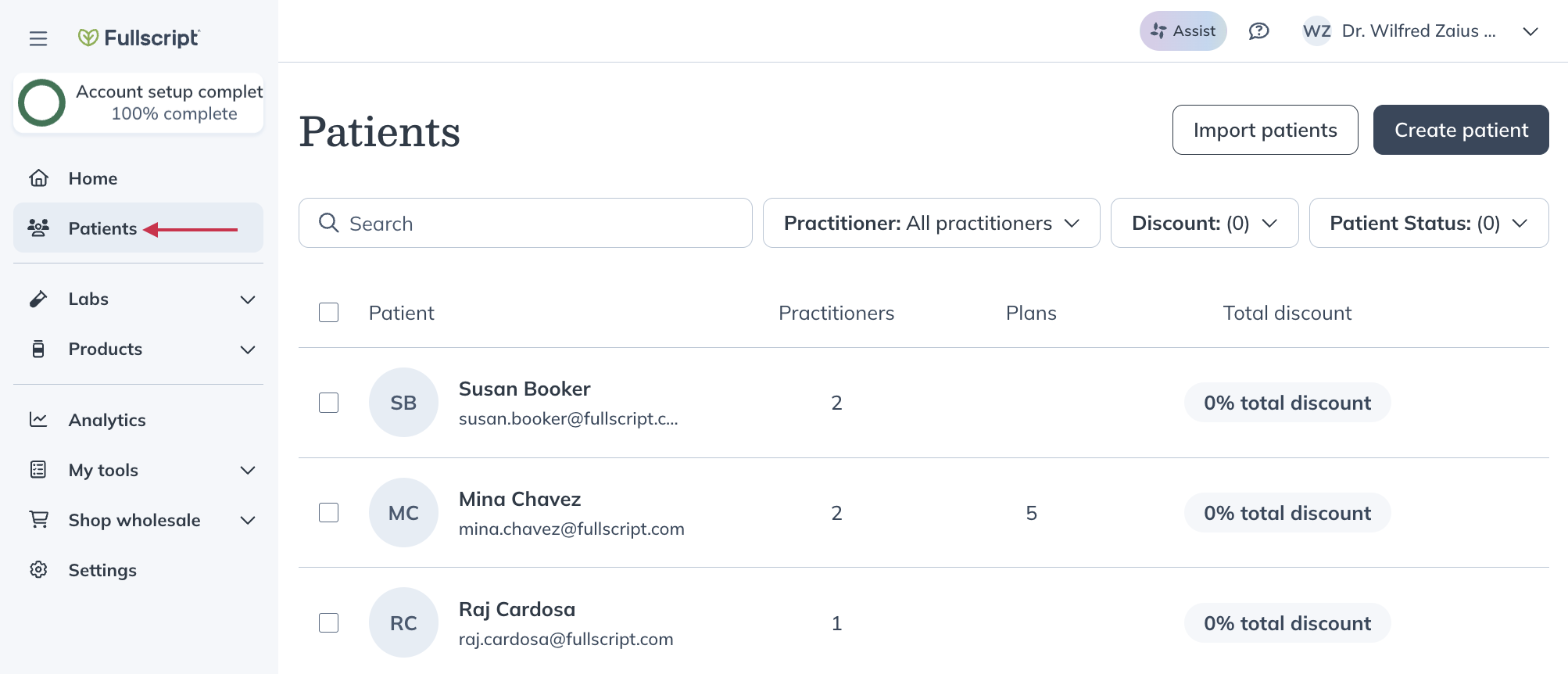
- Search and select a patient.
- Click Account information.
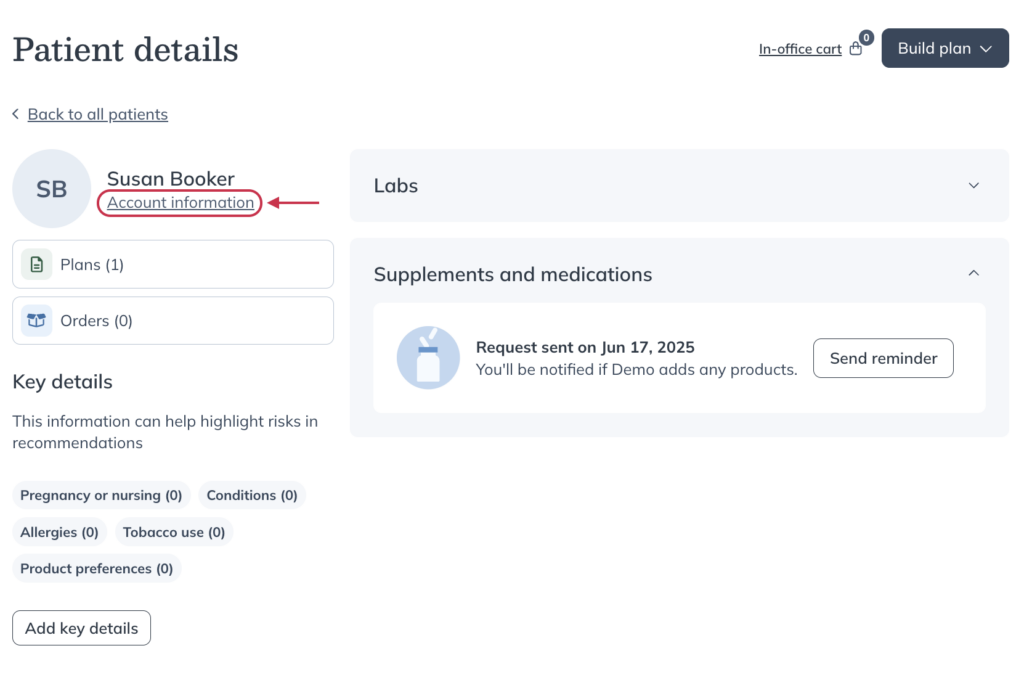
- In the drawer, scroll down to the Assigned practitioners heading.
- Using the dropdown, select the practitioner(s) to whom you’d like the patient assigned.
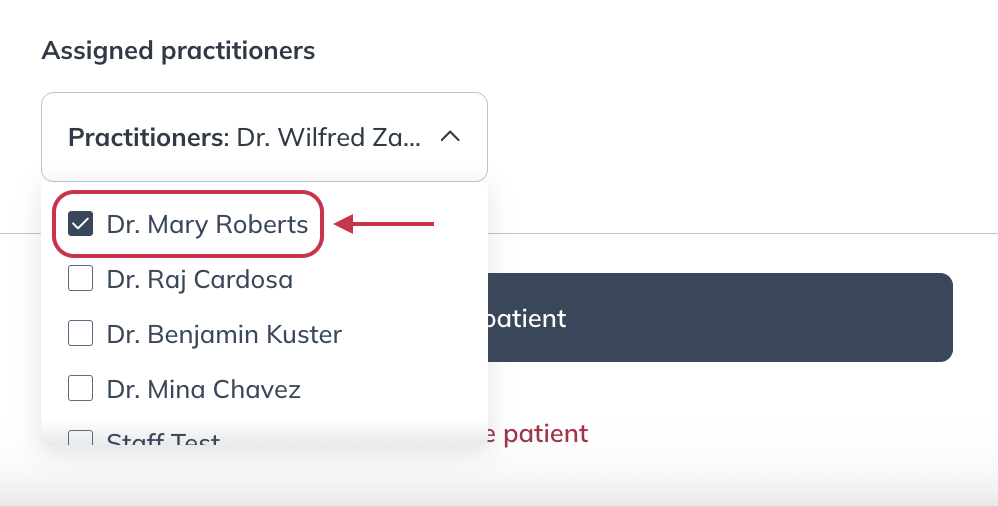
- Once you’ve selected the correct practitioner(s) for the patient, click Edit patient.
Assigning or reassigning multiple patients
You can also assign or reassign multiple patients at the same time from the Patients page.
To select and reassign multiple patients:
- Select any or all of the patients in the list using the checkbox(es) on the left side of the list.

- Click the More options ( ) button at the top of the patient list.
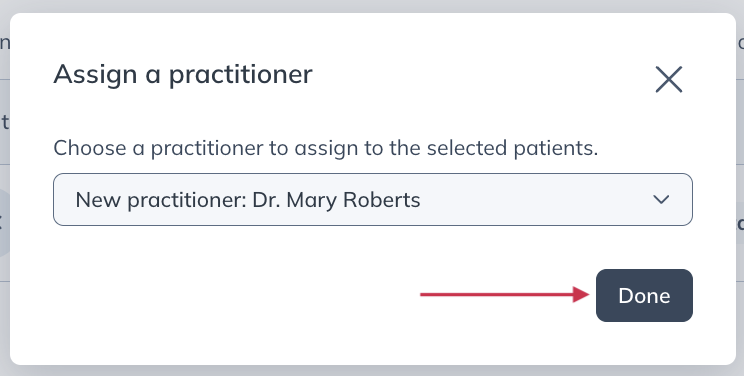
- Click Assign a practitioner.
- Select the provider you’d like to assign the patient(s) to, then click Done.
Assigning unassigned patients
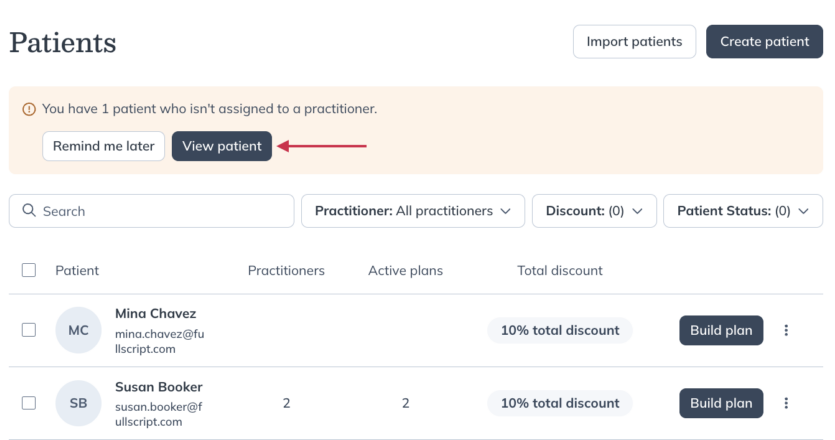
If you have patients that aren’t currently assigned to a provider, a banner will appear on the Patients page. To view unassigned patients, click View patient(s) in the banner. You can assign them individually or, if you’re the store owner, use the bulk assignment feature described above.