
You can use Fullscript Assist to help draft an interpretation for lab results that don’t already have one. Review the draft, then choose whether to apply it to the results page.
Results sent with a completed patient intake arrive with the interpretation and plan already drafted. Learn more in Get a drafted interpretation and plan with lab results.
Draft an interpretation with Assist
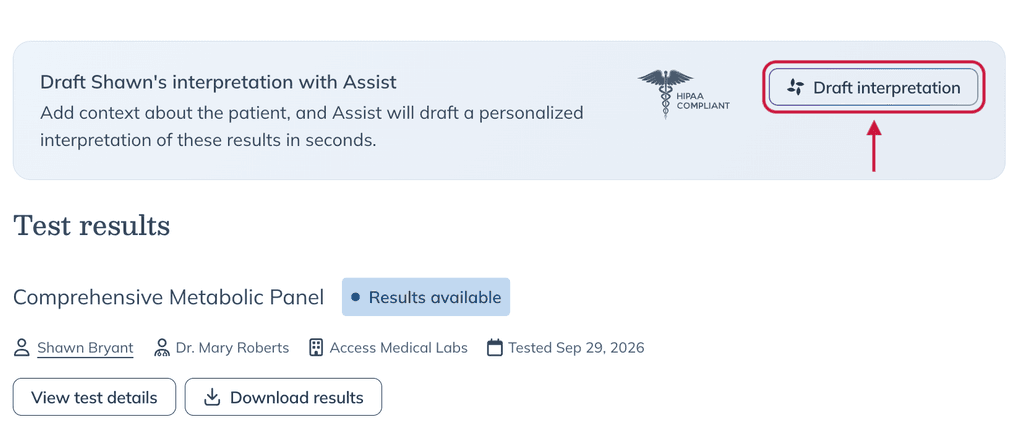
On the results review page, select Draft interpretation in the banner to ask Assist to draft the full interpretation. You can also open Assist from the results page and ask it to draft an interpretation.
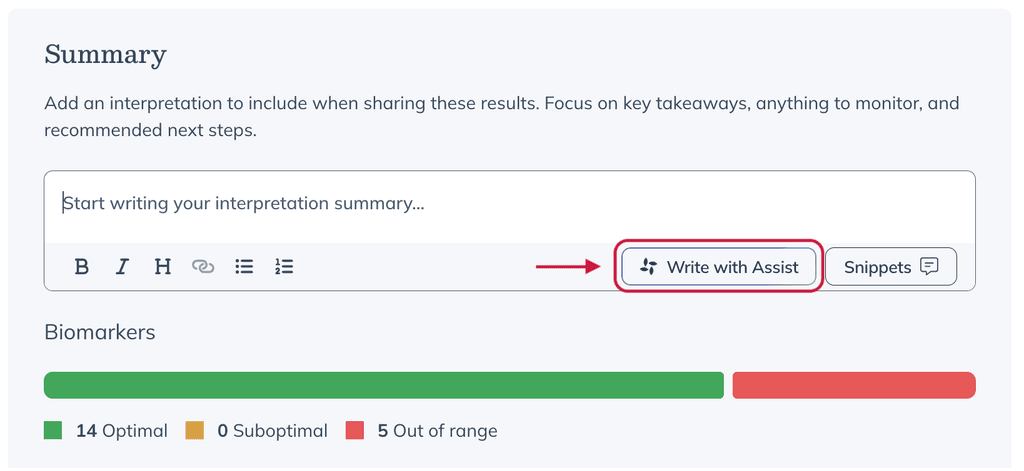
To draft or revise just one section, select Write with Assist from the Summary or a health area. Blood panels can include a draft Summary and a note for each health area, such as Cardiovascular, Metabolic, and Liver.
For supported specialty kits, Assist drafts only the Summary. Supported specialty kits include:
- GI-MAP
- DUTCH
- Genova GI Effects
- Mosaic organic acids
- Doctor’s Data specialty
- US BioTek GI
Assist can only help draft an interpretation for labs ordered through Fullscript. Results uploaded or pasted into the chat aren’t supported.
Add patient context
When you select Draft interpretation, Assist opens in a side panel. If there isn’t a completed patient intake, Assist may ask for optional patient context, including:
- Health goals
- Existing health conditions
- Current symptoms
- Allergies or sensitivities
- Current supplements and medications
You can answer any of these questions or skip them. Assist may skip the questions if it already has the patient’s earlier answers.
Review and apply the draft
Assist displays the draft in the chat on a Results interpretation card. A full draft can take about a minute to generate.
Review the draft before applying it. You can also ask Assist in the chat to revise the draft first.
When you’re ready, select Update on the card to apply the draft to the results page. The page doesn’t need to reload.
If you dismiss the card, it stays in the chat. You can return to it and apply the draft later.
Draft or revise one section
To work on a specific section, select the Summary or a health area’s note box, then select Write with Assist from the editor toolbar.
Assist returns a draft for that section on its own card. Your existing text stays on the results page while you review or revise the draft.
When you’re ready, select Update on the card to apply the draft to that section.
Build a plan with Assist
On the results review page, select Build plan. The plan opens on the Review page, and Assist opens in a side panel and proposes a plan based on the results. You don’t need to draft an interpretation first.
The proposal appears on a Plan updates for review card and can include follow-up labs, supplements, and lifestyle recommendations.
Select Update plan to add the proposal to the draft plan. You can then edit anything on the Review page. Nothing is sent to your patient until you select Send to patient.
When drafting options appear
Draft interpretation and Write with Assist only appear for blood panels and supported specialty kits ordered through Fullscript.
The Draft interpretation banner doesn’t appear if the result already has an interpretation.