Use Favorites to write plans even faster. Favorites help organize frequently used products for quick access when creating patient plans, collections and protocols. Products can be added to or removed from favorite categories while writing plans or browsing the Catalog.
Finding your favorites categories
Finding favorites in the Patient plans catalog
Prevent repetitive searches for products you recommend often. Taking the time to set up your favorites and categories will make writing plans easier and save precious time.
A guided setup with curated categories and handpicked products helps new dispensary signups quickly set up favorites. This appears only if you don’t have any favorites yet. For steps, see Setting up your dispensary.
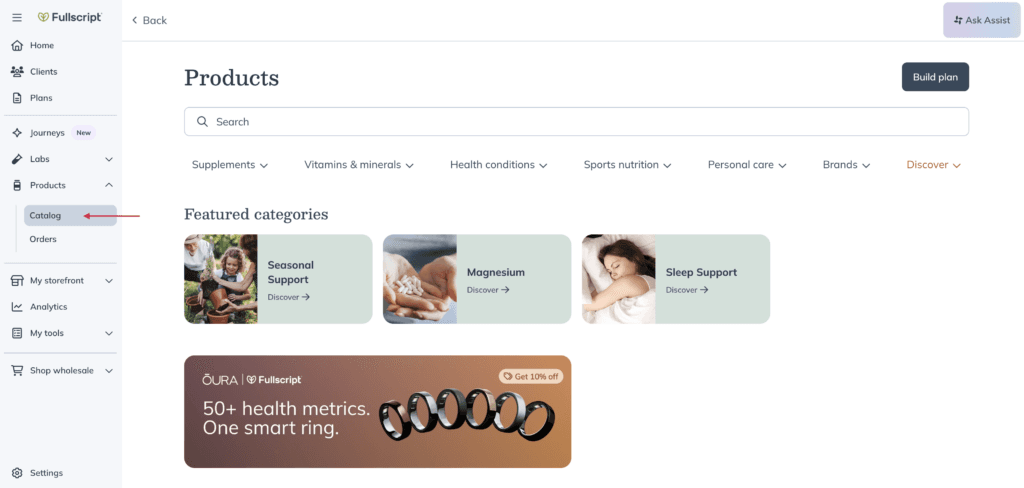
To access your favorites categories:
- Click Products in the navigation bar.
- Then, click Catalog.

Your favorites categories will appear under the Featured categories section.
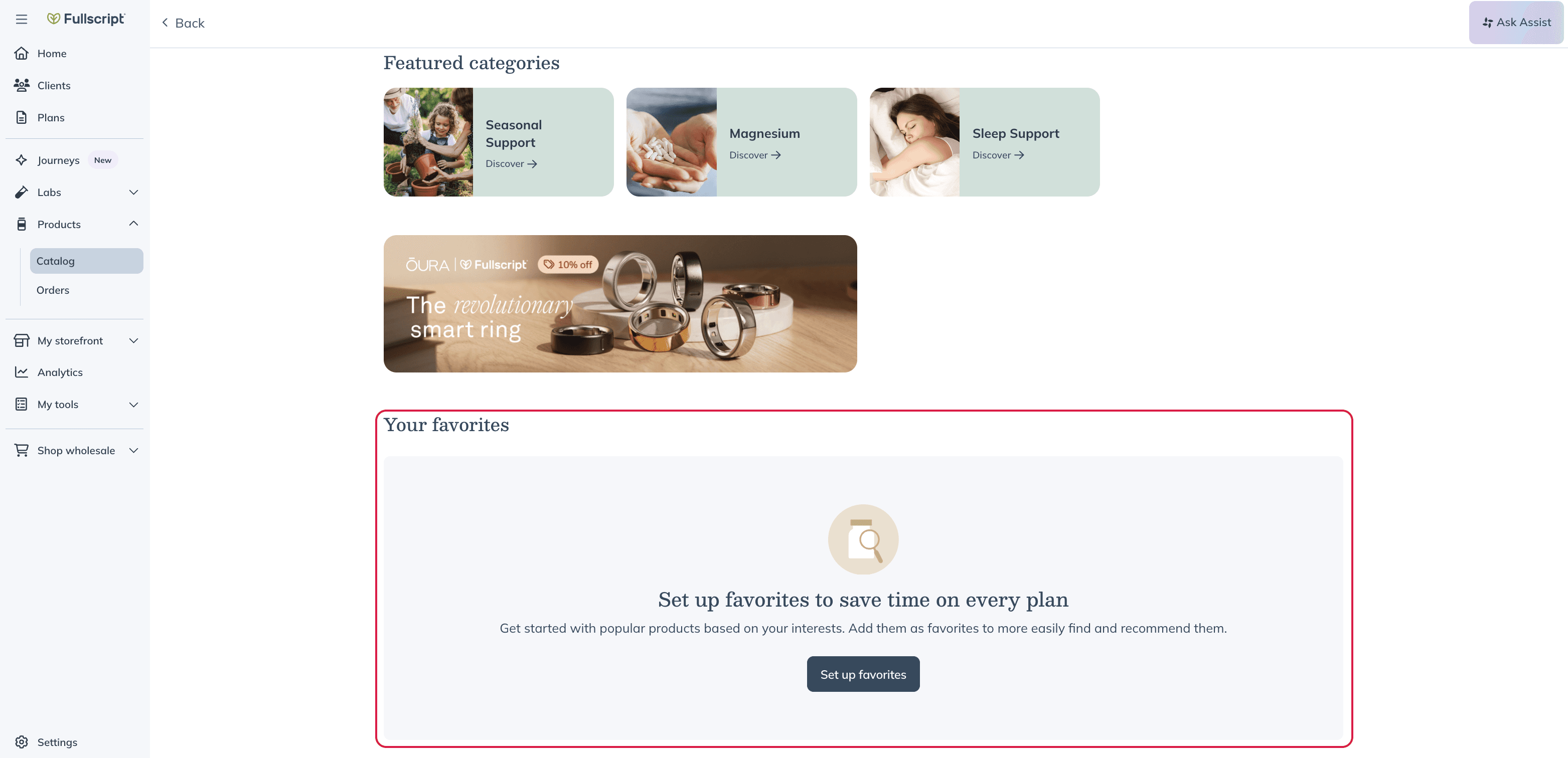
Favorites section under patient catalog.
Finding your favorites in the Wholesale catalog
To find your favorites category in the Wholesale catalog, click Shop wholesale and then Products in the navigation bar. Your favorites categories will be right under the Your favorites heading.
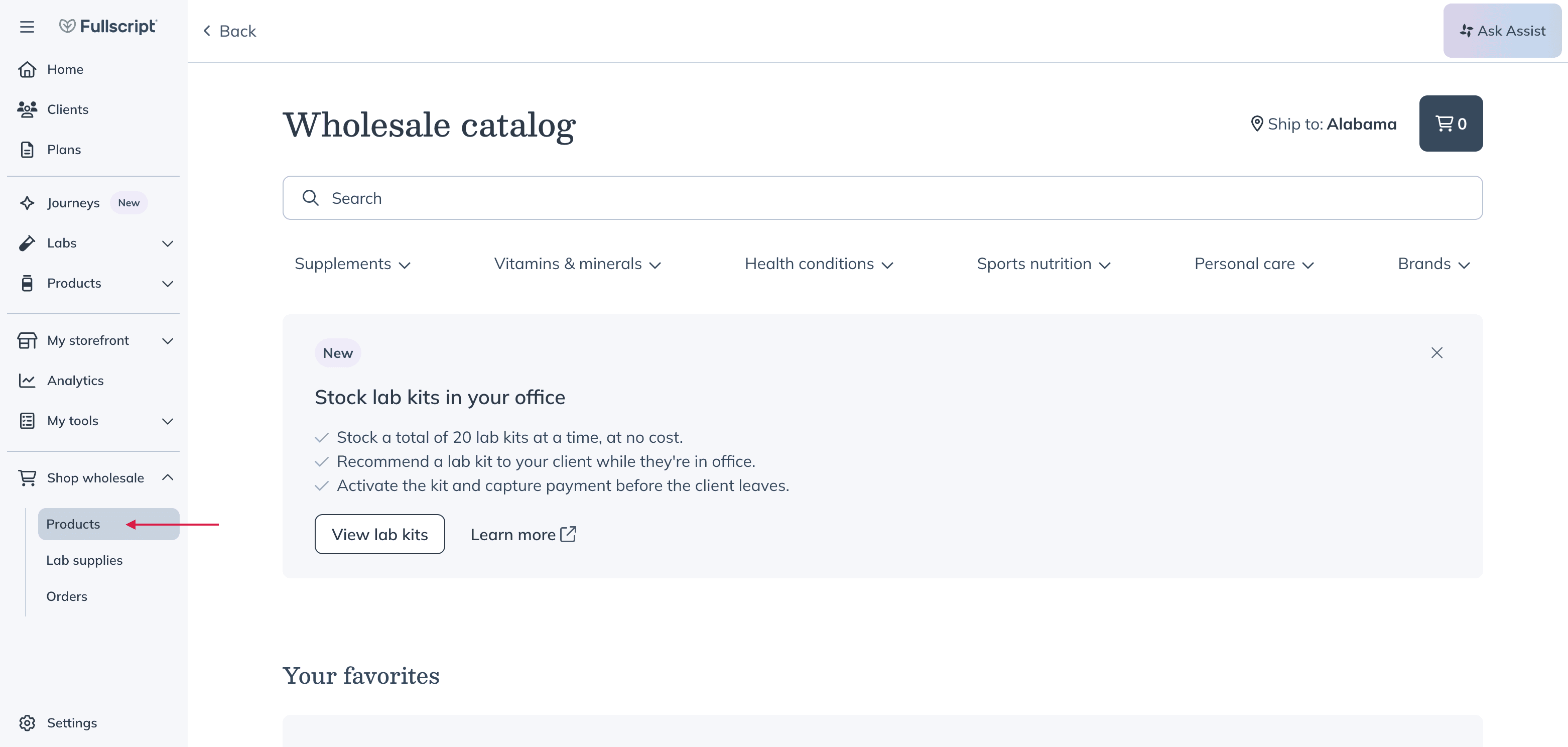
Click Products under Shop wholesale to access the Wholesale catalog.
Adding favorites and creating categories
Adding a product to your favorites
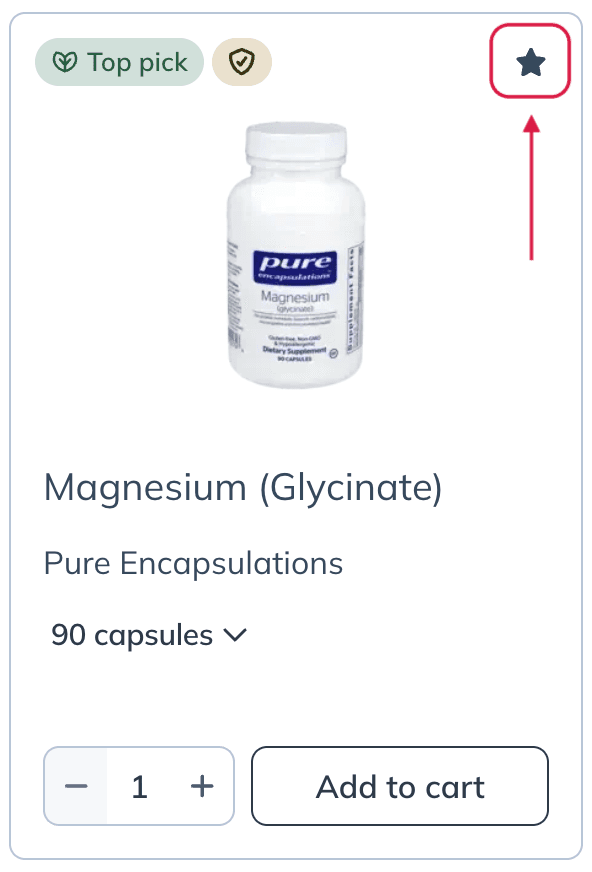
To favorite products while writing a plan, hover your cursor over the product you’d like to add to your favorites and click the Favorite ( ) button.
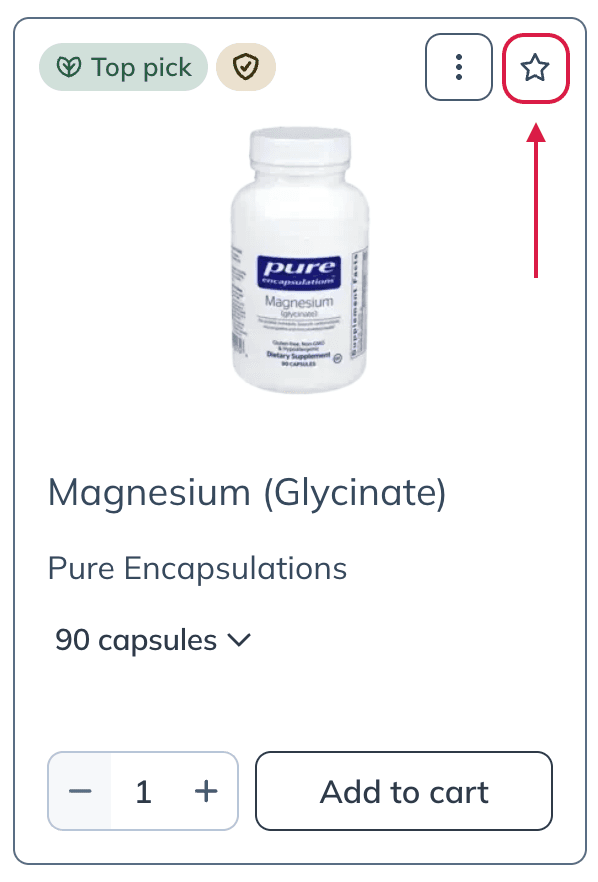
Adding to favorites through starring a product.
Adding a favorited product to a category
If you’d like to add the product to a custom category, click the Favorite button ( ) in the product card. A pop-up box will appear that will allow you to select the existing category or categories you’d like to add the product to.
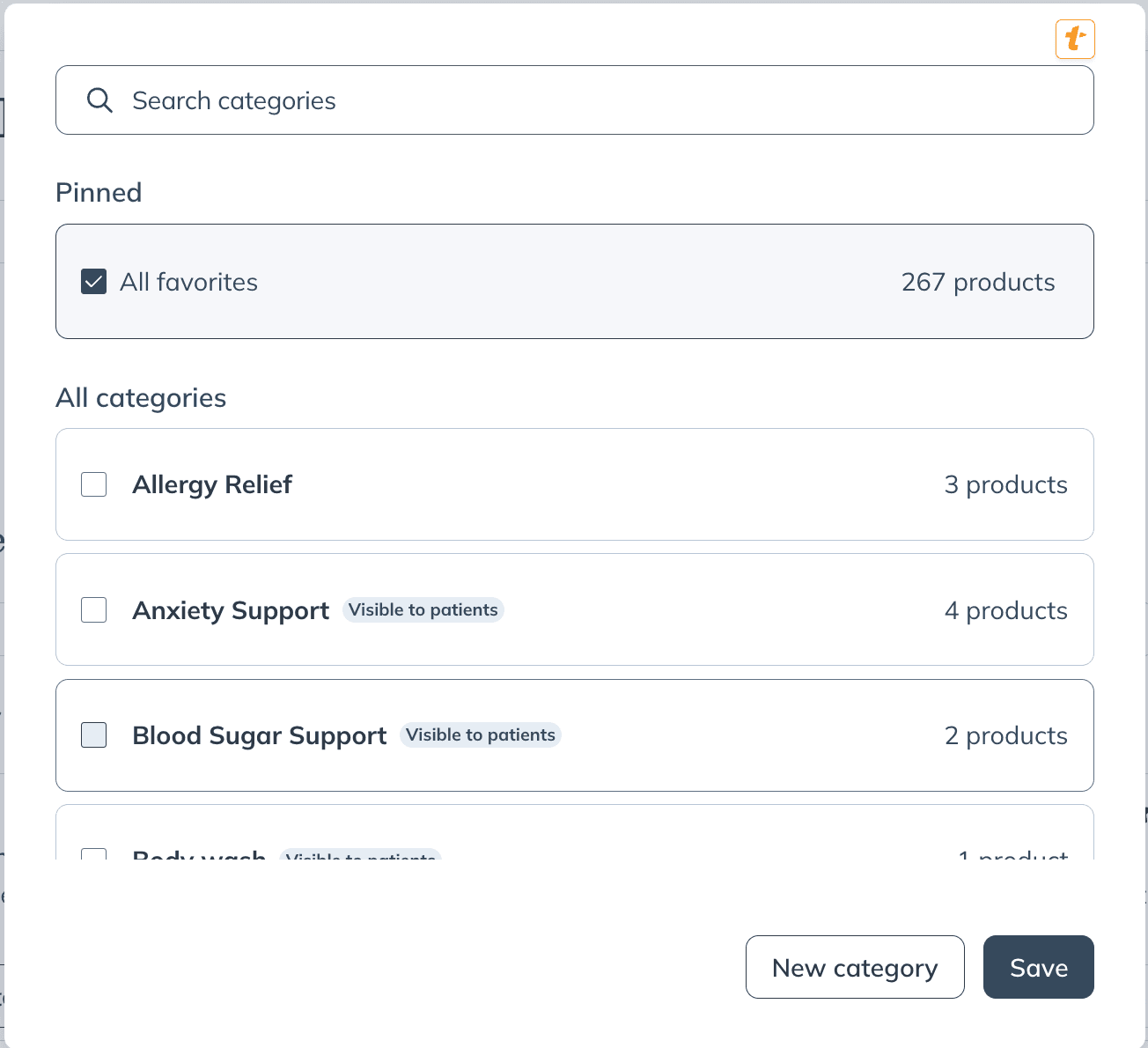
The Add to a category box.
Once you’ve selected all the categories you want the product in, click Done to update your categories.
Creating a category
To create a new category from within the catalog:
- Click the + New favorite category button.
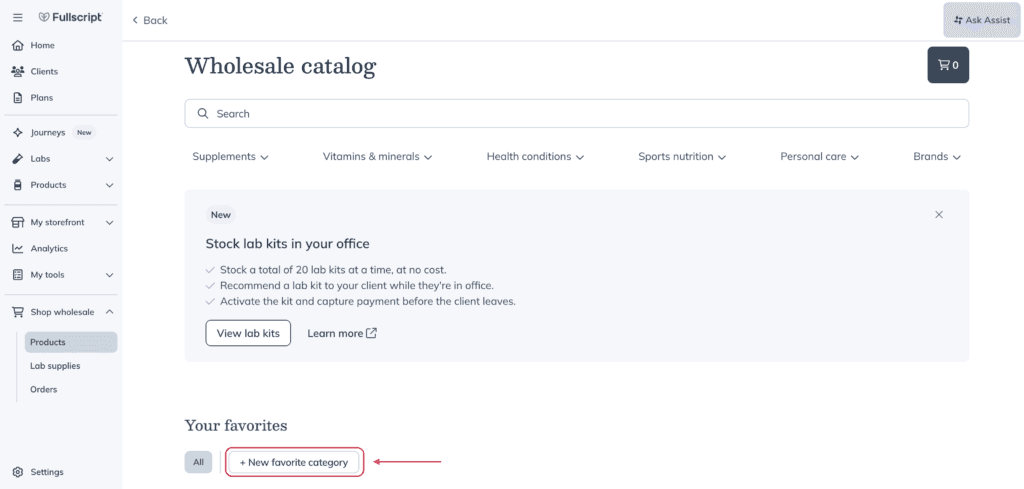
- Give your category a name.
- Click Create.
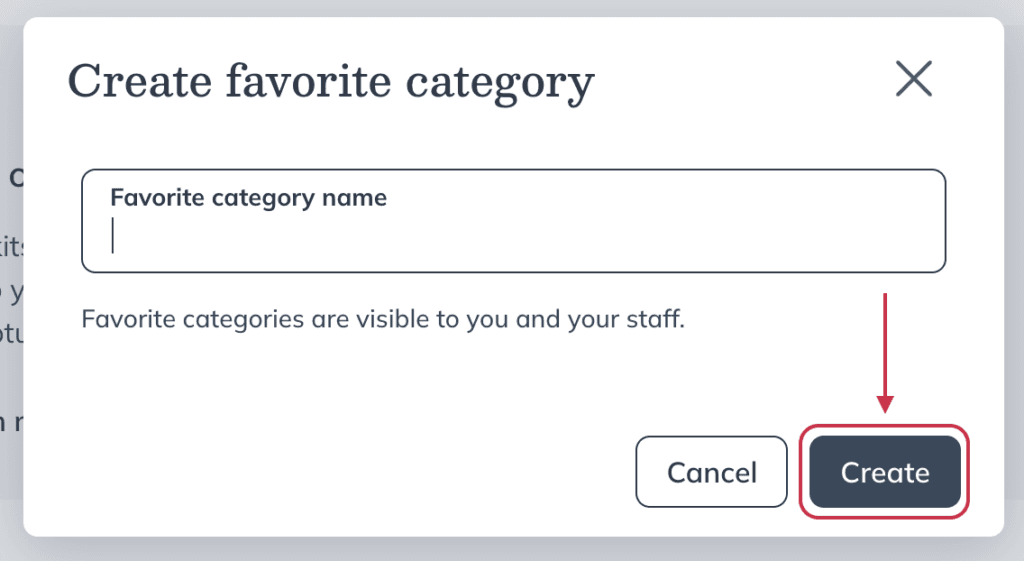
You can also create a new category by starting with a desired product:
- Click the three dots to the left of the star.
- Click Add to a favorites category.
Editing or removing favorites and categories
If there’s a product that you’d like to remove from your favorites or a favorites category, you can do so in a similar way to how you’d add that product to a category.
- Find the product you’d like to remove from your favorites or your category.
- Click the Favorite button ( ).
- In the pop-up that appears, uncheck the box beside the category you’d like to remove the product from.
- Click Remove.
If you’d like to remove the product from all of your favorites, uncheck the box next to All Favorites at the top of the pop-up.
Editing or removing categories
To edit or delete a category:
- Click Products in the navigation bar
- Then click Catalog.
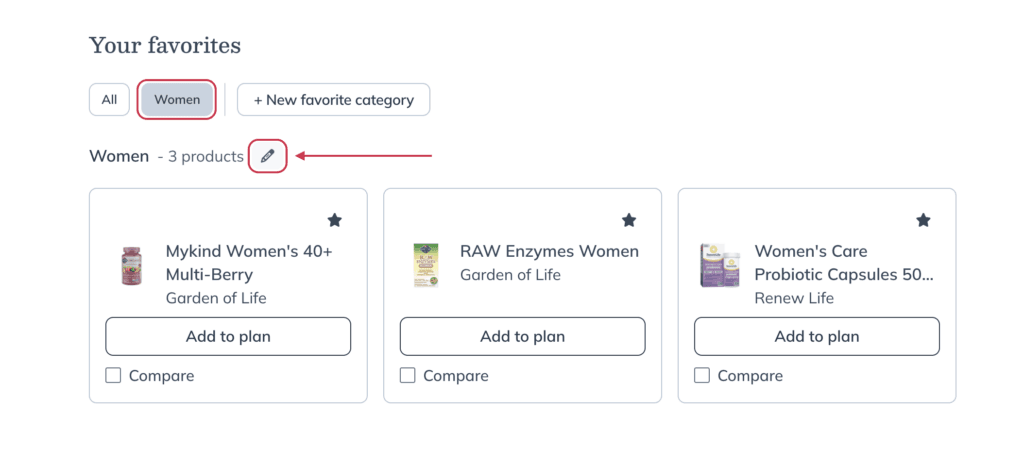
- Select the category you would like to edit or remove.
- Click on the pencil next to the category selected to edit.
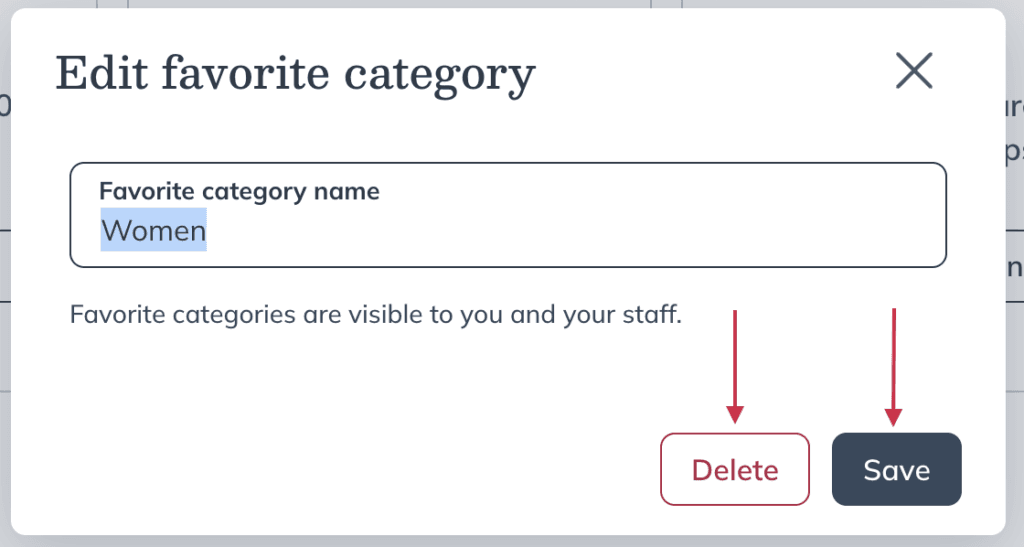
- In the pop-up make your changes to the category name and click Save. If you’d like to delete the category, click Delete.