Last modified: March 20, 2026
Set up a signing practitioner
Providers
On Fullscript, you can assign a signing practitioner to authorize lab orders on behalf of your practice.
Practitioners with limited ordering access can still recommend testing by using the authorization network, or you can route orders through your internal signing practitioner. You’ll have the flexibility to choose your preferred workflow for each lab order.
Before you designate a signing practitioner for your practice:
- Invite other practitioners on your team — including your signing practitioner — to join your Fullscript account.
- Make sure you’re registered for labs by verifying your credentials and accepting the terms of service.
Ordering access
Whether you use a signing practitioner or the authorization network to order lab tests depends on your ordering access. Ordering access is set by each lab company based on your license, state, and NPI number.
- Authorized practitioners are able to order any test from our catalog.
- Practitioners with limited ordering access can only recommend testing from a limited test menu through the authorization network.
Designating a signing practitioner
The account owner can assign a signing practitioner to your practice by following these steps:
- Click Settings in the left-hand navigation.
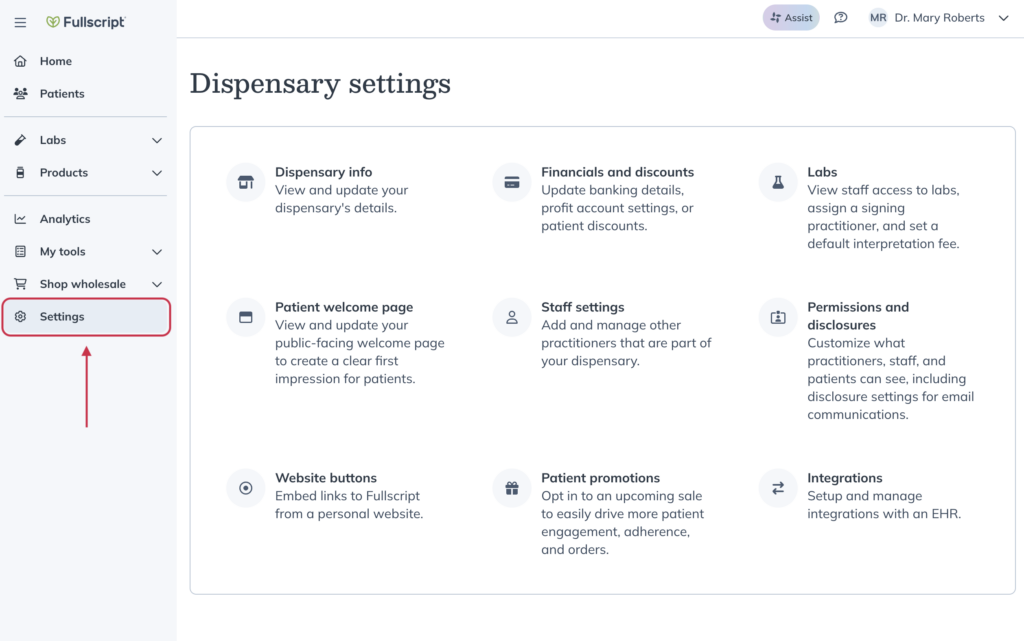
- Click Labs.
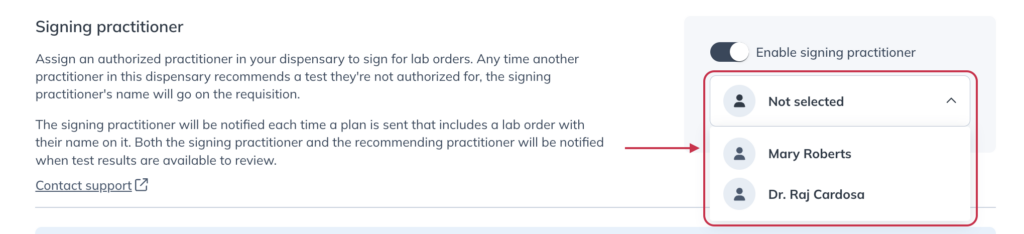
- Click the Enable signing practitioner toggle.
- Select the signing practitioner using the dropdown below the toggle.
Placing an order using a signing practitioner
Once a signing practitioner is assigned to your account, any team members with limited ordering access can place lab orders under that practitioner’s license and supervision.
Follow these steps to successfully place an order using a signing practitioner:
- Complete labs registration. During registration, you’ll be prompted to join the authorization network but you can choose your team’s signing practitioner when it’s time to order.
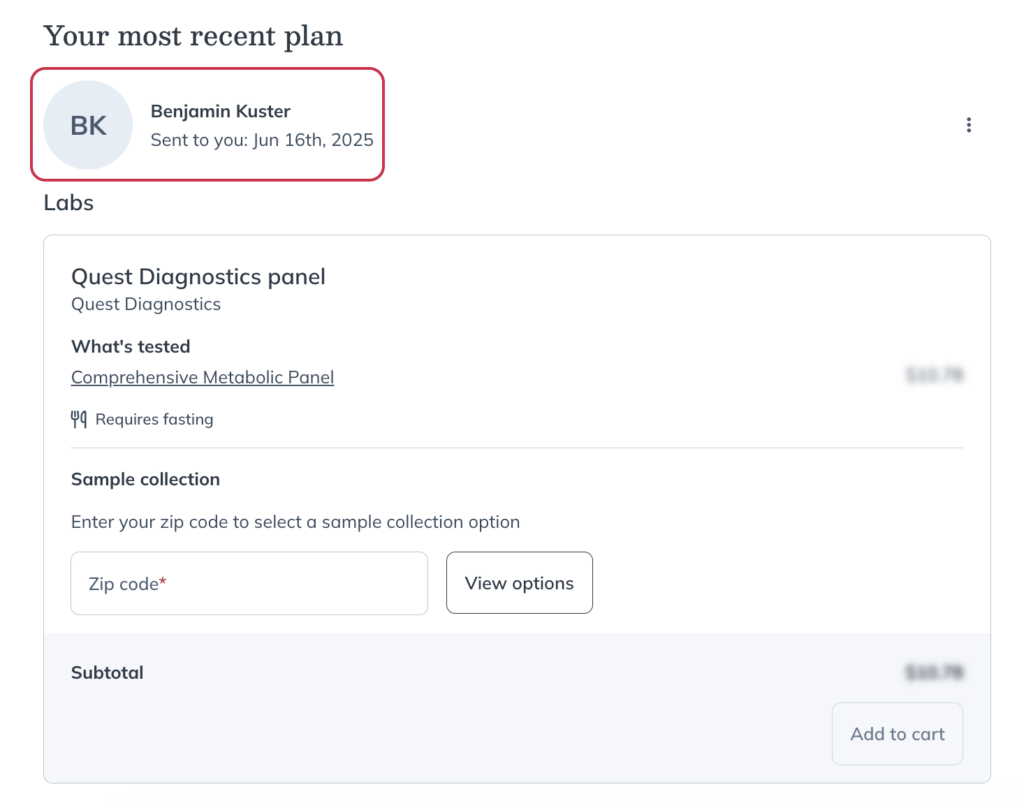
- Create a lab recommendation. Once you’re registered for labs, add testing to the patient’s plan.
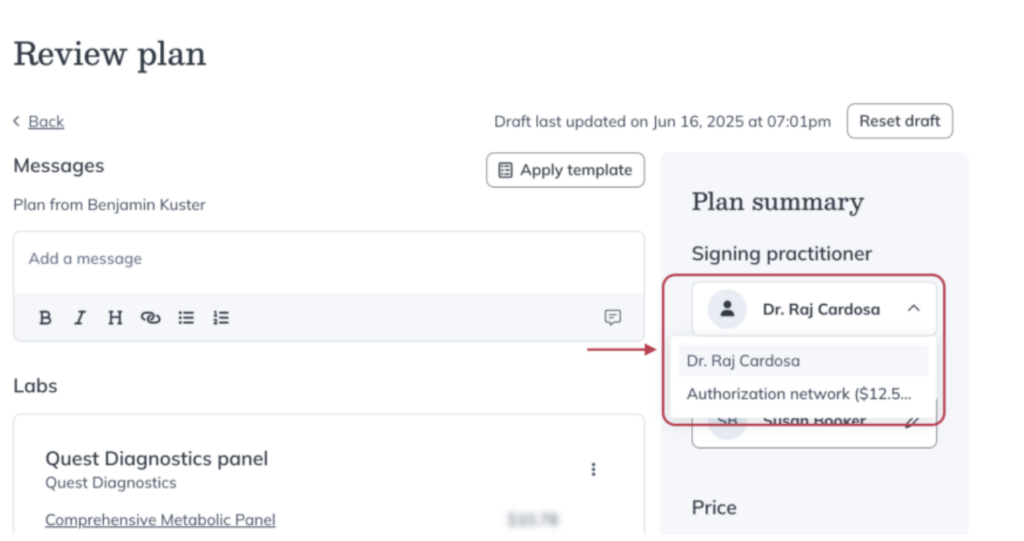
- Choose the signing practitioner. The drop down list on the review page will show your signing practitioner as well as Fullscript’s authorization network.