
If your practice has moved from Rupa Health to Fullscript, you’ll see a prompt in Rupa to continue your work in Fullscript the next time you log in.
This guide explains what to expect the first time you access Fullscript after your practice moves from Rupa.
Moving from Rupa to Fullscript
Once your practice has moved, you’ll be guided through a brief introduction to Fullscript and a tour of key areas the next time you log in.
- Log in to your Rupa account and select Go to Fullscript when prompted.

- Sign in to your Fullscript account.

- Complete the guided tour to learn where to find key areas of Fullscript.
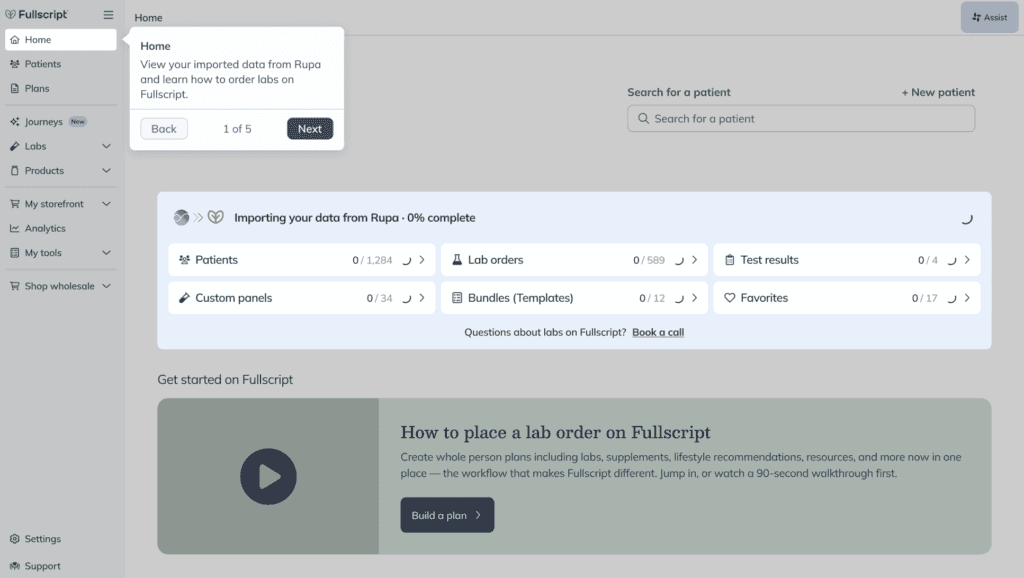
The guided tour highlights the Home page, Orders, Catalog, Settings, and tools for building plans. You can move through the tour using the on-screen prompts.
What to expect
After signing in to Fullscript, you’ll be able to continue your work using the same patient and lab data that was moved from Rupa. The Home page shows the status of imported data, including patients, lab orders, test results, favorites, custom panels, and bundles (templates).
All of your existing lab data from Rupa will be available in Fullscript, and any new lab orders will now be placed in Fullscript. Your Rupa account will remain accessible in view-only mode if you need to reference past activity.
Draft lab plans
Eligible draft lab plans will move from Rupa to Fullscript and appear in the Draft plans section of the Lab orders dashboard.
You can create one draft lab plan per patient in Fullscript.

Supporting your move to Fullscript
If you have questions or run into any issues, our team has experience with both Rupa and Fullscript and can support you through each step of the transition.
Email support: welcomerupa@fullscript.com
Phone support: 1-888-488-8153
Live chat support: Chat bubble ( ) on any Fullscript page.