
Last modified: March 4, 2026
Provider account settings
Providers
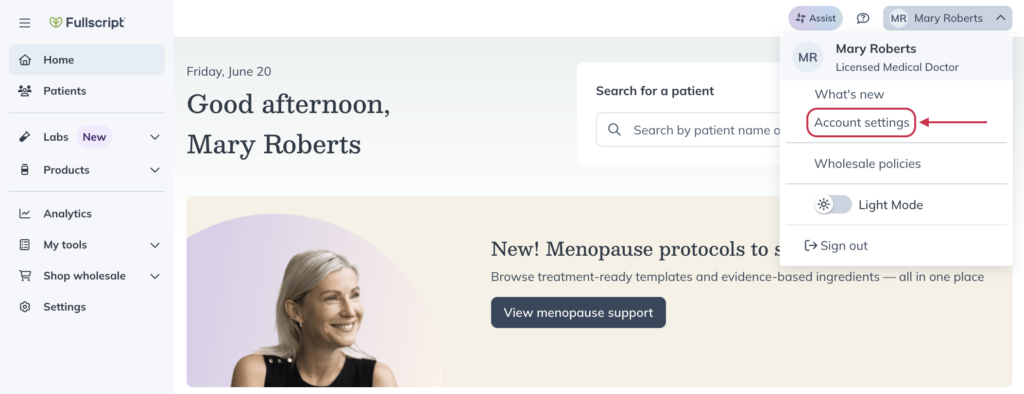
Visit the Account settings page to update account information, review healthcare credential status, customize email notifications, and more.
To access your account settings, click your name or initials in the upper right-hand corner of your account, then click Account settings.
Account settings for additional providers
Additional providers have similar settings to dispensary owners; however, account settings will only impact patients they have access to. For more information on how to assign patients to providers and manage access to patients in a dispensary, please see Global patient access settings.
Basic info
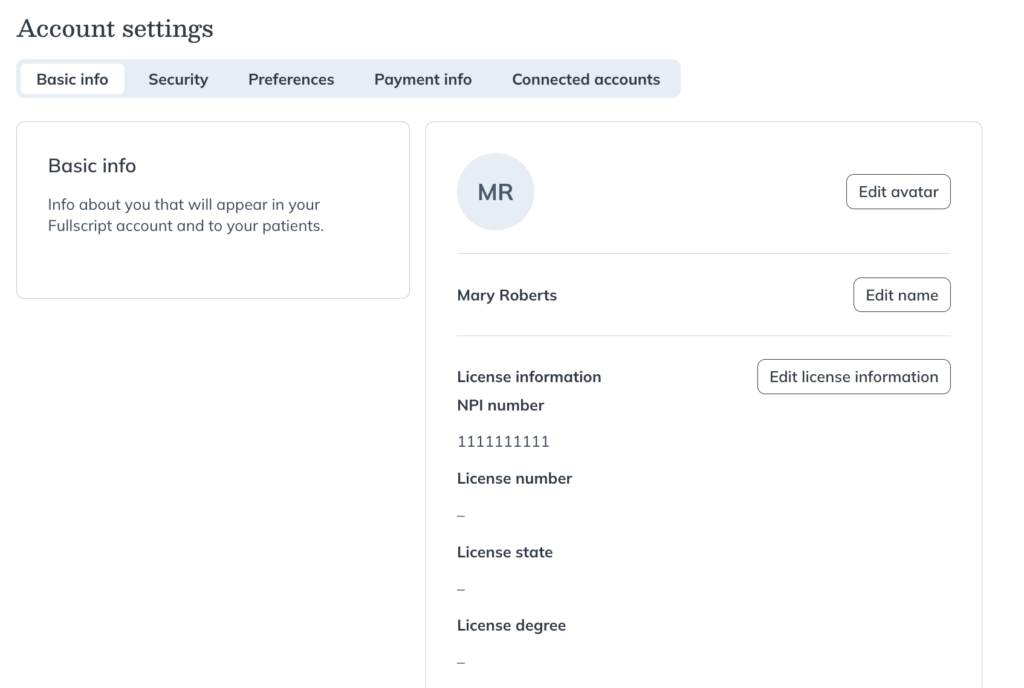
The Basic info page is where you can manage information that appears in your account and to patients. Here, you can manage your:
- Avatar: Add, edit, or remove the avatar image displayed throughout your account and to patients in their plans. We suggest using avatars larger than 300×300 pixels.
- Account name: Edit your individual account name that displays to patients.
- Professional credentials: Upload and view your healthcare credentials and their review status — pending, rejected, or approved.
- Public information: Manage your public email, phone number, and welcome message for new patients.
Security
The Security page is where you can manage and update your login credentials and security settings, including:
- Your login email.
- Your password.
- Your multi-factor authentication settings.
Preferences and notification settings
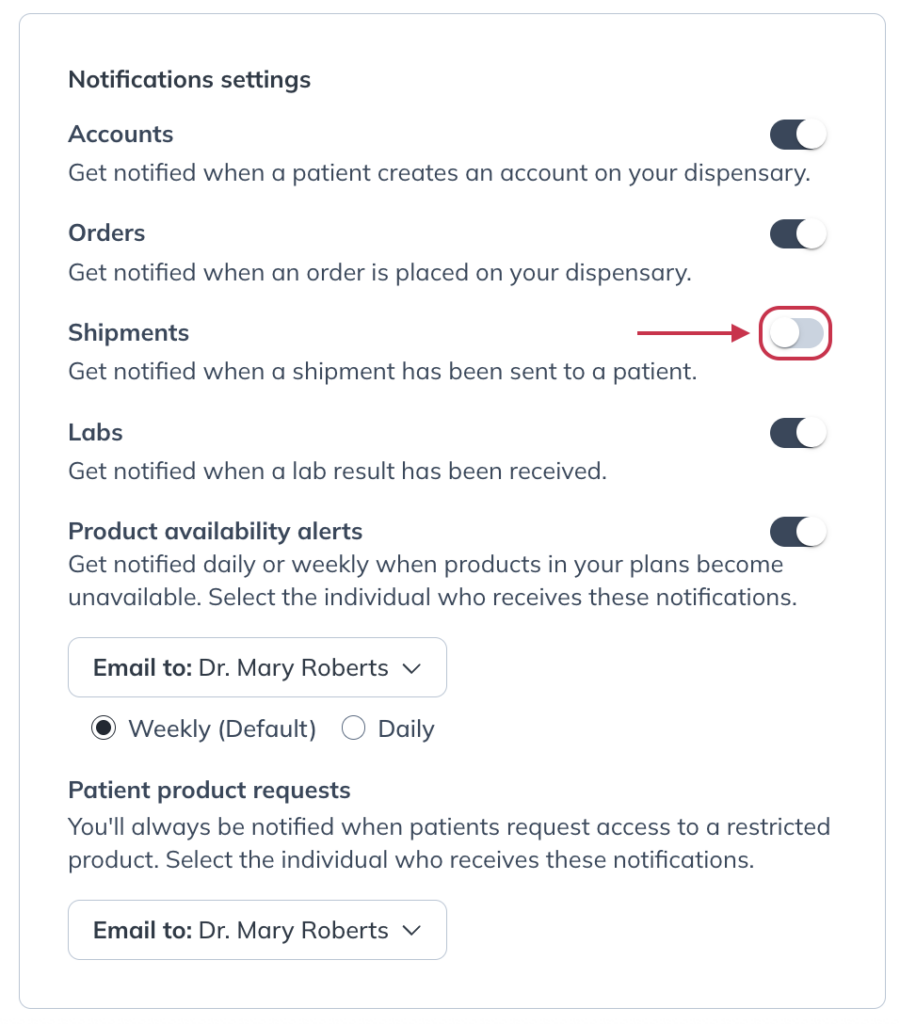
In your Account settings, go to Preferences to choose where and how you receive patient activity communications from Fullscript. Use the toggles to turn notifications on or off for key events—like when a patient creates an account, places an order, or when a shipment is on its way. You can also opt in to updates when lab results are received or when products in your plans are discontinued, back-ordered, or out of stock, so you can help patients stay on track with their care.
Terminology settings
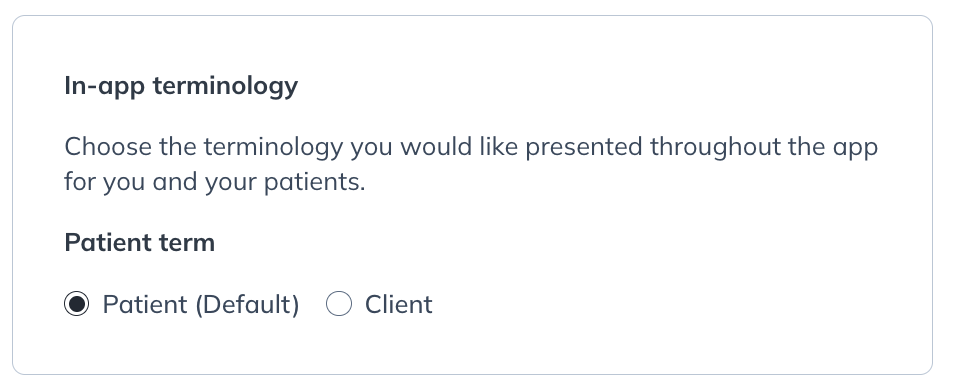
You can also change your terminology settings from this page. This determines how information is presented throughout your dispensary. You can label the people you’re treating as Patients or Clients.
Payment info
The credit cards you use to place your wholesale orders are found here. While you can only add a new credit card within the wholesale checkout, you can view and remove them on this page.
Connected accounts
You can view your integrations with any of our EHR partners from this page.