The Labs settings page lets store owners manage key preferences for their practice’s lab workflows in one place. From here, you can control how your team handles phlebotomy, results sharing, billing, and ordering access.
To access Labs settings, click Labs in the left-hand navigation, then click Labs settings.
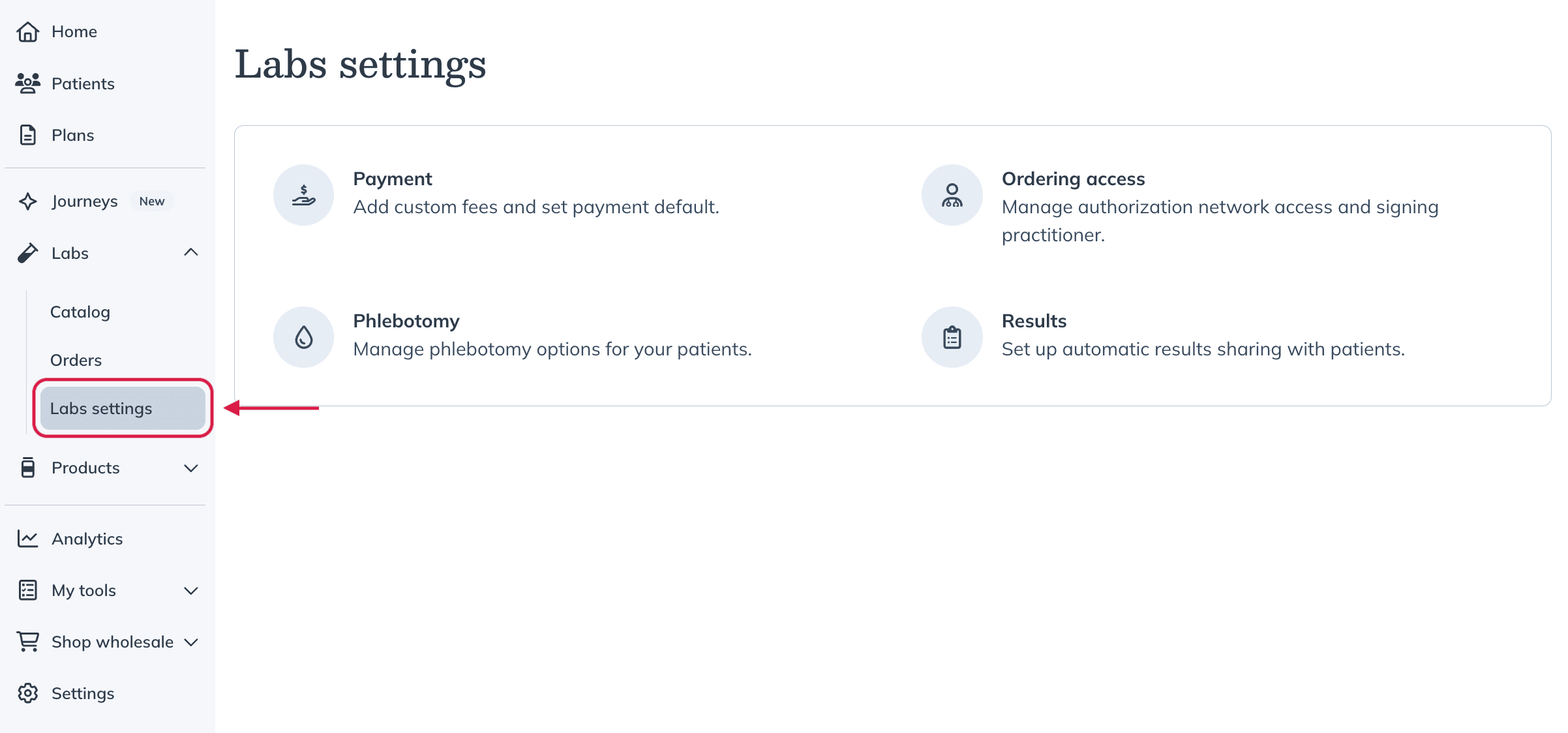
Only the store owner can manage Labs settings. Changes made here apply across your entire team.
Payment
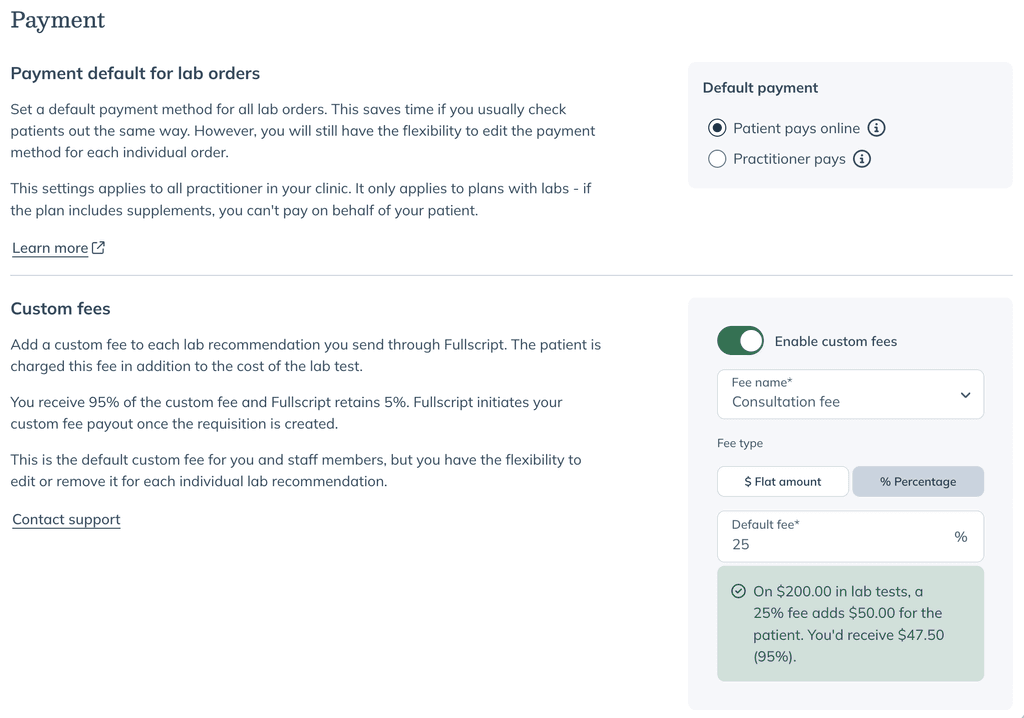
The Payment section lets you set custom fees and choose how lab orders are paid for by default.
You can set a default payment method for your team, choosing whether patients pay online or your practice pays upfront. You can still adjust this for individual plans.
You can also enable custom fees to charge for additional services, such as test interpretation or consultations. Choose a flat amount or a percentage of your lab test prices. These fees are added to lab orders and paid by patients at checkout.
Ordering access
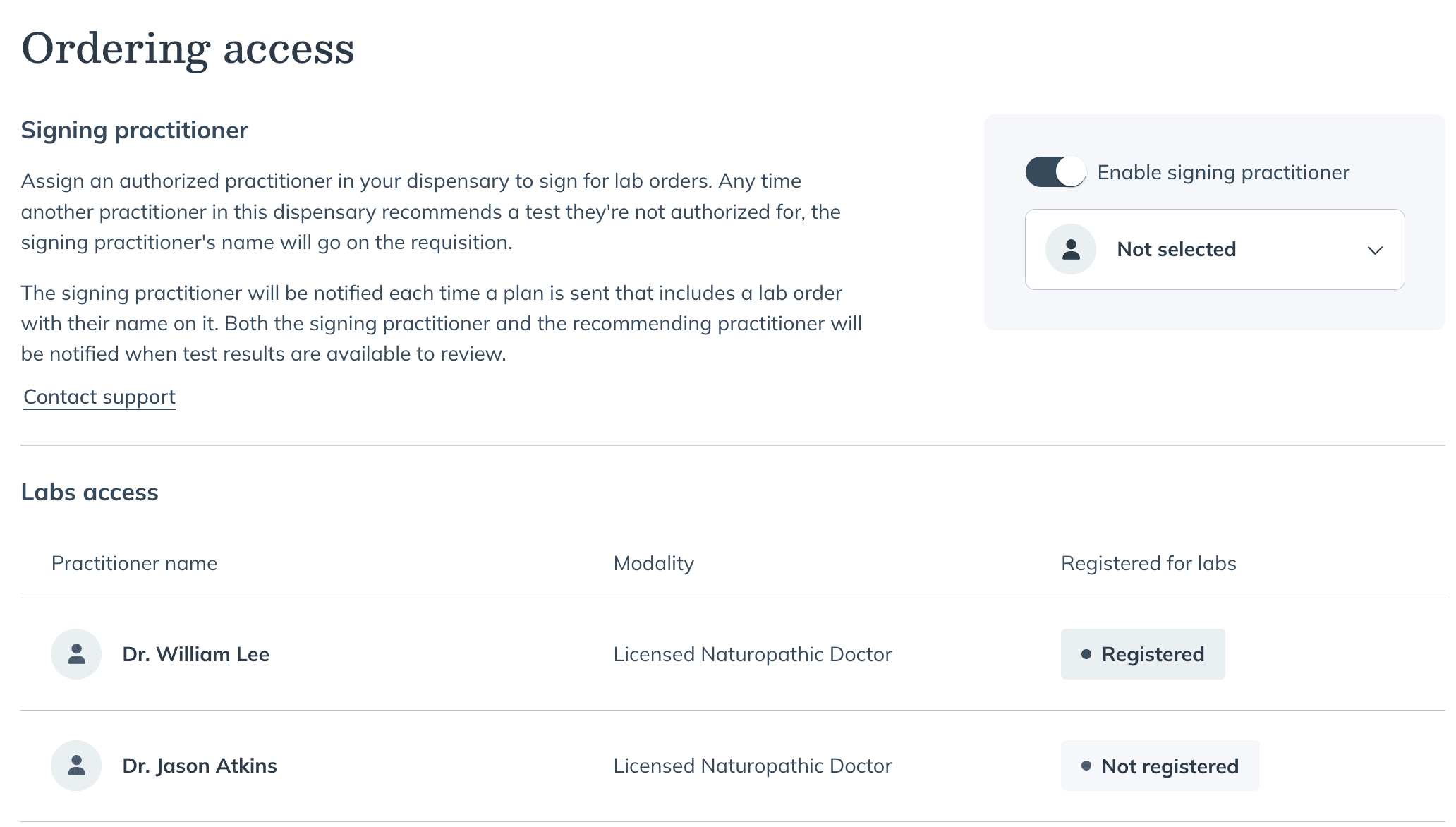
The Ordering access section determines how lab orders are authorized within your practice.
If your team includes practitioners with limited ordering access, you can assign a signing practitioner to review and authorize lab orders on their behalf.
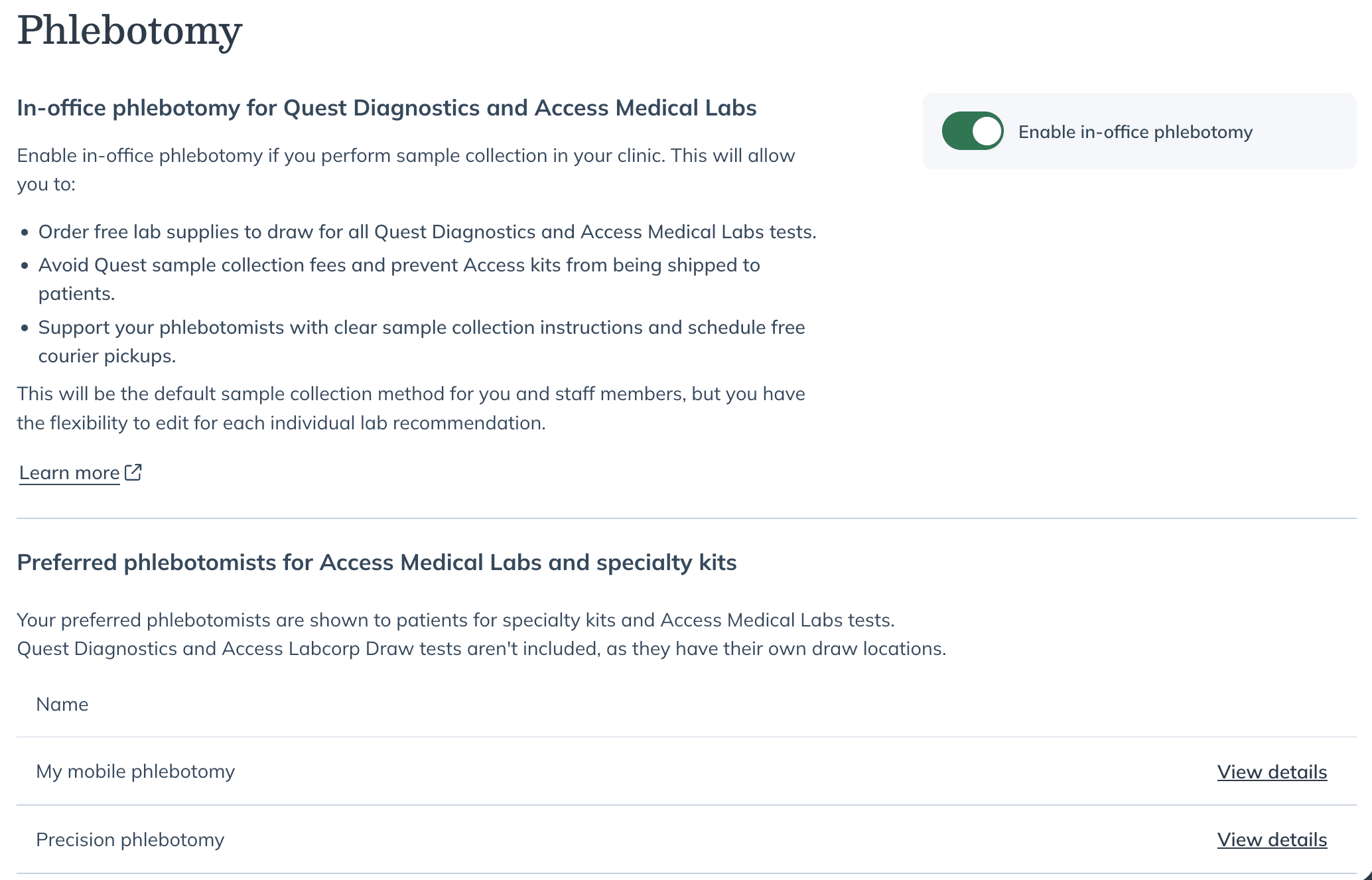
Phlebotomy
This section includes two settings:
- In-office phlebotomy: Enable this setting for clinics that collect samples on-site.
- Preferred phlebotomists: Add trusted phlebotomists for specialty lab kits and Access Medical Labs so they appear as the default option for patients during checkout.
Preferred phlebotomists appear as the default option for patients during checkout when enabled.
Results
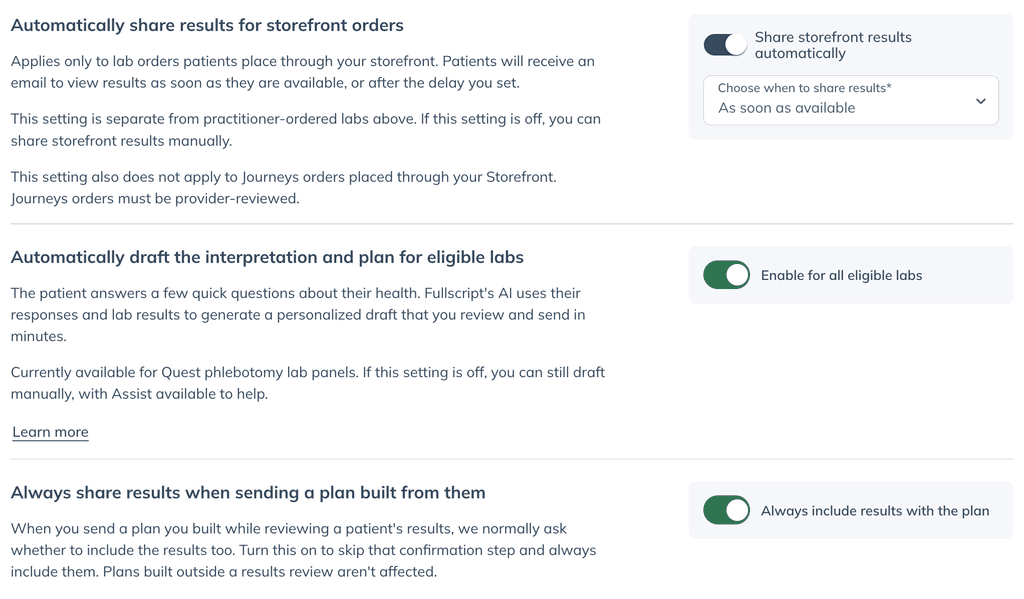
The Results section controls how lab results are shared with patients.
You can choose to automatically share results and interpretations when they’re available, or set a delay to review and edit them before they’re sent.
You can also manage these settings:
- Automatically share results for storefront orders: Turn this on to share results with patients who buy labs from your storefront, either as soon as they’re available or after a delay you set. This is separate from the setting for labs you send. For more information, see Setting up your labs storefront.
- Automatically draft the interpretation and plan for eligible labs: Turn this on to have the interpretation and plan drafted by default for every eligible lab you send. For more information, see Getting a drafted interpretation and plan with lab results.
- Always share results when sending a plan built from them: When you send a plan you built while reviewing a patient’s results, you’re asked whether to include the results. Turn this on to skip that step and always include them.
If you use Journeys, you’ll see Turn on Journeys for custom panels instead of Automatically draft the interpretation and plan for eligible labs. The storefront results setting doesn’t apply to Journeys orders placed through your storefront.