
Custom fees let you charge patients for services that accompany lab testing, such as test interpretation or consultations. You can set a default Flat amount or Percentage fee that’s added to your lab recommendations.
Custom fees are available on for-profit accounts and can only be set up and managed by the store owner. You receive 95% of each custom fee. Learn more about custom fee payouts in Labs billing and payment.
Setting up your default custom fee
To set up a custom fee:
- Go to Labs > Labs settings.
- Select Payment.
- Turn on Enable custom fees.
- Select a Fee name.
- Choose a Fee type: Flat amount or Percentage.
- Enter your Default fee. Changes save when you click outside the field.
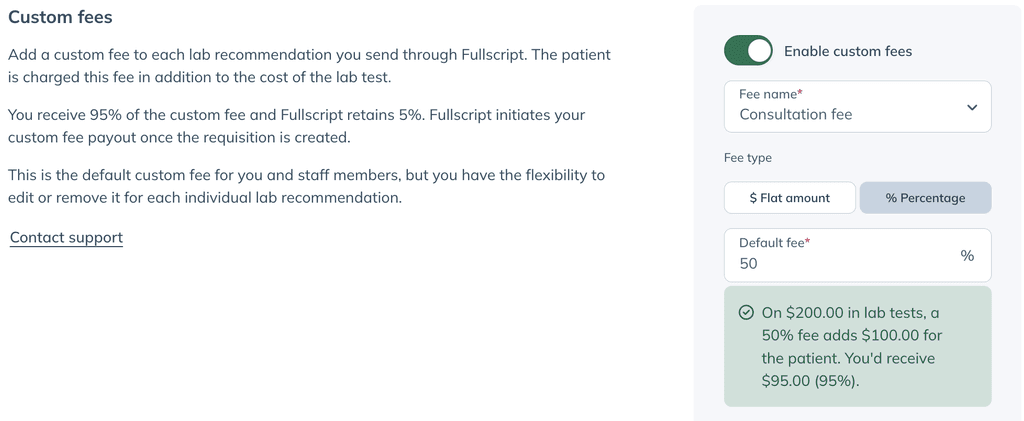
The fee type determines how the custom fee is calculated:
- Flat amount: Enter the dollar amount you want added to each lab recommendation.
- Percentage: Enter a whole percentage from 1% to 300%. It’s calculated from lab test prices before tax and discounts and doesn’t apply to other lab fees, such as the authorization network fee.
For both fee types, the minimum custom fee is $0.75 and the maximum is $1,000.
Percentage fees recalculate automatically when you add or remove a test or panel, while the percentage stays the same. In the plan, you’ll see the percentage and the lab test total used to calculate the fee. Patients only see the dollar amount in their plan, cart, and checkout.
Storefront custom fees and Journeys interpretation fees use flat amounts only.
Changing your default custom fee doesn’t update existing draft plans. Draft plans keep the fee that was added to them, and recommendations that have already been ordered don’t change.
Editing a custom fee in a plan
You can change or remove the custom fee before sending a lab recommendation. If your default fee is a percentage, editing it for an individual recommendation converts it to a fixed dollar amount.
To edit the fee:
- Select the pencil icon next to the custom fee.
- Update the fee name or dollar amount in Edit custom fee.
- Select Save.
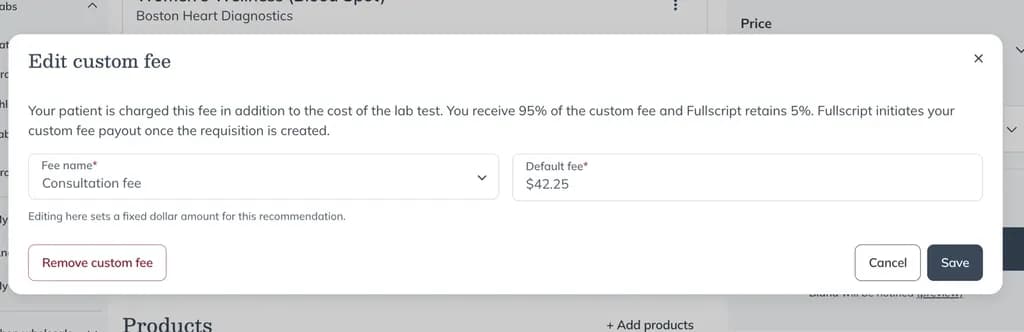
The field is prefilled with the calculated dollar amount. After you save, the percentage label disappears and the fee no longer recalculates if you add or remove tests.
Select Cancel to keep the percentage fee unchanged. To remove the fee, select Remove custom fee in the Edit custom fee window or select Remove from the three-dot menu next to the fee.