
In-office specialty kits are specialty lab kits that providers can order, stock, and activate directly through Fullscript. Providers can order a limited number of kits at no upfront cost (excluding shipping), activate them in a few steps, and either collect samples in-office or provide the kit to the patient with instructions.
Purchasing in-office kits
In-office kits are free to order through the wholesale catalog. Wholesale orders with five or more lab kits qualify for free shipping.
To order in-office kits for use in your office:
- In the Shop wholesale tab, click Lab supplies.
- Click Specialty kits in the top navigation bar.

- Search for a kit, test, or lab company in the same way you would navigate the Wholesale catalog.
- Use the +/- buttons to adjust quantities, then click Add to cart. Repeat this with each test you’d like to stock in-office.
You’re able to stock a maximum of 50 in-office kits at a time, regardless of test type.
- Add any additional products you’d like to order, then select the cart icon to Go to checkout and complete your purchase.
Kits can't be transferred between stores. If kits were purchased on the wrong store, they'll need to be repurchased on the correct one.
Activating an in-office kit
Activation links a kit to a patient and creates the lab order. Patients can’t activate these kits themselves — activation is always completed from your Fullscript account when you check out.
Each kit has an activation code printed on the box. There are three ways to start activation. Each takes you to the plan review page, where you’ll complete the required details before checkout.
Activate with the kit code
- Go to the activation page and enter the activation code from the kit box, then click Continue.
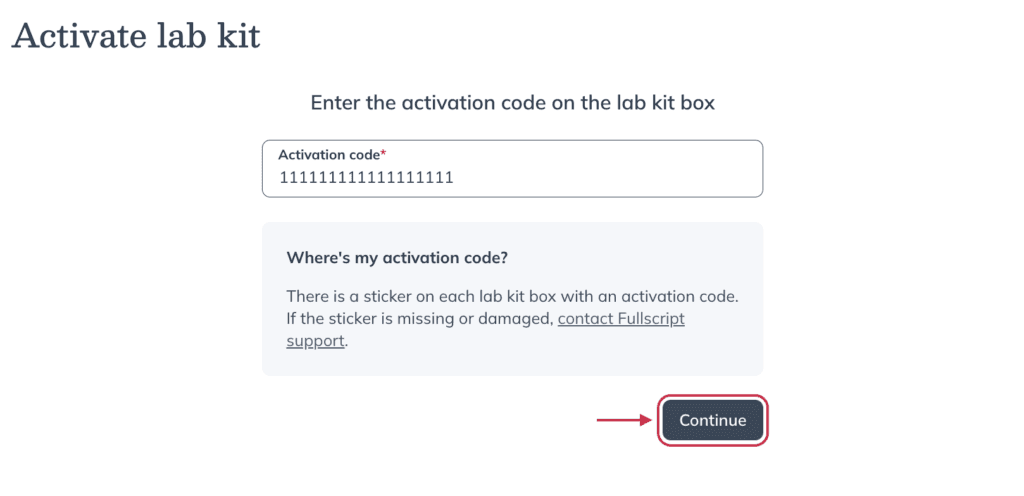
- Choose the associated test and any add-ons, then click Add to plan.
- On the plan review page, select the patient or create a new one. Add any other products, labs, or resources as needed.
- Click Continue to checkout to complete activation and send the plan to your patient.
Activate from your kit inventory
- Go to Shop wholesale → Lab supplies → Kits inventory.
- Find the kit you want and click Activate kit.
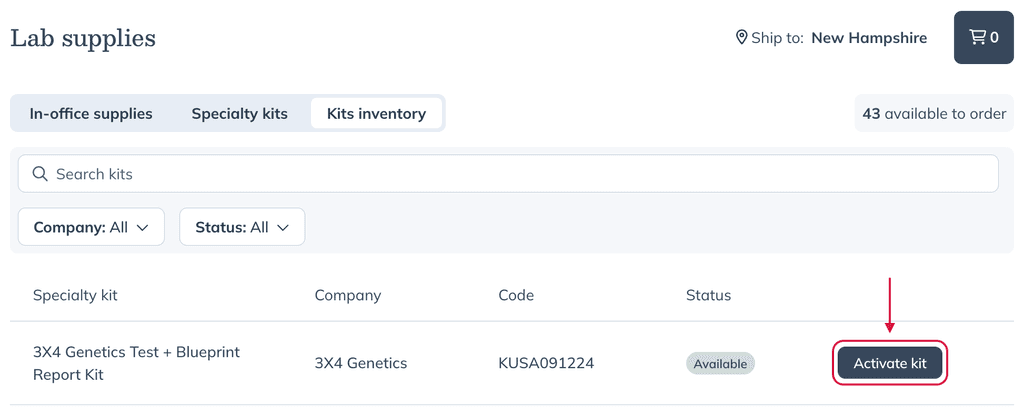
- On the plan review page, select the patient and complete the plan.
- Click Continue to checkout to complete activation and send the plan.
Add a kit from the labs catalog
- Add the kit from the labs catalog the same way you’d add any other test.
- On the plan review page, click Activate kit and choose how to fulfill the kit:
- Use a kit from my in-office inventory — Enter the activation code from the box you’re giving the patient. The code is required to process their results.
- Ship a new kit directly to patient — A new kit is sent to the patient and your in-office inventory isn’t used.
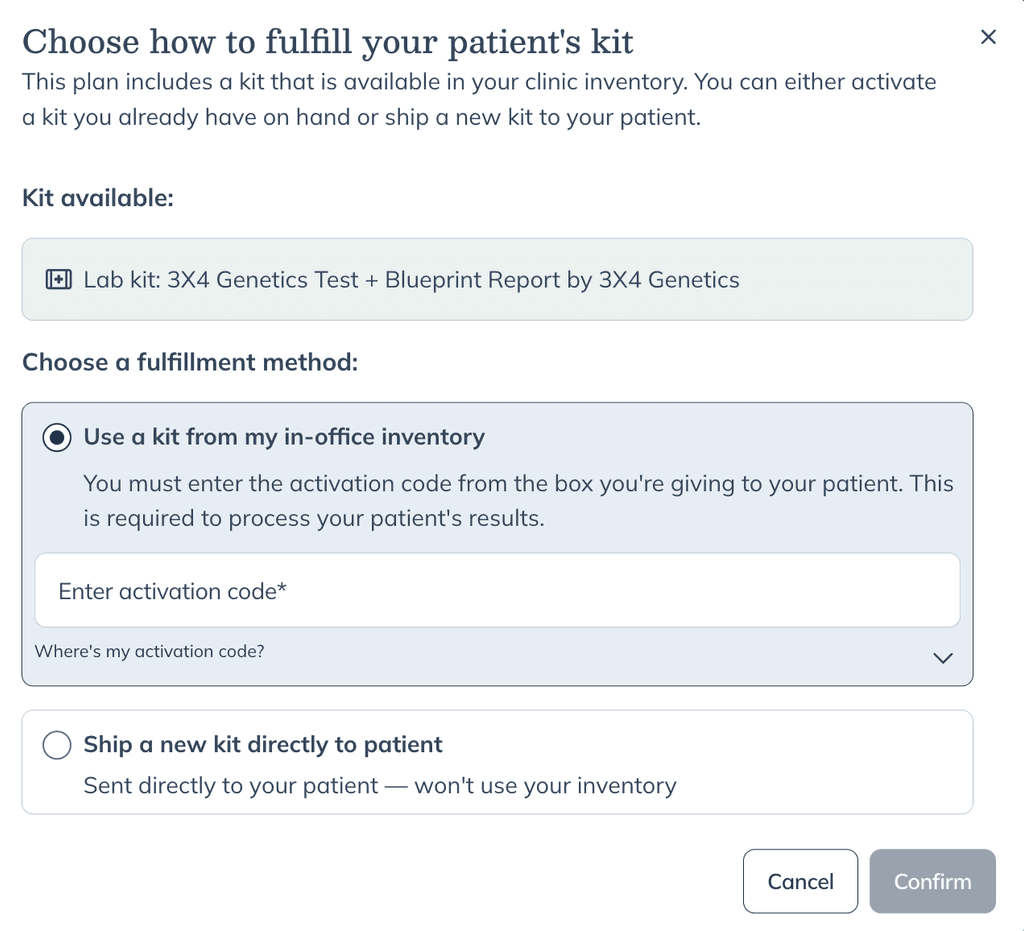
- Confirm the correct fulfillment option is selected before continuing. Check this each time, since it determines whether an in-office kit or a newly shipped kit is used.
- Click Continue to checkout to complete activation and send the plan.
Activation completes at checkout. On the plan review page, you’ll see Checkout to complete lab kit activation until the plan is sent.
Video: How to activate an in-office lab kit
Accessing your patient’s requisition (if required)
After placing the order, download and print the requisition form if one is required for sample collection.
Some labs don’t require printed requisition forms. For Mosaic, Genova, and 3X4 Genetics, the kit activation process replaces the requisition, so you don’t need to print or include additional paperwork with the kit.
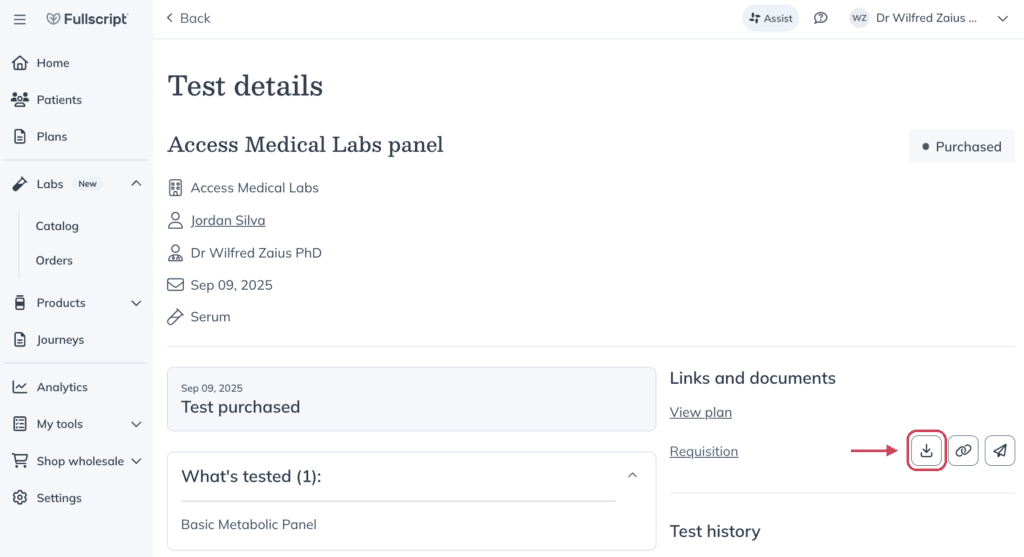
To locate the requisition form:
- In the Lab > Orders tab, select the relevant order to view details.
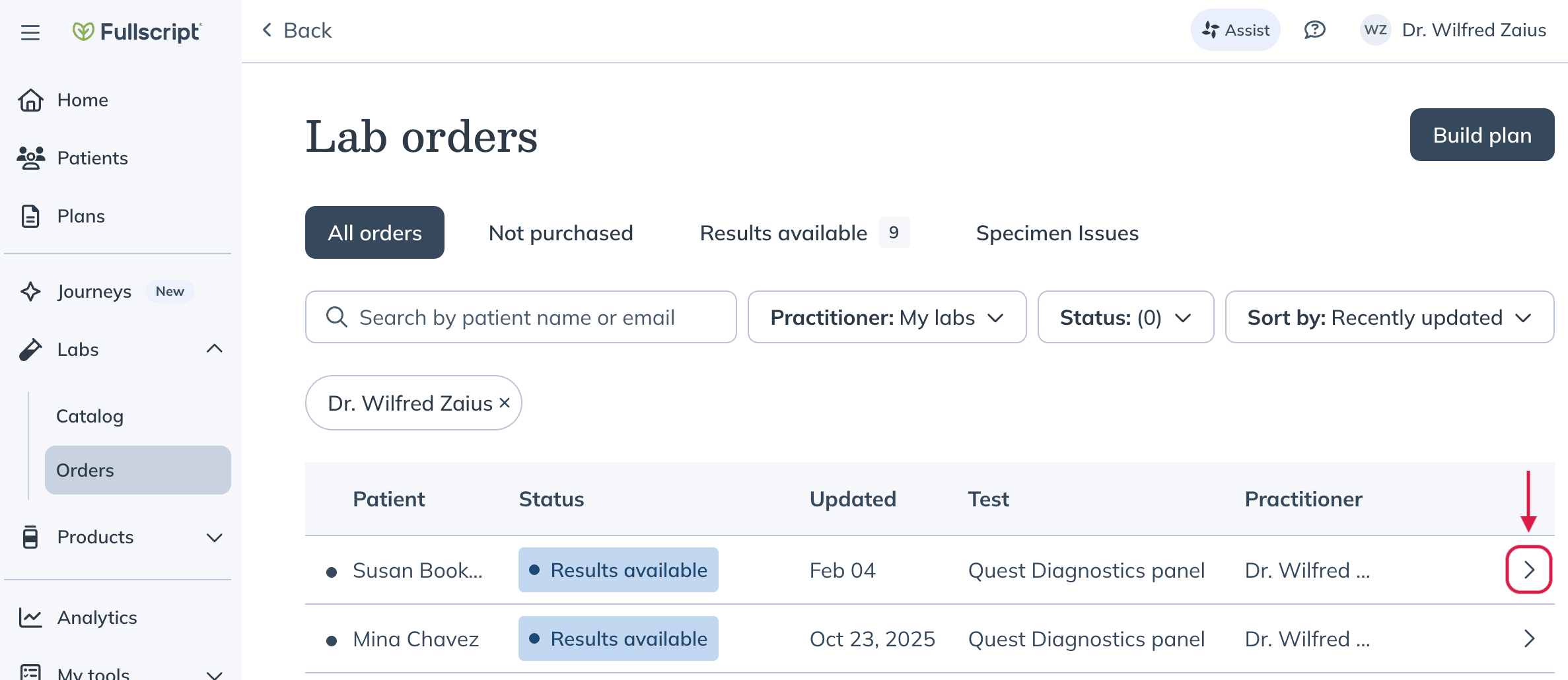
- If the lab requires a printed requisition, click the Download button ( ) to download and print the form.
Each kit includes detailed instructions and prepaid shipping materials.
Next steps
In-office specialty kits are fully integrated with Labs on Fullscript. Once a kit is completed and submitted, providers can view results and create personalized plans with ease.
In-office kits aren’t compatible with blood draw services like GetLabs or preferred phlebotomists. If you’re equipped to perform blood draws in your clinic, you can collect samples on-site. Otherwise, patients will need to arrange a local phlebotomy option.