
Last modified: March 16, 2026
In-office lab kits
Providers
In-office lab kits are specialty lab kits that providers can order, stock, and activate directly through Fullscript. Providers can order a limited number of kits at no upfront cost (excluding shipping), activate them in a few steps, and either collect samples in-office or provide the kit to the patient with instructions.
Purchasing in-office kits
In-office kits are free to order through the wholesale catalog. Wholesale orders with five or more lab kits qualify for free shipping.
To order in-office kits for use in your office:
- In the Shop wholesale tab, click Lab kits.
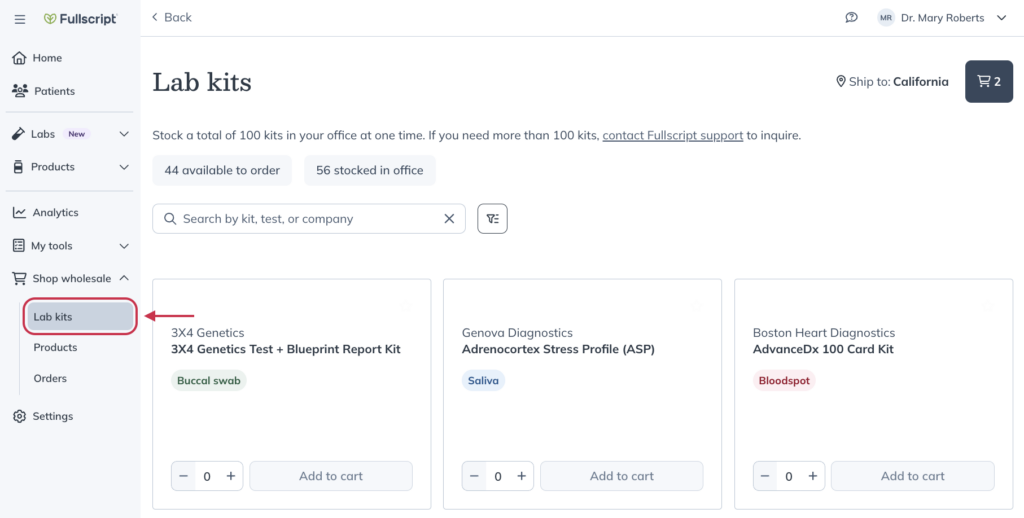
- Search for a kit, test, or lab company in the same way you would navigate the Wholesale catalog.
- Use the +/- buttons to adjust quantities, then click Add to cart. Repeat this with each test you’d like to stock in-office.
- Add any additional products you’d like to order, then select Go to checkout and complete your purchase.
Activating an in-office kit
All in-office kits ordered through Fullscript must be activated by the provider. Patients don’t activate these kits themselves. Activating the kit ensures it’s correctly linked before it’s handed to the patient or used in the clinic.
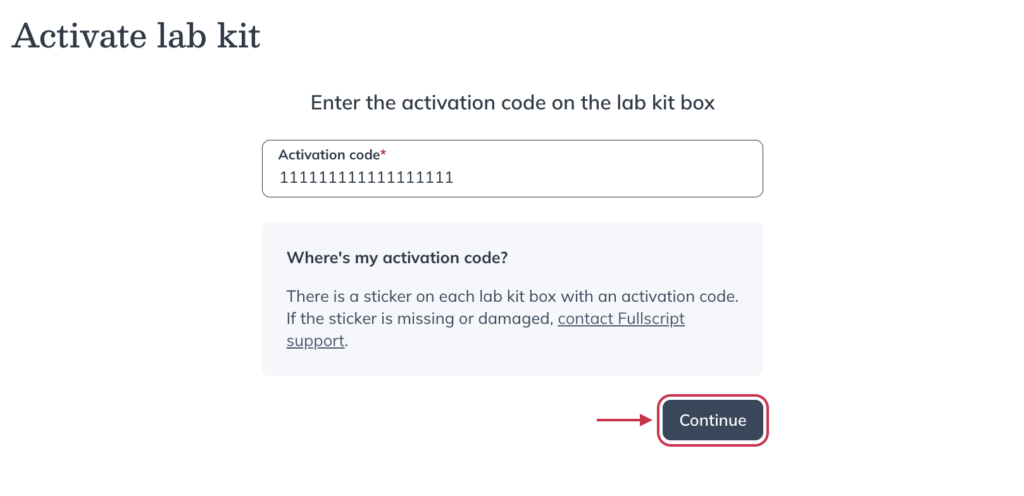
Each kit includes an activation code directly on the kit packaging, along with a URL that links to the activation page. Providers use this code to activate the kit in Fullscript.
To activate an in-office kit:
- Enter the activation code on the activation page, then click Continue.
- Choose the associated test and any add-ons.
- Click Add to plan.
- Add any additional products, labs, or resources to the plan as needed.
- When you’re ready, click Continue to checkout to send the plan to your patient.
Video: How to activate an in-office lab kit
Accessing your patient’s requisition
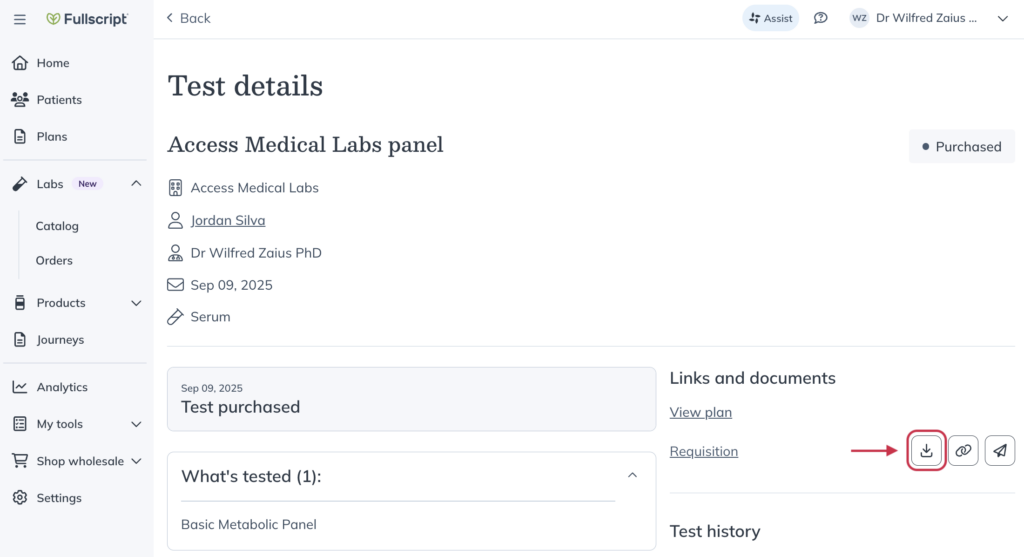
After placing the order, you must download and print the requisition form so the patient has everything they need for sample collection.
To locate the requisition form:
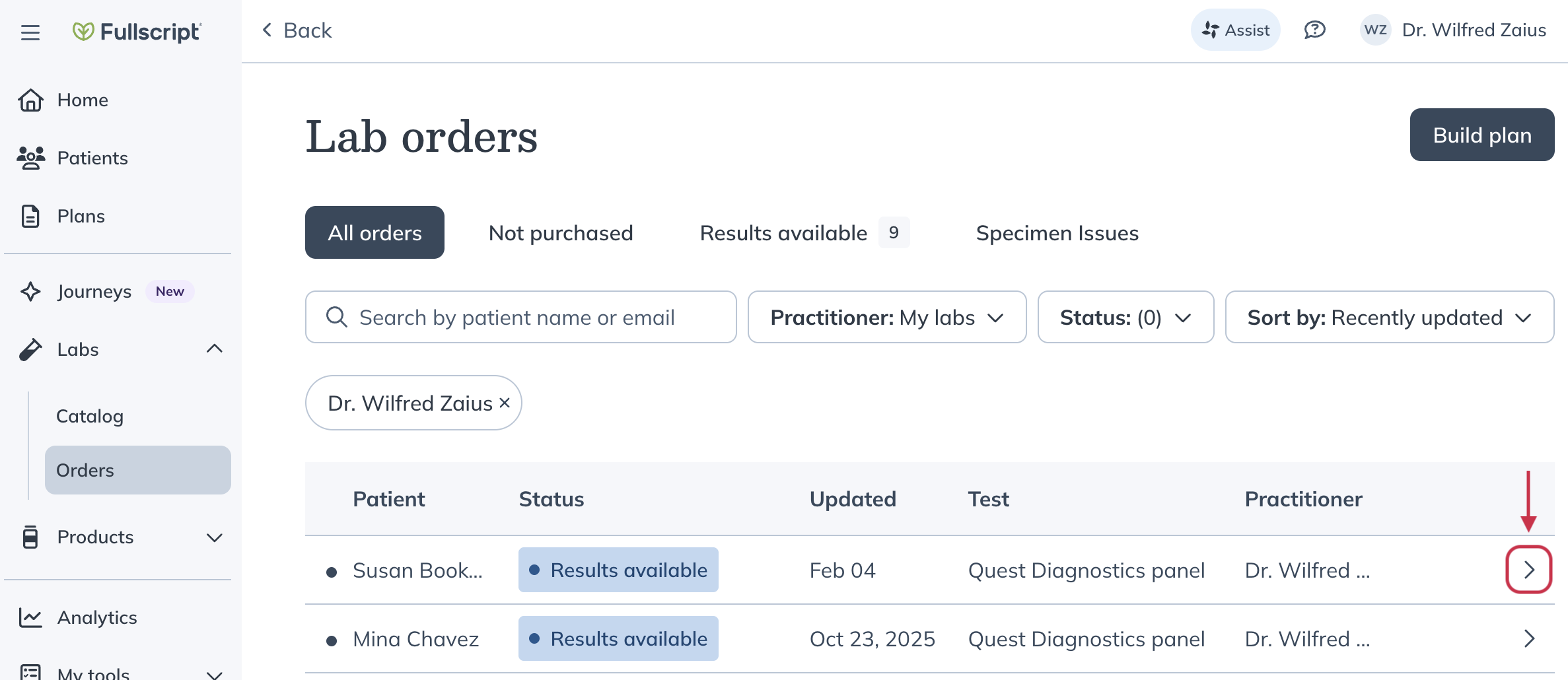
- In the Lab > Orders tab, select the relevant order to view details.
- Click the Download button ( ) to download and print the requisition form.
Next steps
In-office kits are fully integrated with labs on Fullscript. Once a kit is completed and submitted, providers can view results and create personalized plans with ease.