
Last modified: May 15, 2026
ChiroSpring integration
Providers
An introduction to ChiroSpring
ChiroSpring is a chiropractic practice management and EHR platform that helps clinics manage documentation, scheduling, billing, and patient communication. It includes tools for SOAP notes, insurance claims, payments, and reporting for practices of different sizes.
Integration setup: ChiroSpring+ Fullscript
Practitioners with both a ChiroSpring and Fullscript account can connect the two platforms from within a patient profile.
- Log in to ChiroSpring.
- Search for and open a patient profile.
- Click the profile icon in the top-right corner and select Fullscript from the dropdown menu.
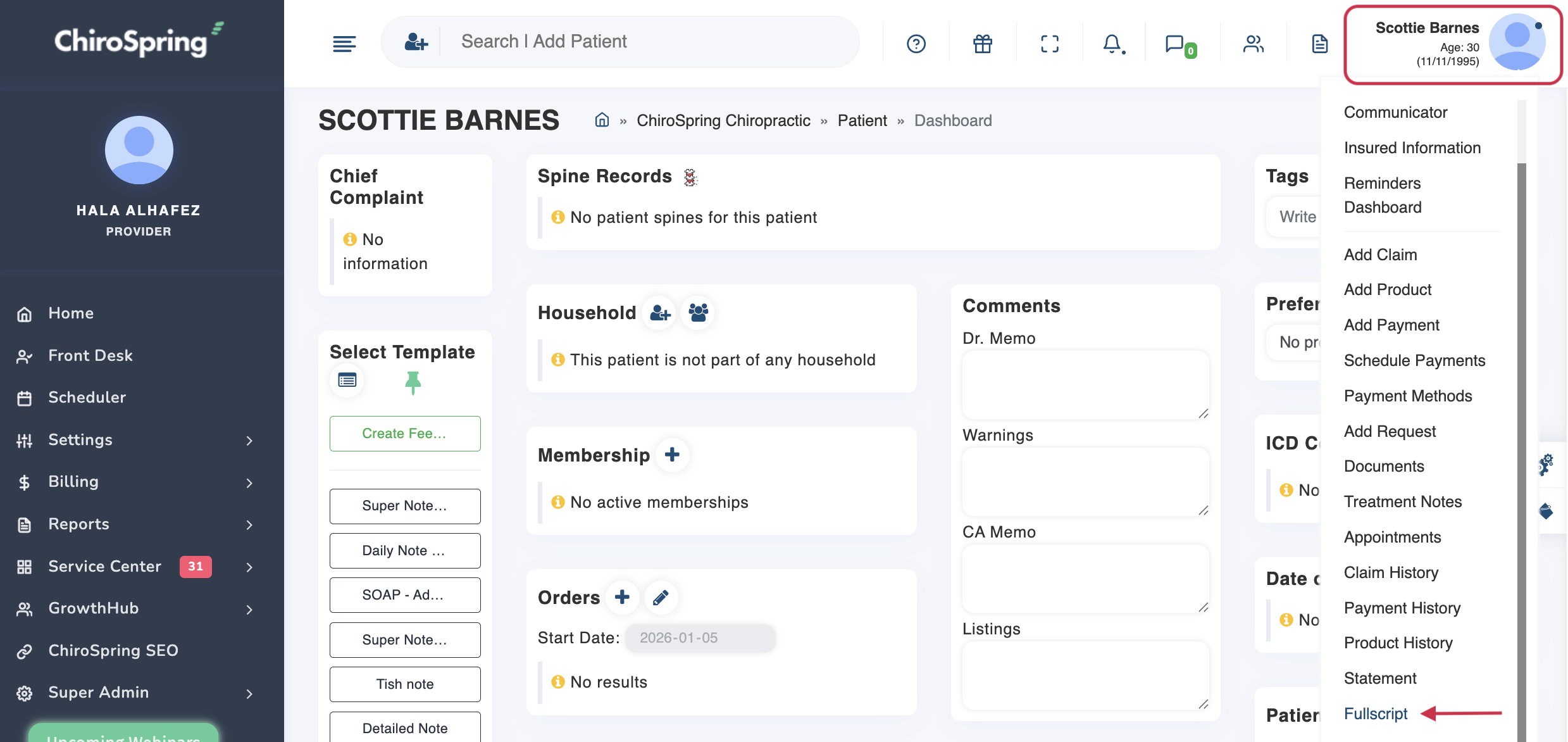
- Follow the prompts to sign in to or sign up for Fullscript and click I agree to authorize the connection.
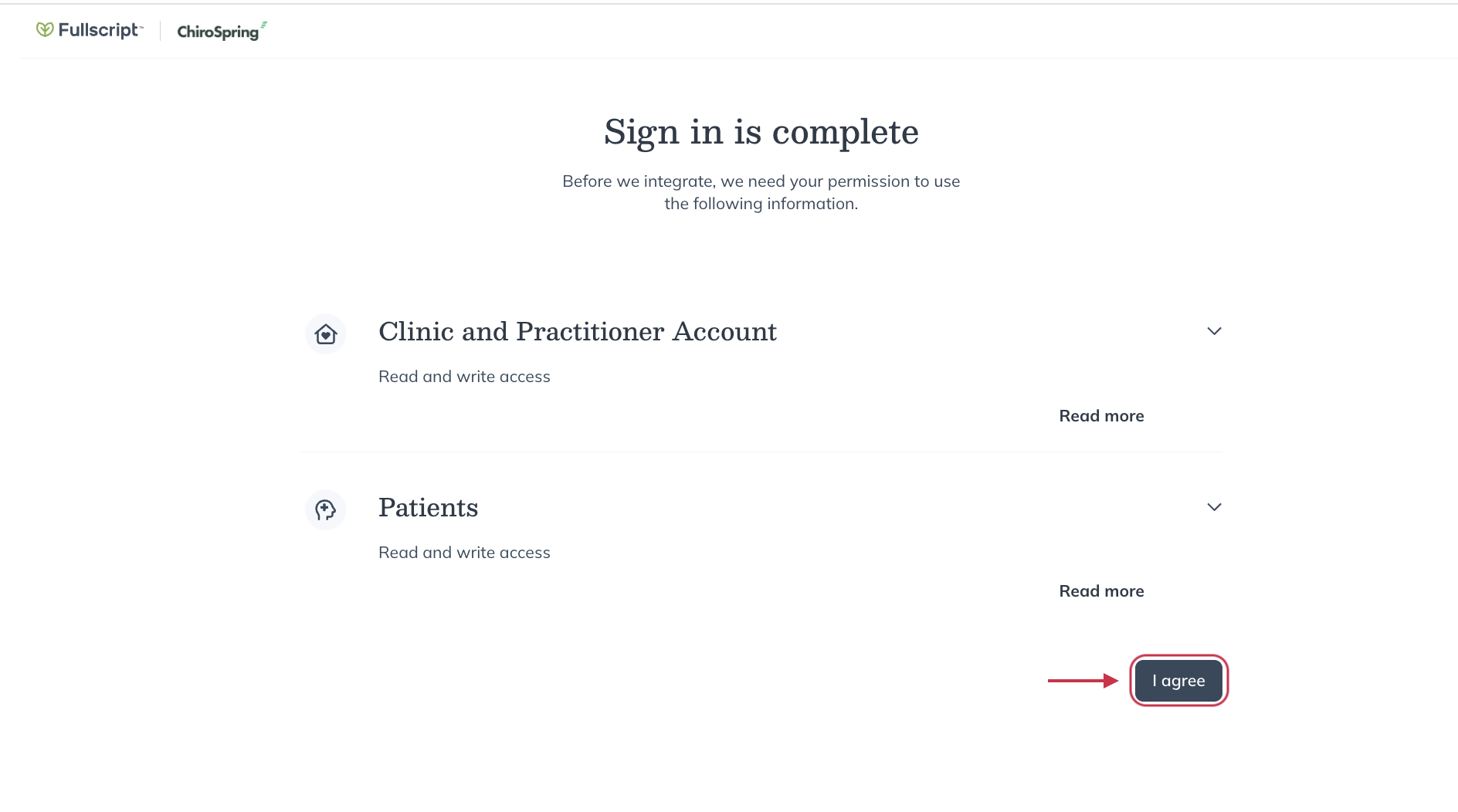
- You will be redirect back to the patient’s profile in ChiroSpring with the embedded Fullscript supplement plan builder open.
Creating a Fullscript plan in ChiroSpring
Practitioners can open the Fullscript supplement plan builder from a patient’s profile in their EHR. The builder opens inside the patient record and includes the same tools available on Fullscript, including the full catalog, favorites, protocols, and the patient’s plan history.
To create a new Fullscript plan for a client in ChiroSpring:
- Search for and open a patient profile.
- Click the profile icon in the top-right corner and select Fullscript from the dropdown menu.
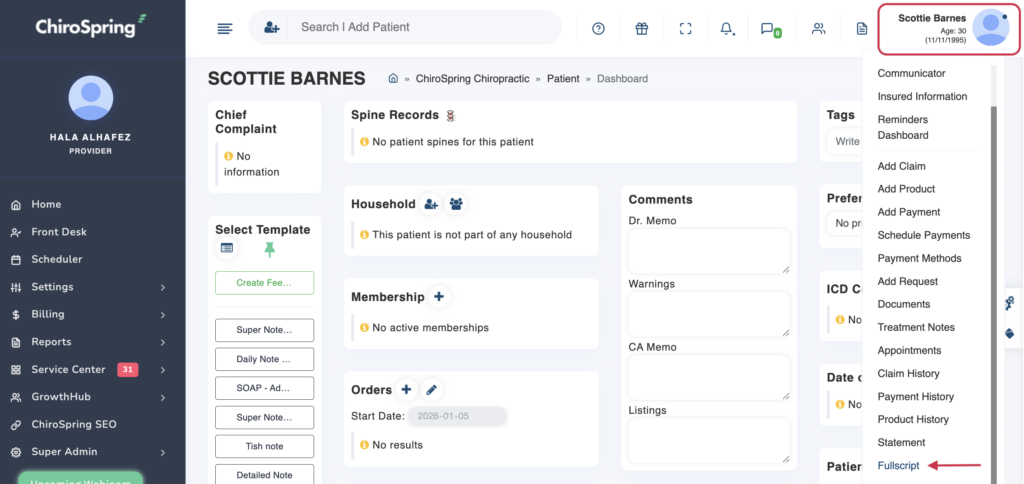
- Add supplements by searching for products and selecting Add to plan.
- To use a saved plan, select Template, choose a template, then click Add to plan.
- To include a lab, select Labs, choose a lab test, and click Add to plan.
- When ready, click Review Plan, then Send to Patient.
- Your patient receives an email from Fullscript with instructions to view their supplement plan.
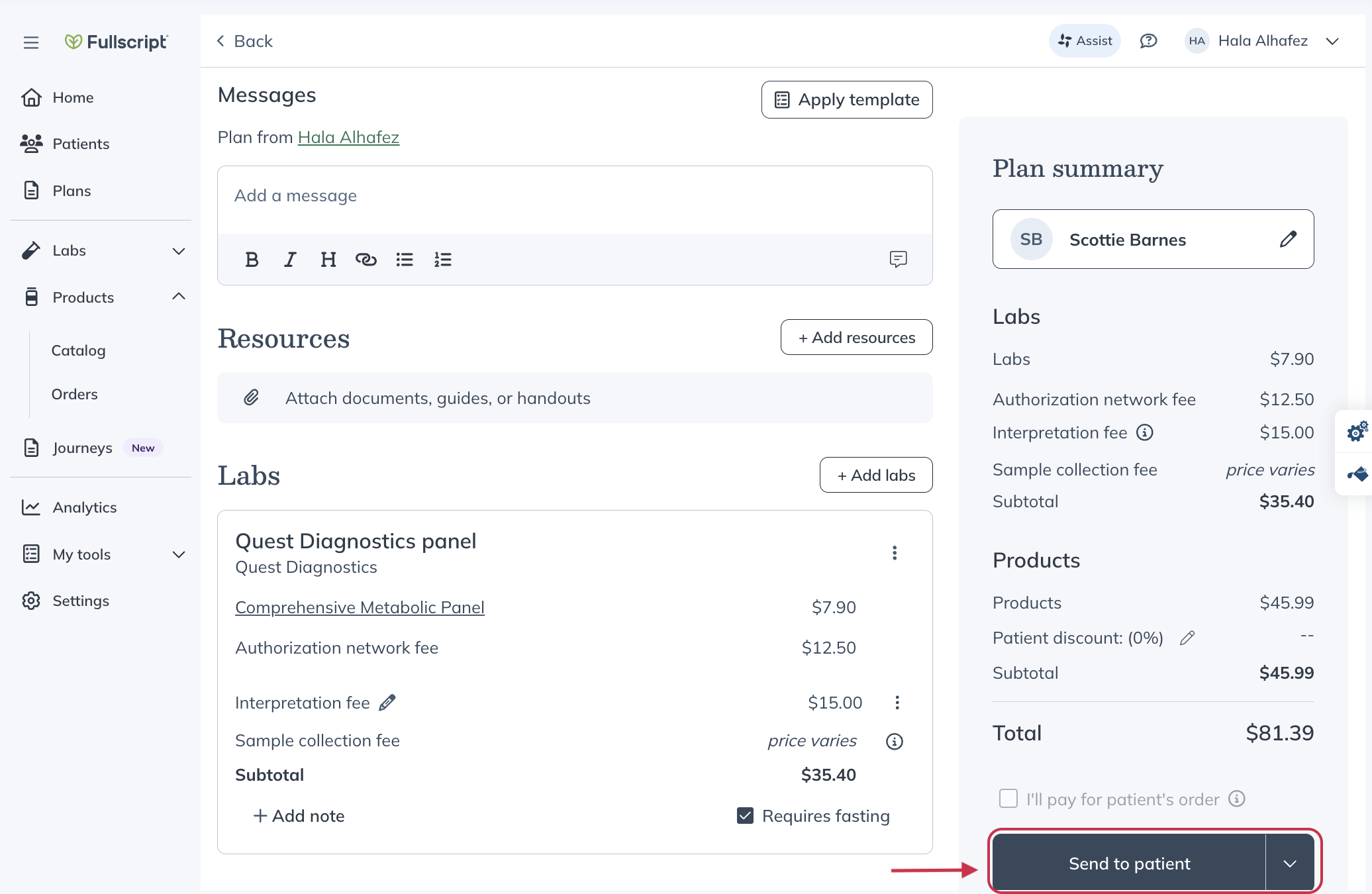
- Select Copy plan notes if you want to paste the plan text into the patient’s clinical note in ChiroSpring.
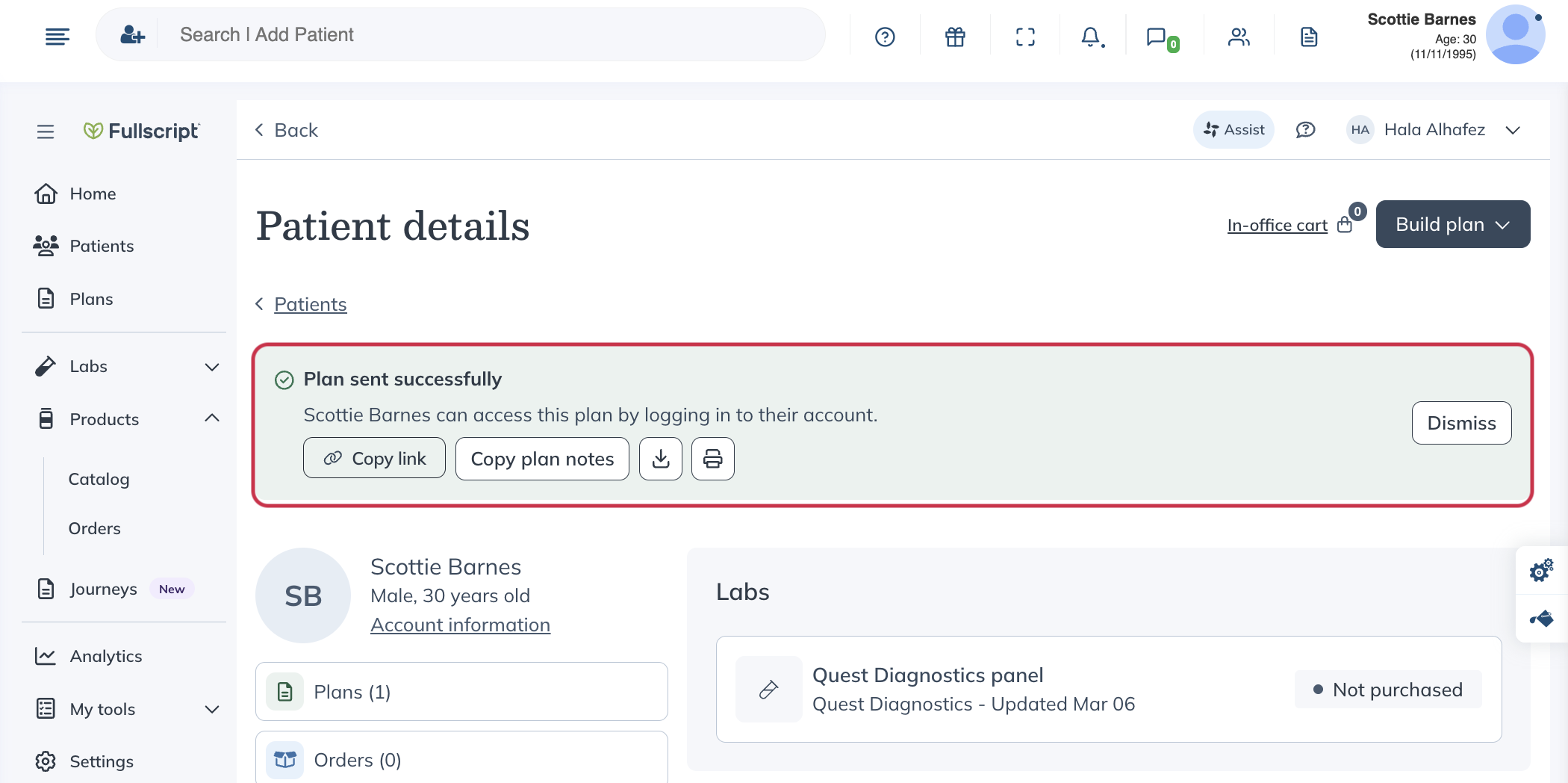
Where plans appear in ChiroSpring
To review previously sent plans, open the Fullscript integration from the patient’s profile and view them in the embedded Fullscript experience.
Viewing lab results in ChiroSpring
Practitioners can add labs when creating a plan using the Fullscript builder.
However:
- Lab orders are not visible inside ChiroSpring
- Lab results are not accessible through the integration
To view lab orders or results, open them in Fullscript.
Disconnecting Fullscript from ChiroSpring
If the wrong Fullscript account was connected, you can disconnect the integration from Fullscript settings.
To disconnect in ChiroSpring
Providers are unable to directly disconnect from within ChiroSpring. The only available way in ChiroSpring to disconnect the integration would be by launching the embed plan tool in a patient’s profile and then taking the same steps to disconnect in Fullscript.
Follow these steps:
- Launch the Fullscript integration from a patient profile in ChiroSpring.
- Go to Settings.
- Select Integrations.
- Find ChiroSpring.
- Click Disconnect.
To disconnect in Fullscript
Follow these steps:
- Log in to Fullscript.
- Go to Settings.
- Select Integrations.
- Locate ChiroSpring.
- Click Disconnect.
Frequently asked questions
Who primarily uses ChiroSpring?
It is built specifically for chiropractic practices and supports both single-provider clinics and multi-location practices.
Is ChiroSpring cloud-based?
Yes, the newest version, ChiroSpring 360, runs in the cloud, meaning there is no need to install software locally and it can be accessed from any device with internet access. A server version is also available, however it doesn’t include the Fullscript integration.
Is there any writeback for sent plans?
No, not at this time. Fullscript plans can be sent through the integration, there is the standard message confirming the plan was sent successfully, but it will not show anywhere in ChiroSpring or the patient’s profile.