
Last modified: March 9, 2026
Where to find your Rupa order history on Fullscript
Patients
This guide explains where to find your past Rupa results and how to access all new results in Fullscript.
Viewing your results on Fullscript
Once your provider moves to Fullscript, your Rupa lab results and order history will be automatically transferred. You don’t need to take any action — everything will appear in your Fullscript account after your provider initiates the move.
To view your results in Fullscript:
- Log into your Fullscript account
- Go to the Labs tab on your My health page. Here you’ll see a list of your lab orders, including those previously ordered on Rupa.
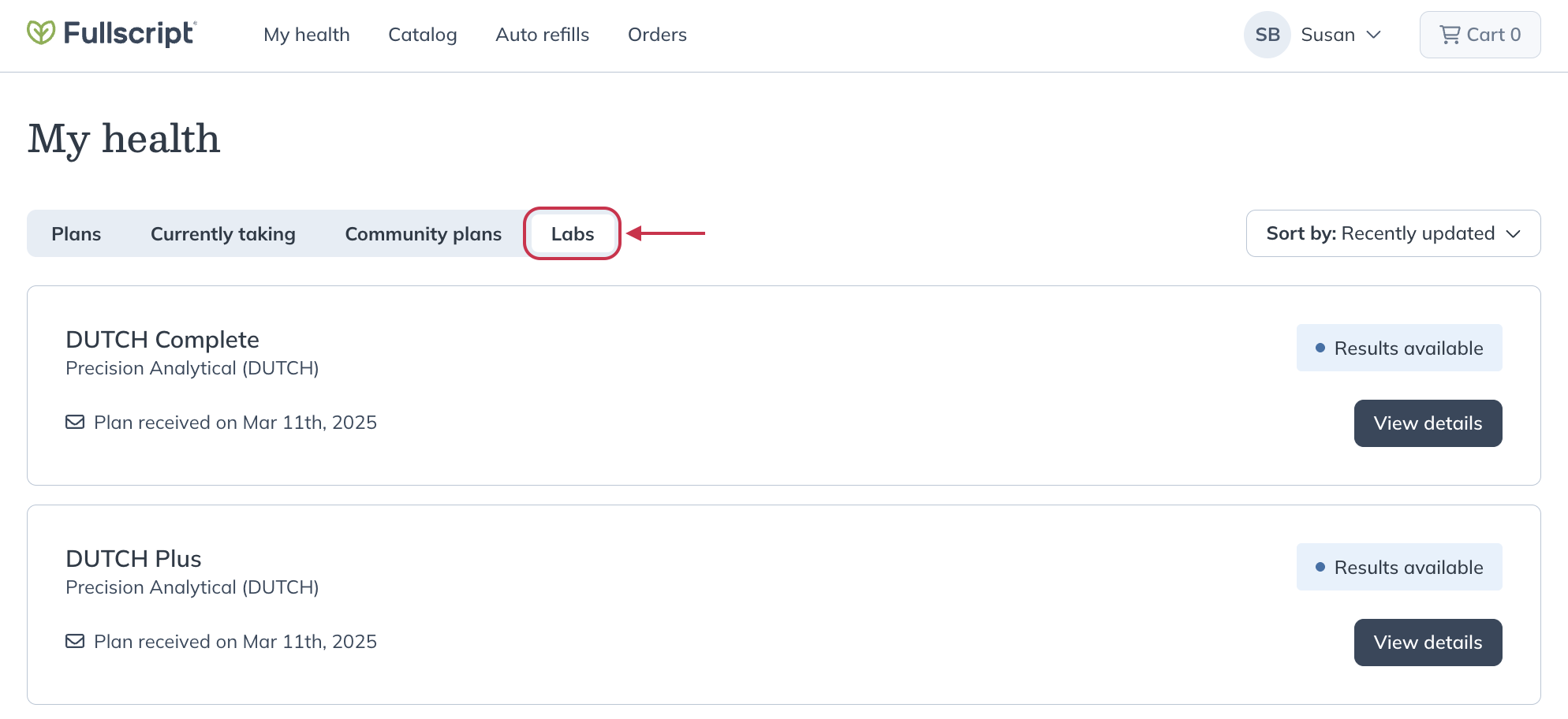
When your provider moves to Fullscript, any Rupa lab results that are transferred will appear as the original PDF report from the lab.
You can open or download these reports from the Labs tab on your My health page.
Viewing your results on Rupa
Patient access to lab results on Rupa remains intact for historical data and payment of outstanding orders, but shifts to Fullscript for all new lab ordering and results management once your provider completes the move to Fullscript. Results for tests that were initiated on Rupa but processed after your provider moves to Fullscript will be available on both platforms.
Notifications
After your provider moves to Fullscript, all new testing notifications—including kit shipping, status updates, and results—will come from Fullscript to the email address you used when creating your Fullscript account.