
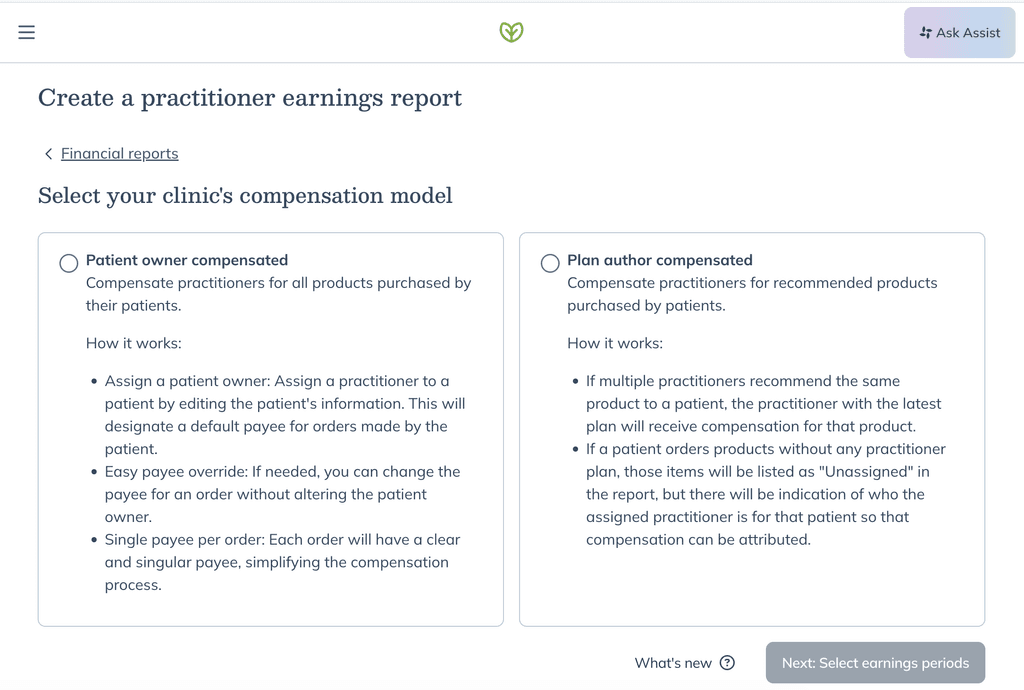
The Practitioner Earnings Report feature is available to accounts with multiple practitioners. The report provides two compensation models, making it simple to assign profits for each transaction:
- The Patient owner compensated report is used to compensate practitioners for all products purchased by their patients.
- The Plan author compensated is used to compensate practitioners for products that they’ve recommended that are purchased by a patient.
This report is also where you can track practitioner pay for labs orders, including labs custom fees. For the patient-pay side of a custom fee, see Payout reports.
Generating a patient owner compensated report
This report compensates practitioners for all orders placed by their patients. If a patient has one assigned practitioner, their orders are automatically assigned to that practitioner. You can review and change any order before you download the report.
Why some orders don't have a practitioner
An order arrives without a practitioner when the patient:
- Has no assigned practitioner.
- Has more than one assigned practitioner.
You'll need to assign these orders yourself in the report before downloading. To have a patient's future orders assigned automatically, assign one practitioner to the patient.
To generate this report:
- Click the Analytics tab.
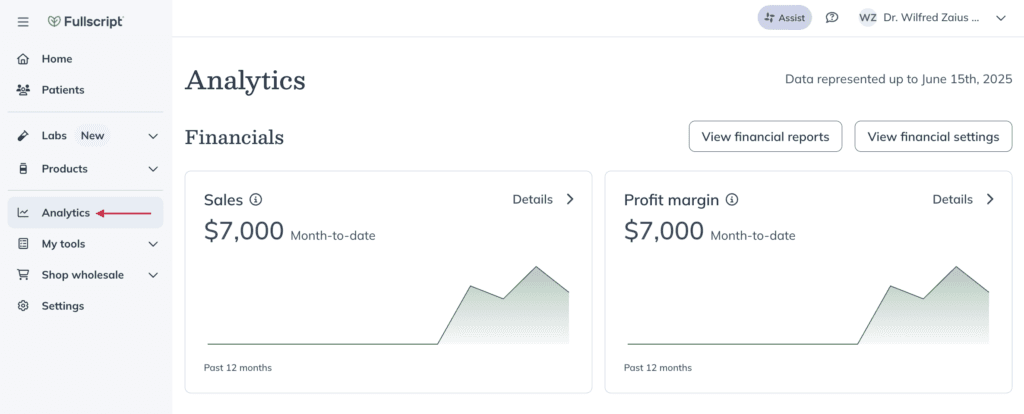
- Click View financial reports.
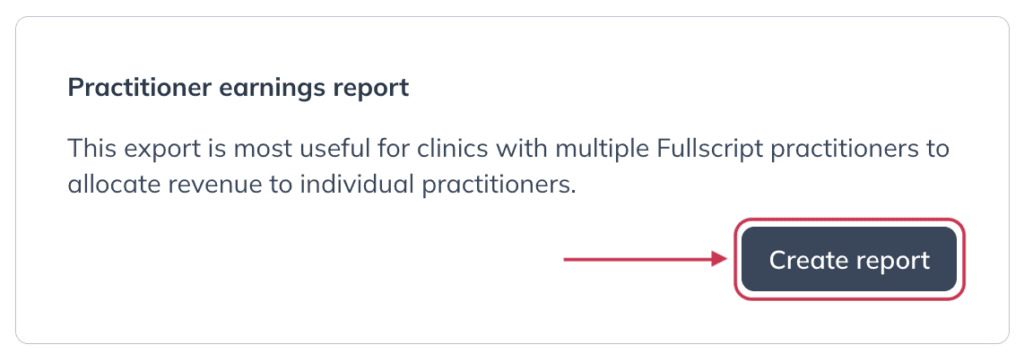
- Scroll down to the Practitioner earnings report heading.
- Click Create report.
- Click Patient owner compensated.
- A pop-up will appear outlining what can be found in each report, click Acknowledge.
- Click Next: Select earnings periods.
- Select payout dates to include in the report.
- Click Create earnings report.
- To assign or reassign earnings for an order, use the dropdown menu beside the order to select the appropriate practitioner. Practitioners assigned to the patient appear at the top of the list.
- When all orders have been assigned to practitioners, click Download earnings report from the bottom of the page.
- An Excel file will be downloaded to your device. It includes a Summary tab with earnings totals for all practitioners, plus a separate tab for each practitioner who had assignments during the selected payout period(s).
A practitioner you select in the dropdown applies to that order only. It doesn't change the patient's assigned practitioner or how their future orders are assigned.
Generating a plan author compensated report
This report assigns earnings for each order based on the products purchased and the supplement plans authored for the patient. This option is helpful when multiple practitioners create plans for a patient because it allows you to assign earnings from each purchased product to the practitioner who recommended it.
To generate this report:
- Click the Analytics tab.
- Click View financial reports.
- Scroll down to the Practitioner earnings report heading.
- Click Create report.
- On the following page, select Plan author compensated.
- Click Next: Select earnings periods.
- Select the payout periods you want to include in the report.
- Click Download earnings report and the report will be downloaded to your device.
Understanding unattributed sales
In a Plan author compensated report, a sale is considered Unattributed when the purchased product wasn't part of a plan authored by a practitioner. For example, this can happen when a patient purchases a product outside their treatment plan.
For unattributed sales:
- The prescribing_practitioner column is blank.
- The sale appears on a separate Unattributed tab instead of a practitioner's tab.
- The assigned_practitioner column shows the practitioner or practitioners assigned to the patient as part of their care team.
Clinics can use the assigned_practitioner information to determine who should be compensated for an unattributed sale.
Example: Practitioner A is assigned to patient Jon. Practitioner B creates a plan for Jon containing products X and Y. Jon then purchases products X, Y, and Z.
Products X and Y appear on Practitioner B's tab because Practitioner B authored the plan containing those products. Product Z wasn't included in the plan, so it appears on the Unattributed tab with a blank prescribing_practitioner. Practitioner A is assigned to Jon, Practitioner A appears under assigned_practitioner. The clinic can use this information when determining who to compensate for the sale.
Distributing funds to practitioners
Practitioner earnings are totaled in their respective tab within the exported report. Scroll to the bottom of the Amount column for the net earnings total for the selected practitioner for selected payout periods.
Store owners must distribute the funds manually – Fullscript pays out earnings in a single payout to the bank account on file.
Identifying a labs custom fee
Labs custom fees appear as their own line items in the earnings report. To identify one:
- Check the SKU column — custom fees appear as
custom_feerather than a product SKU. - Check the Unit MSRP and Total MSRP columns — for custom fees, these display 0.00.
The fee amount itself is reflected in the Amount column as net earnings from the order. For patient-level detail on a custom fee — patient name, order number, and amount — see the Patient name, Order number, and Amount columns in the same row.
Report headings and transaction data
These reports (patient owner & plan author) have similar columns headings – descriptions have been provided below to help you understand your data.
Summary tab shown in both reports
Column title | Description |
|---|---|
Practitioner_name | Tab grouping key: prescribing_practitioner (plan author) or earning_practitioner (patient owner). Blank names shown as Unattributed. |
Total_selling_price | Sum of total_selling_price from that practitioner’s detail rows. |
Total_msrp_price | Sum of total_msrp_price from that practitioner’s detail rows. |
Transaction date | Date earnings became available. |
Amount | Sum of amount from that practitioner’s detail rows. |
Patient owner reports
Column title | Description |
|---|---|
Activity date | Date of return or shipment. |
Activity type | Specifies if the item is part of shipment or return. |
Order date | Date the order was placed/created. |
Transaction date | Date earnings became available. |
Payout date | Date payout was created/initiated. Note: May not align with date payouts became available on bank statements or bank account balance. |
Order number | Fullscript order ID. |
Transaction number | Shipment reference number. |
Payout number | Payout ID/reference number. |
SKU | Product ID. Note: For lab orders, custom fees appear in this column as custom_fee. |
Quantity | Number of units shipped. |
Unit selling price | Product cost after discount. |
Total selling price | Total product cost after discount – includes all quantities. |
Unit MSRP | Retail price per unit. Note: For lab orders, custom fees will display 0.00 in the MSRP columns. |
Total MSRP | Retail price per SKU – includes all quantities. |
Amount | Net earnings from the order. |
Patient name | Ordering patient’s name. |
Patient email | Ordering patient’s email. |
Prescribing practitioner | The original prescribing practitioner for product ordered. |
Earning practitioner | Practitioner assigned to the order’s net earnings. Note: Patient owner compensated report only. |
Plan author reports
Column title | Description |
|---|---|
Activity date | Date of return or shipment. |
Activity type | Specifies if the item is part of shipment or return. |
Order date | Date the order was placed/created. |
Transaction date | Date earnings became available. |
Payout date | Date payout was created/initiated. Note: May not align with date payouts became available on bank statements or bank account balance. |
Order number | Fullscript order ID. |
Transaction number | Shipment reference number. |
Payout number | Payout ID/reference number. |
SKU | Product ID. Note: For lab orders, custom fees appear in this column as custom_fee. |
Quantity | Number of units shipped. |
Unit selling price | Product cost after discount. |
Total selling price | Sum of total_selling_price from that practitioner’s detail rows. |
Unit MSRP | Retail price per unit. Note: For lab orders, custom fees will display 0.00 in the MSRP columns. |
Total MSRP | Sum of total_msrp_price from that practitioner’s detail rows. |
Amount | Sum of amount from that practitioner’s detail rows. |
Patient name | Ordering patient’s name. |
Patient email | Ordering patient’s email. |
Prescribing practitioner | The original prescribing practitioner for product ordered. |
Assigned practitioner | Source is assigned practitioner from patient UI. |