
In-office phlebotomy lets practitioners collect lab samples in their clinic instead of sending patients to a third-party collection site. It's currently available for eligible lab plans from Quest and Access Medical Labs. This article explains how to enable the feature, order lab supplies, schedule specimen pickups, build lab plans, and access phlebotomy instructions.
Video: Using In-office phlebotomy
Enable in-office phlebotomy
In-office phlebotomy has two separate settings:
- Enable in-office phlebotomy: Any practitioner can enable this setting to collect samples in their clinic. An NPI isn't required.
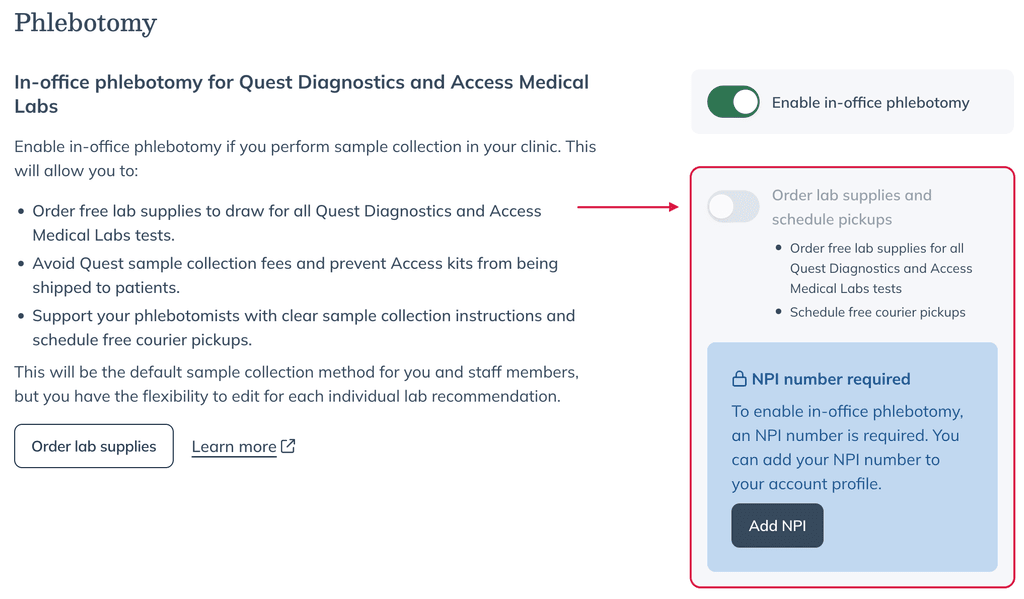
- Order lab supplies and schedule pickups: The store owner enables this setting. A valid NPI is required to order lab supplies or schedule pickups — but it no longer has to be the store owner's own NPI. If another registered practitioner in the store has a valid NPI on file, that satisfies the requirement.
To manage these settings:
- Go to Labs > Labs settings > Phlebotomy.
- Turn on Enable in-office phlebotomy.
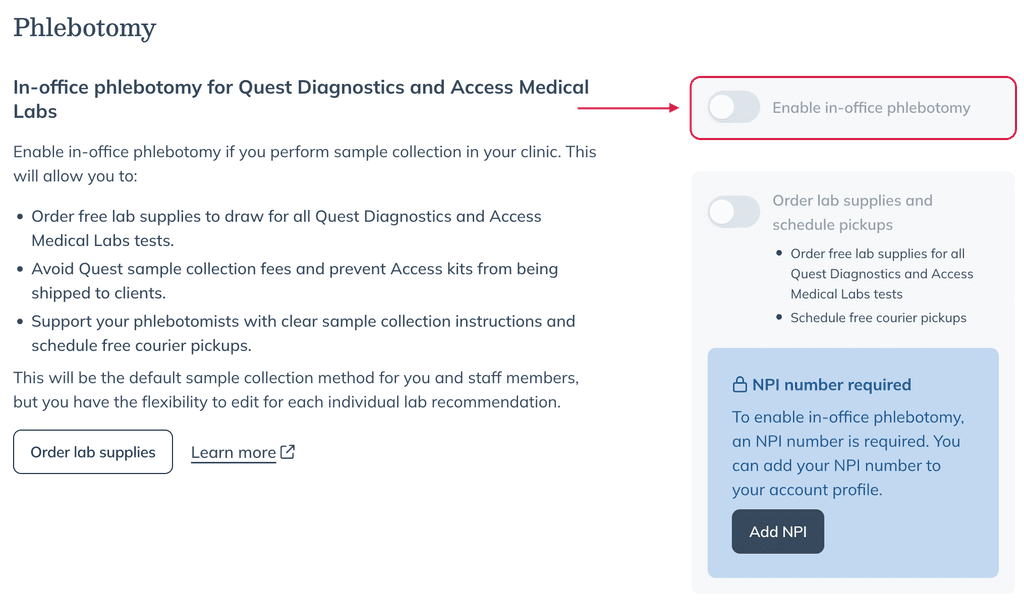
- To order lab supplies or schedule pickups through Fullscript, turn on Order lab supplies and schedule pickups.
Schedule specimen pickups
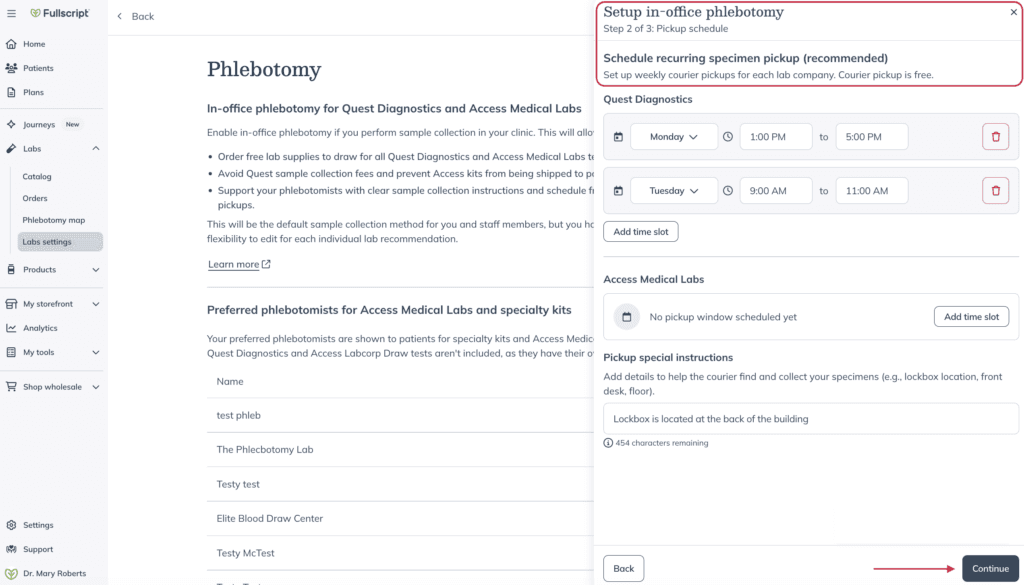
You can schedule recurring specimen pickups through Fullscript for Quest Diagnostics and Access Medical Labs by following the steps below.
To be able to schedule recurring pickups, the Order lab supplies and schedule pickups through Fullscript setting must be enabled. This requires a valid NPI on file for a registered practitioner in the store — it no longer has to be the store owner's (see above).
If you need to schedule a one-time specimen pickup, you can call 1-800-742-5877.
Your practice can only have one specimen pickup location on file.
To schedule pickups:
- In the Schedule recurring specimen pickups step, select the days, time slots, and pickup instructions for each lab.
- Click Continue.
- In the Review step, confirm your clinic details and pickup schedule.
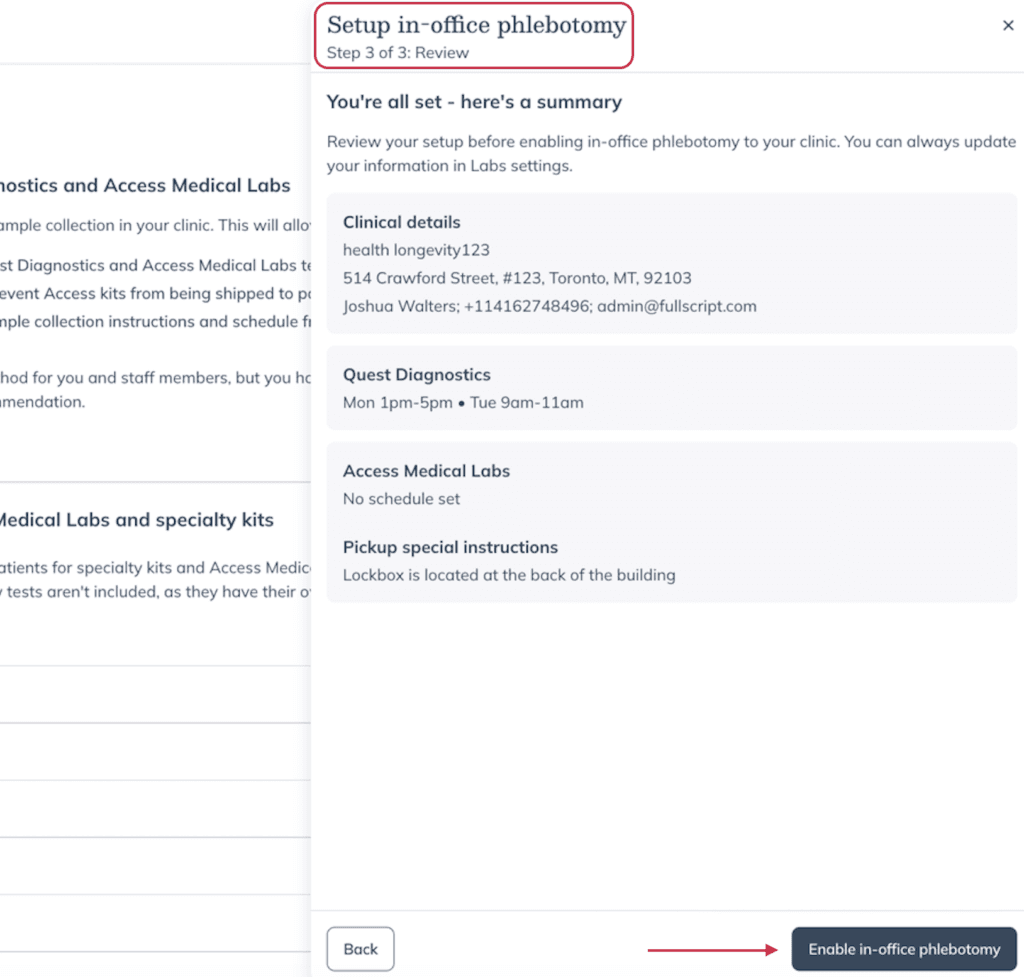
- Click Enable in-office phlebotomy.
Order in-office lab supplies
To order lab supplies through Fullscript, Order lab supplies and schedule pickups through Fullscript must be enabled. This requires a valid NPI on file for a registered practitioner in the store — it no longer has to be the store owner's (see above).
Before collecting samples in your clinic, order the lab supplies needed for your lab tests through Shop wholesale.
To place an order:
- Click Shop wholesale.
- Select Lab supplies.
- Above the search bar, turn on In-office supplies.
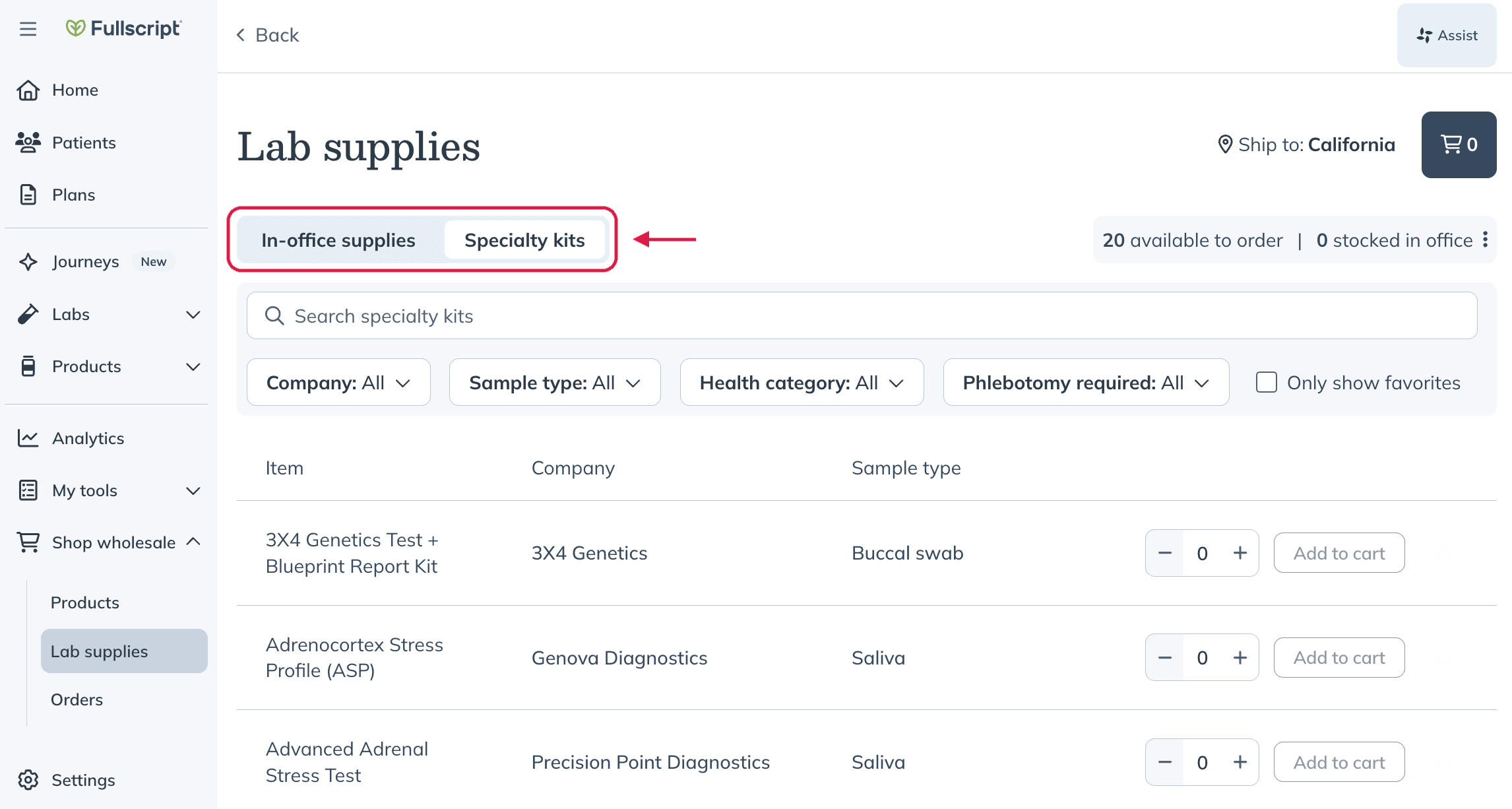
- Search for an item or use filters to narrow the results.
- Click Add to cart and complete checkout.
Shipping and order details
Keep the following shipping information in mind when ordering in-office supplies:
- In-office lab supplies, specialty kits, and supplements can be ordered together through Shop wholesale.
- Paid lab supplies count toward the $250 free shipping threshold for products. Ordering five or more specialty kits qualifies for free shipping.
- Lab supplies and kits may ship separately. If minimum thresholds aren't met for each category, separate shipping charges may apply.
To view the status of your supply orders, go to Shop wholesale > Orders.
Build a plan with in-office phlebotomy
Once in-office phlebotomy is enabled, you can build eligible lab plans using in-office sample collection.
To build a lab plan:
- Open or create a patient plan.
- Add a lab from the Lab catalog.
- On the Review plan page, select In-office phlebotomy under Sample collection.
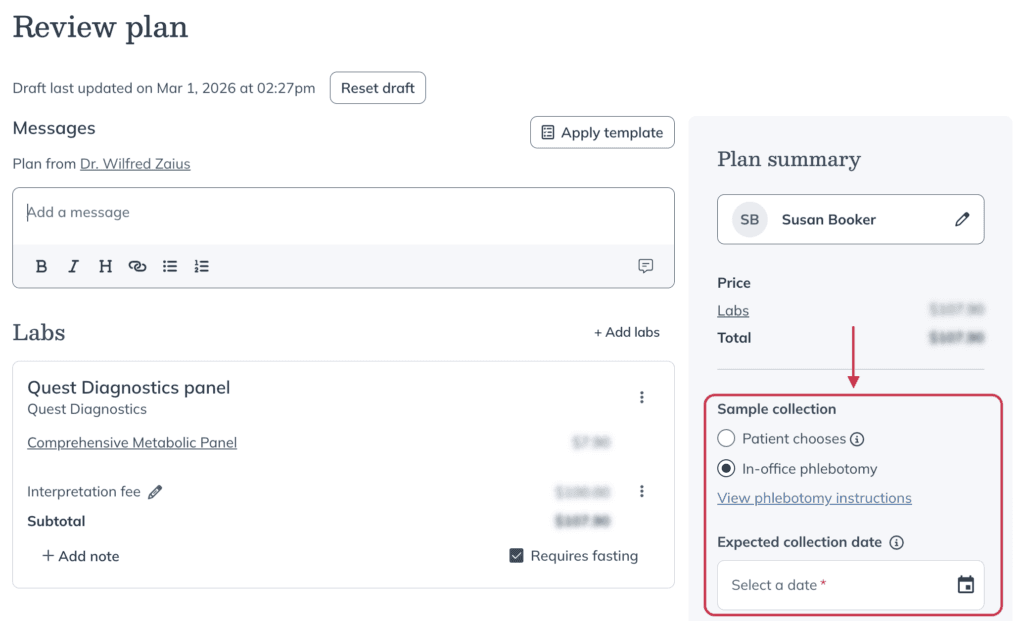
- Enter the Expected collection date.
- Choose who is paying for the order.
- Click Send to patient.
View phlebotomy instructions
You can view phlebotomy instructions before or after checkout:
- Before checkout: select View phlebotomy instructions on the Review plan page.
- After checkout: navigate to your lab orders, select the order, and click View phlebotomy instructions on the Test details page.
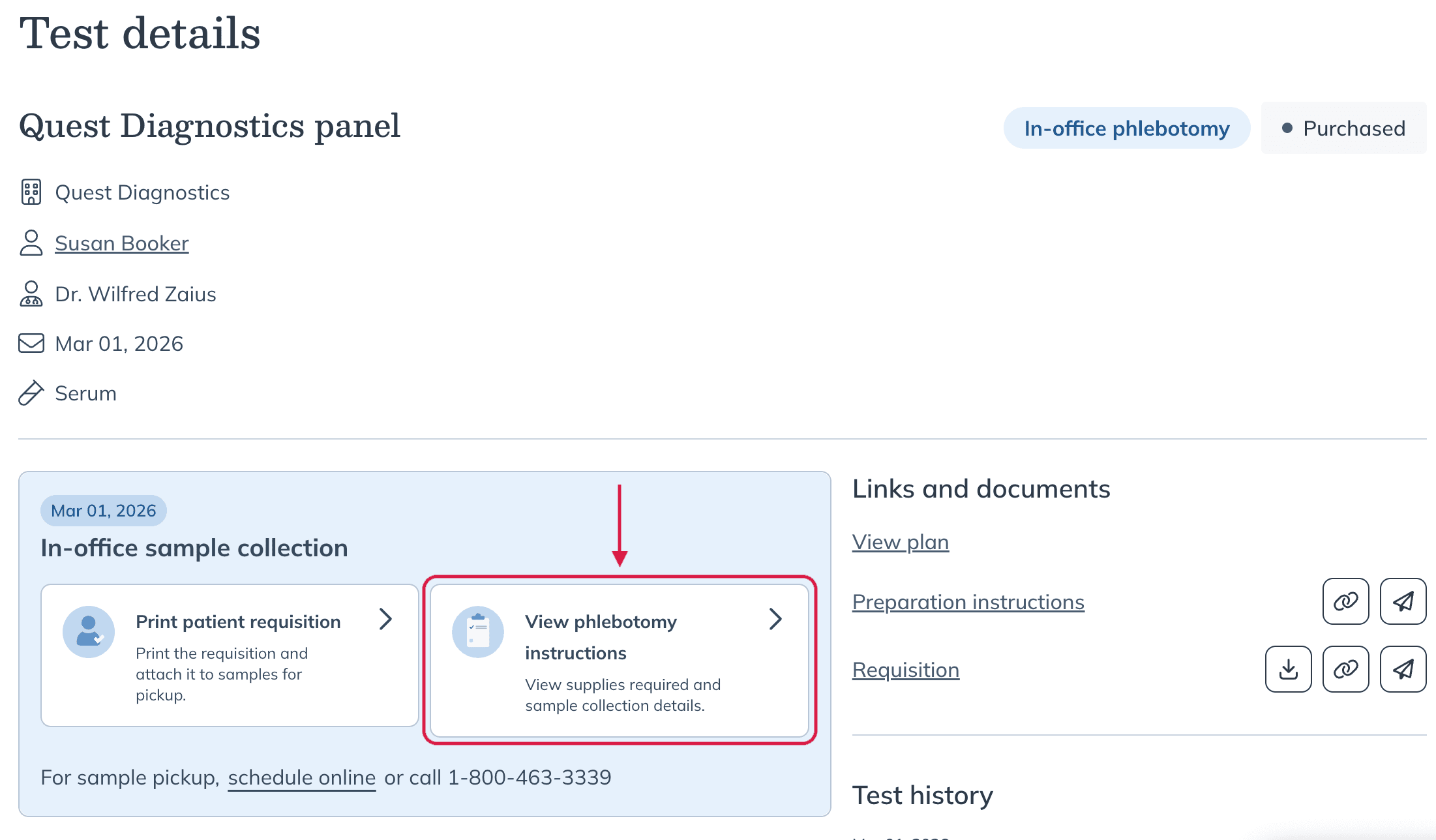
Opening View phlebotomy instructions within the Test details page.
The requisition form must be printed and shipped with the corresponding sample. To do this, click Print patient requisition.
When you open the phlebotomy instructions, you'll find:
- Patient preparation requirements
- Required lab supplies
- Tube labeling instructions
- Order of draw and inversion guidance
- Information on scheduling specimen pickups
What patients see
If the patient is paying for the lab order, they’ll complete checkout through their Fullscript account. If you’re collecting payment in-office, checkout is completed during the visit.
Patients can view their lab order details and any available preparation instructions from their Fullscript account once the order has been placed.
For an overview of the patient lab-testing experience, refer to Lab testing with Fullscript explained.