Fullscript website buttons and embedded product cards
Providers
Fullscript offers branded website buttons to embed on your site or blog, making it easy for visitors to access your dispensary.
When clicked, patients are redirected to your landing page to log in or create an account. From there, they can view plans, search the catalog, and place orders. Be sure to review your catalog settings so featured products are available to patients—see Product catalog and permissions for details.
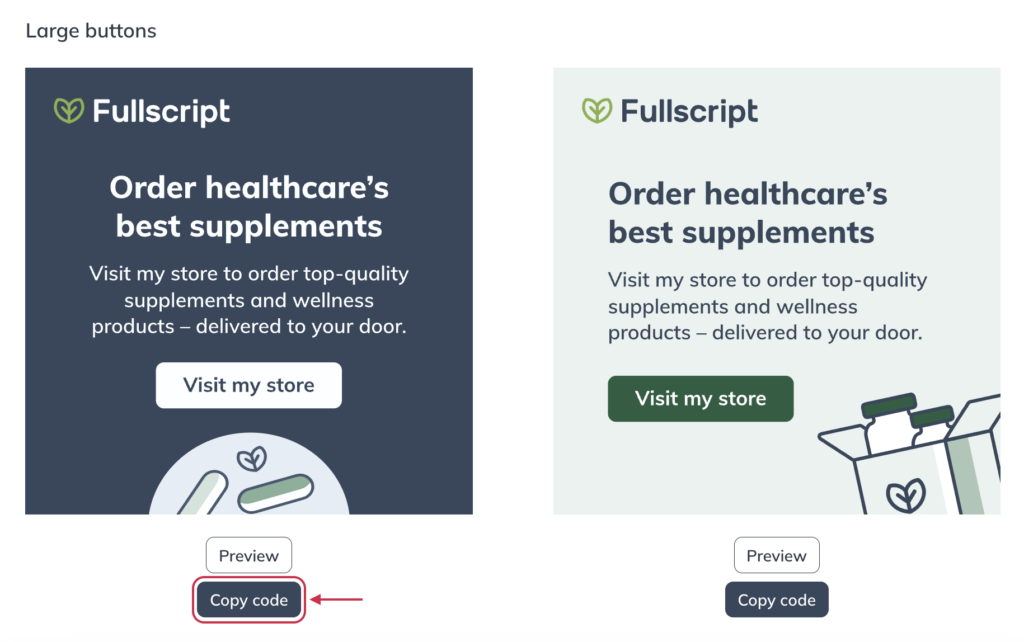
Fullscript offers a variety of website buttons to add to your website.
Note:
These tools may appear in different locations depending on your account experience. Look for them under My storefront.
Adding a website button to your website with code
To find a button and add it to your website:
Click My storefront from the navigation bar.
Click Preferences
Click Website buttons.
Find the style of button that best suits your website and click Copy code.
From your website builder, determine where you’d like the button to appear, and edit the page to add the code. See walkthroughs for Shopify, Squarespace, WordPress, and Wix below.
Preview the updates, then publish away!
Tip!
If someone else is adding the code to your website, copy your preferred button’s embed code and send it to them. This is all they need from your Fullscript account.
Adding a button to your website without code
To add a button without HTML:
From the navigation bar, select Settings.
Select Website buttons.
Find the button that best suits your website
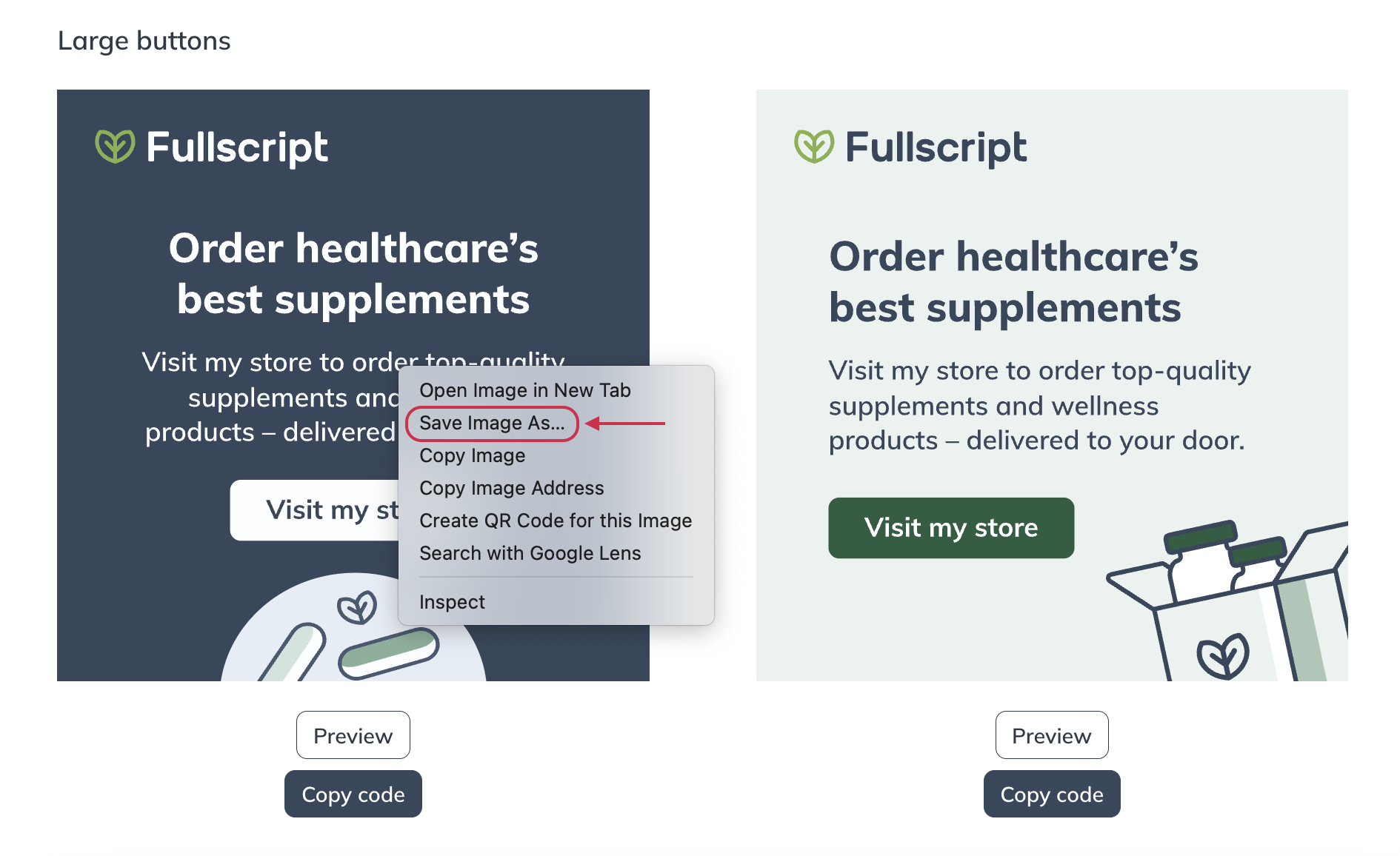
Right-click on the button, then hit Save Image As… and download the image to your computer.
Back in the website editor, hyperlink the image with your welcome page URL.
Embeddable product cards
Display products on your website with embeddable product cards! When product cards are selected, patients are taken directly to products in Fullscript, where they can learn more and place an order.
Leverage this powerful tool to:
Increase the reach of your practice from one to many
Make it easier for patients to view the products you like
Show innovation in the industry
Enhance your online presence and position yourself as an expert in your community
Note:
Ortho Molecular Products items aren’t available to be embedded outside of the Fullscript platform.
Adding embeddable product cards to your website
To embed products on your website:
In the catalog, search for products.
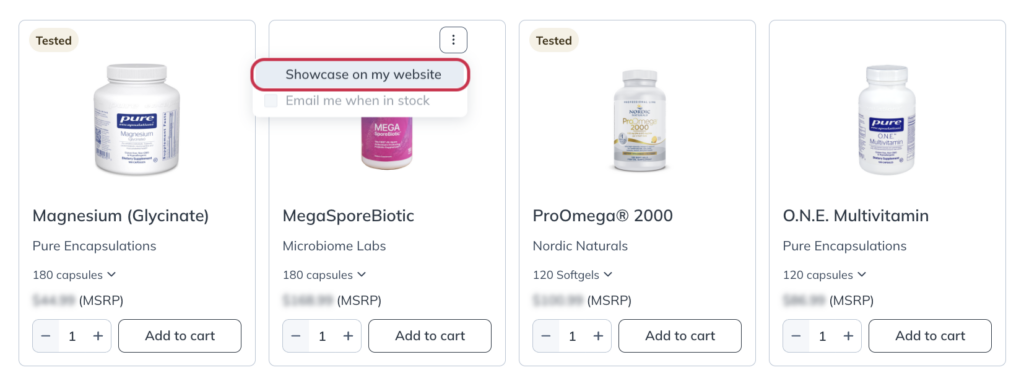
Select the more options icon ( ).
Click Showcase on my website. This option is also accessible from the product display page where product information (i.e., ingredients, dosage, directions, etc.) is displayed.
Copy the code to your clipboard.
From your website or blog, go to the page where you’d like to add a product card and open the code editor.
Paste the code and preview your changes before publishing.
HTML resources
Not familiar with coding? Not to worry, here are some tips!
Use the support resources from your website builder’s help centers (e.g., Wix, WordPress, Squarespace, etc.)
Try reaching out to your website builder’s support team.
Consider reaching out to a web development expert for assistance.
Tips for Shopify
You can enter Fullscript buttons on your blog posts and pages with the rich text editor.
Click the </> Show HTML button to view the HTML code for the content inside the rich text editor.
In the HTML view, you can paste the embed code from Fullscript in the rich text editor to add your button. See Using the rich text editor for content for more details.
Tips for Squarespace
Squarespace uses code blocks to add custom code to a page, blog post, sidebar, footer, and other content areas.
Tip!
For additional information from Squarespace, see their support content on Code blocks.
To add a Code Block to an existing page and embed a Fullscript website button:
From your website’s homepage, click on Pages, then select the page where you want your website button to be placed.
Select Edit from the top left-hand corner of the page.
Now hover over the section you would like to add the website button, and click the + ADD BLOCK button in the corner to open the block menu.
Search and select Code.
Click the pencil icon ( ).
Paste the website button code copied from Fullscript and click outside the code box to close this screen.
Preview your changes, and publish when ready!
Adding a website button to a Squarespace website.
Tips for WordPress
WordPress shares a few ways of editing the HTML of a page or post, depending on the type of WordPress editor you are using. In this explanation, we’ll be focusing on how to use their new editor.
Tip!
For more information, see the Beginning HTML article from WordPress.
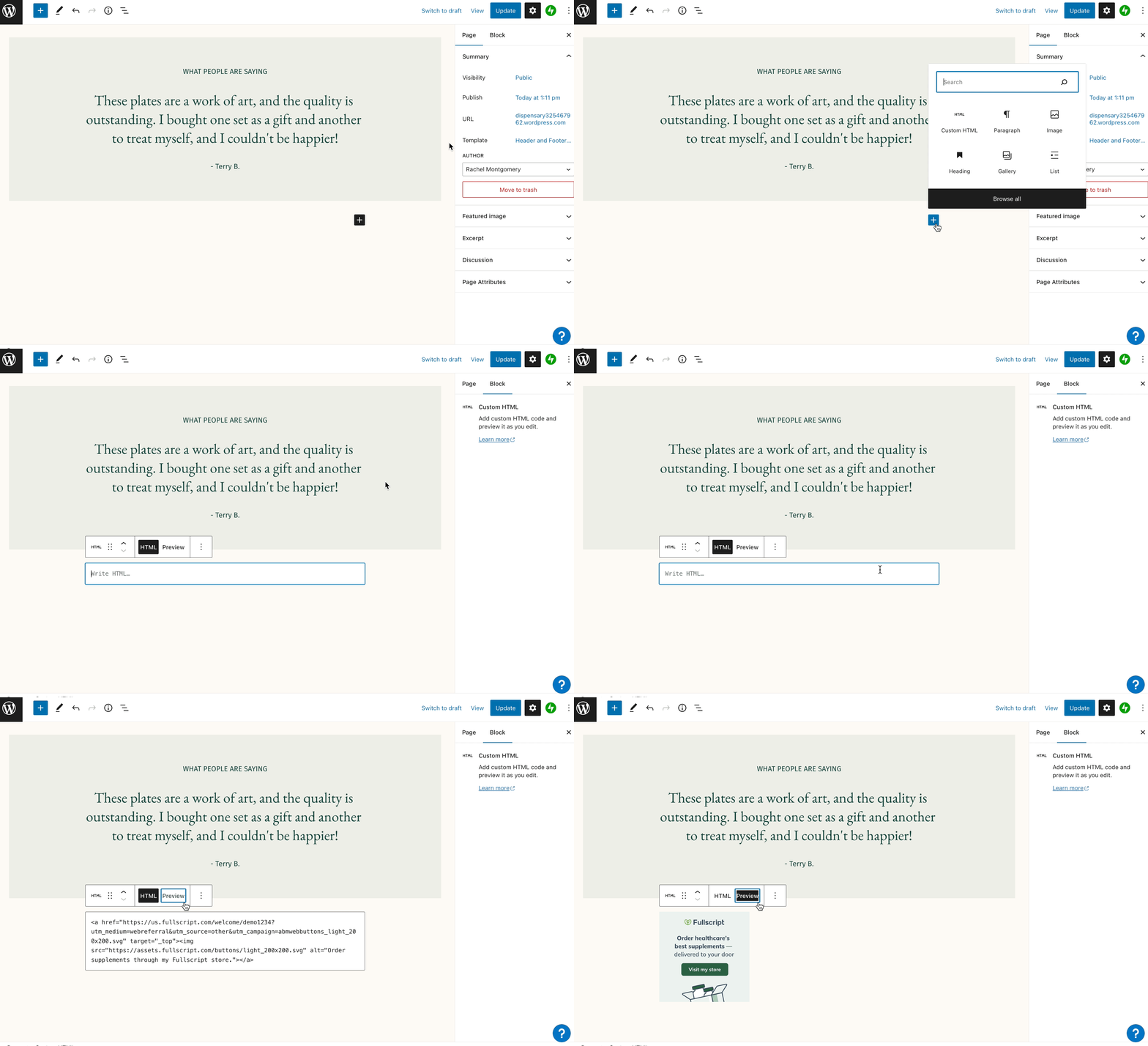
To add a website button by editing blocks as HTML in WordPress:
From your website, use the site drop-down menu on the left-hand side of the page to navigate to Pages.
Select the page where you would like to feature a website button.
Click on a specific block in the editor where you would like the website button to be displayed.
Click the add block icon ( ) and select or search Custom HTML.
In the Write HTML field, paste the code copied from Fullscript and click Preview.
If it looks good on your end, click Update to save the changes to your site.
Adding a website button to a WordPress website.
Tip!
Those with a thorough understanding of HTML may choose to edit the HTML directly in the Code Editor. For more information, see the Advanced HTML support article provided by the WordPress support team.
Tips for Wix
With Wix, HTML content can be displayed using iFrames. iFrames can be added to any page of your website, so you can add a Fullscript website button almost anywhere you’d like!
Note:
If you’re embedding a product card, you may need to enable scripts (e.g., add <allow-script> in embed settings) before pasting the code
To display a website button in an iFrame:
While editing your site, click Add elements.
Select Embed code.
Click Embed HTML.
Adjust your embed settings as needed, then paste your code.
Paste the embed code of the website button copied from Fullscript in the Add your code here field.
Then, click Apply or Update from the bottom of the window.
Hit the ‘x’ option to close the HTML settings window and adjust the width and placement on the page as needed to fit the banner style you copied.