
Customize optimal ranges and result descriptions to use across your practice, or keep Fullscript’s defaults.
Custom ranges apply to Quest Diagnostics, Access Medical Labs, and Access Labcorp Draw results ordered through Fullscript. Uploaded results and results from other labs aren’t supported. If you don’t customize your ranges, your practice will continue using Fullscript’s default optimal ranges.
Only the store owner can edit ranges and descriptions. Changes apply to everyone in the practice. Other practitioners review results using the practice’s ranges but can’t change them.
Open biomarker ranges and descriptions
Open your practice’s ranges and descriptions from Labs settings or a patient’s results.
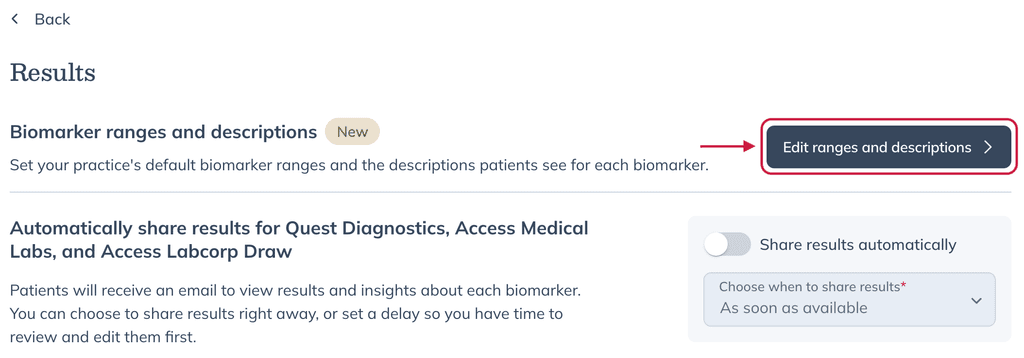
From Labs settings
- Select Labs in the left-hand navigation, then select Labs settings.
- Select Results.
- Under Biomarker ranges and descriptions, select Edit ranges and descriptions.
From a patient’s results
- Open the patient’s results and expand a biomarker.
- Select Edit optimal ranges.
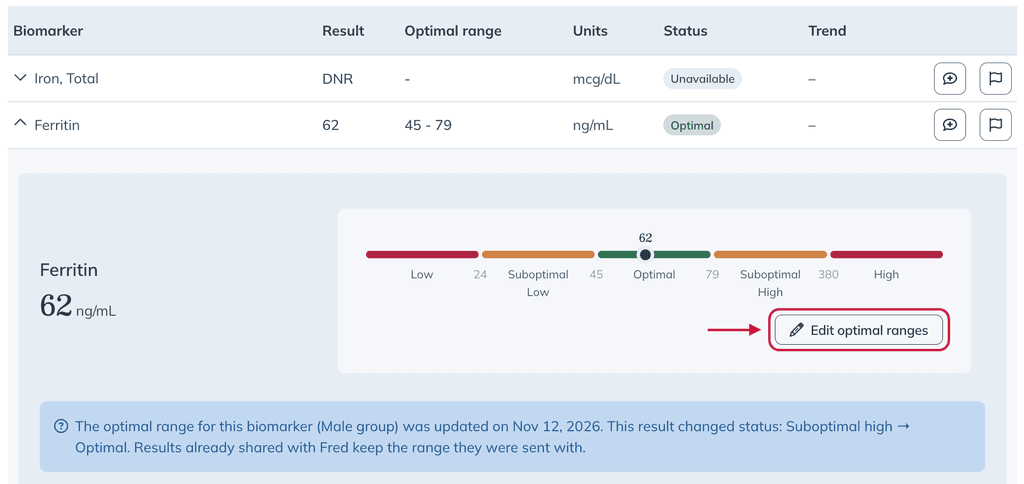
The Biomarker ranges and descriptions page opens with that biomarker expanded. Select Back to return to the patient’s results.
Find a biomarker
Use the health-area tabs, such as Cardiovascular or Nutrients, to browse biomarkers, or search for a biomarker by name.
Each biomarker shows its number of patient groups and a Default or Customized tag. Use the Range filter to show All biomarkers, those with Customized ranges, or those using Default ranges.
Biomarkers with text results, such as positive or negative, can’t be customized.
Set a custom optimal range
Each biomarker has one or more patient groups based on sex, age, hormone status, or cycle phase. Each group has its own reference range and optimal range. Groups marked Used when hormone status is unknown apply when a patient’s hormone status isn’t known.
The reference range can’t be changed. Results outside it are always marked out of range. Adjusting the optimal range changes which results are marked optimal or suboptimal.
To customize an optimal range:
- Select a biomarker to view its patient groups.
- Select the patient group you want to edit.
- Enter the Optimal min and Optimal max. The range bar shows where results will fall: Low, Suboptimal low, Optimal, Suboptimal high, and High.
- Repeat for any other patient groups you want to edit within the same biomarker.
- Select Save changes.
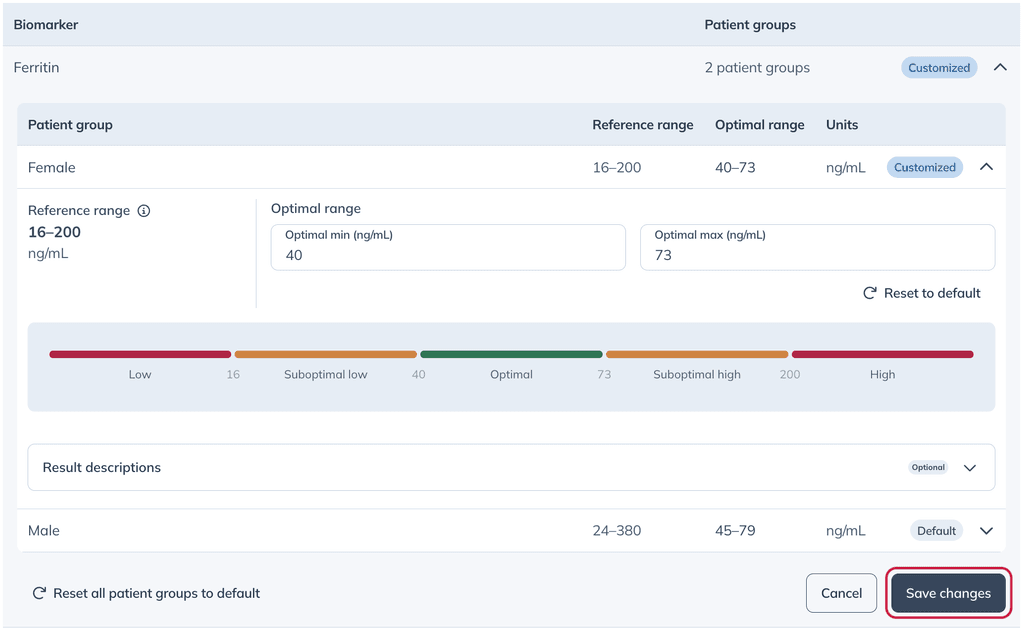
Changes save one biomarker at a time. Select Save changes before opening another biomarker.
The Optimal min must be lower than the Optimal max. If it isn’t, an error appears and you can’t save until you correct the values.
Patient groups you’ve customized show a Customized tag. Select Cancel to discard unsaved changes.
Edit result descriptions
Result descriptions are added to biomarker notes when a result is suboptimal or out of range. You can customize these descriptions for each patient group and still edit the notes for an individual patient before sharing their results.
To edit result descriptions:
- Select a biomarker, then select a patient group.
- Select Result descriptions.
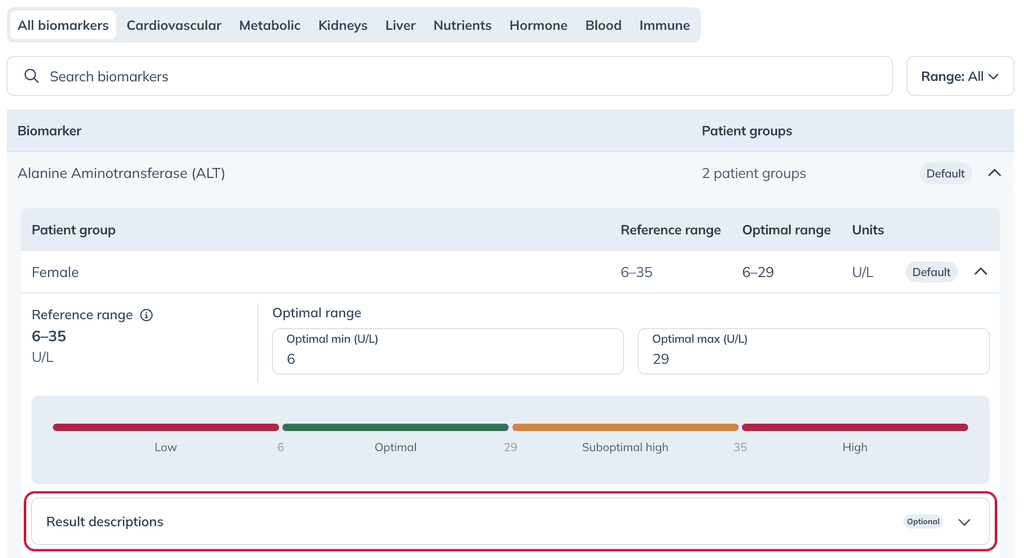
- Edit any of the four fields: Out of range low, Suboptimal low, Suboptimal high, or Out of range high. Each field starts with Fullscript’s default text.
- Select Save changes.
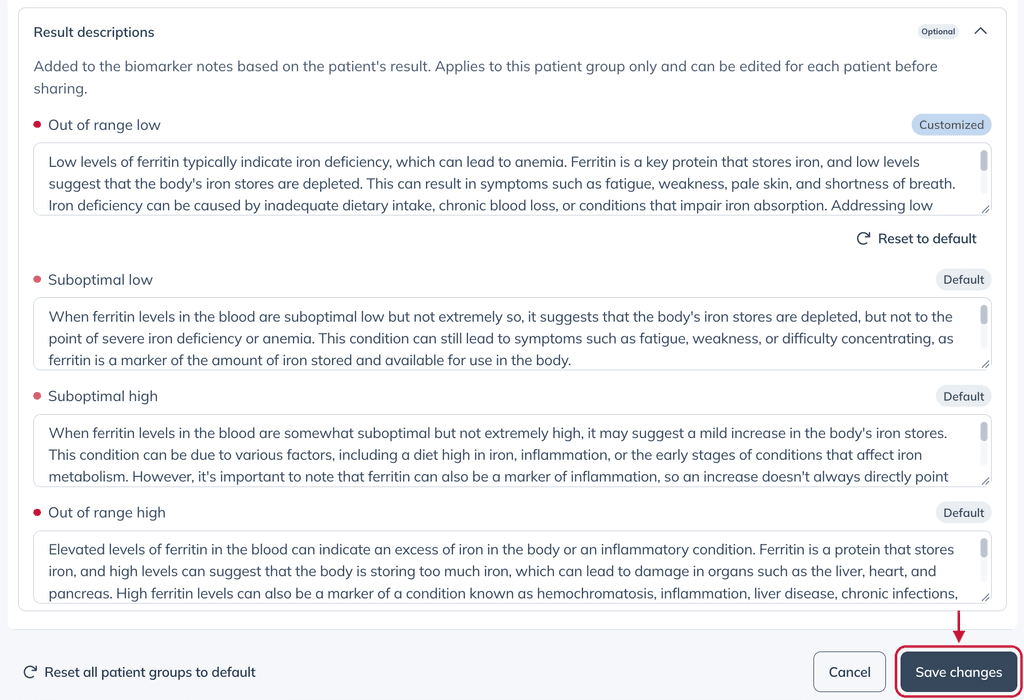
Descriptions apply only to the patient group you’re editing. There’s no result description for optimal results.
Reset ranges and descriptions to default
Reset options appear once you’ve changed a patient group.
- To reset one patient group’s optimal range and result descriptions, select Reset to default within that group.
- To reset the optimal ranges and result descriptions for every patient group within the biomarker, select Reset all patient groups to default.
Both reset options take effect immediately, without a confirmation step. You don’t need to select Save changes.
What happens after you save
Updated ranges apply the next time any practitioner in your practice reviews a patient’s results. Results that have already been shared keep the ranges they were shared with.
If an updated range changes a biomarker’s status in results that haven’t been shared:
- A note appears on the biomarker showing the patient group, the date of the change, and the status change, for example Suboptimal high → Optimal.
- A banner appears in the results review listing the changes, with Keep draft and Clear draft.
Select Keep draft to keep your edits. Biomarker notes you’ve edited stay as you wrote them when a biomarker’s status changes.
Clear draft clears the entire interpretation, including your edits, even if only one biomarker’s status changed.
To learn more about reviewing results, see Lab interpretations and trends.