Last modified: May 26, 2026
Sharing protocols
Providers
Protocols are structured plans that group products together so you can reuse them across patients. Use protocols to create consistent supplement recommendations, share plans through your storefront, and deliver repeatable, easy-to-follow experiences for patients.
Building a protocol
To create a protocol:
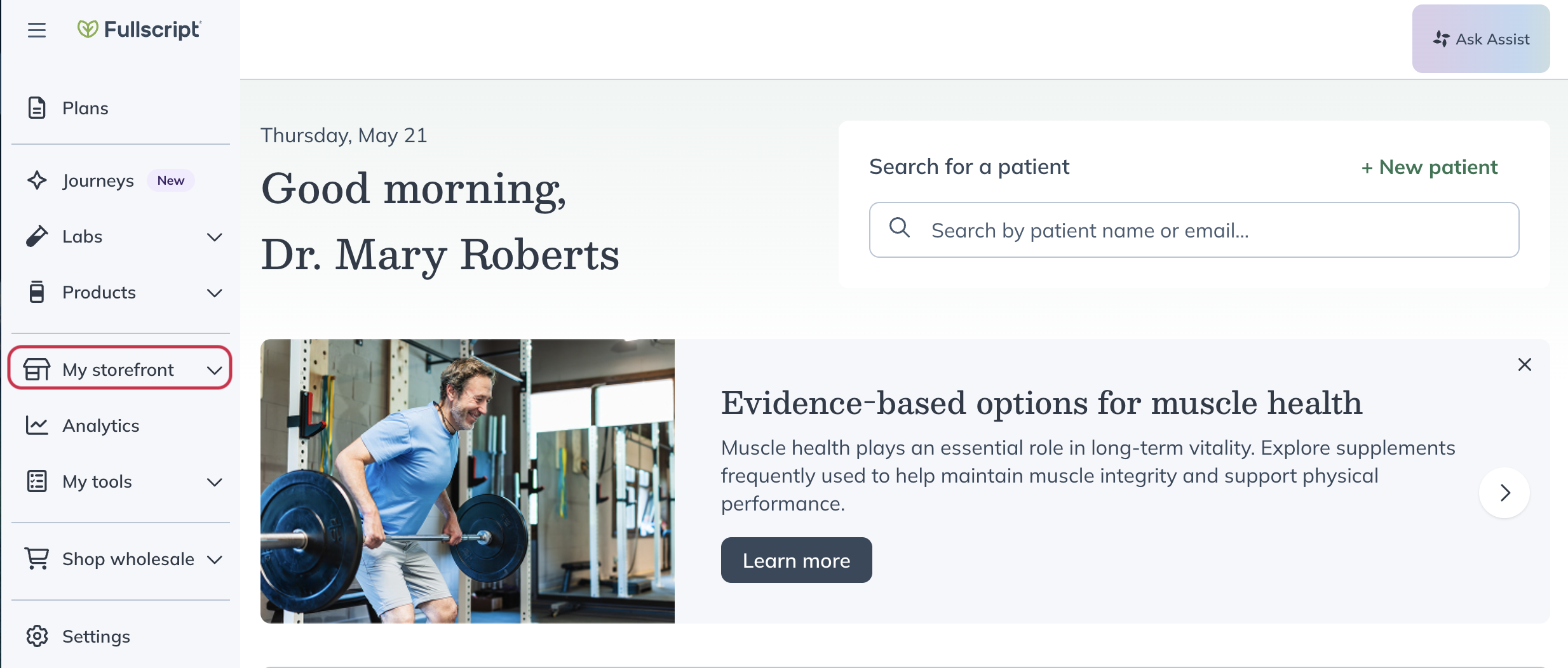
- Click My storefront in the navigation bar.
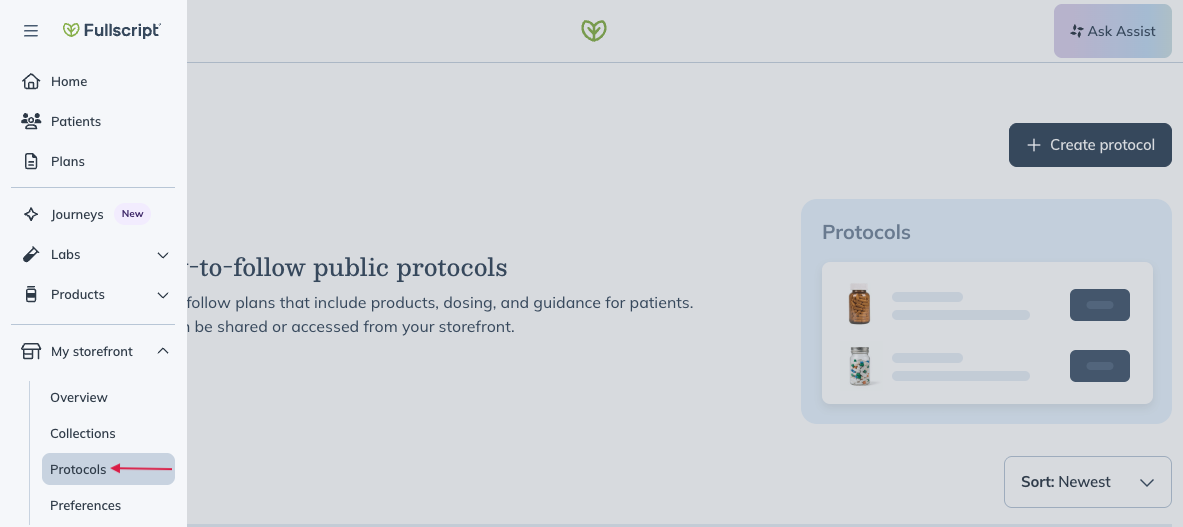
- Click Protocols.
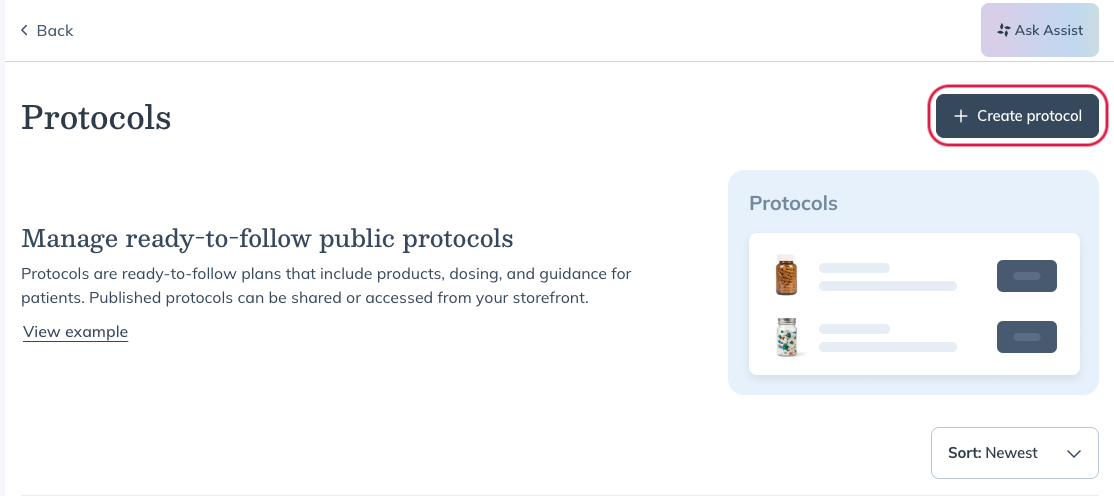
- Click Create protocol in the upper-right corner of the page.
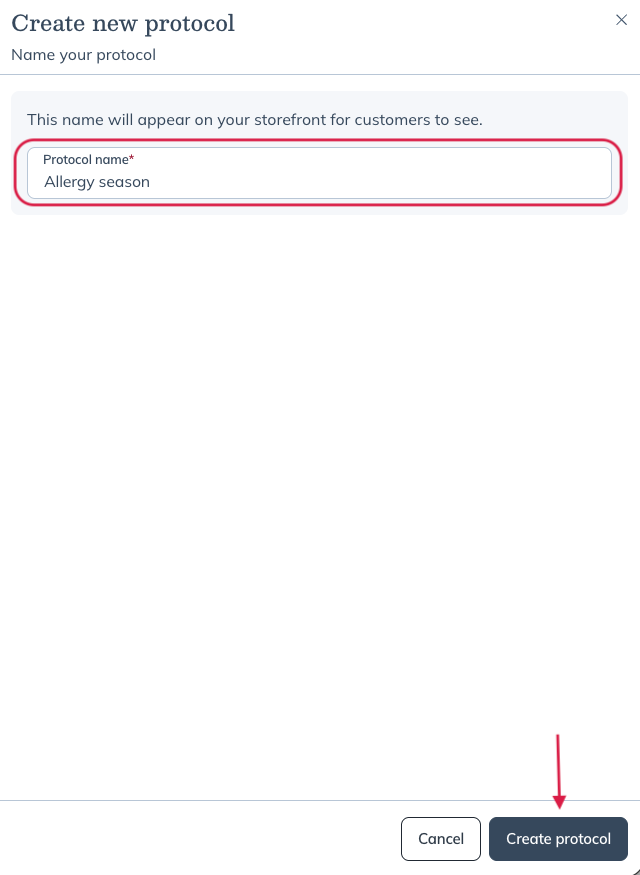
- Name your protocol, then click Create protocol.
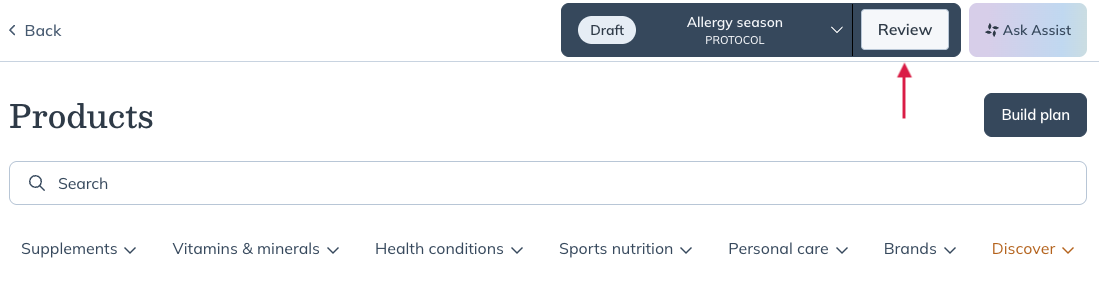
- Add products to your protocol using the search bar.
- Once products are added, click Review.
- Customize product instructions, durations, and notes as needed.
- Next, set access for the protocol by clicking the pencil ( ) icon.
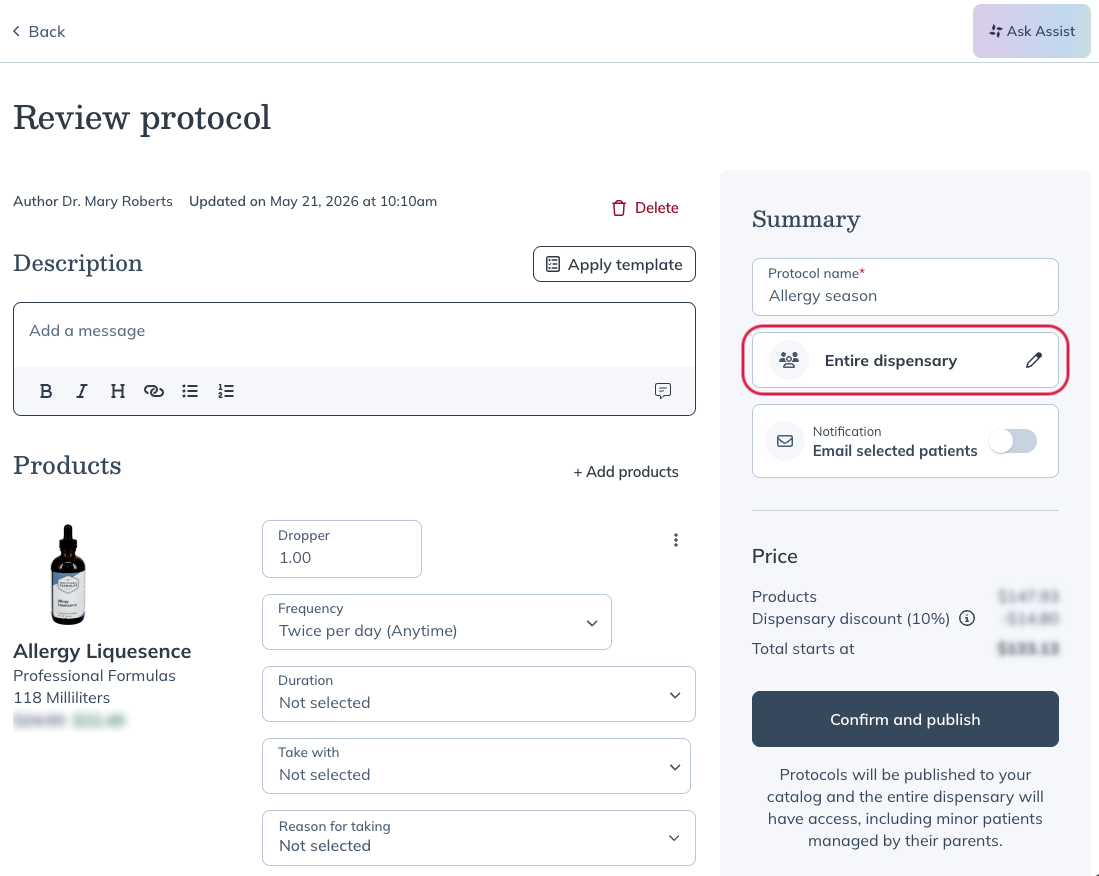
- Click Edit, then choose who has access to the protocol.
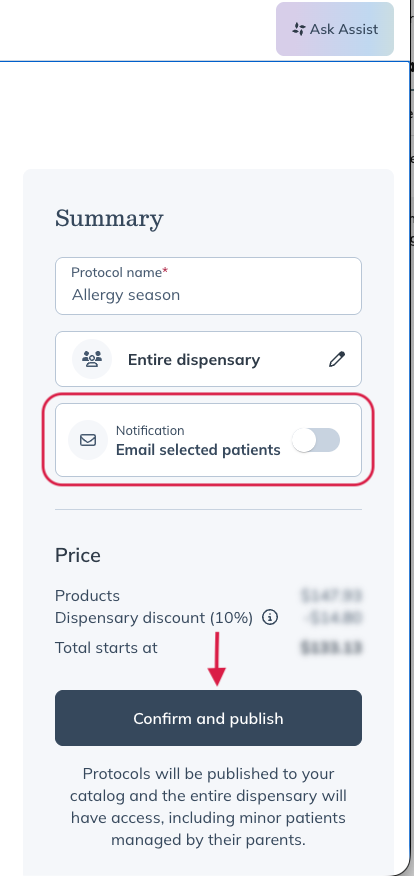
- Use the toggle if you’d like to send an email notification to the selected patients.
- Click Confirm and publish.
Sharing with the entire dispensary
Sharing with the entire dispensary allows all patients in the dispensary, regardless of who their assigned practitioner is, to view and order from the protocol.
Sharing with all my patients
Sharing a protocol with the All my patients access setting will share the protocol with any patients assigned to you.
Sharing with specific patients
Sharing with specific patients allows you to pick which patients can see the protocol. This is useful for offering the same protocol to patients with similar wellness goals and recommending general wellness products, helping to save time compared to writing individual plans.
Sharing externally (via URL)
Link your protocol to emails, newsletters, or your website to share them with your patient list outside of Fullscript. Patients without an account can follow these links to sign up and order through your dispensary. Existing patients are prompted to log into their accounts to view and order products from shared protocols.
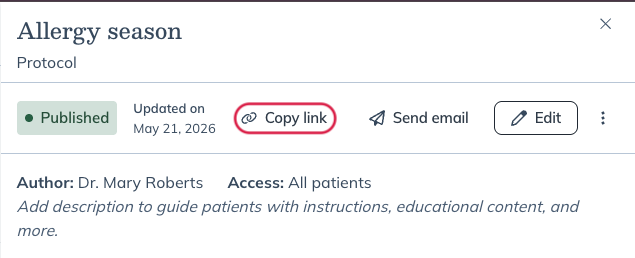
To find the shareable URL:
- Find and select the protocol to share.
- In the modal, select the Copy link icon.
Deleting a protocol
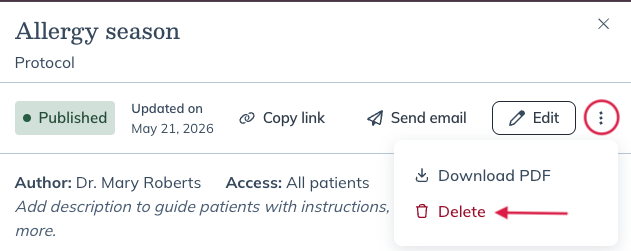
To delete a protocol:
- Click the protocol you’d like to delete.
- Click the three dots ( ) beside Edit.
- Click Delete.
Sharing protocols as a secondary practitioner
You can manage staff permissions to control who can create and share protocols.
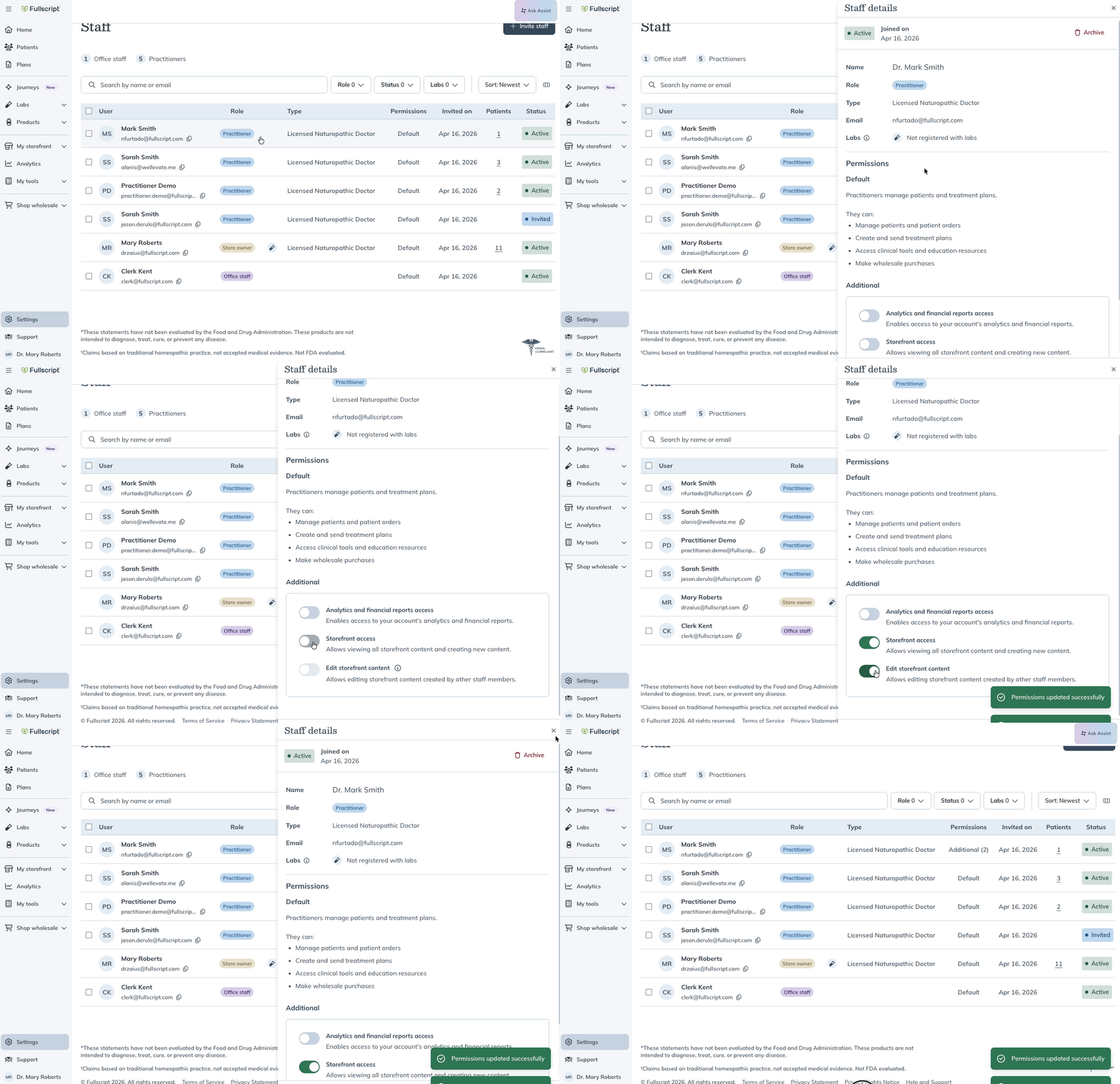
To adjust permissions:
- Go to Settings.
- Select Staff.
- Select a staff member from the list.
- Scroll to the section under Additional permissions.
- Adjust access to Storefront and Edit storefront content.
The patient experience
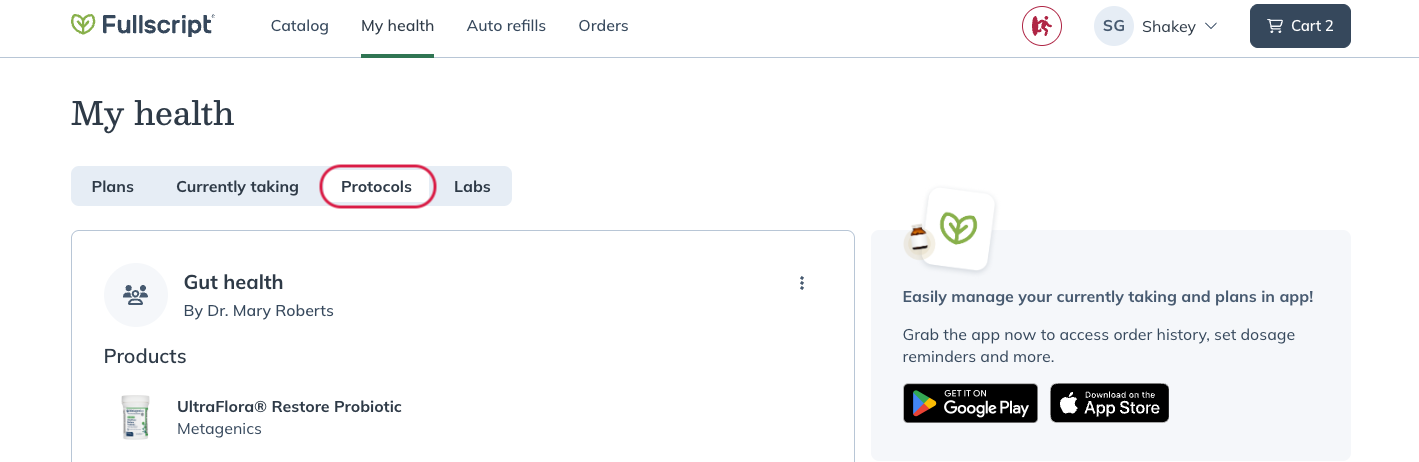
Patients can view shared protocols from the Protocols tab in their accounts. When viewing a protocol, patients can:
- Review recommended products and product descriptions
- Download attachments
- Read custom messages from their provider
- Add products to their cart and place an order
Any updates made to a protocol will appear in the patient experience automatically.