
A specimen issue appears when a lab can’t fully process a patient’s sample. This can happen when a sample is damaged, delayed, or missing important information. You’ll be notified directly in Fullscript when this happens, so you can review the issue and guide next steps for your patient’s testing.
Identifying tests with specimen issues
When a specimen issue occurs, the ordering practitioner automatically receives an Action required: specimen issue email.
There are two ways to locate orders with specimen issues from the lab orders dashboard:
- The Specimen issues tab shows all current orders with unresolved specimen issues.
- Unresolved specimen issues are prioritized at the top of the Lab orders list and labeled with a Specimen issue status.
From either view, you can open the affected order and choose the appropriate resolution option.
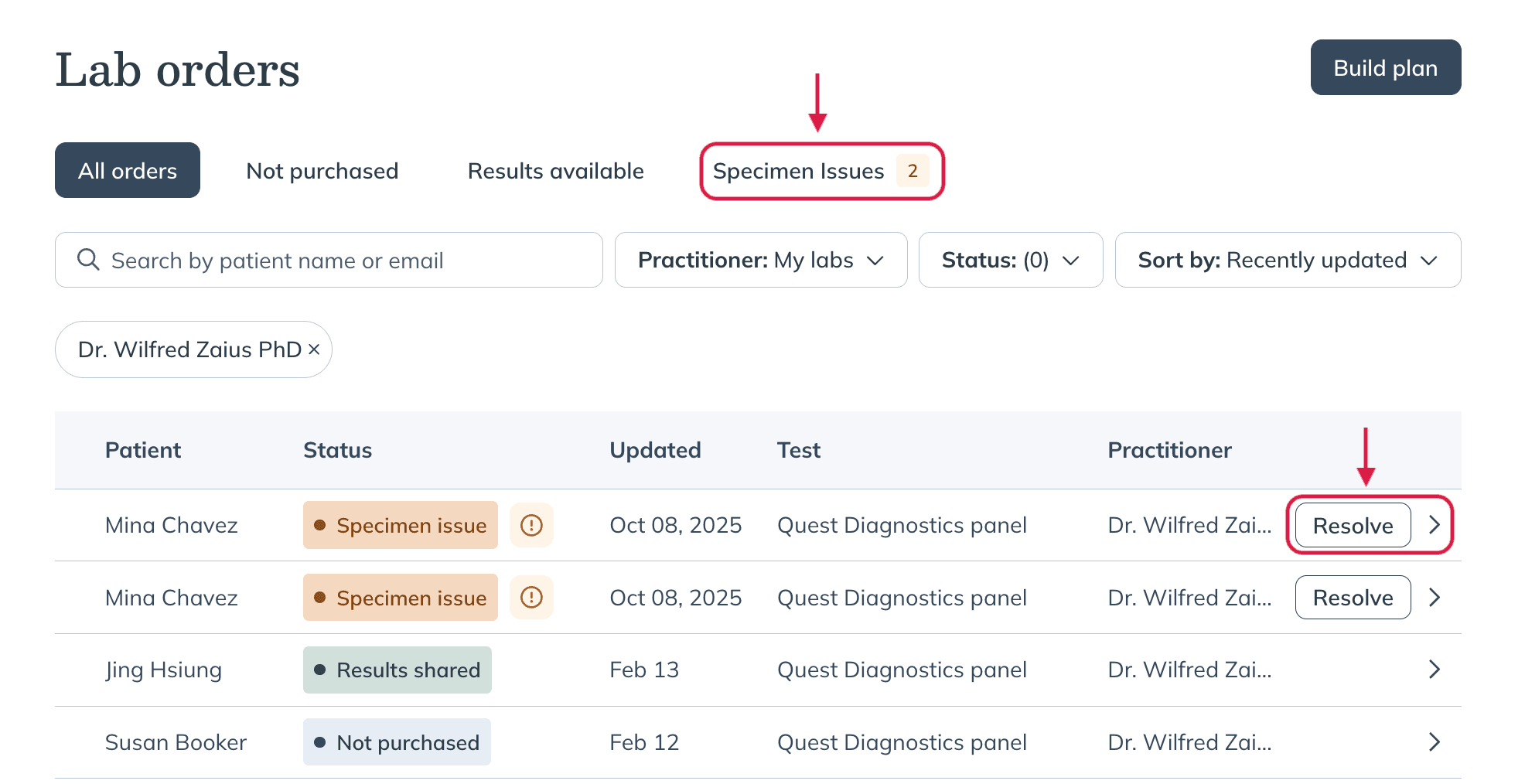
The Specimen issues tab shows unresolved specimen issues and provides a Resolve option for each test.
Resolving a specimen issue
To resolve a specimen issue in Fullscript:
- In the Labs tab, click Orders.
- Locate the test labeled Specimen issue.
- Click Resolve next to the test.
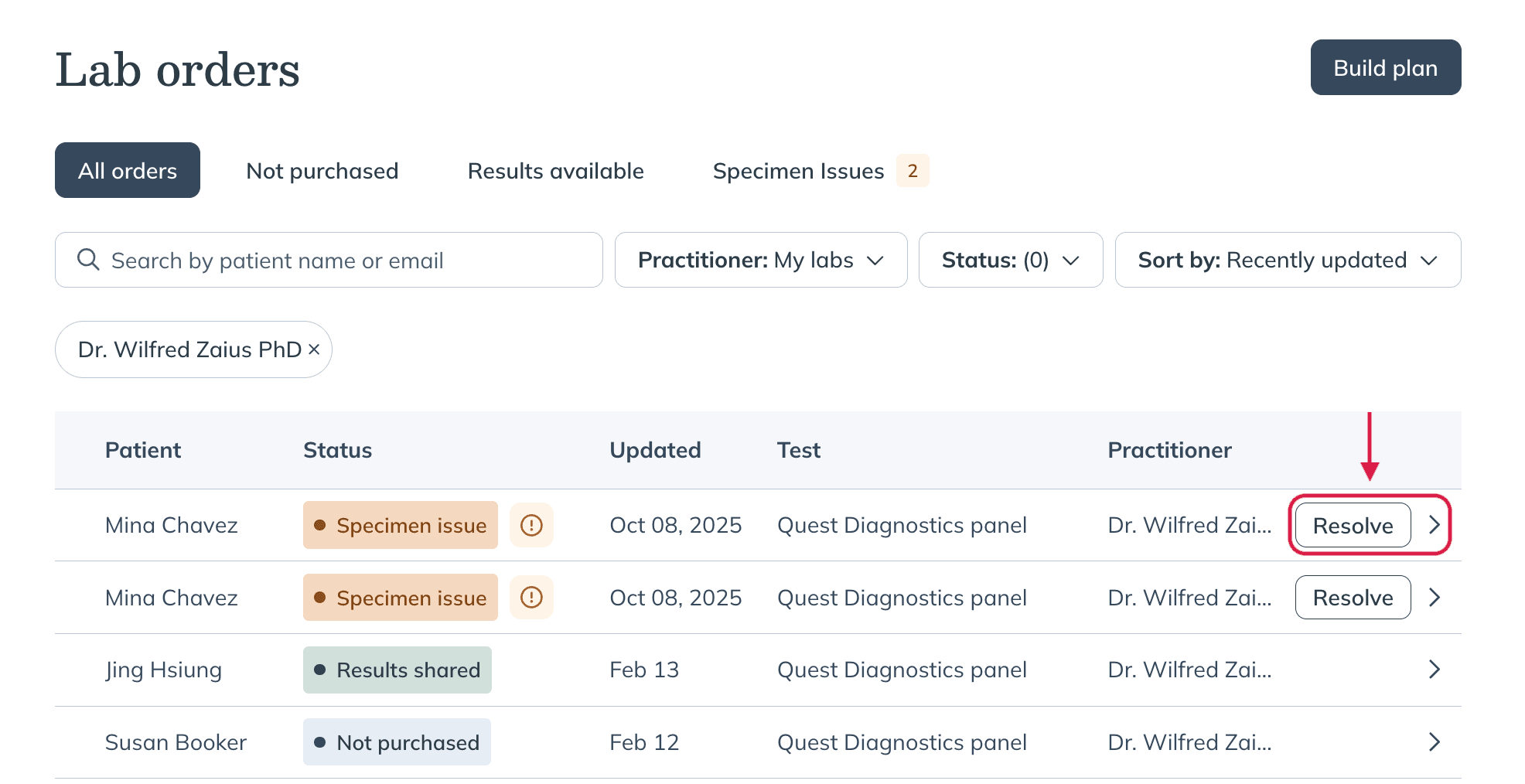
- In the popup window, review What went wrong and choose your resolution option.
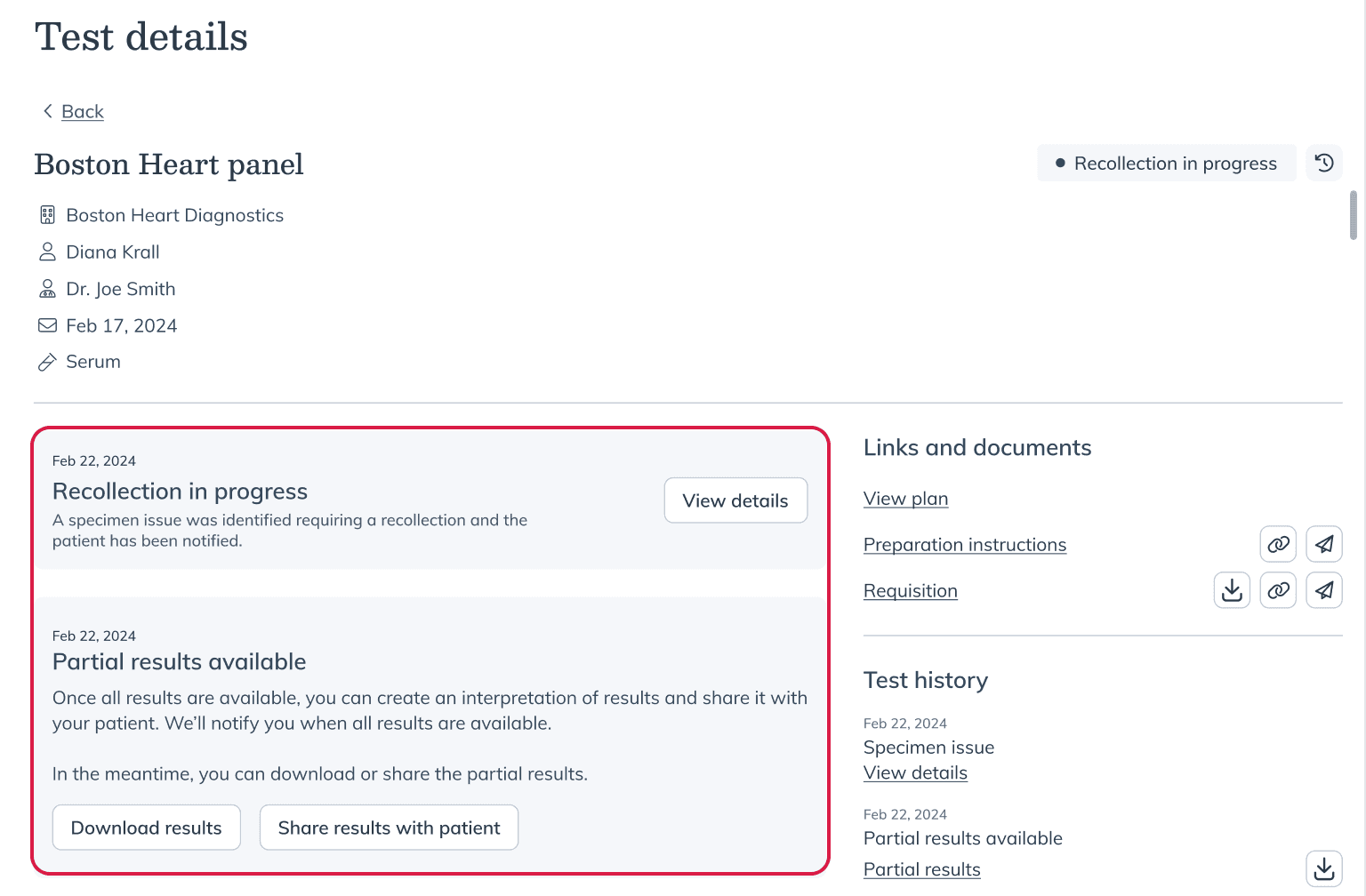
- Click Submit. The order will update (for example, Recollection in progress or Partial results available).
Specimen issue resolution options
Depending on the specimen type, biomarkers, and/or test type, you may see different options for resolving.
Labs requiring a blood draw
For labs that require a blood draw, select either Accept partial results to skip the affected portion of testing, or Require a recollection to have your patient book a new draw.
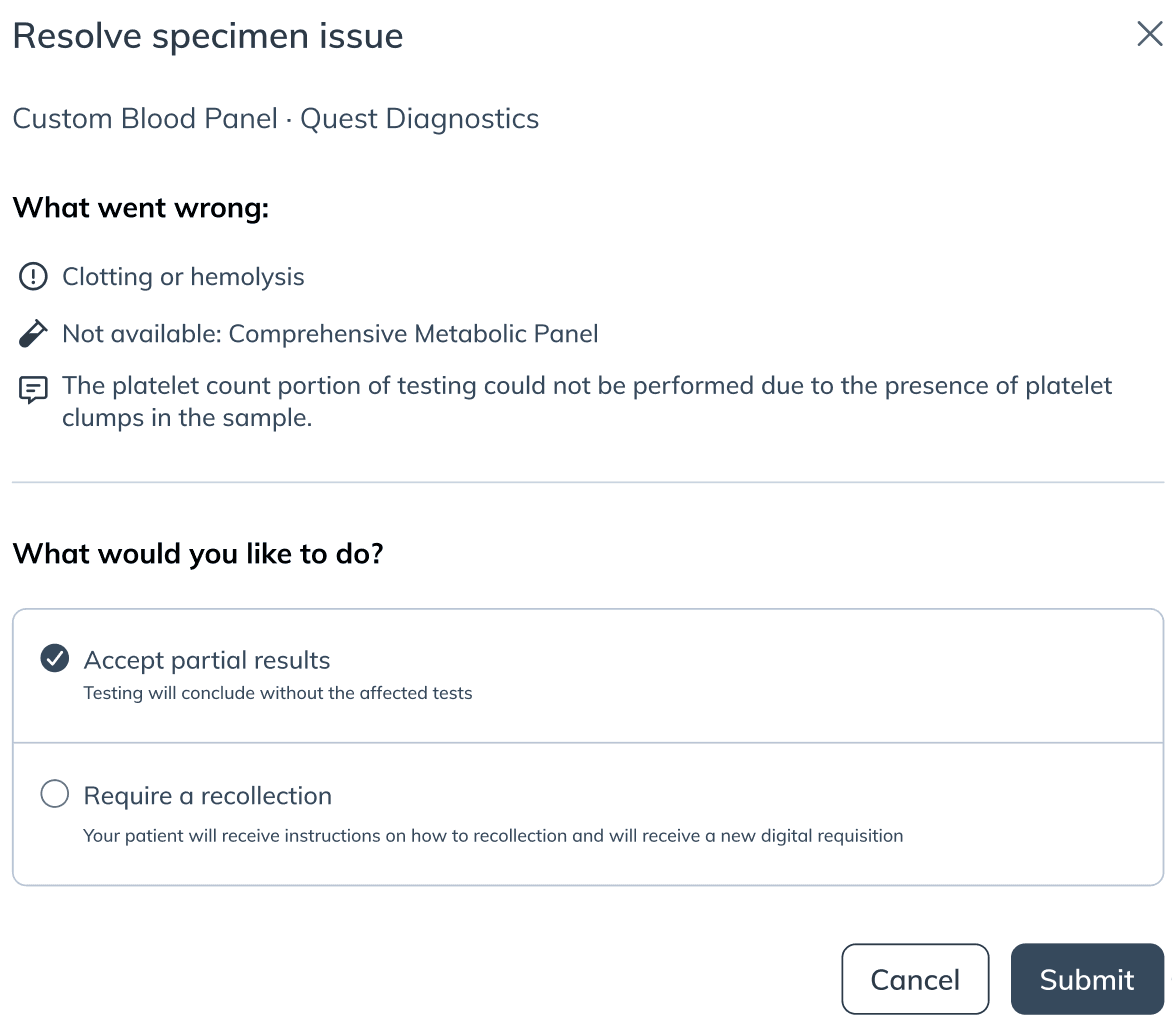
Resolution options for blood draw labs.
Kit-based labs
For kit-based specialty labs, select either Continue test processing to skip the affected portion of testing, or Reship kit for recollection to have your patient recollect at no additional cost.
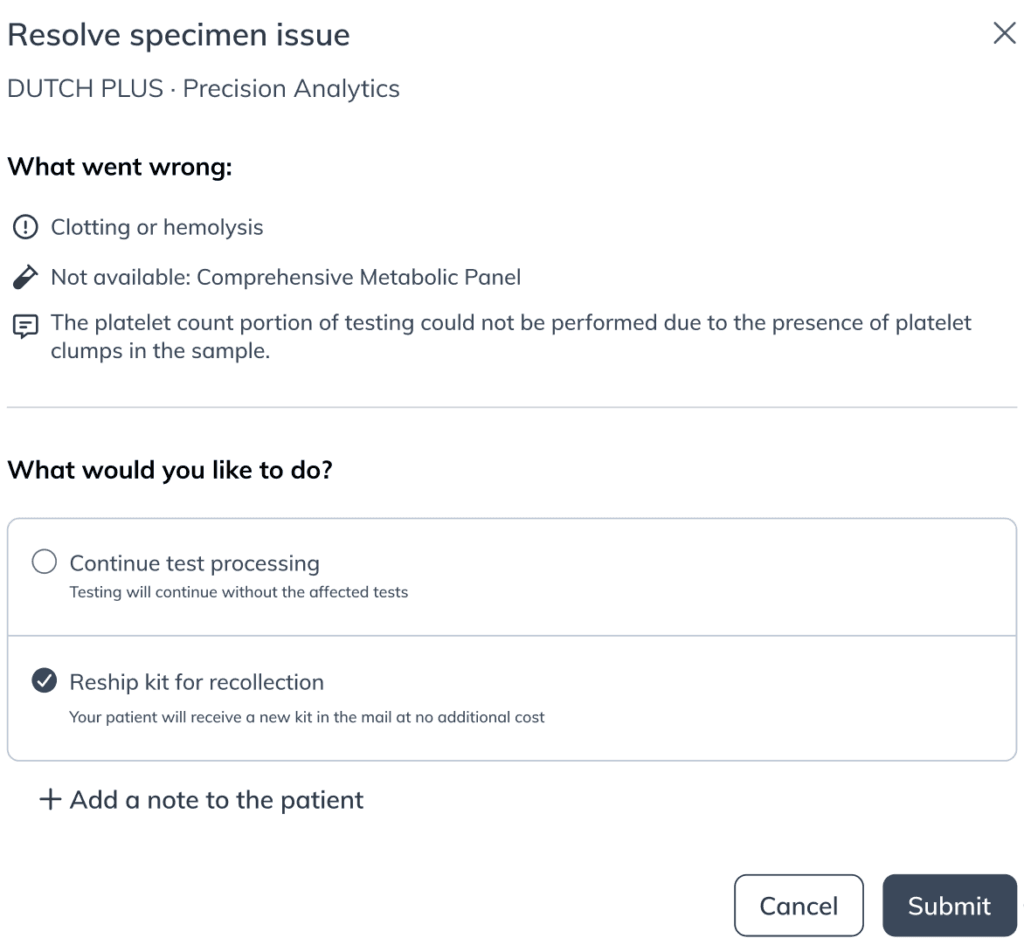
Resolution options for kit-based specialty labs.
What patients see
After you resolve the issue, the patient’s Test details page updates automatically. The message they see depends on the lab and test type:
- Schedule free recollection: shown for Quest, Labcorp, or Getlabs blood draws.
- View sample collection options: for specialty labs that require a new blood sample.
- Track package: when a free replacement kit has shipped.
- View results: for accepted partials when results are ready.
Patients are guided step-by-step based on their situation, so you don’t need to follow up manually. To preview the patient experience, see Fix a specimen issue with your lab sample.
Orders from Rupa Health
If an order originated through Rupa Health, you’ll see a Resolve on Rupa box in Test details.
Select Open Rupa and you’ll be redirected to the Rupa platform to resolve the specimen issue there.
Patient communication and order status are then managed within Rupa, but the outcome still syncs back to Fullscript once finalized.
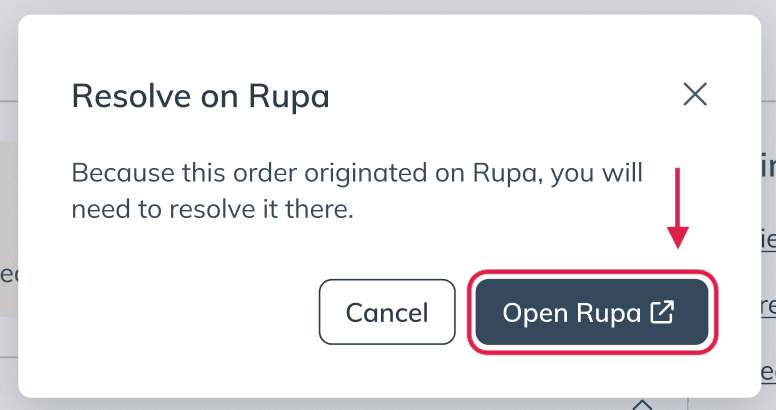
Select Open Rupa to finish resolving the order on Rupa Health.