
Last modified: May 15, 2026
Malla integration
Providers
An introduction to Malla
Malla is a digital platform that supports providers in delivering functional and whole person care. It offers virtual consultations with dietitians and nutritionists, personalized health plans, specialty lab testing, and ongoing support through messaging and video. Providers can choose the services that fit their practice, while Malla brings together lab data, lifestyle, and nutrition to support personalized care. With the Fullscript integration, providers can build and send supplement plans directly within Malla without switching platforms.
Integration setup: Malla+ Fullscript
Practitioners with both a Malla and Fullscript account can connect the two platforms from within Malla settings.
- Log in to Malla.
- Select Settings from the bottom-left corner.
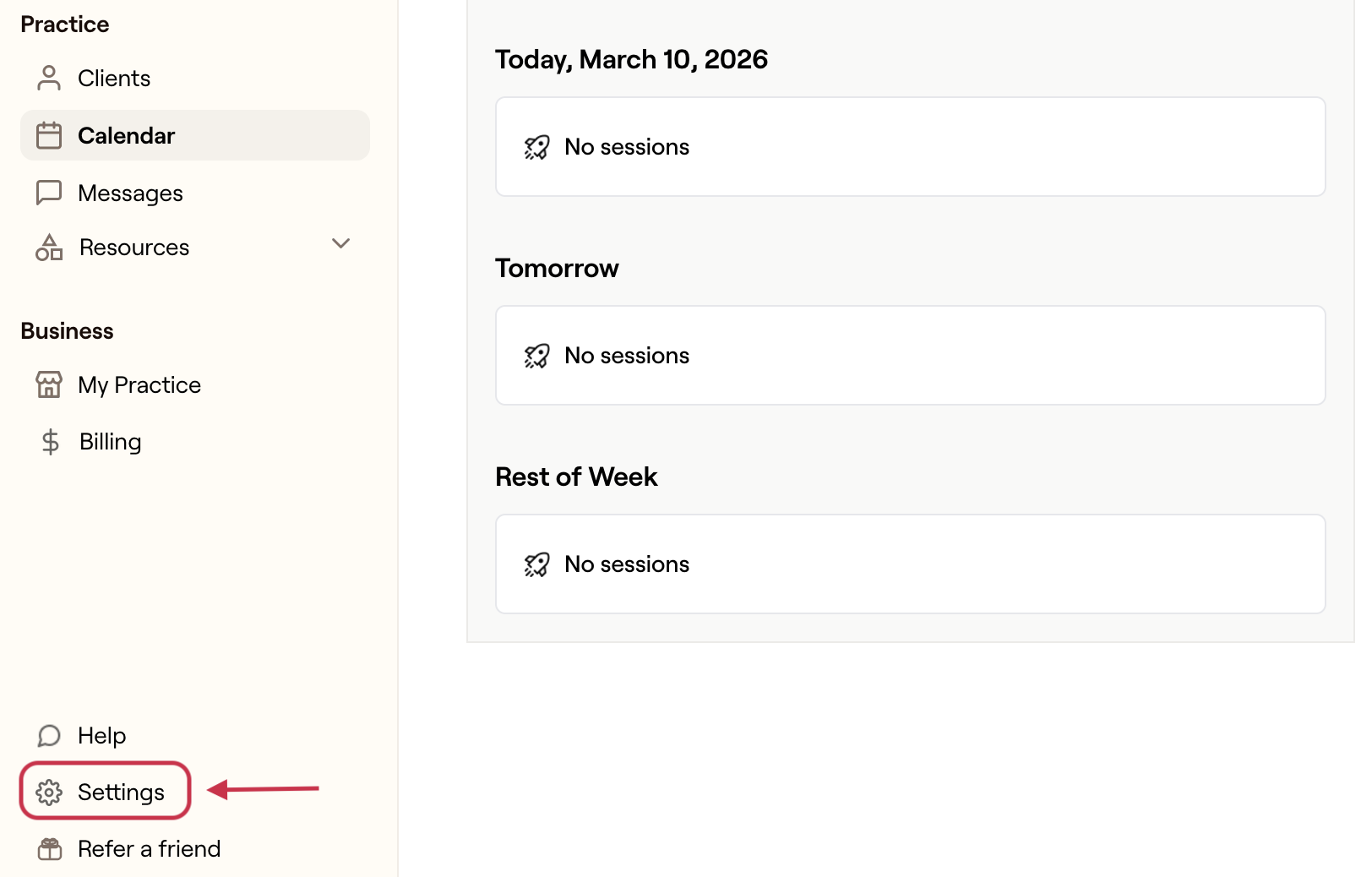
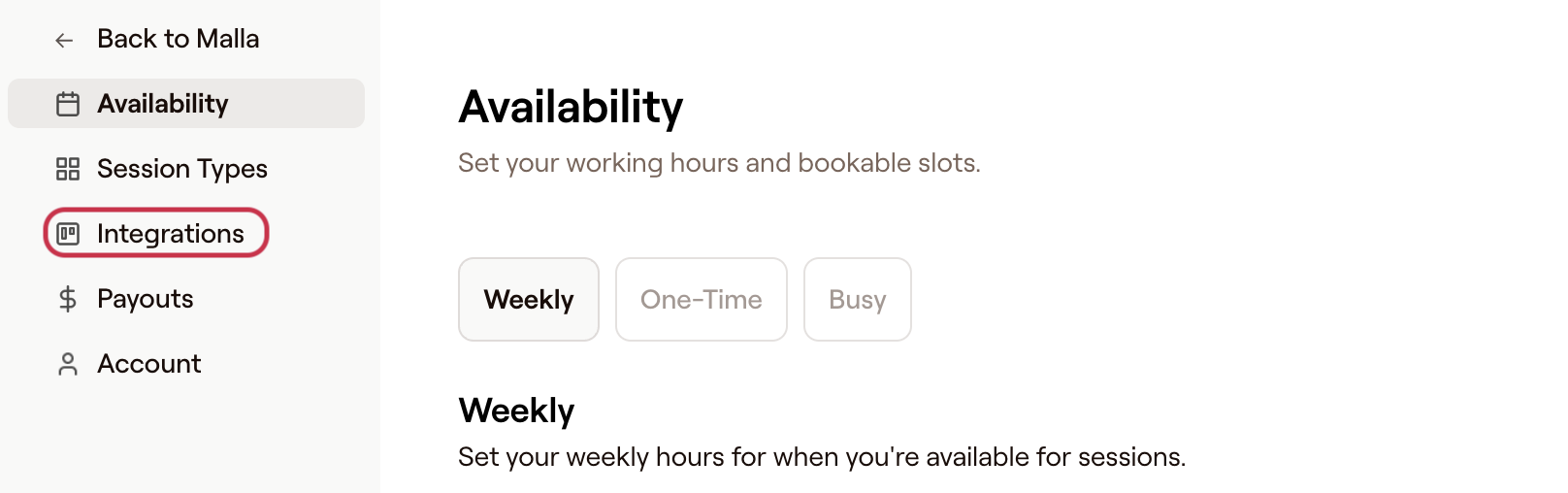
- Select Integrations.
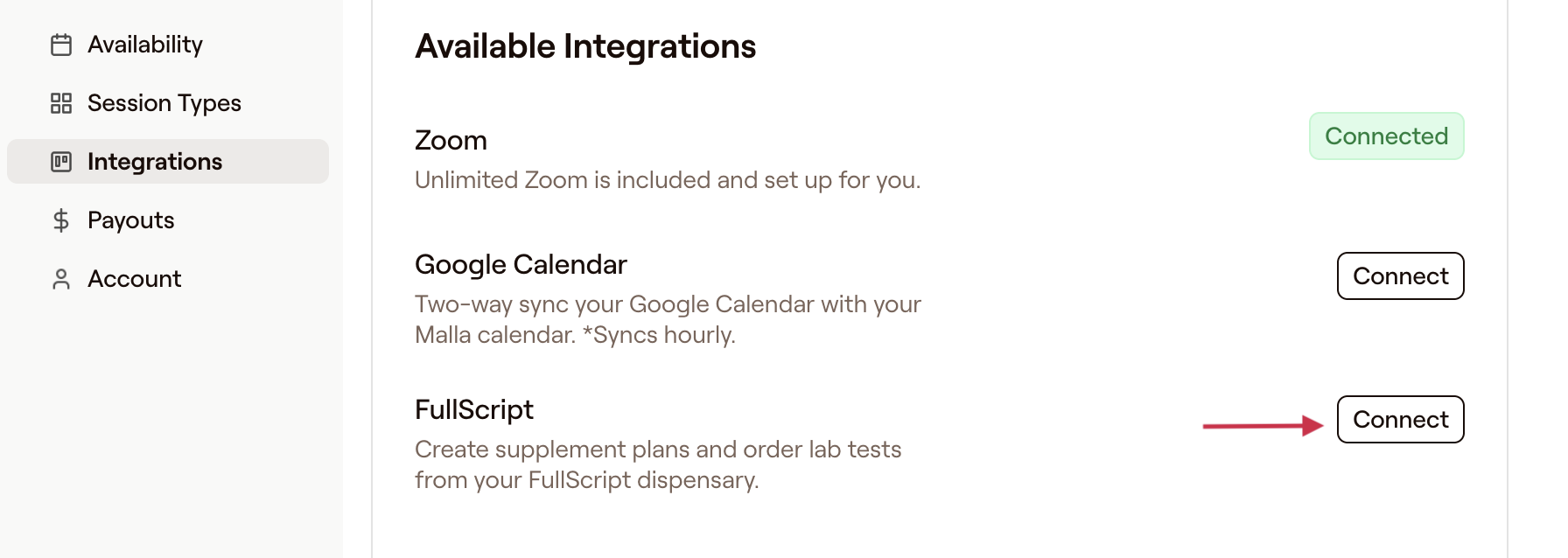
- Find Fullscript, then select Connect.
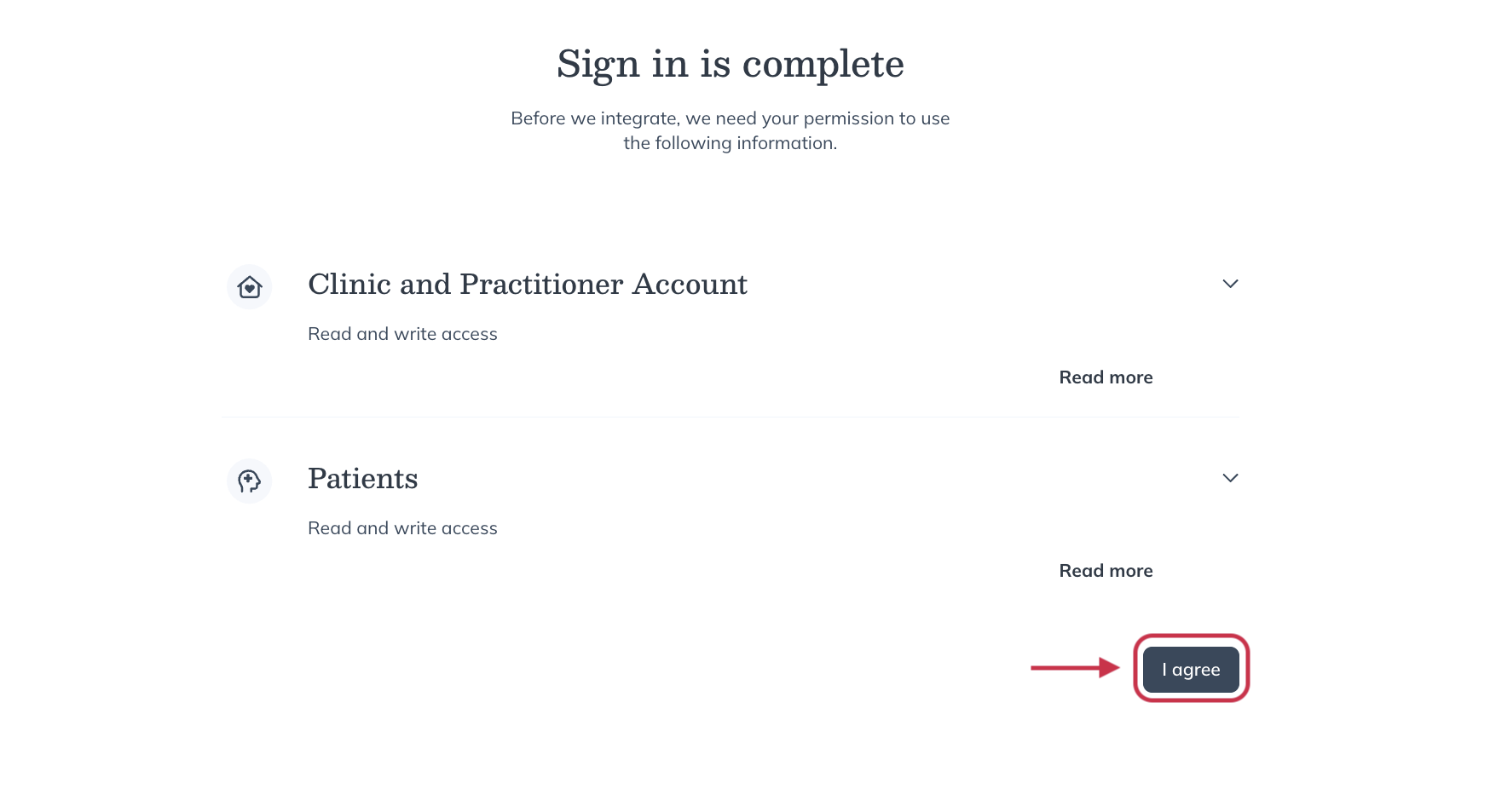
- Follow the prompts to sign in to or sign up for Fullscript and select Agree to authorize the connection.
- You’ll be redirected back to Malla with confirmation that the integration is connected.
Creating a Fullscript plan in Malla
Practitioners can open the Fullscript supplement plan builder from a patient’s profile in their EHR. The builder opens inside the patient record and includes the same tools available on Fullscript, including the full catalog, favorites, protocols, and the patient’s plan history. Within Malla the plan writing tool is embedded and can be expanded if needed.
To create a new Fullscript plan for a client in Malla:
- Select Clients from the left-side navigation and search for patient profile.
- Select Supplements within the patient profile.
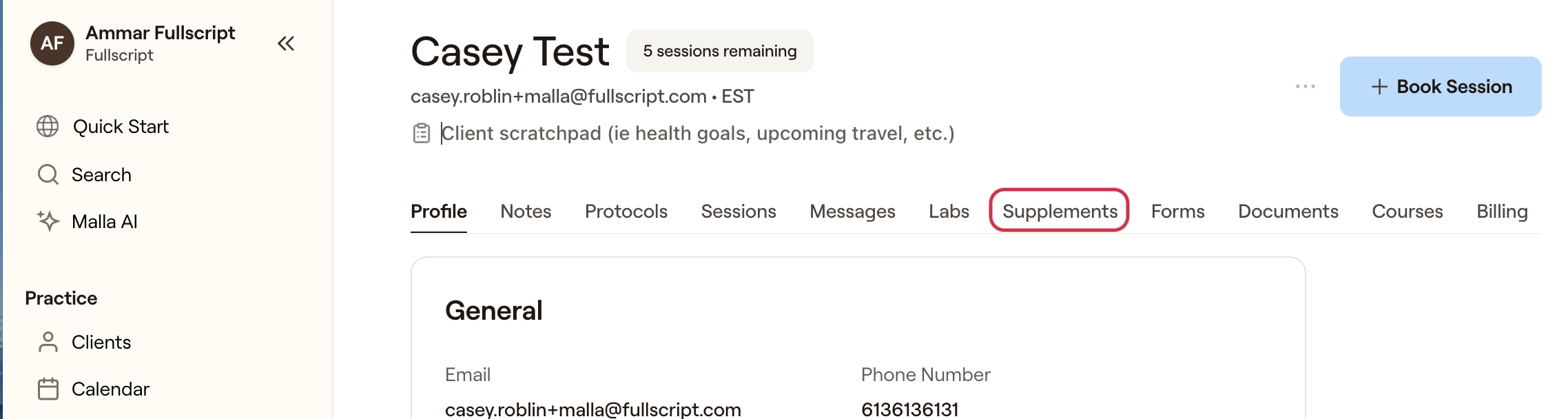
- Select + New to start a new plan.
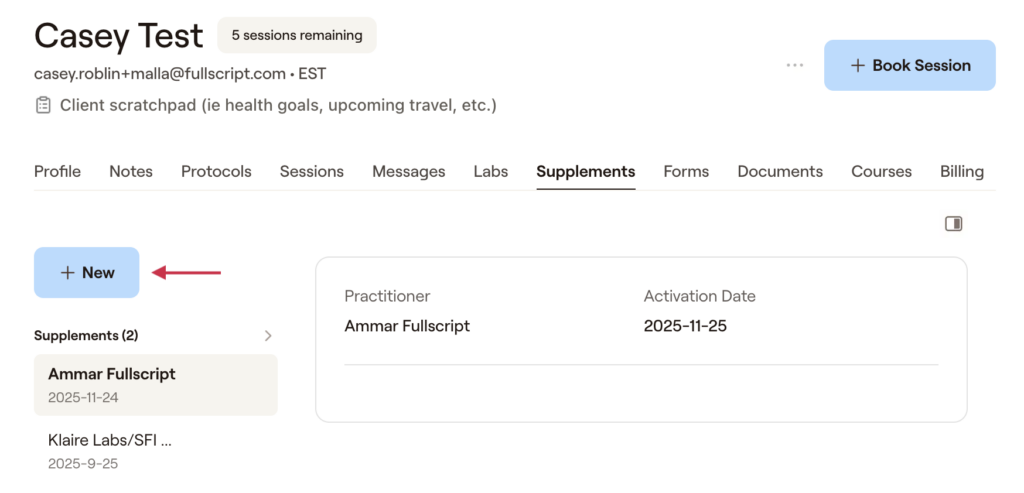
- Add supplements by searching for products and selecting Add to plan.
- When ready, review and click Send to patient.
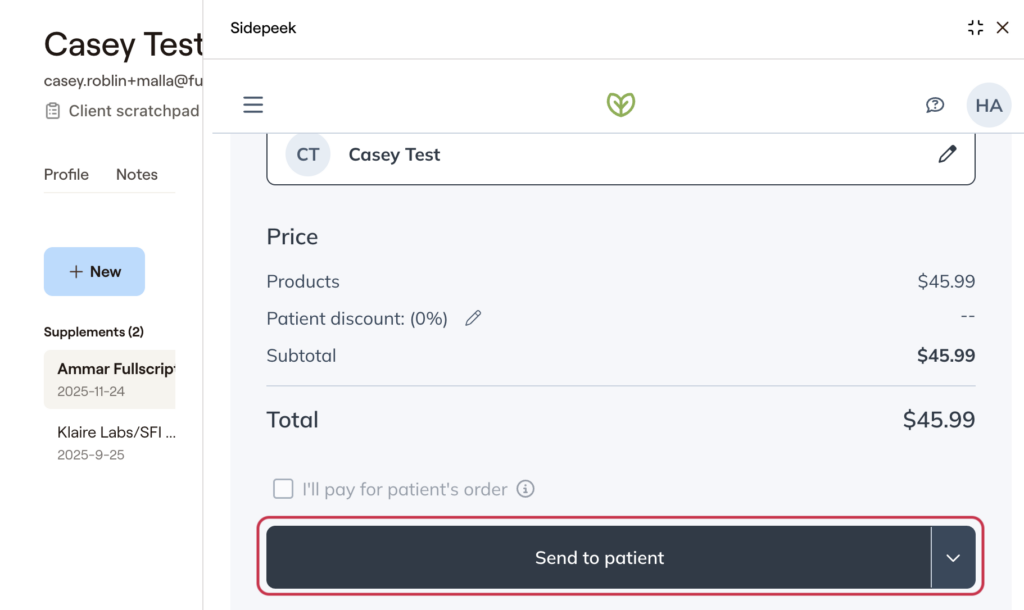
- Select Copy plan notes if you want to paste the plan text into the patient’s clinical note in Malla.
Where plans appear in Malla
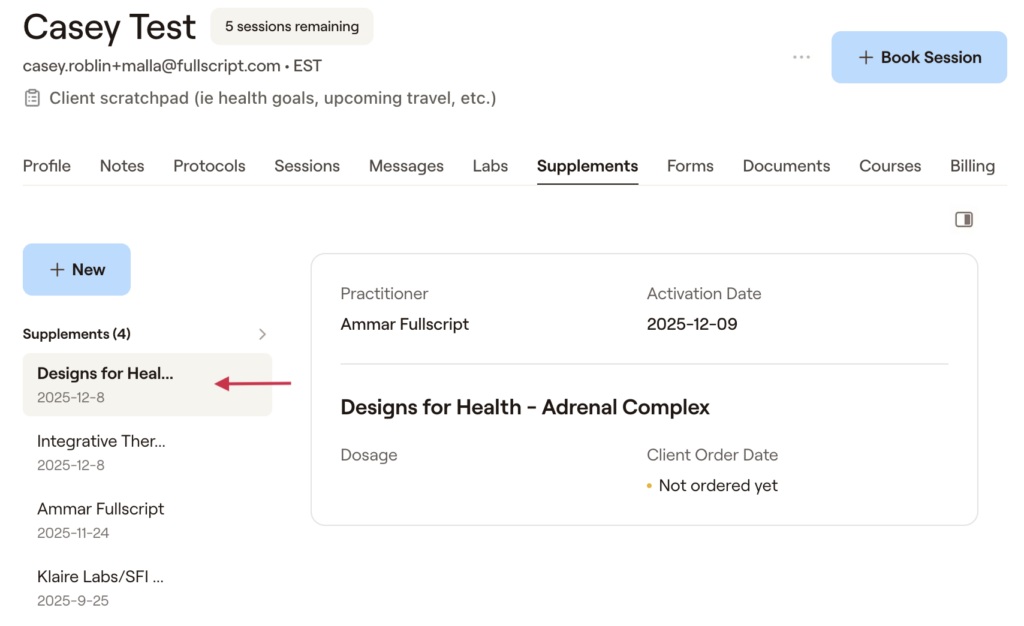
The supplement plan will automatically be logged and accessible through the Supplements tab found in the client’s profile. The products sent from Fullscript will be listed under Supplements with product name and date sent.
Viewing lab results in Malla
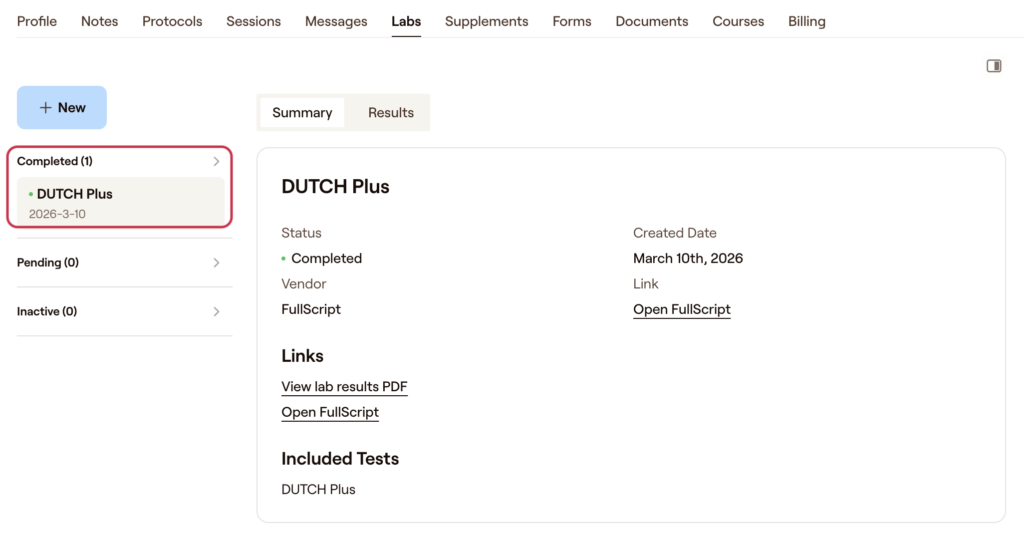
The recommended Labs and accompanying results will be found under the Labs tab in the client’s profile.
The Lab recommendations are grouped by the status of the order:
- Completed
- Pending
- Inactive
When the results become available, the order will be moved to the Completed section where providers click the Results tab which shows an embedded pdf reader or open the results in a separate tab by clicking View lab results PDF.
Disconnecting Fullscript from Malla
If you need to disconnect an account—for example, if the wrong Fullscript account was connected—follow these steps.
To disconnect in Malla
- Log in to Malla, click on Settings from the top left corner.
- Click on Integrations from the list of options.
- Select Disconnect beside Fullscript.
To disconnect in Fullscript
- Go to Settings > Integrations.
- Under Integration > Malla.
- Click Disconnect.
Frequently asked questions
Who can use the Malla and Fullscript integration?
The integration is available to practitioners located in the United States who have both a Malla account and a Fullscript account. Once connected, practitioners can start building and sending supplement plans to their clients directly within Malla..
Can Labs and Supplements be sent on the same plan?
Yes, providers can recommend Labs and Supplements on the same plan without any issue. Once sent, both Labs and Supplements will have their own tab in the client’s profile displaying the recommended products.
Do Labs automatically sync with Fullscript?
Yes, once sent, the Labs will appear in the Labs tab in the client’s profile. When results become available, they will automatically appear in the client’s profile and can be viewed by clicking Results. Orders without available results with note Results not available beside the Summary heading near the top of the page.
Do I have to add patients to Fullscript before sending them a treatment plan in Malla?
No, Malla allows users to add patients to Fullscript upon creating their first treatment plan for that specific patient. Users will click the Link Patient button, found in the Fullscript window once the user clicks + New in Supplements. They can begin building the first treatment plan and the client’s basic information will be transmitted to Fullscript.