
Last modified: July 2, 2026
Jane integration
Providers
An introduction to Jane
Jane (or JaneApp) is a health and wellness practice management platform designed to be helpful to you no matter how or where you practice. Available online and on any device, Jane offers branded online booking, beautiful scheduling, insurance management, custom electronic documentation (EMR), online intake forms, patient reminders, and integrated payment processing.
Integration setup: Jane + Fullscript
The Jane + Fullscript integration is not one-to-one, which allows for maximum flexibility for multi-account practitioners. Multiple Fullscript accounts can integrate with one Jane account, and one multi-practitioner Fullscript account can integrate with the same Jane account. This integration also accommodates both Canadian and US accounts into one Jane account. The authentication process of this EHR allows for virtually all scenarios and account setups.
To integrate Jane + Fullscript:
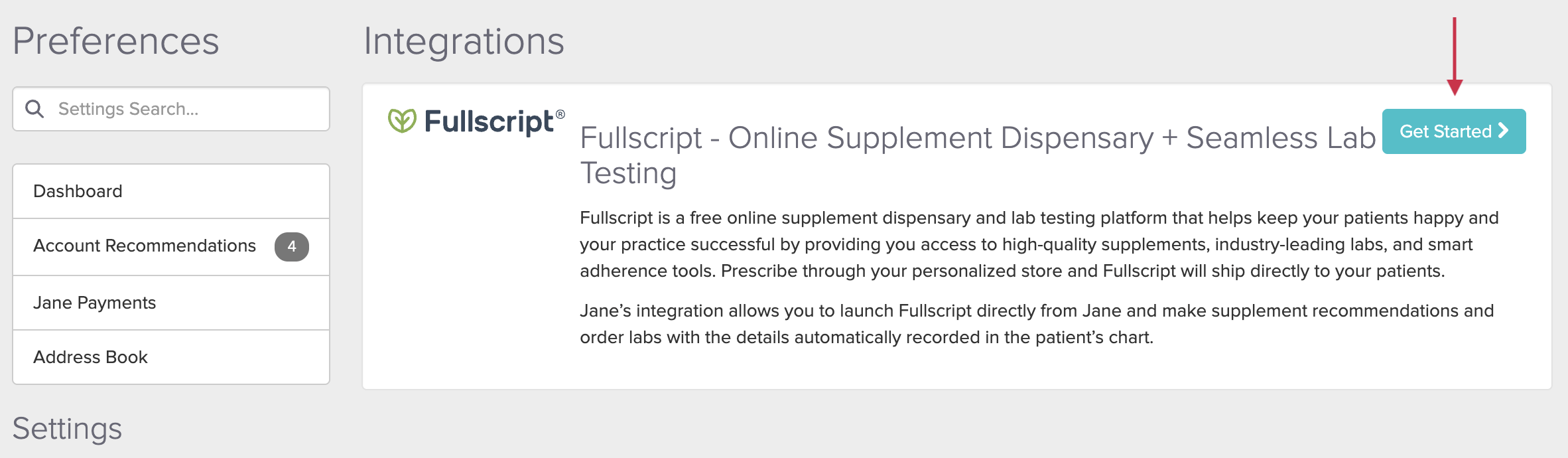
- In Jane, go to Settings.
- Click Integrations.
- On the Fullscript card, select Get started.
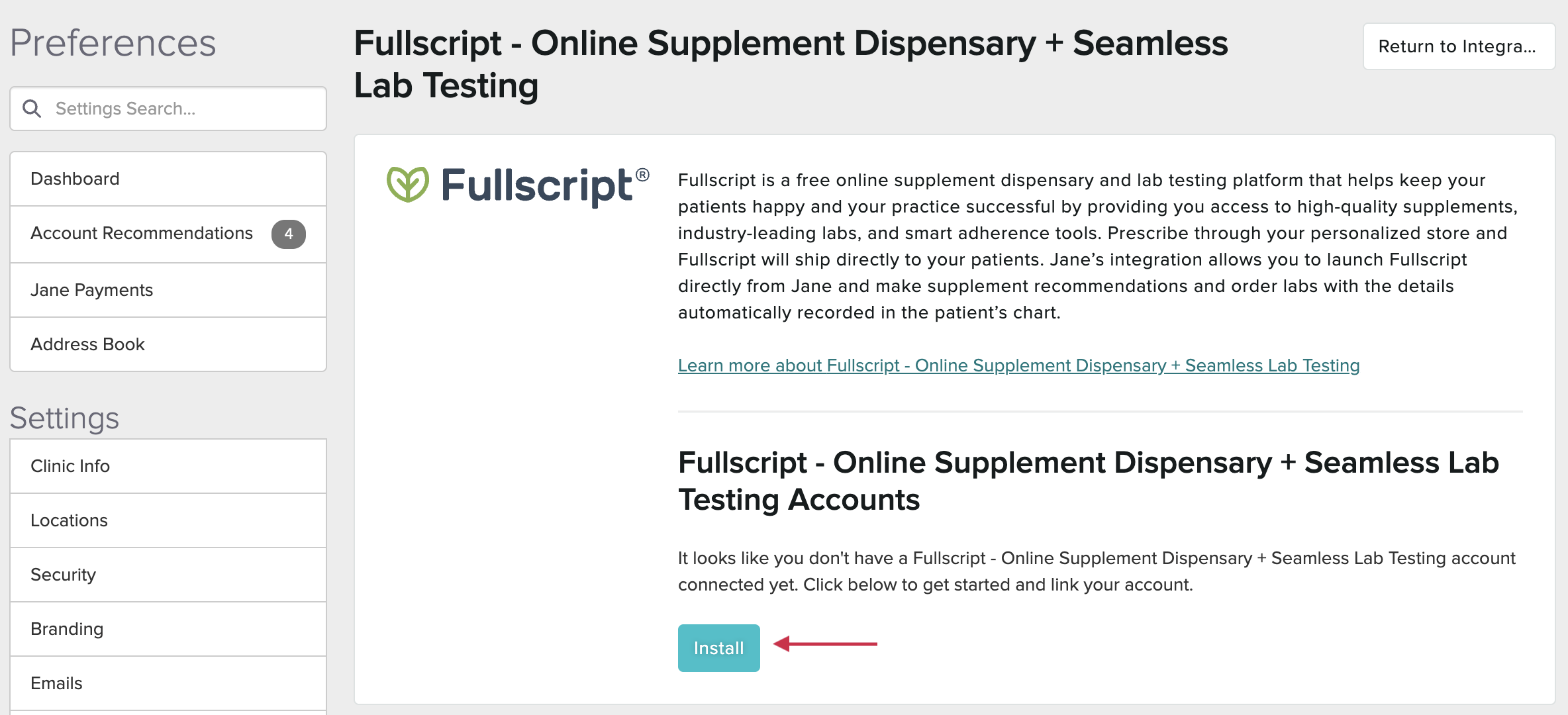
- Click Install.
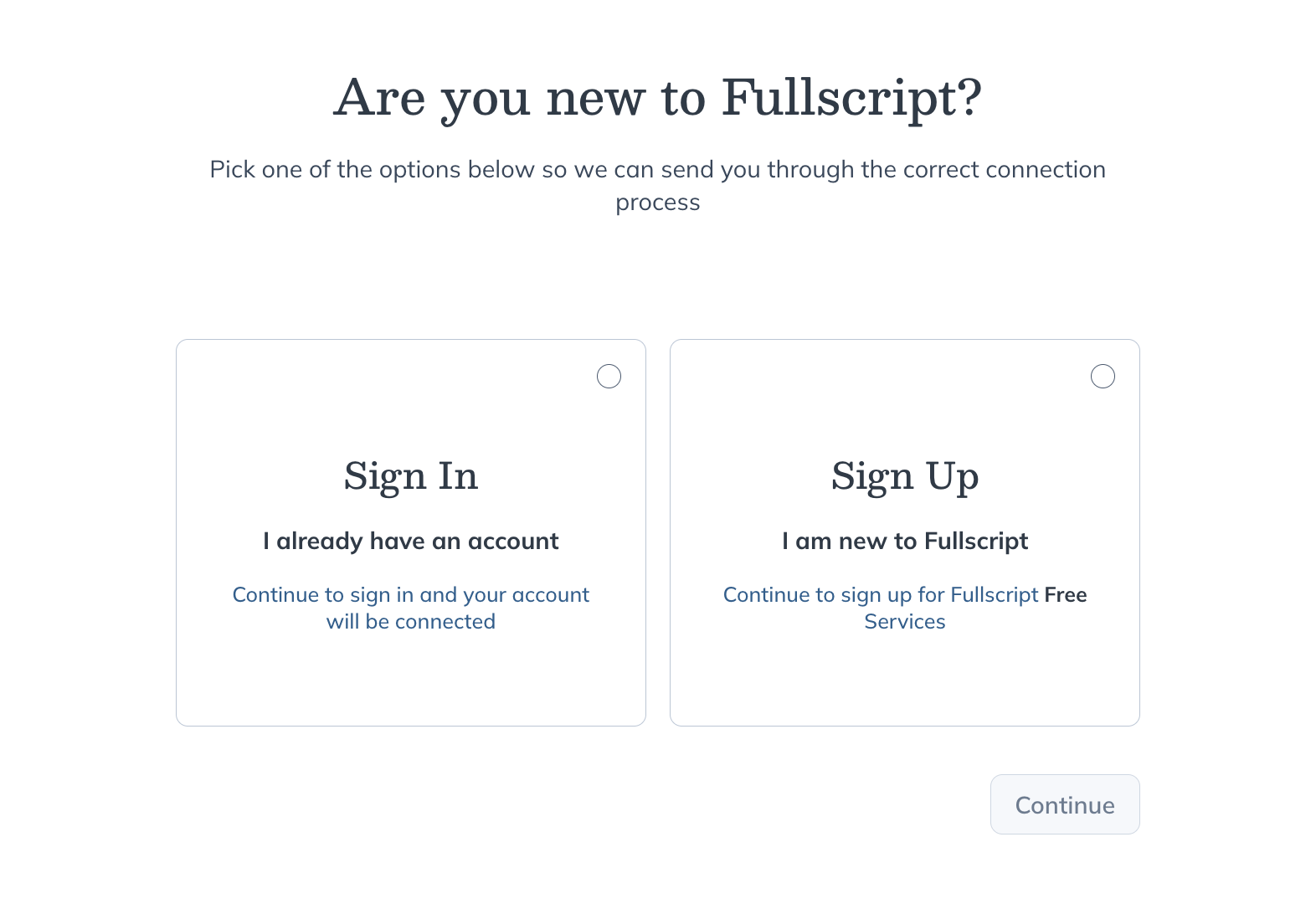
- Sign in to your Fullscript account or create one.
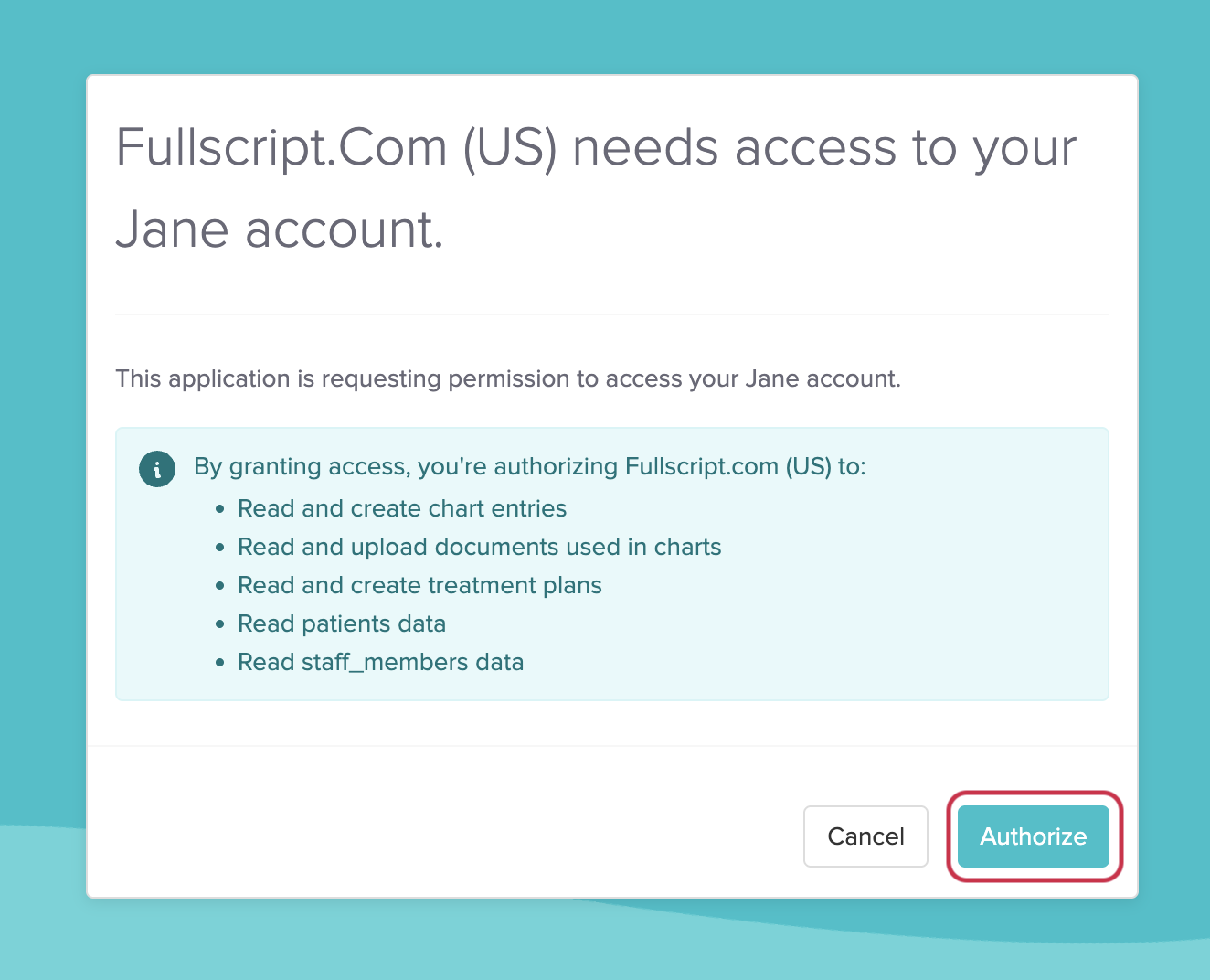
- Click Authorize to complete the connection.
- You’ll see a confirmation that Jane is authenticated and connected to Fullscript.
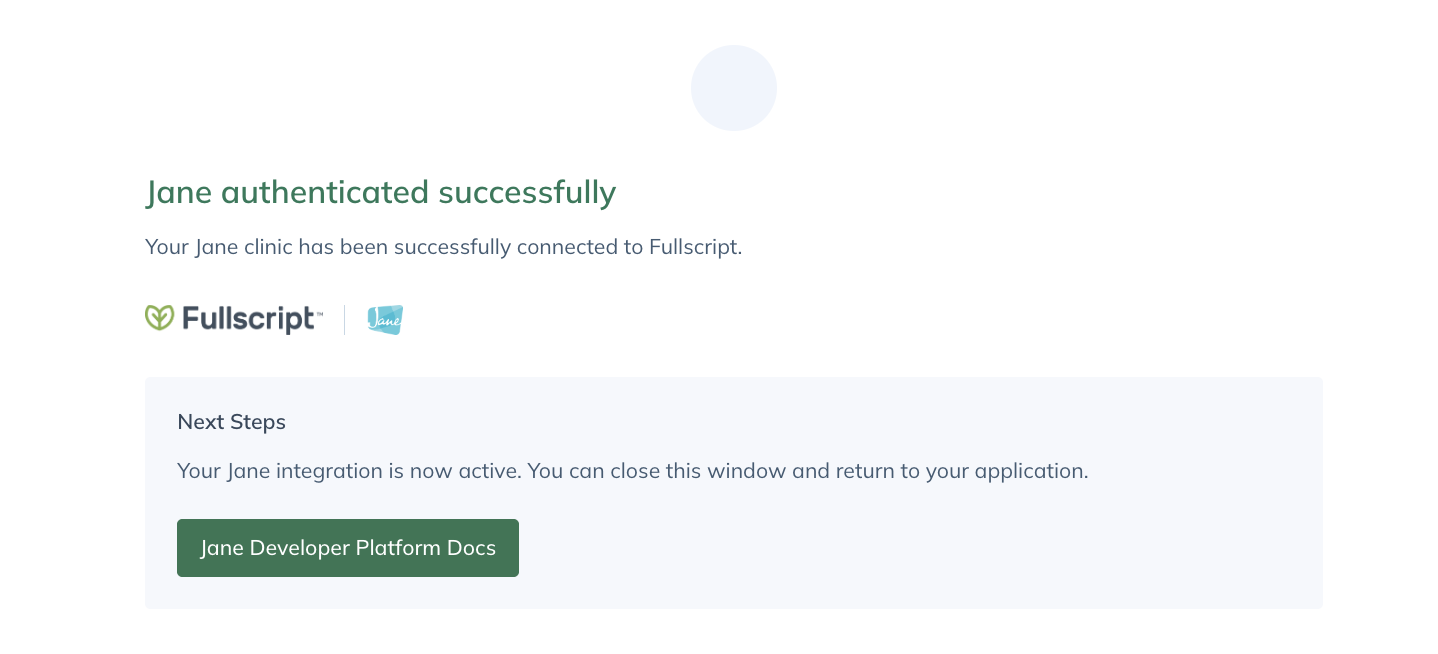
That’s it — you’re ready to get started using Jane!
Creating a recommendation
Providers can create Fullscript plans from a patient’s profile in Jane. Clicking Supplements opens Fullscript in a new browser tab, allowing the practitioner to complete the recommendation workflow.
- In Jane, open Patients and select a patient.
- In the patient’s profile, click the Fullscript tab, and select Fullscript from the dropdown.
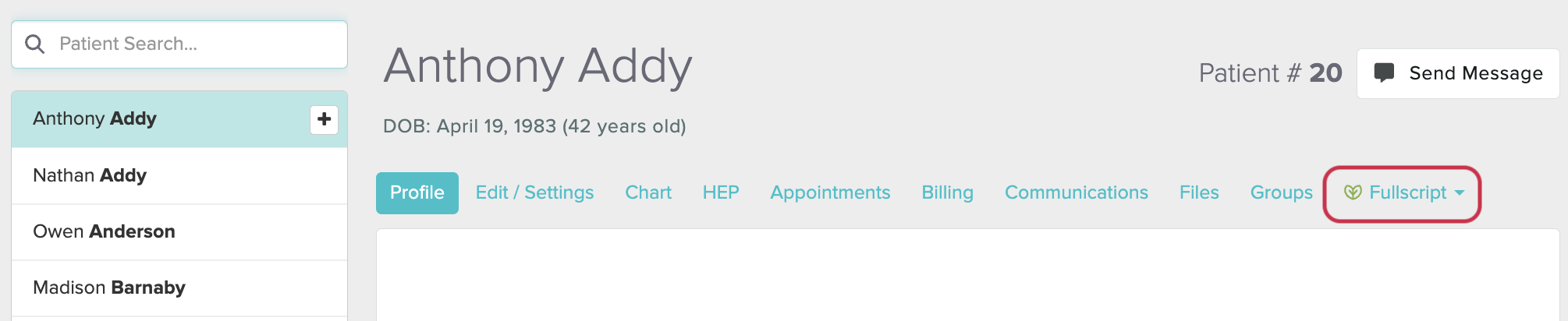
- The provider will be redirected to Fullscript to the Plan workflow with the patient already selected.
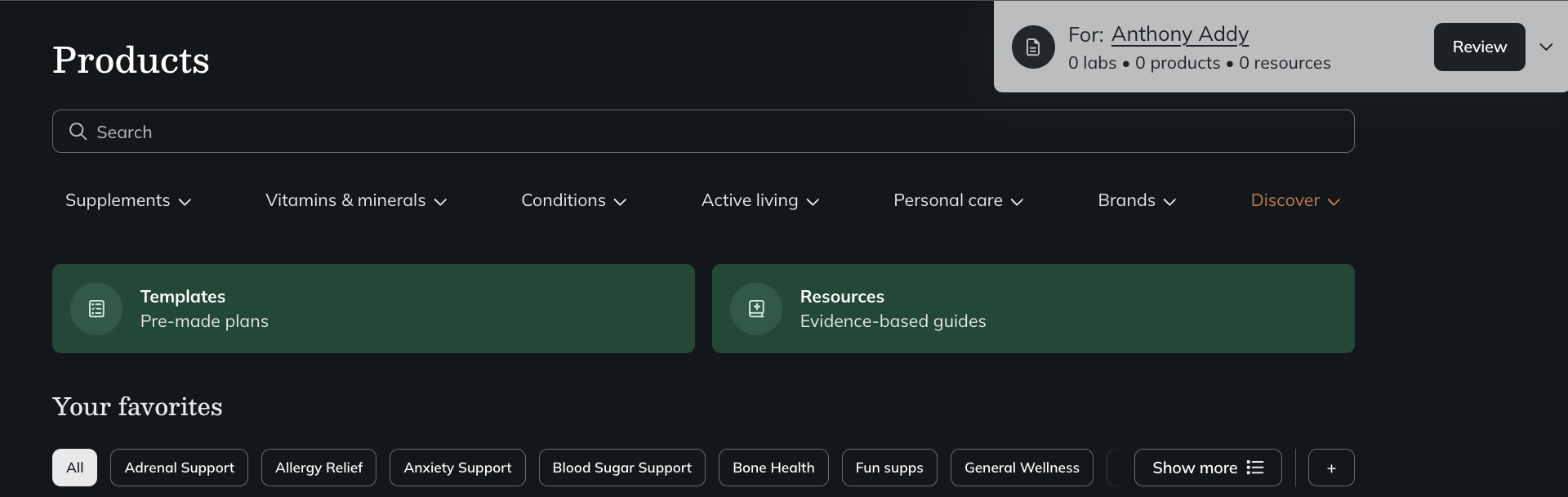
- In Fullscript, add products (and US: Labs) using Add to plan.
- Click Send to patient to share the plan.
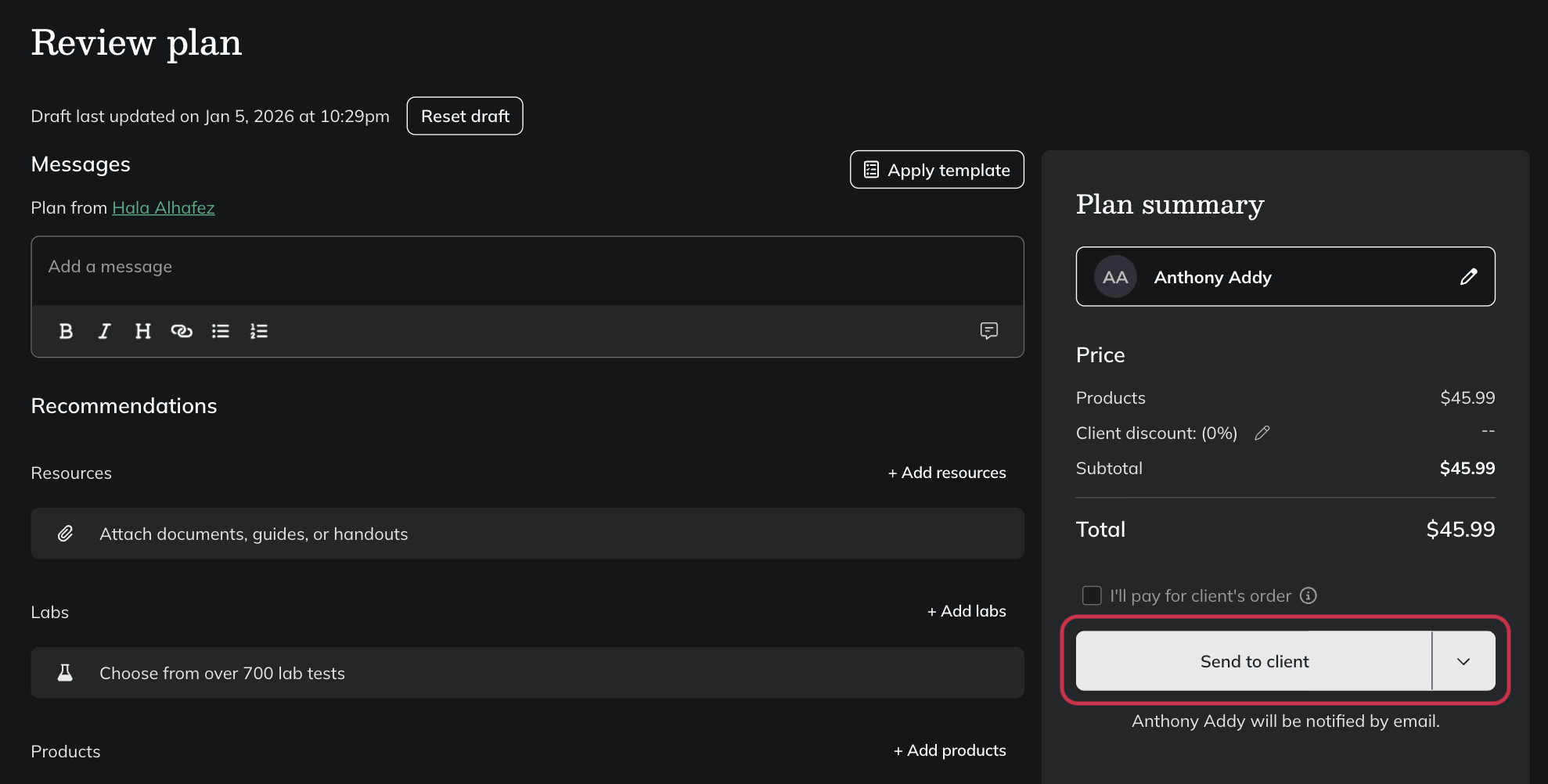
- The provider can then close the tab and navigate back to Jane. A new chart entry will be created and it will include the contents of the Fullscript plan.
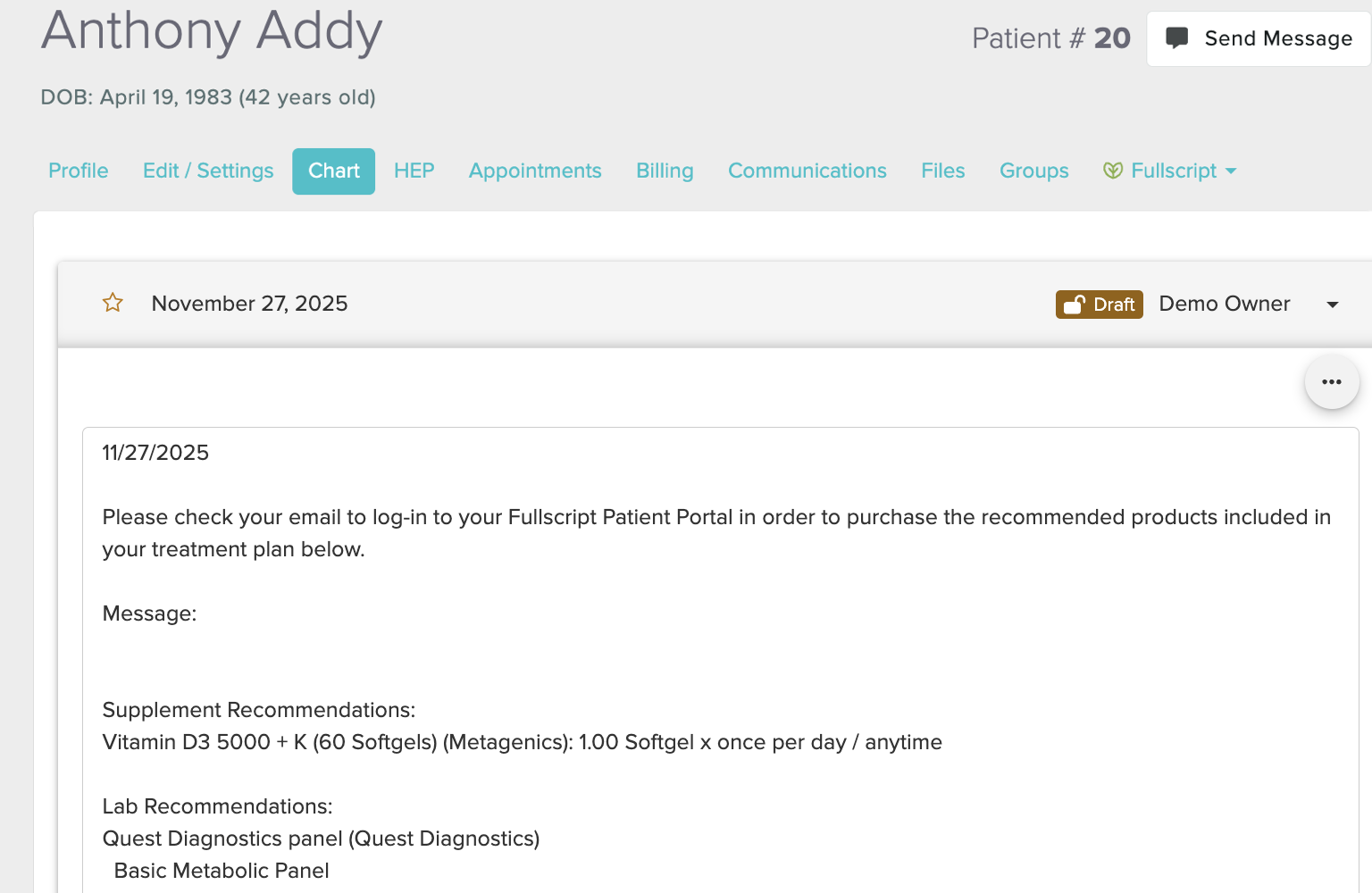
Where does the plan go in Jane?
After the plan is sent through Jane, a new chart entry will automatically be created including supplements and labs. The plan details including notes, products and dosage will be included in the chart entry.
Viewing lab results in Jane (US only)
Lab results are uploaded as a PDF in a new chart entry when results are available. The Fullscript Labs functionality is not available to users with a Fullscript Canada account.
To view lab results, follow these steps:
- Click Patients and select a patient.
- Click the Chart tab.
- Open the entry labeled “Lab results available, see attached.” Partial and full results both create entries.
Disconnect the legacy Jane integration (old connection)
Jane users who were previously integrated with Fullscript have the ability to disconnect the previous integration, referred to as the Legacy integration, before connecting to the new, upgraded experience. Existing users of the Legacy integration can complete the steps below to disconnect the integration and utilize the Setting up the integration section at the beginning of the guide to connect to the new integration.
- In Jane, go to Settings.
- Click Integrations.
- On the Fullscript (Legacy) card, select Integrations.

- Select Edit beside the provider name.
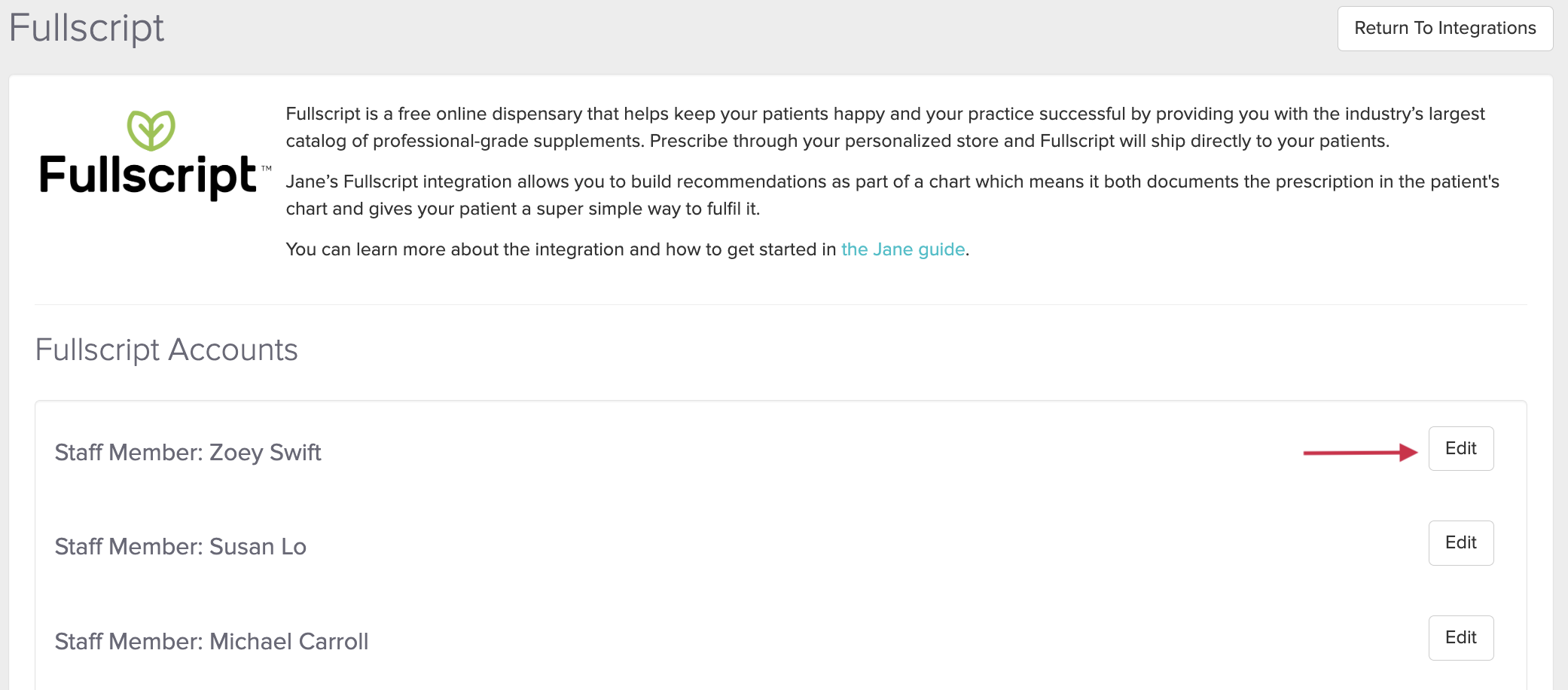
- Select Delete, then click OK to confirm the removal of the old integration in the pop-up message.
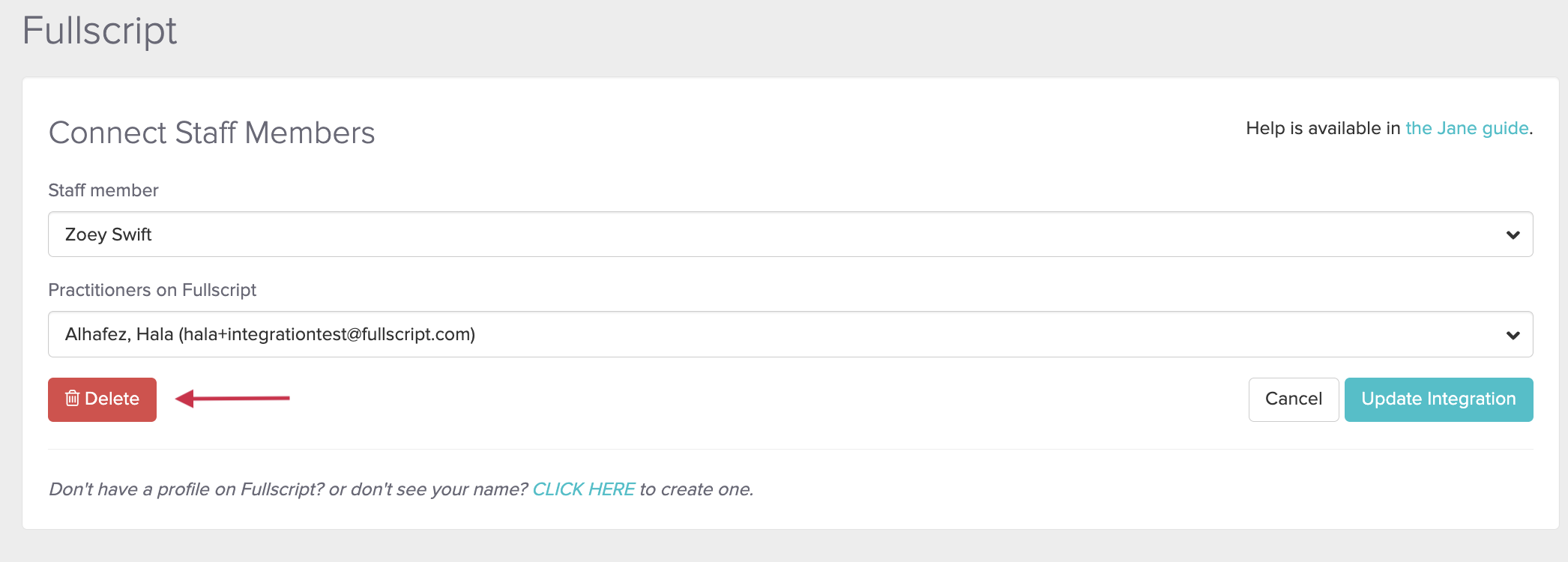
Disconnect the current integration (unlink)
If you need to unlink an account—for example, if the wrong Fullscript dispensary was connected—follow the steps below.
From Jane:
- Go to Settings → Integrations.
- Open Fullscript and click Uninstall.
From Fullscript:
- Go to Settings → Integrations.
- Under JaneApp, click Disconnect.
Video: Fullscript + Jane integration
Frequently asked questions
Does each Jane provider need to connect individually?
Yes, as the upgraded integration allows for a single Jane account to be connected to many Fullscript accounts. Each Jane provider can integrate with a Fullscript login, regardless if they are the primary or sub-provider.
When a provider adds a patient into Jane, does it automatically create an account in Fullscript?
No, only when a plan is sent through the integration will the patient be added to Fullscript. Adding a patient to Jane without clicking supplements in their profile and launching the integration will not create a patient in Fullscript.
If a plan is edited in Fullscript, will it update the corresponding chart entry in Jane?
No, the original chart draft in Jane will not change after it’s been created, even if changes are made to the plan in Fullscript.
Will Jane integrate with Rupa?
No, there will not be an integration with Rupa Health. Providers, in the US only, are encouraged to utilize Fullscript Labs which are available in the Jane integration. Providers have the ability to recommend Fullscript Labs within the integration and view the results in the patient’s chart when the results become available.