
Last modified: April 24, 2026
Hint Health integration
Providers
An introduction to Hint Health
Hint Health is a direct care platform designed to help providers manage operations, streamline workflows, and focus on patient-centered care. It supports integrations with third-party tools to reduce administrative work and improve coordination.
With the Fullscript integration, providers can access Fullscript within Hint Clinical to build and share supplement plans without leaving the platform.
Integration setup: Hint Health+ Fullscript
Providers with both a Hint and Fullscript account can connect the two platforms directly from the Hint Marketplace.
Before you begin:
- You must have access to the Hint platform (any user role can install integrations).
- You must be using Hint Clinical to access Fullscript integration features.
- Log in to Hint.
- Navigate to the Hint Marketplace.
- Search for Fullscript.
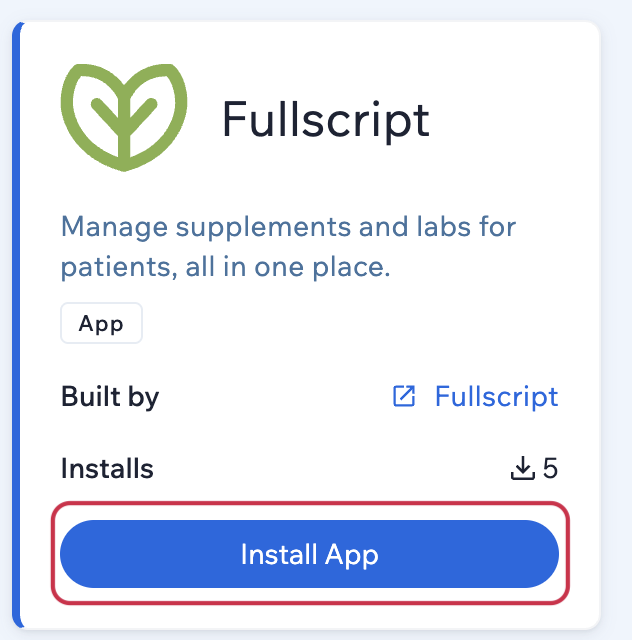
- Select the Fullscript app, then click Install App.
- Follow the prompts to log in to your Fullscript account or create one.
- Complete authentication to finish setup.
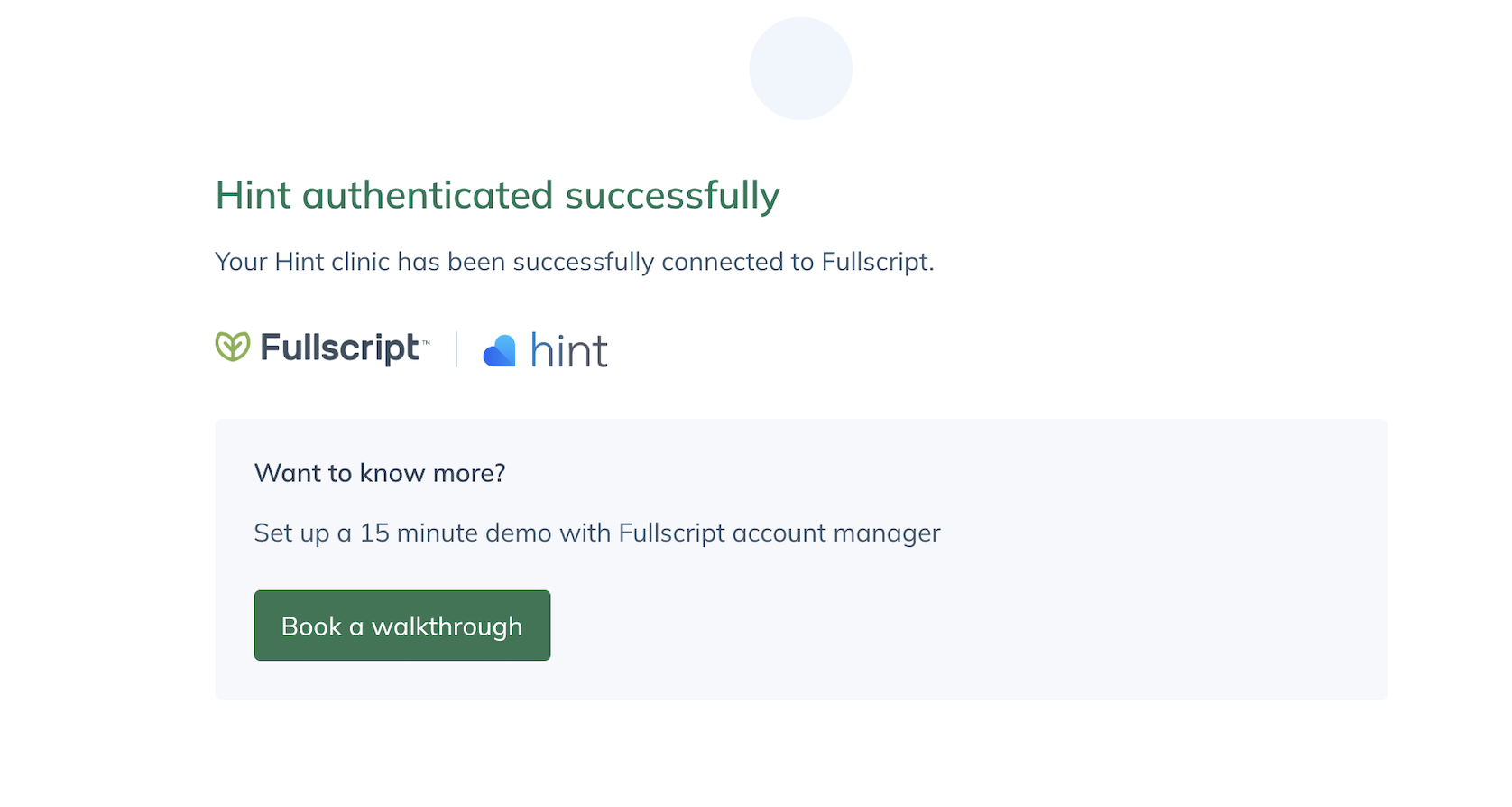
- After setup, you’ll see a confirmation screen indicating the integration was successful.
Accessing Fullscript in Hint Health
Once connected, you can open Fullscript directly within a patient’s chart.
To get started:
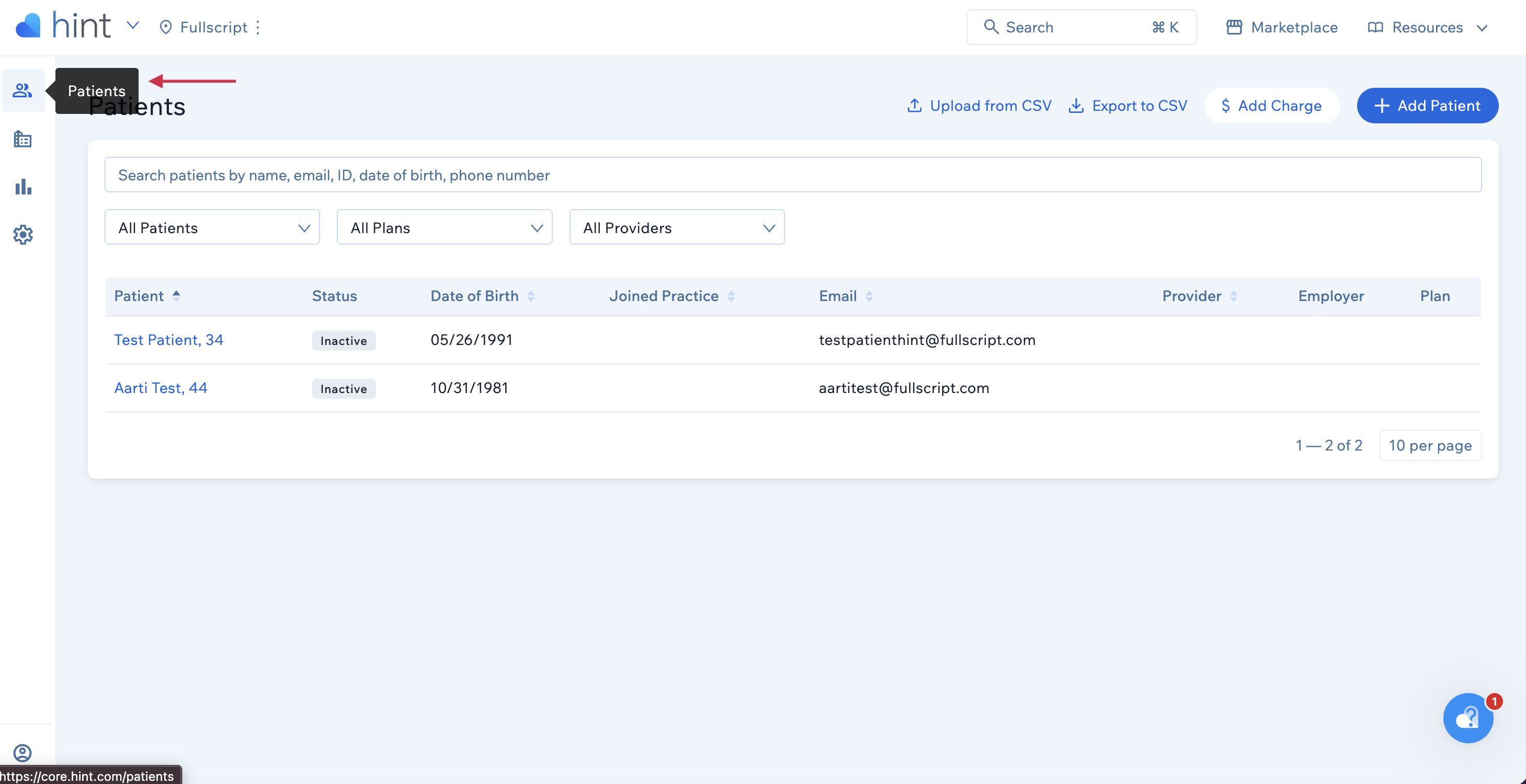
- Go to the Patient tab, and select a patient.
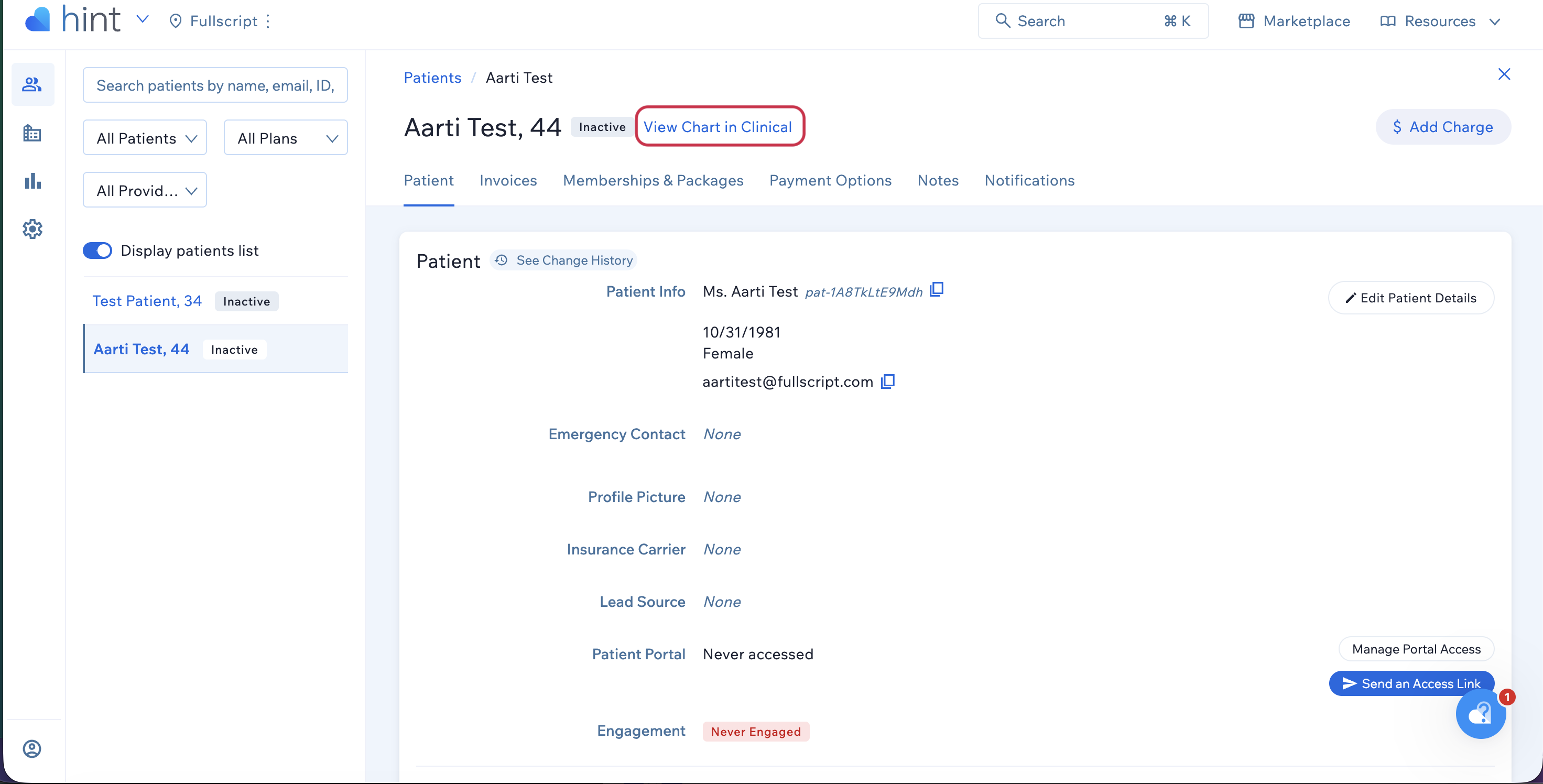
- Click View chart in Clinical.
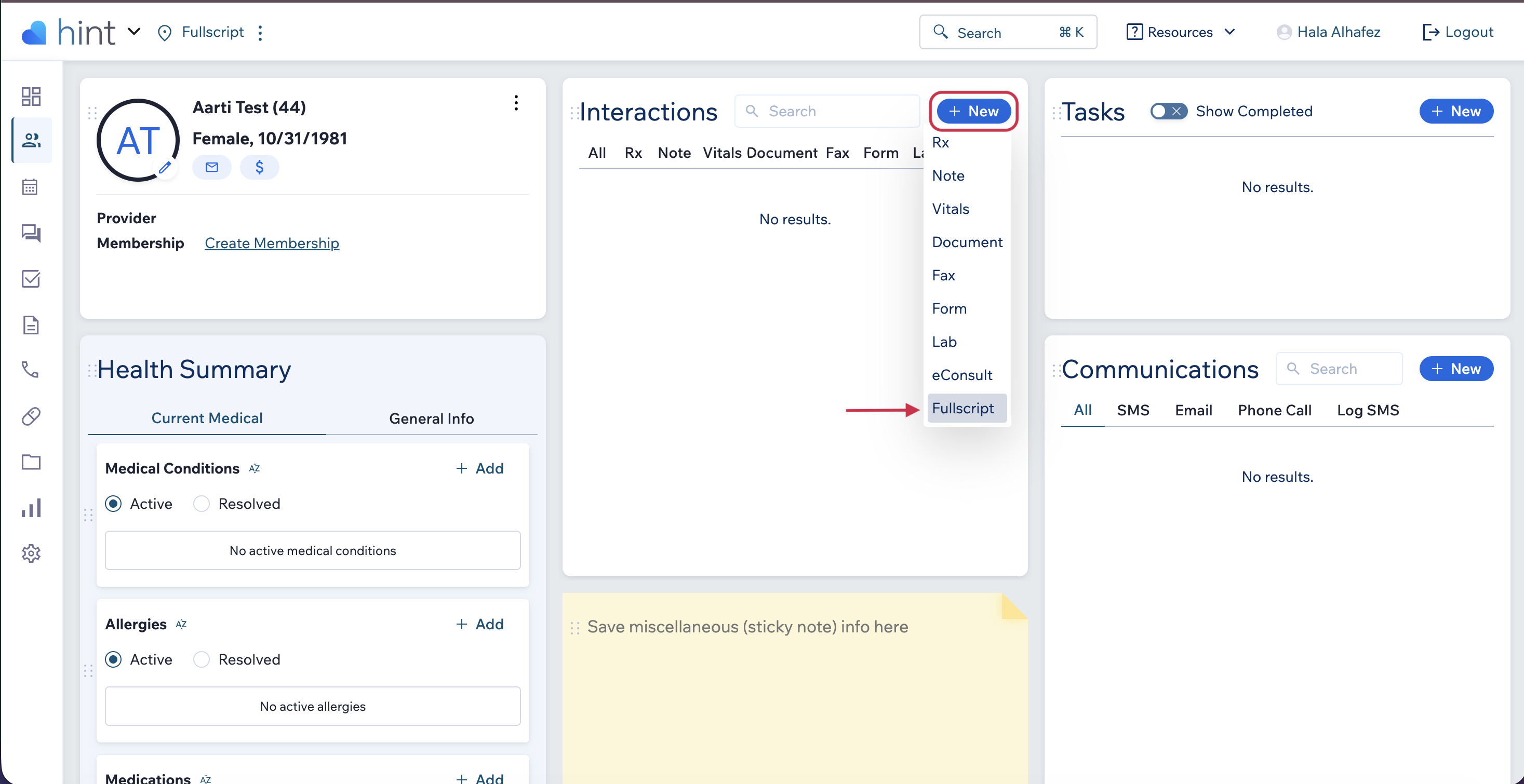
- In the patient’s chart, select +New in the interactions widget.
- From the dropdown, select Fullscript to open the integration.
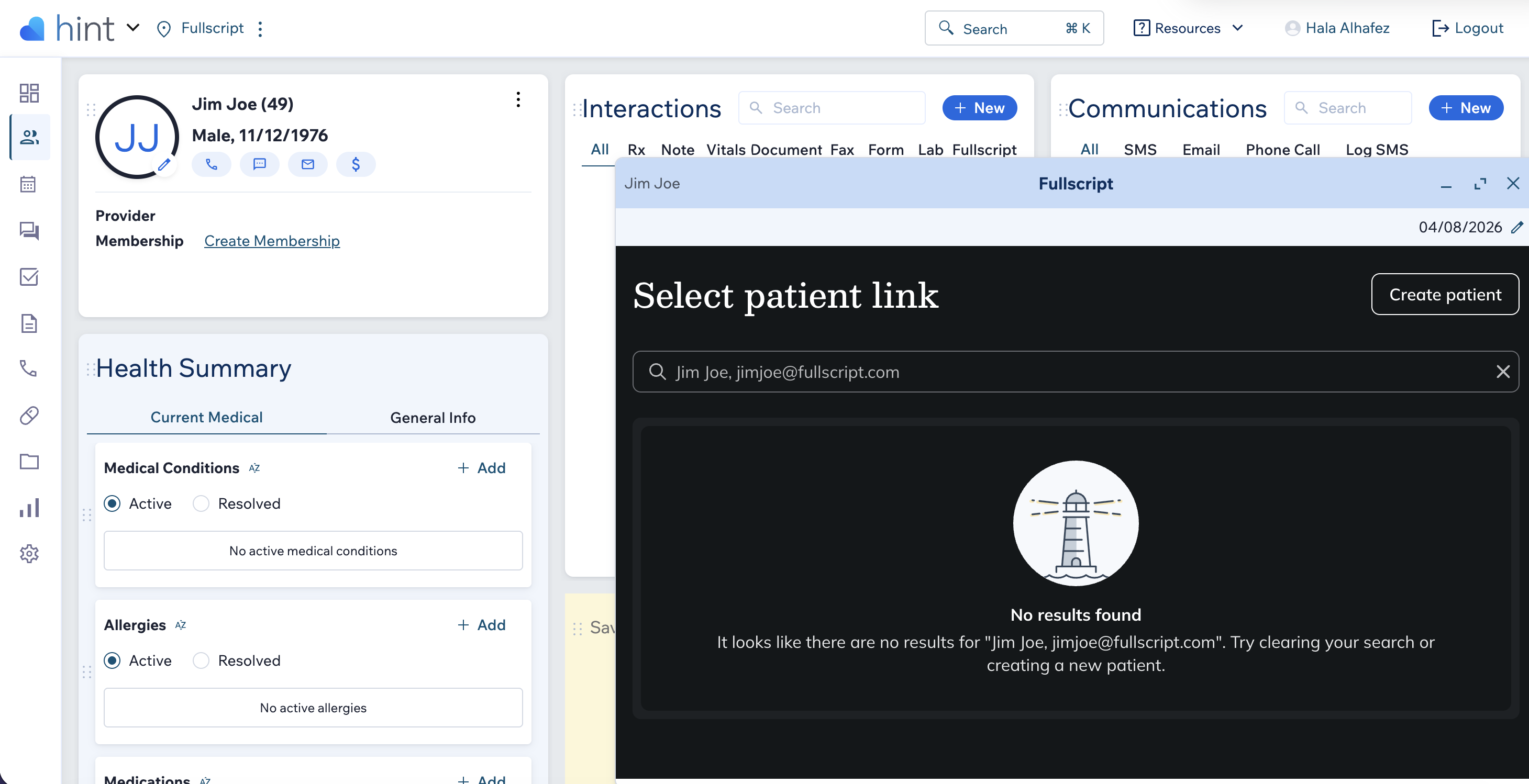
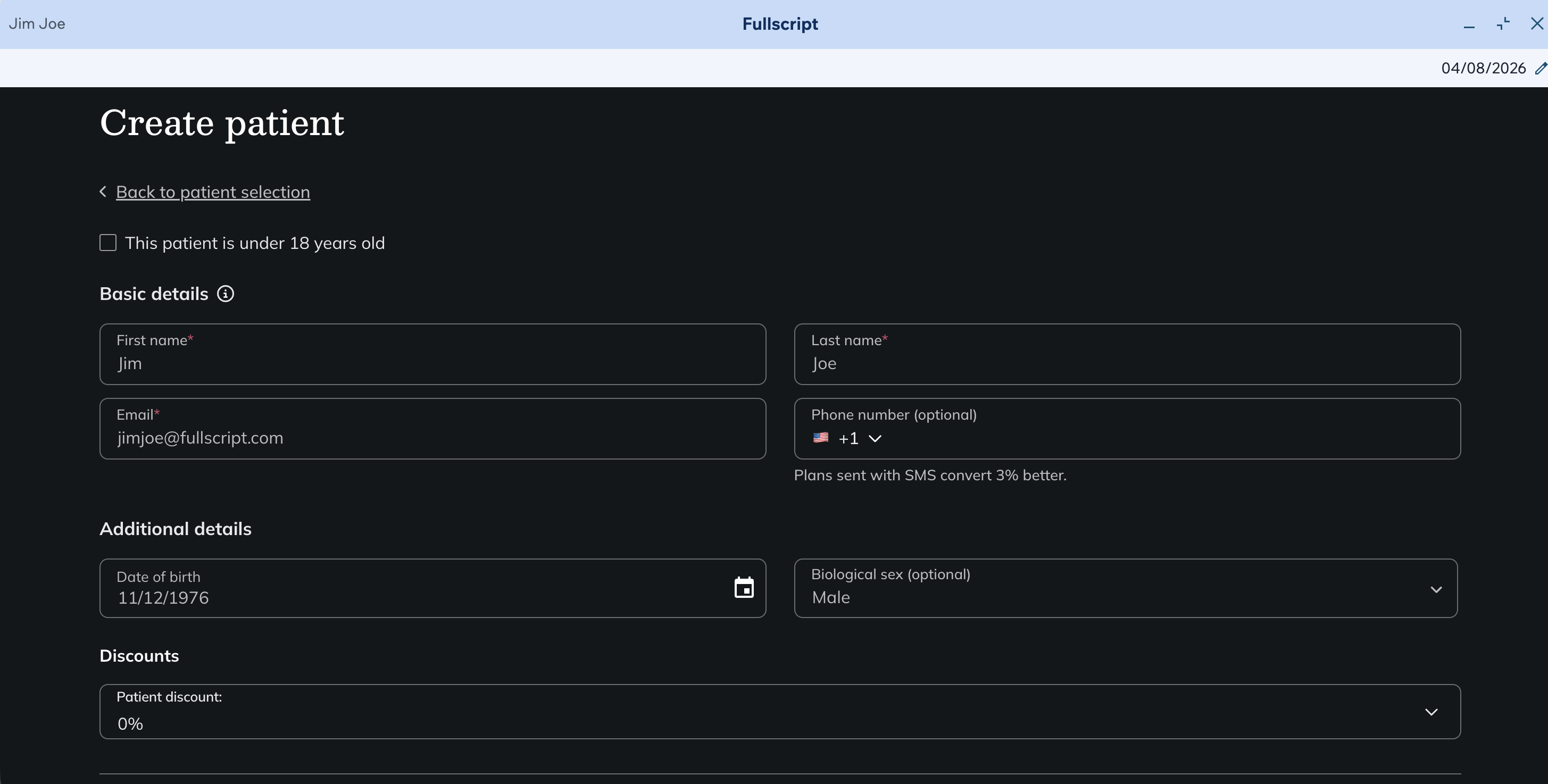
- If the patient isn’t in Fullscript, select a suggested match or create a new profile.
- New profiles automatically sync the patient’s demographic information from Hint.
- If a match already exists, you’ll go straight to the Build Plan tool.
Recommending through Fullscript
After you select Fullscript from the interactions widget, the embedded Fullscript module opens.
- Search for products and add supplements to the plan.
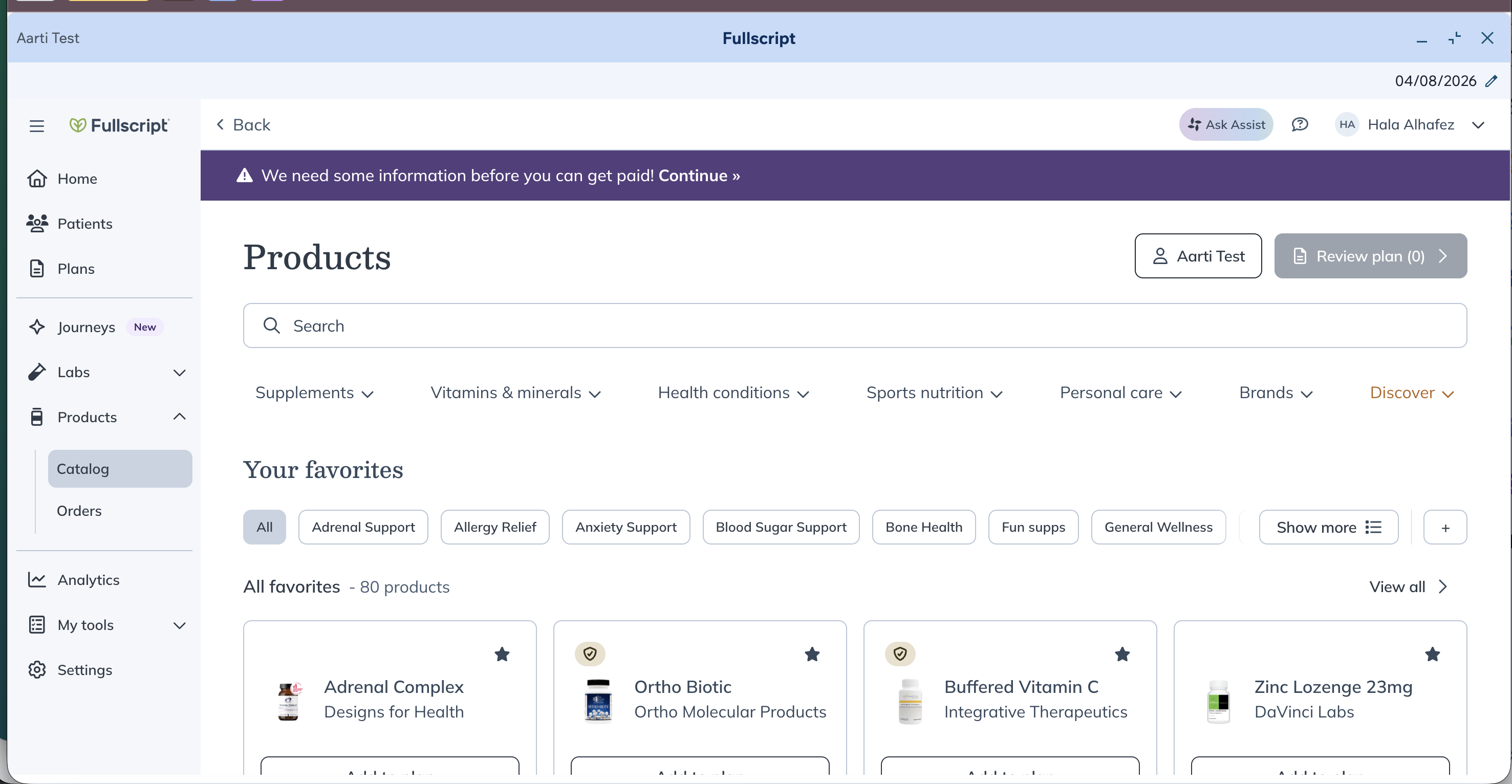
- To add labs, select Labs from the left-hand menu and browse the lab catalog.
- When you’re ready, select Review plan, then Send to patient.
Your patient receives an email (and SMS, if enabled) from Fullscript with the plan and instructions to access it.
Where the plan appears in Hint Health
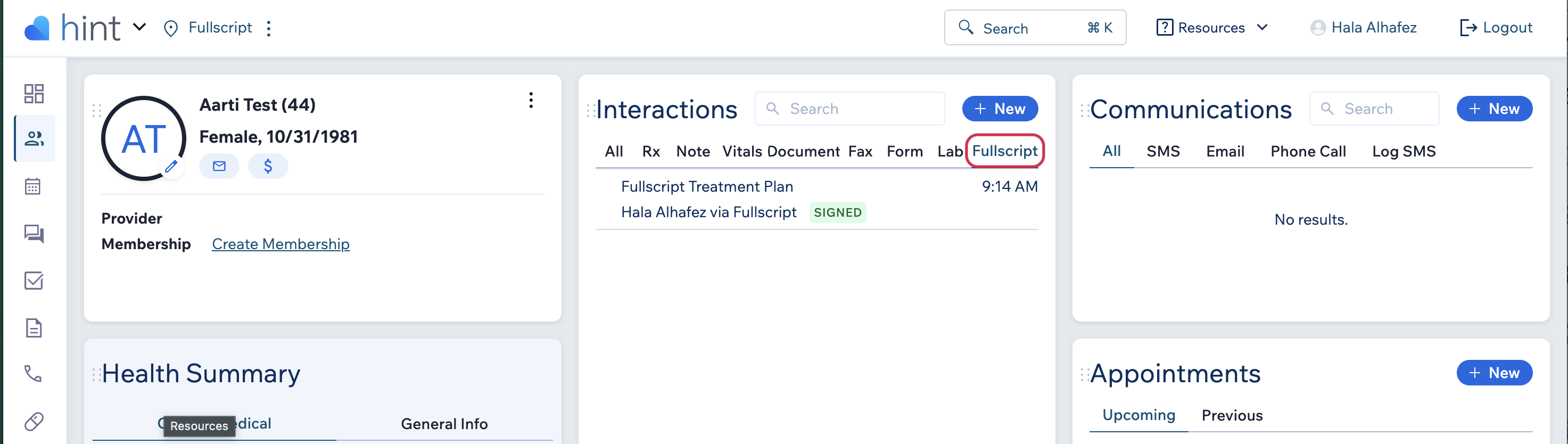
- In the interactions widget, select the Fullscript tab to view synced recommendations.
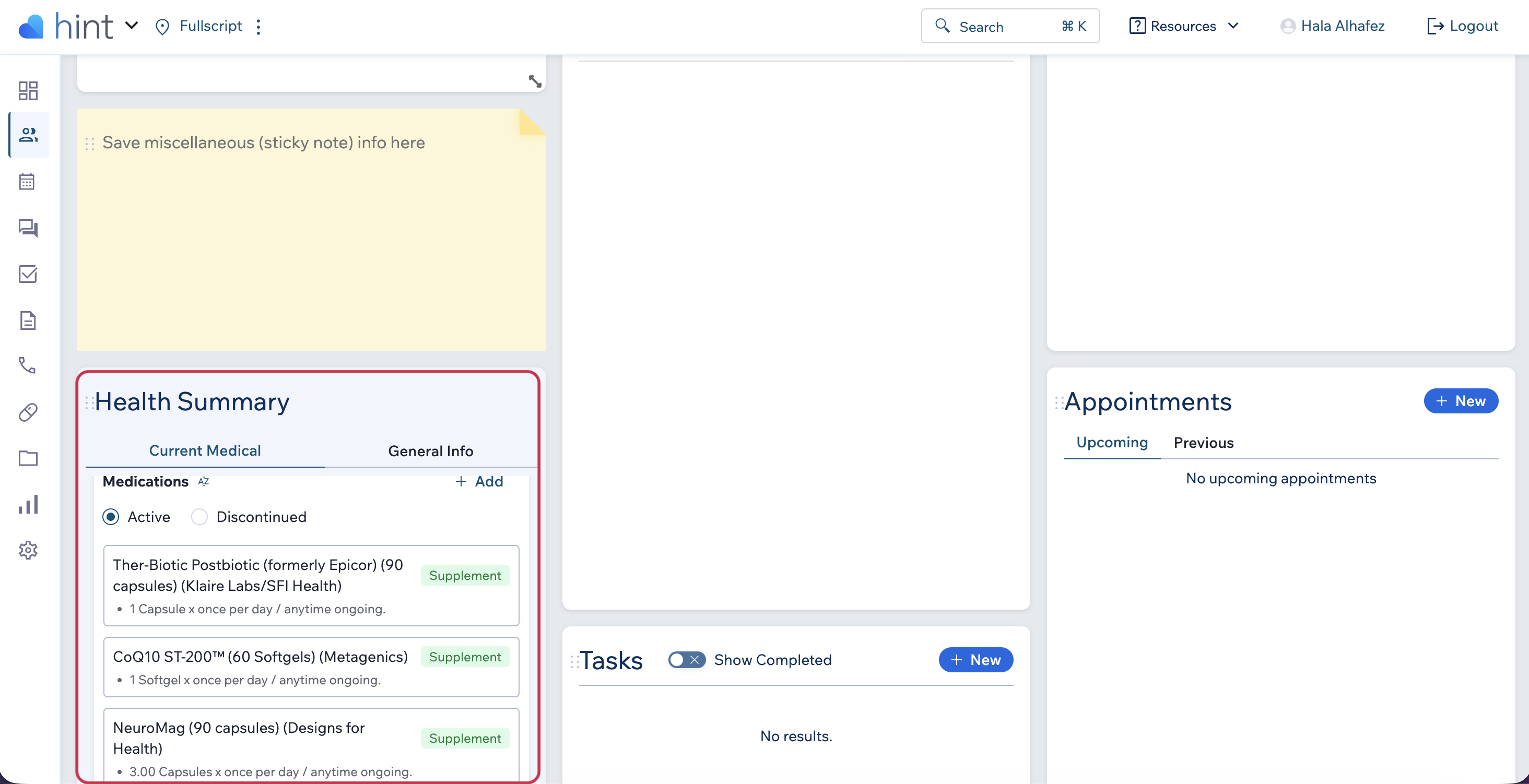
- To view supplement recommendations, go to Medications in the health summary widget.
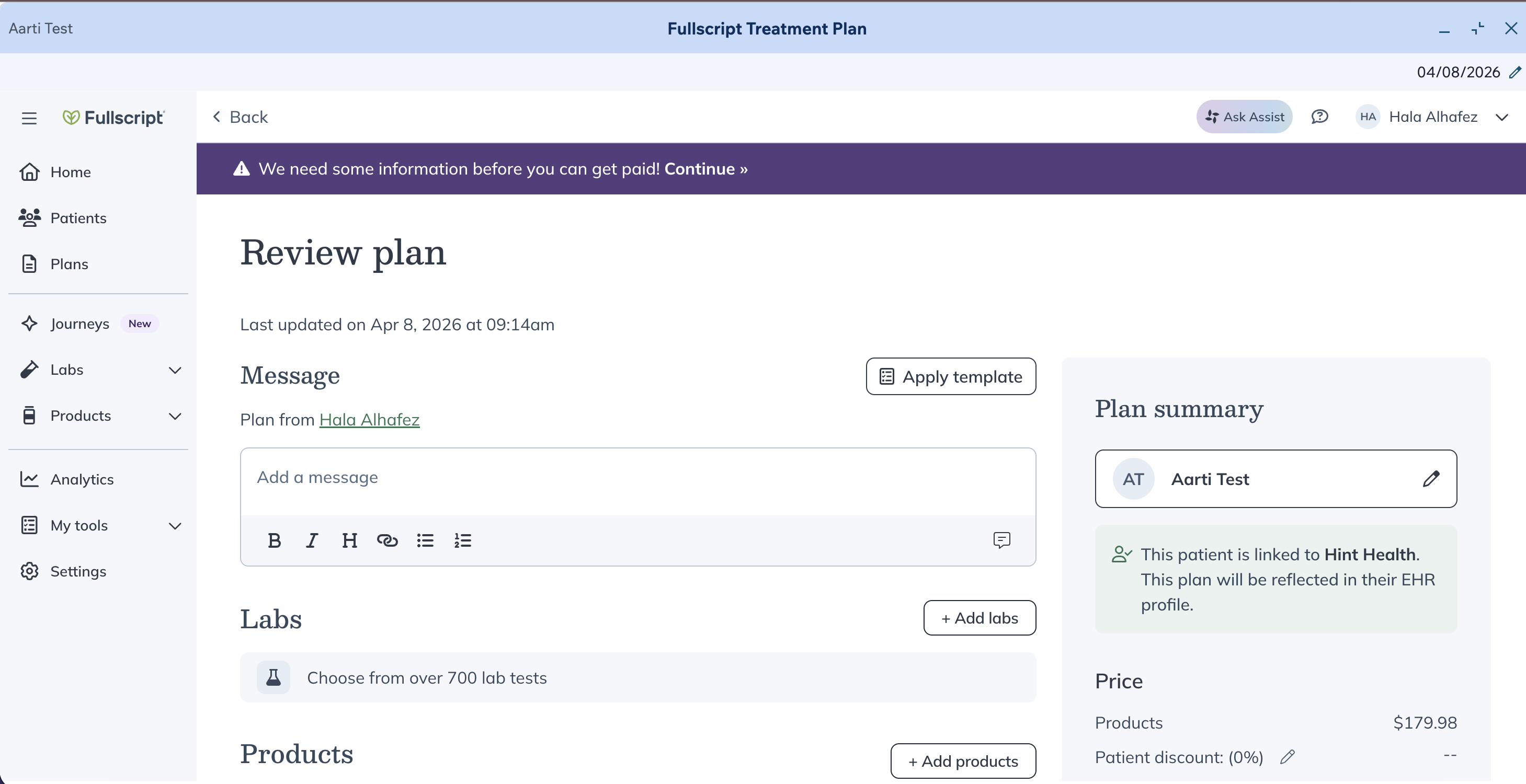
- To review a plan, select the signed treatment plan from the Fullscript tab in Interactions.
- The embedded Fullscript module opens to the Review plan page.
Viewing lab results in Hint Health
Lab results aren’t currently available in Hint. You can view them in Fullscript.
- In the interactions widget, select the Fullscript tab.
- Select the signed treatment plan.
- In the embedded Fullscript module, navigate to the patient’s lab results.
These are the same steps you’d follow in the Fullscript web app.
Disconnecting Fullscript from Hint Health
If you need to disconnect an account—for example, if the wrong Fullscript account was connected—follow these steps:
To disconnect in Hint Health
- Log in to Hint and go to the Marketplace.
- Select Fullscript.
- Select Uninstall app.
To disconnect in Fullscript
- Go to Settings.
- Select Integrations.
- Under Hint, select Disconnect.
Frequently asked questions
I am a Hint Core user, how can I use the Fullscript integration?
The Fullscript integration is available only for Hint Clinical users. Please contact your account manager to upgrade and get access to Hint Clinical to use the Fullscript integration.
How much does Hint cost?
Pricing for Hint is available on their website here. The best place to begin is by booking a demo. A Hint specialist will walk you through the platform and all of its available features.
Can my staff use Fullscript in Hint?
Yes, your staff added to Hint can use Fullscript. Make sure you add them as staff in Fullscript first before they connect their Fullscript and Hint accounts. Staff in Hint can recommend supplements on your behalf if they have access to doing so in Hint.