
Last modified: May 15, 2026
ChiroTouch integration
Providers
An introduction to ChiroTouch
ChiroTouch provides subscription plans that scale from solo practices to multi-provider clinics. Every plan centers on a chiropractic EHR with practice management tools that support the full patient journey—from attracting and engaging patients, to delivering care, to getting paid.
Integration setup: ChiroTouch + Fullscript
The Fullscript integration is available to ChiroTouch Core and ChiroTouch Advanced users. All ChiroTouch roles are supported—account owner, specialist, and staff. Any role can open Practice Settings to activate the integration.
- Log in to ChiroTouch.
- Select Settings (bottom-left).
- Go to Practice Settings > Fullscript Integration.
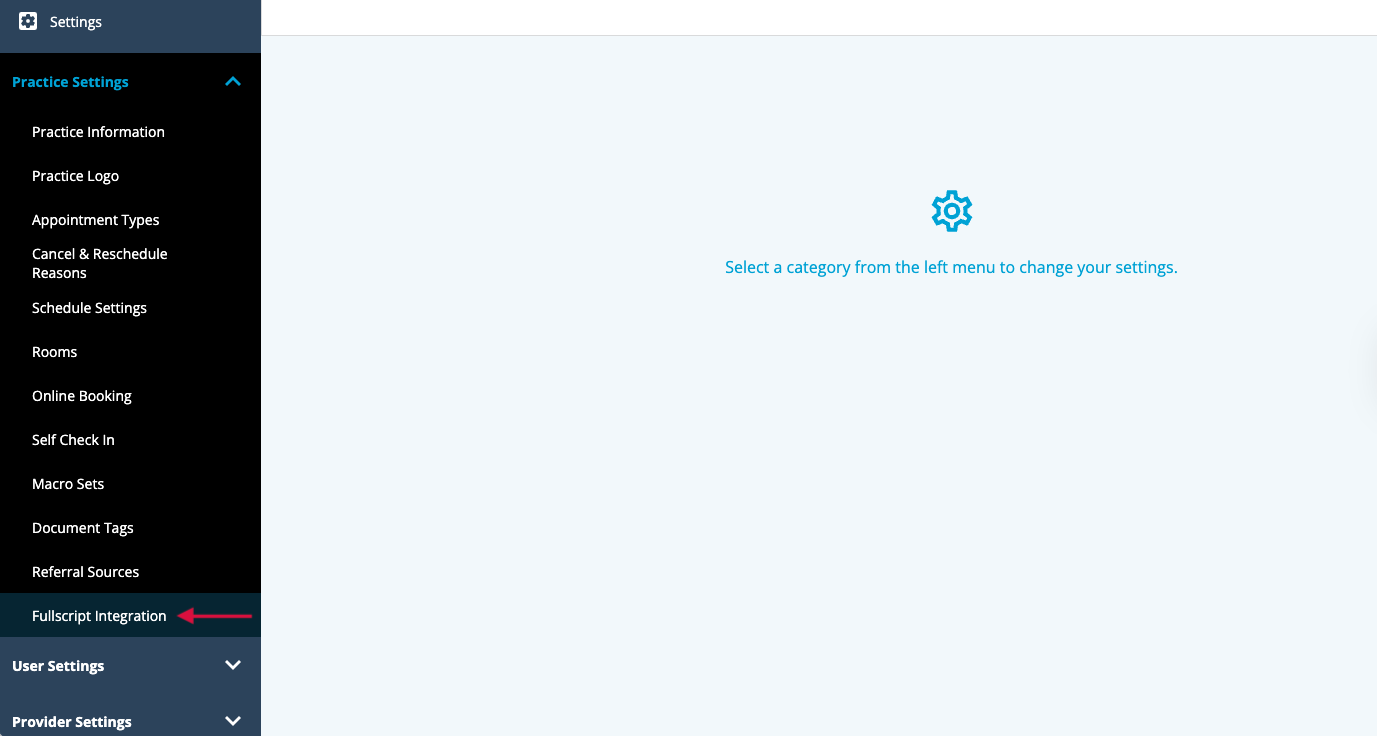
- Click Get Started, then sign in to your Fullscript account (or create one) and follow the prompts.
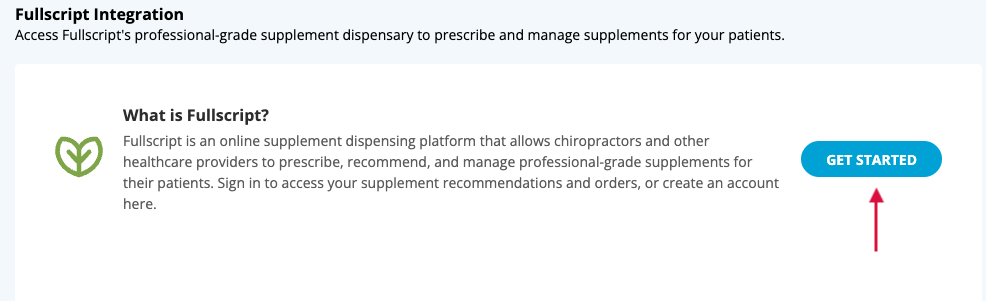
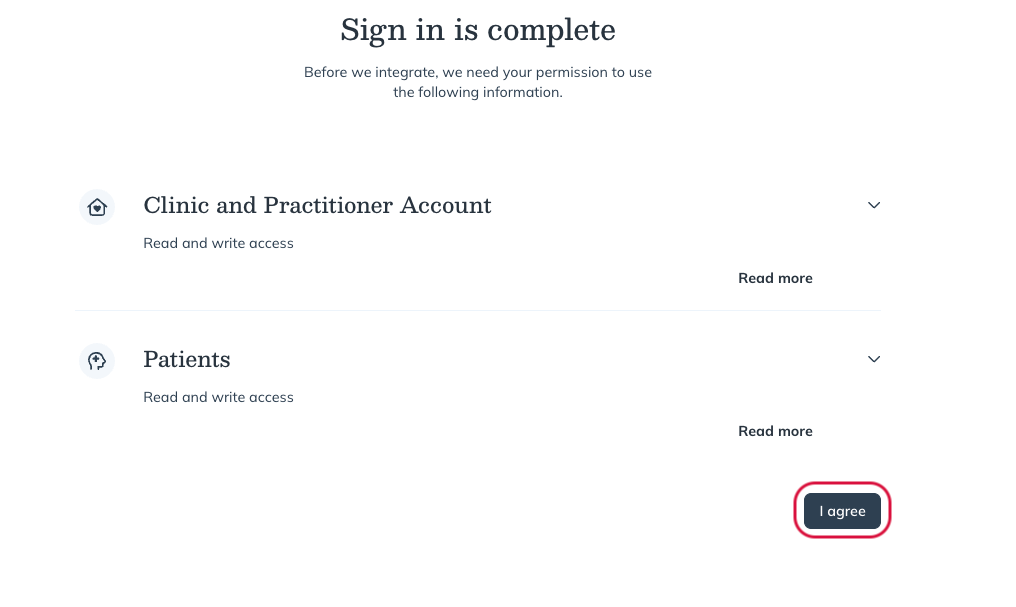
- Next, click I agree.
Accessing Fullscript in ChiroTouch
From the Patients Clinical Tab:
- Select a Patient under the Patient tab.
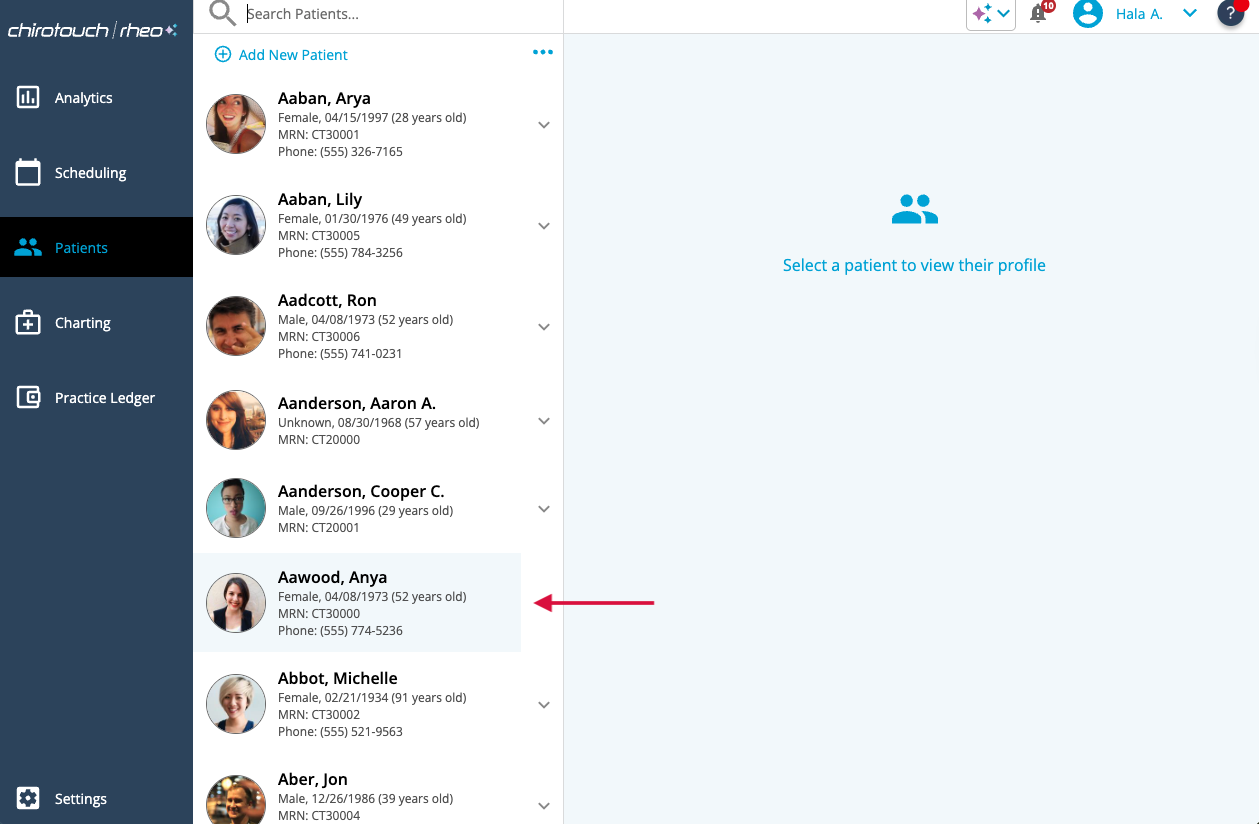
- Select Clinical, then choose Fullscript Recommendations (or Fullscript).
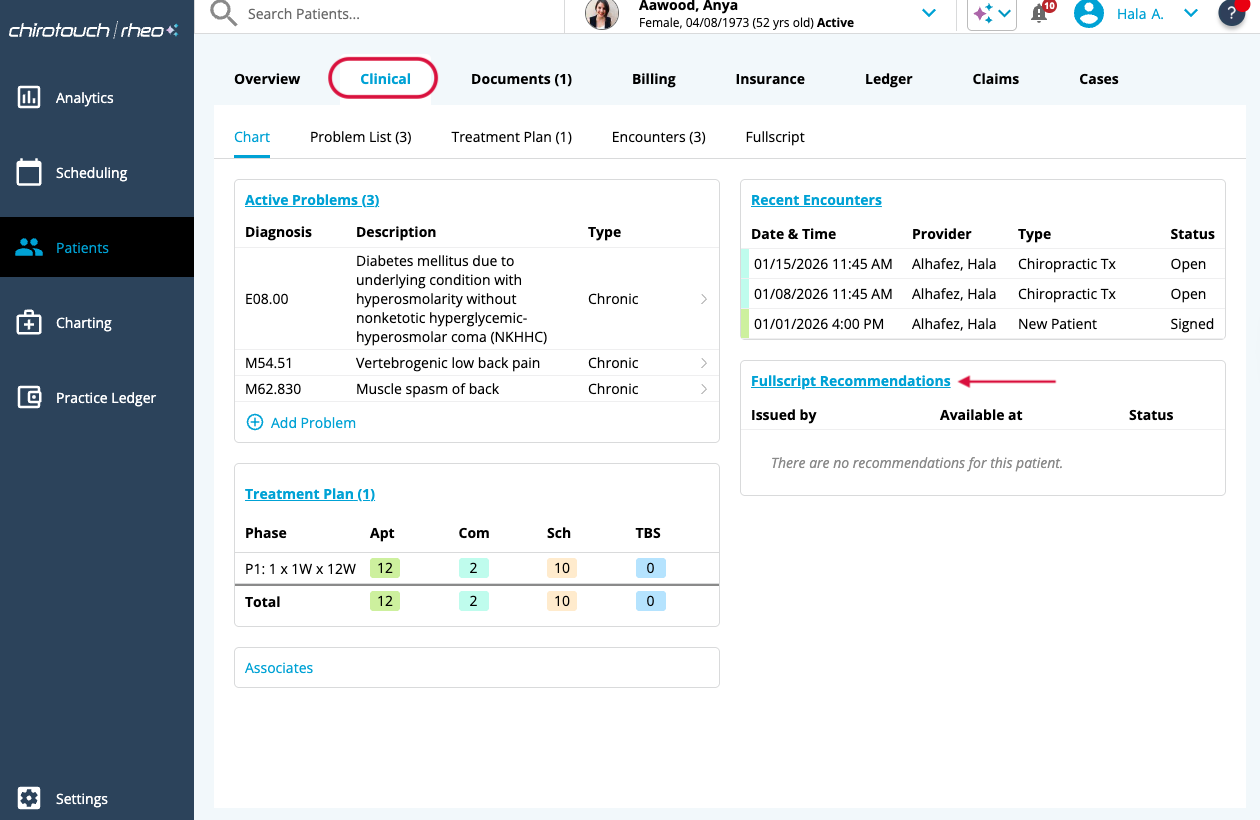
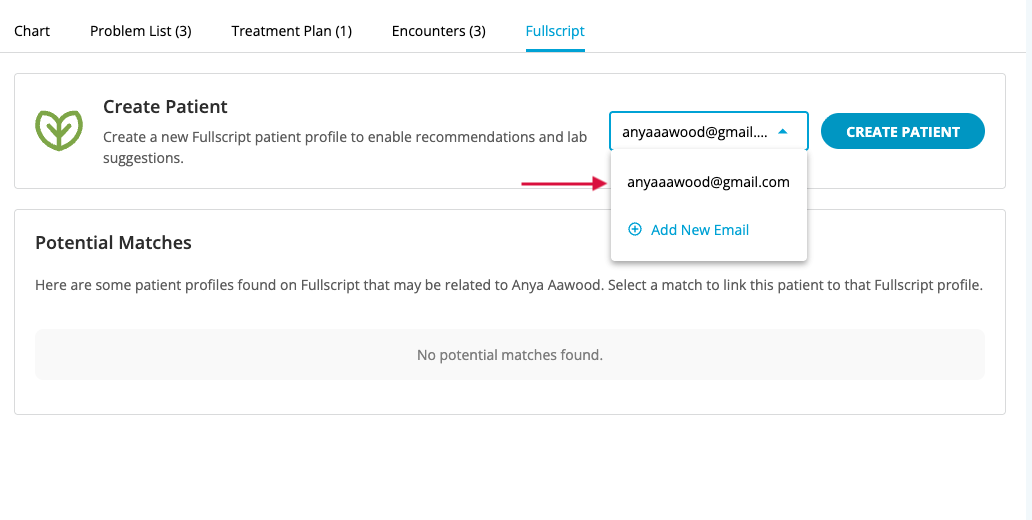
- Select the ChiroTouch patient from the dropdown. If the patient isn’t in your Fullscript account, select Create Patient.
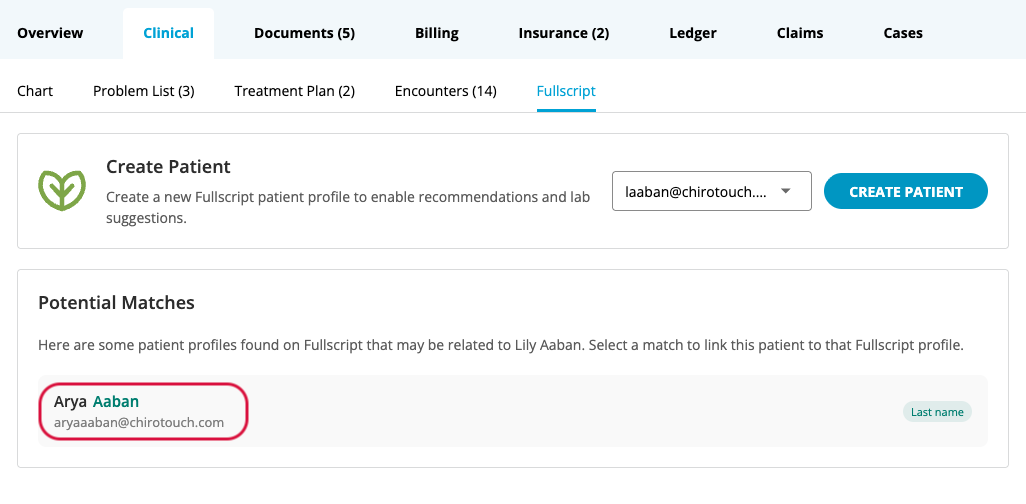
- If the ChiroTouch patient already exists in your Fullscript account, select the matching record to link.
- Click Recommend with Fullscript to open the embedded plan tool.
From the Charting Tab:
- Open Charting and select the patient’s chart.
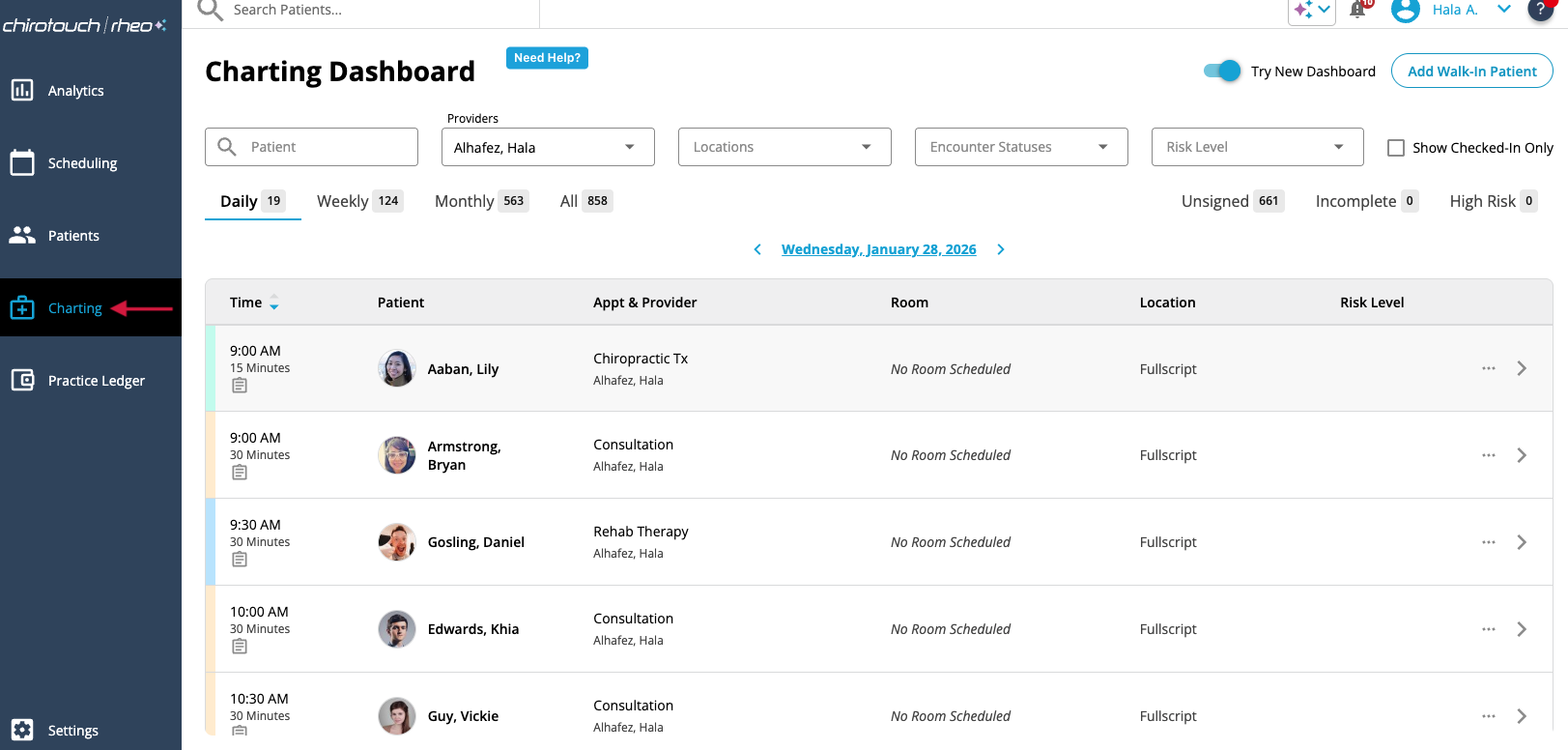
- Click on Chart Notes to expand, then click Fullscript to launch the Fullscript experience.
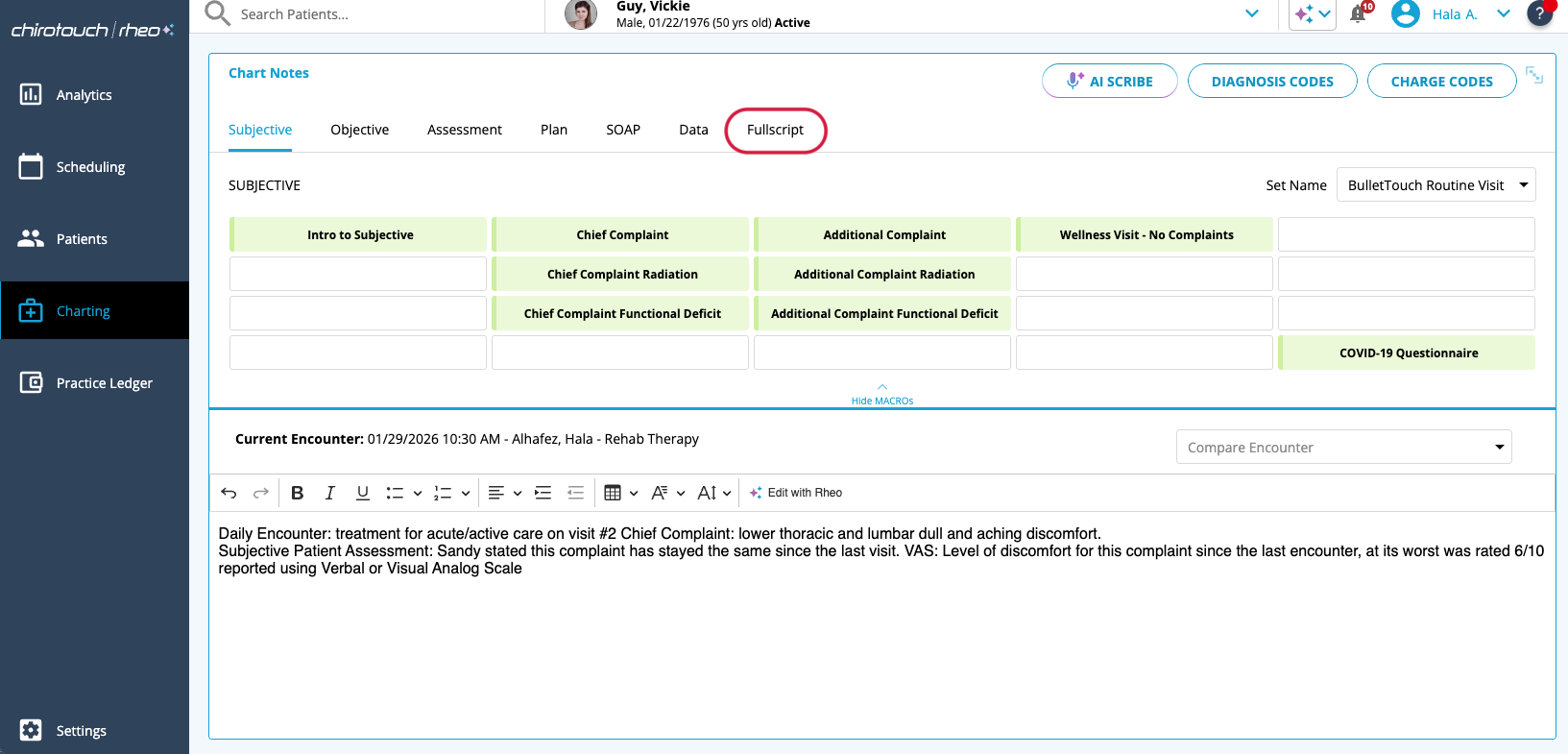
- In the patient selector, choose the ChiroTouch patient. If the patient isn’t in your Fullscript account, click Create Patient; otherwise select the matching record to link. If previously matched, this step is skipped.
- Click Recommend with Fullscript to open the embedded plan tool.
Creating Fullscript recommendations in ChiroTouch
- After you click Recommend with Fullscript, the embedded Fullscript module opens.
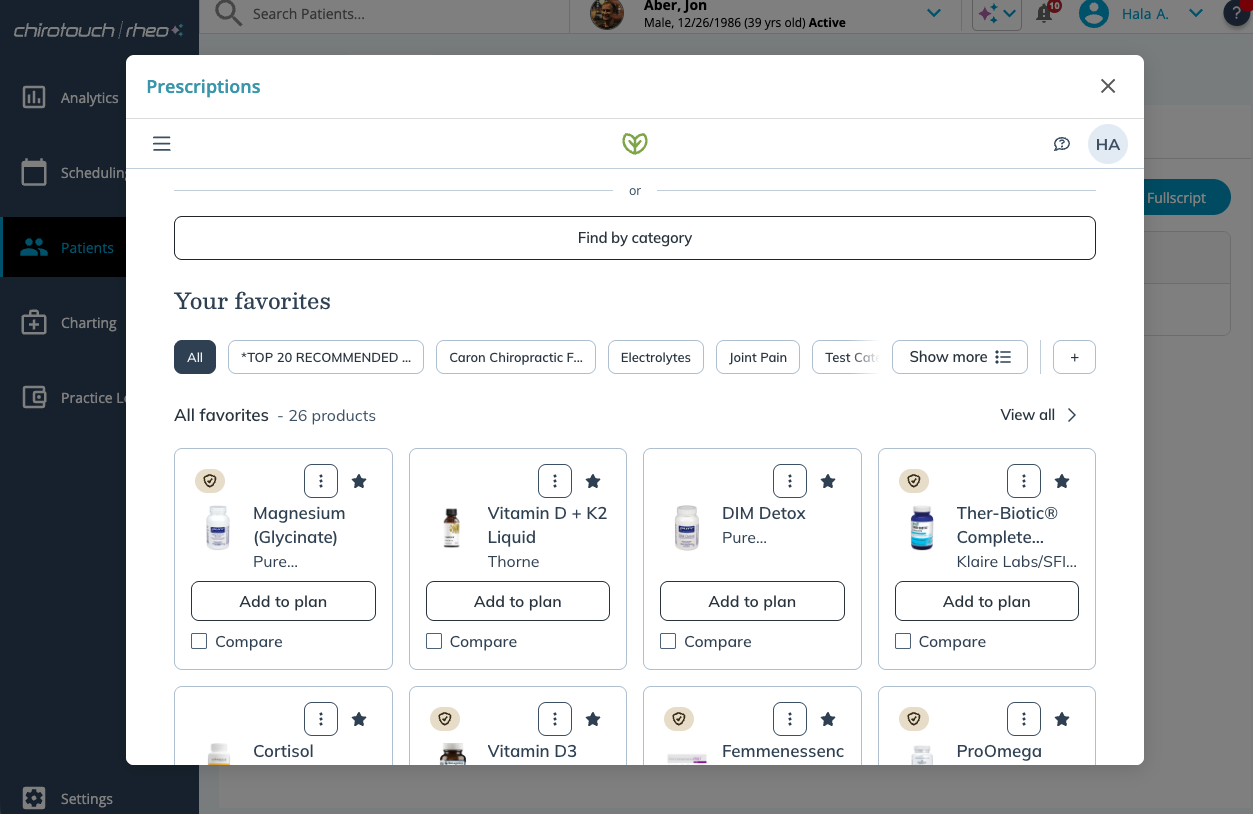
- Add supplements: search for products and add them to the plan.
- Add labs: select Labs in the left panel and browse the lab catalog.
- When finished, select Review Plan, then Send to Patient.
- The patient receives an email from Fullscript with the plan and instructions to access it.
Where Fullscript plans appear in ChiroTouch
- Fullscript recommendations always sync to the Fullscript tab—whether you launch from Patient or Encounter.
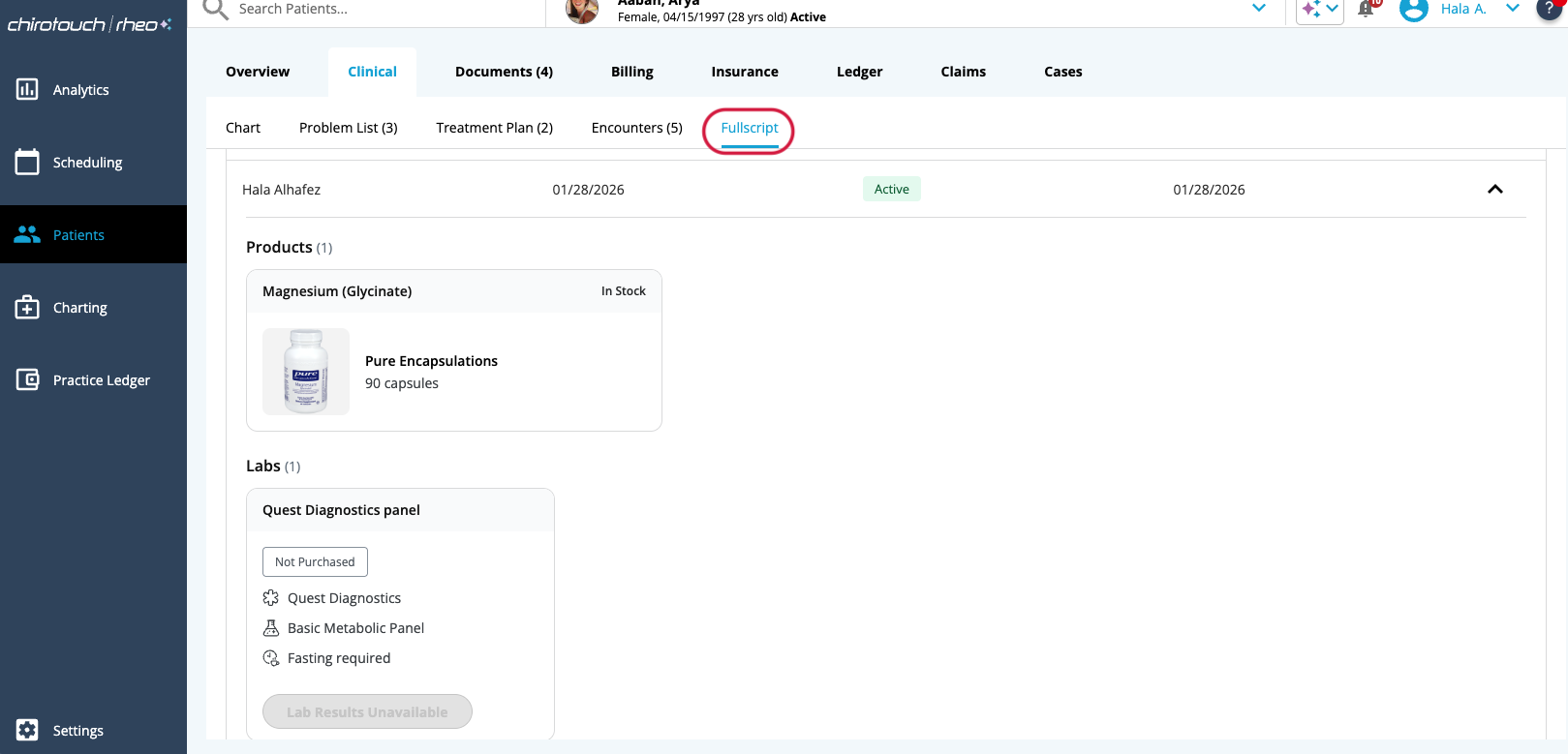
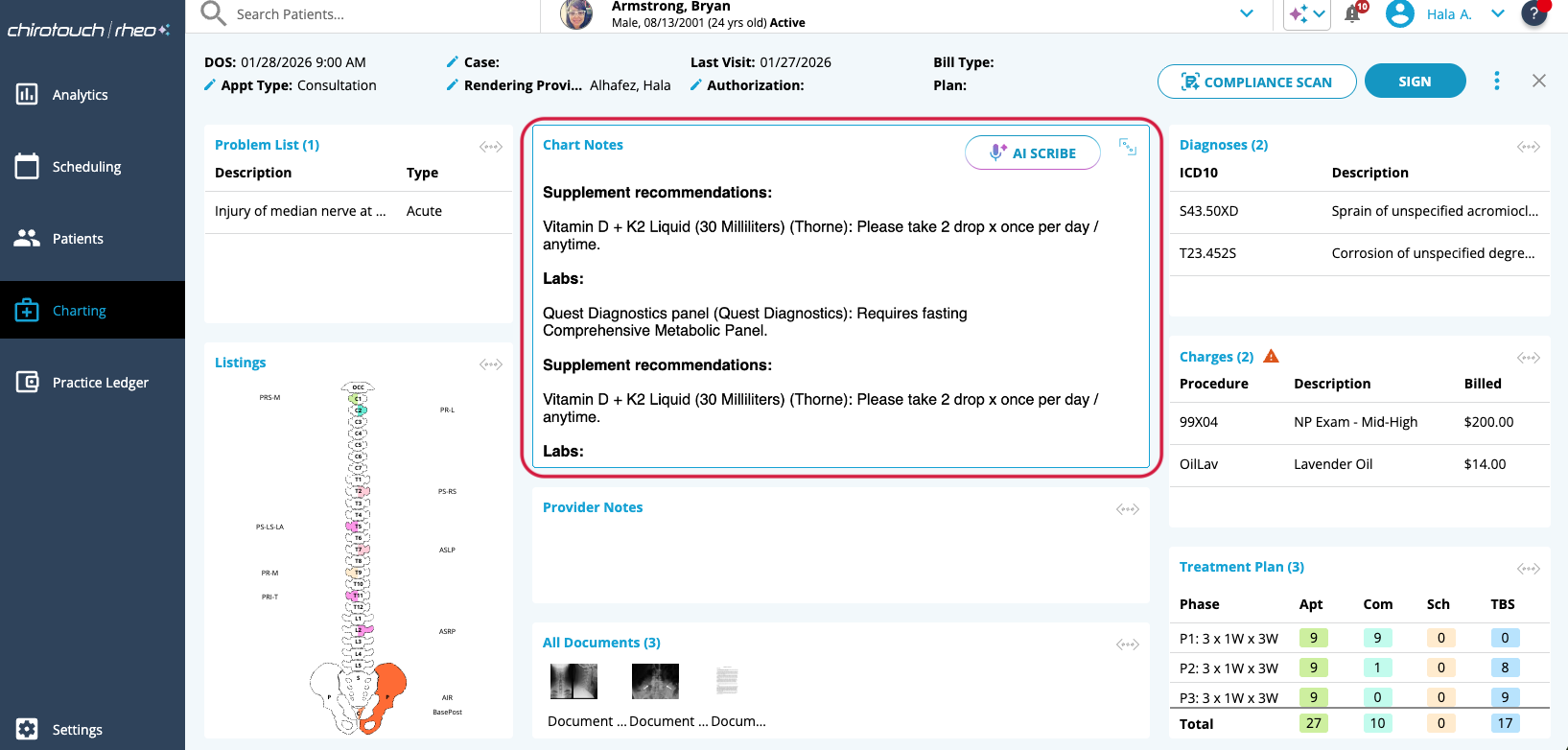
- If you recommend from Chart Notes, the recommendation also appears as plain text in Chart Notes as a Plan.
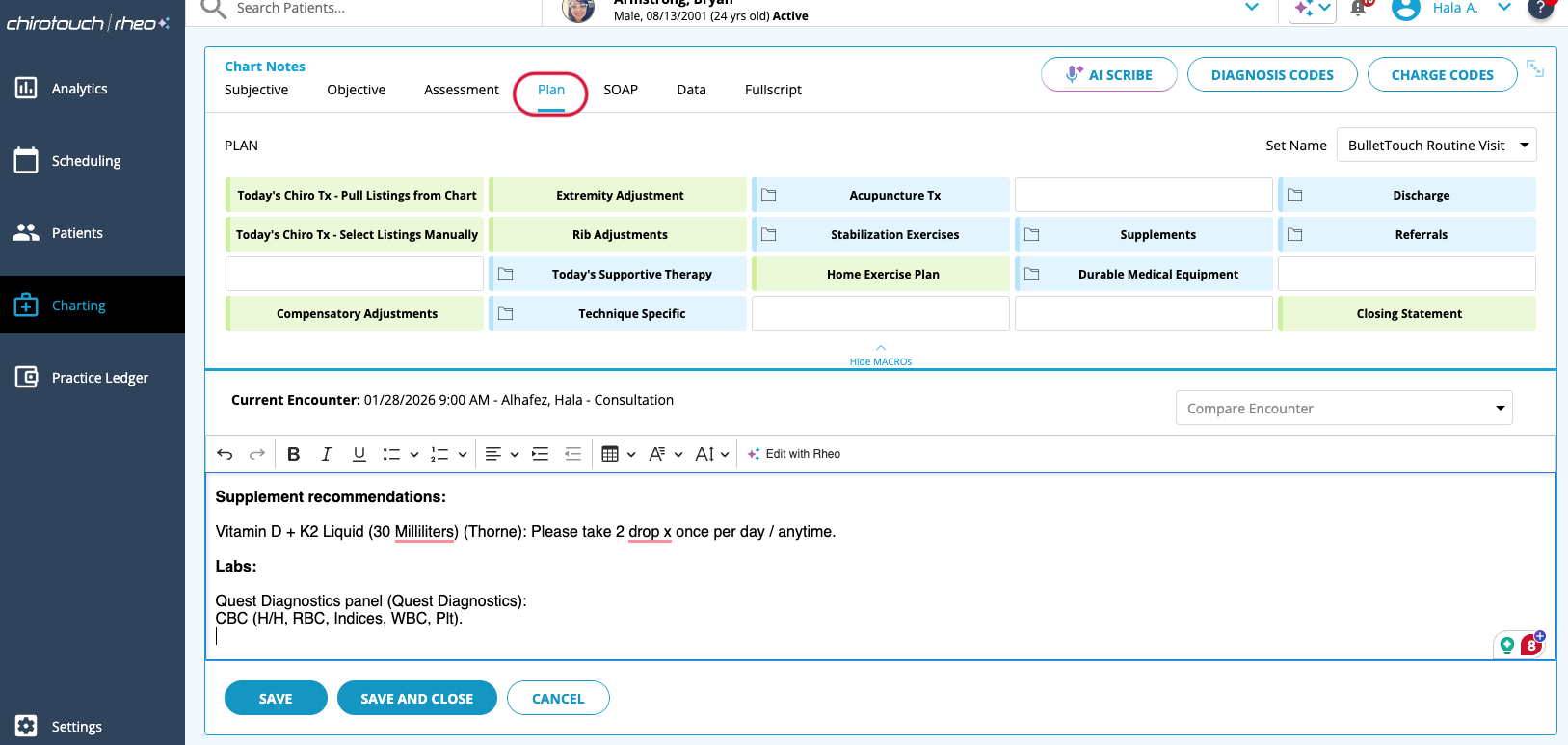
- The plan is additionally visible in the Chart Notes summary.
Viewing lab results in ChiroTouch
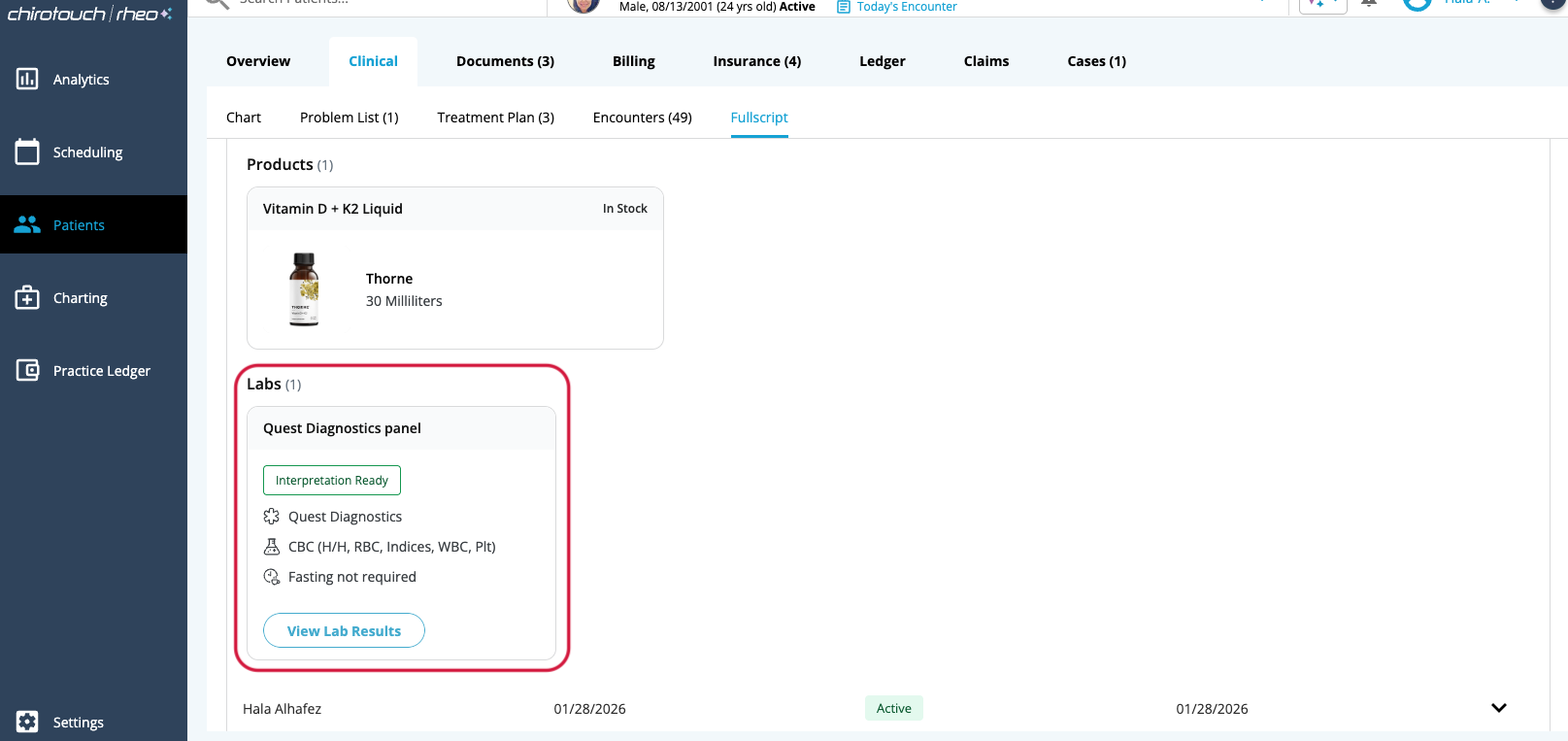
When lab results are ready, access the PDF in the Fullscript tab. You can reach it from the Patient tab or from Scheduling, then Encounter Summary.
Disconnect Fullscript from ChiroTouch
Use these steps if the wrong dispensary was connected or you need to relink.
From ChiroTouch
- Log in and open Settings > Practice Settings > Fullscript Integration.
- Select Disconnect from Fullscript.
From Fullscript
- Under ChiroTouch, select Disconnect.
- Go to Settings > Integrations.
Frequently asked questions
I am on ChiroTouch classic/server, how can I use the Fullscript integration?
The Fullscript integration is available only in the ChiroTouch cloud. Please contact your account manager to upgrade to ChiroTouch Cloud to use the Fullscript integration.
How much does ChiroTouch cost?
Pricing for ChiroTouch is available on their website here. The best place to begin is by booking a demo. A ChiroTouch specialist will walk you through the platform, including its AI capabilities, workflows, and cloud features.
Can my staff use Fullscript in ChiroTouch?
Yes, your staff added to ChiroTouch can use Fullscript. Make sure you add them as staff in Fullscript first before they connect their Fullscript and ChiroTouch accounts. Staff in ChiroTouch can access and recommend supplements on your behalf if they have “Charting Access: in ChiroTouch.